Introduction
Many users first register a messaging app on an Android phone and only later install the Windows version. That sequence is convenient because the phone is usually available for verification codes and immediate alerts. However, adding a desktop session without planning can create scattered files, duplicate notifications, and forgotten logins on older computers.
A reliable cross-device setup involves more than completing two installations. Users should verify the download source, protect the account, decide where attachments will be stored, configure different notification roles for each device, and review active sessions regularly. Handling these details from the beginning makes switching between Android and Windows more predictable and reduces the risk of losing important files.
Prepare the Account and Devices Before Installation
Before downloading the app, confirm that the phone number intended for registration can receive verification codes. The Android device should have a stable network connection, and the Windows computer should be running a supported operating system with permission to install software.
Check available storage on both devices. The application itself may be relatively small, but photos, videos, PDFs, voice notes, and other attachments can accumulate quickly. Back up any existing files that cannot be replaced, especially when moving from an older phone or reinstalling a desktop client.
The Windows computer should be personal or otherwise trusted. Avoid establishing a long-term account session on a public computer, a shared workstation, or a browser profile that other people can access. A private device with a login password provides a safer foundation for the rest of the setup.
Confirm the Official Download Source
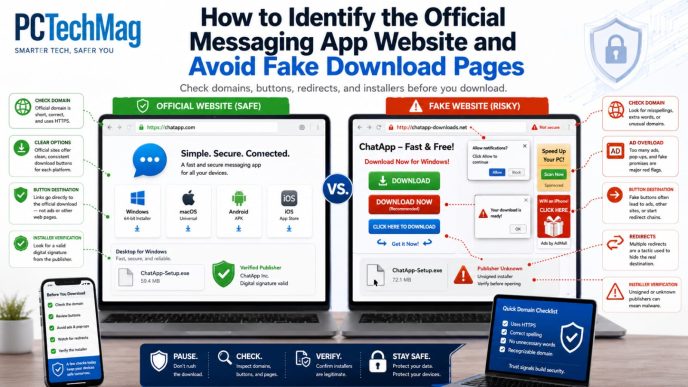
The first search result is not always the safest download path. Search advertisements, lookalike domains, and third-party directories may use familiar logos while directing users to unrelated installers or pages filled with misleading buttons.
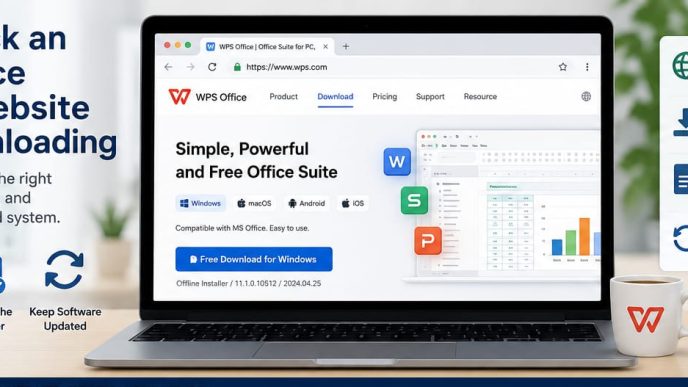
Inspect the domain spelling, HTTPS connection, and overall page structure. A credible download page should distinguish clearly between Android and Windows versions, identify the intended file or store listing, and avoid forcing users through unrelated promotional screens. Users researching the 土豆官网 should examine whether the surrounding page provides consistent platform information and a clear download route rather than relying on the keyword alone.
On Windows, check the file name and extension before running the installer. Common installer formats include .exe and .msi. An unexpected archive, script, or executable with an unclear name deserves additional verification. On Android, use a recognized app distribution path unless there is a specific and well-understood reason to install a package manually.
Install the Mobile Version First
For most users, Android is the simplest device on which to establish the account. Install the mobile version from the verified source, then review the displayed application name, publisher information, and permission requests before continuing.
Complete phone-number verification and enter the code only inside the legitimate login process. Never forward a verification code through chat or provide it to someone claiming to be an administrator or support representative.
After login, select the preferred interface language and configure basic notification permissions. Review automatic media downloads at the same time because unrestricted downloads can consume storage and make later file organization more difficult. The phone can then serve as the primary reference device when the Windows session is added.
Install and Connect the Windows Version
Download the appropriate Windows installer and confirm that it came from the source already reviewed. The setup should not require unrelated utilities, browser extensions, or bundled software.
After installation, sign in with the same account used on Android. Depending on the application, this may involve entering a phone number, receiving a code, scanning a login prompt, or approving the session from the mobile device.
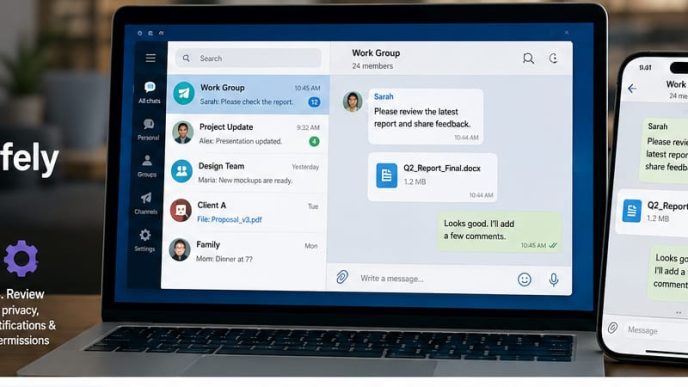
Check the phone for a new-device alert and verify that the Windows computer is recognized. Then confirm that recent chats, contacts, and available attachments appear as expected. Open a conversation on one device and continue it on the other to test whether the account behaves consistently before relying on the desktop version for important work.
Choose a Dedicated Download Folder
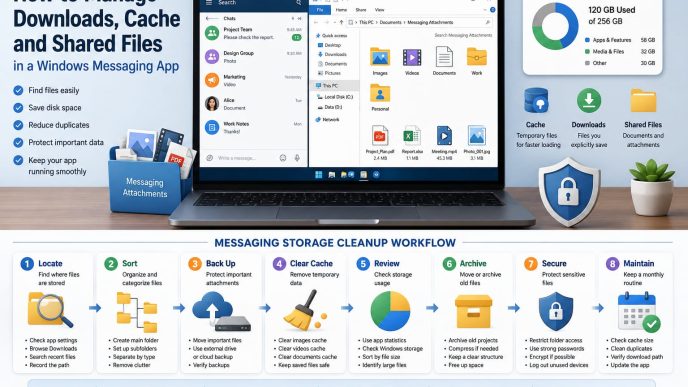
Default download directories become cluttered quickly. Instead of saving every attachment in the general Windows Downloads folder, create a dedicated messaging folder inside Documents or another location that is easy to back up.
Subfolders can separate images, documents, videos, voice notes, or individual projects. Consistent file names also help users identify the current copy of a document. When considering 土豆下载 options for Android and Windows, file organization should be planned alongside installation because the long-term experience depends on where attachments are saved and how easily they can be found.
Avoid keeping several uncontrolled copies of the same file. Decide which device or folder will contain the working copy and where final versions will be stored. On Android, check whether media is saved to the gallery, a file-manager directory, or application-specific storage so that an attachment is not mistaken for a lost file.
Configure Notifications on Both Devices
Cross-device messaging is easier to manage when the phone and computer have different notification roles. Android can retain immediate alerts for direct messages and urgent updates, while Windows can be limited to selected chats, work conversations, or high-priority channels.
Disable duplicate sounds when both devices are nearby, and configure quiet hours or do-not-disturb periods. Lock-screen previews should be reviewed as well; users who handle sensitive conversations may prefer a generic alert without displaying the message content. The objective is not to enable every alert everywhere, but to maintain visibility without constant interruption.
Review Active Sessions and Device Security
Once both devices are connected, open the account’s session or device-management area. Confirm that every listed phone, tablet, or computer is recognized. End sessions associated with old laptops, test devices, borrowed machines, or equipment that has been sold or returned.
Protect the Windows account with a strong local sign-in method and avoid saving messaging credentials in shared browser profiles. If a phone or computer is lost, terminate its session promptly and review recent account activity. Multi-device access is useful only when users maintain control over every active endpoint.
Fix Common Cross-Device Problems
If messages do not appear on Windows, check the network connection, confirm that the correct account is active, and update both versions of the app. Some content may behave differently depending on platform settings, so compare the problem on the mobile device before reinstalling anything.
When downloaded files cannot be found, inspect the desktop download location and the Android file manager. Notification mismatches usually come from different operating-system permissions or in-app alert settings. If verification codes do not arrive, recheck the phone number, network availability, and whether the number can receive messages normally.
Repeated desktop logouts may be related to an outdated build, unstable connectivity, account session limits, or local security software. If an installer will not run, confirm that the download completed, the file type is expected, and Windows has not blocked it because the source or publisher information is unclear.
Create a Simple Monthly Maintenance Routine
A short monthly review prevents small issues from becoming long-term clutter or security risks. Clear unnecessary cache and duplicate attachments, inspect active devices, update the Android and Windows versions, and back up files that would be difficult to replace.
Revisit automatic-download and notification settings because usage patterns change over time. A user who originally needed every desktop alert may later prefer phone-only notifications, while a project folder that was once active may be ready for archiving. This routine usually takes only a few minutes but keeps the setup understandable and controlled.
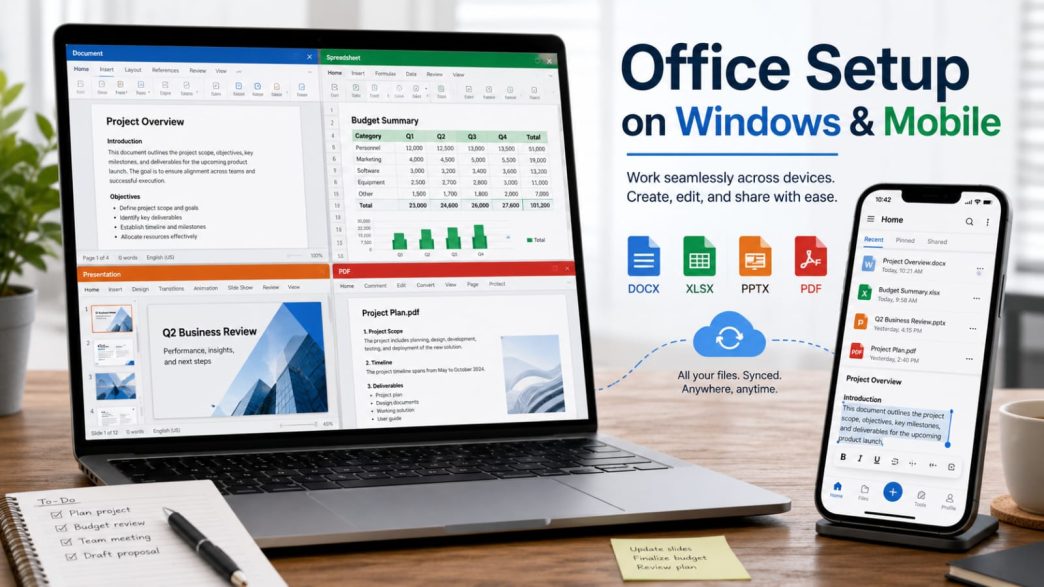
Android-to-Windows Messaging Setup Workflow
Eight practical steps: prepare devices, verify the source, install mobile and desktop versions, organize files, configure notifications, review sessions, and maintain the setup.
Conclusion
Using a messaging app across Android and Windows is not simply a matter of installing two versions. Verified download sources, organized attachment folders, sensible notifications, and regular session reviews determine whether the arrangement remains reliable over time.
Users who plan these details early are less likely to lose files, miss important messages, or leave old devices connected by mistake. Cross-device communication works best when convenience is supported by clear storage rules, secure account behavior, and routine maintenance.