Introduction
Popular messaging applications are frequent targets for imitation download pages. Attackers know that many people search for an app name followed by words such as “download,” “Windows,” or “desktop,” then click the first result without checking who controls the page.
A copied page may reuse a familiar logo, interface colors, screenshots, and button styles. Some fake sites also use HTTPS and polished layouts, so appearance alone is not enough to establish trust. The resulting installer may add unwanted programs, change browser settings, capture account details, or create a path for further malware.
A safer decision comes from checking several independent signals before opening any file. Users should inspect the domain, distinguish advertising from results, examine the button destination, review platform choices, and verify the installer. These checks are far easier than recovering an account or computer after a harmful installation.
Recognize Common Fake Download Page Patterns
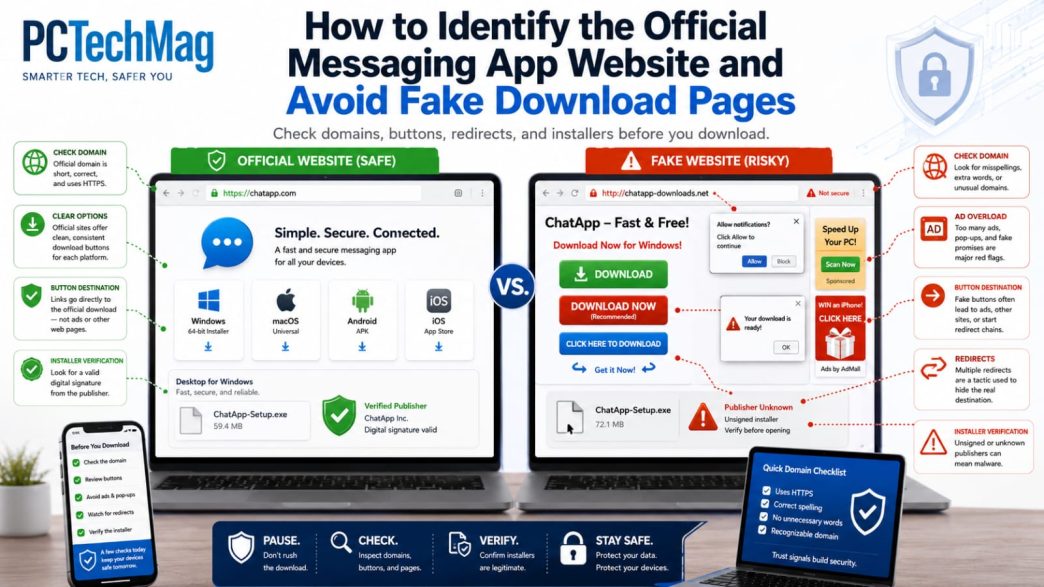
Fake download pages often rely on urgency and visual confusion. A page may display several large download buttons, although only one relates to the application. Other buttons can lead to advertising networks, browser extensions, system cleaners, or unrelated installers.
Immediate requests to allow browser notifications are another warning sign. A normal download page does not need permanent notification permission simply to deliver an installer. Granting it may lead to repeated fake security warnings and promotional messages.
Users should also pause when a page claims the computer is infected, starts a countdown, says the download will expire, requires a special download manager, opens several tabs, or demands a survey. A website cannot perform a complete Windows malware scan merely because it was opened. Chrome’s Safe Browsing guidance describes phishing, malware, unsafe extensions, malicious advertising, and social-engineering pages as risks that may trigger browser warnings. Chrome Safe Browsing
Inspect the Domain Letter by Letter
The domain is one of the strongest signals because branding and page design are easy to copy. Read the address carefully rather than recognizing only the first few letters. Look for omitted or repeated characters, numbers substituted for letters, extra hyphens, unnecessary words, and unexpected top-level domains.
Users must also distinguish a registered domain from a subdomain. In an address such as product.example.com, the controlling domain is normally example.com. A fake page can place a familiar product name at the beginning of a long address while the actual registered domain appears later.
People researching telegram 官网入口 information should treat the linked page as a resource to evaluate, not as proof that the domain is owned or certified by Telegram. Check where its buttons lead, whether the platform information is internally consistent, and whether it clearly distinguishes guidance from first-party product pages.
Where possible, compare the address with links in established developer documentation, recognized app-store listings, or a bookmark saved from a previously verified visit. Five seconds of domain inspection can prevent a much longer recovery process.
Do Not Rely on HTTPS Alone
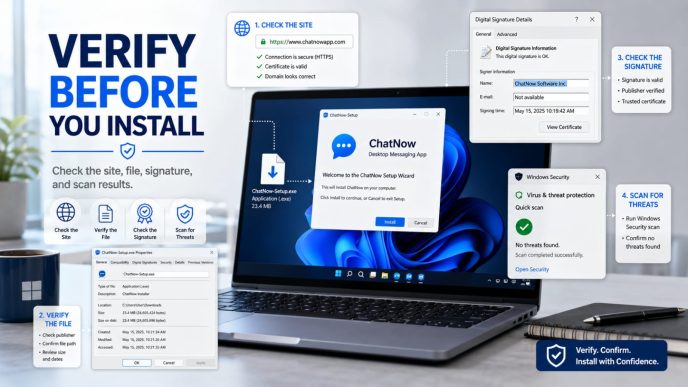
The browser padlock indicates that traffic between the browser and the website is encrypted. It does not prove that the site belongs to the company the user intended to visit. Fraudulent sites can obtain valid TLS certificates and display HTTPS while still distributing misleading or harmful files.
HTTPS should therefore be treated as a basic requirement rather than a complete trust signal. Users still need to verify the exact domain, download destination, platform options, publisher information, and installer properties. A page without HTTPS should not be used for executable downloads or account details, but a page with HTTPS still requires the remaining checks.
Separate Search Ads from Organic Results
Sponsored results can appear above ordinary search results. Their position does not establish that the advertiser is the application developer. Look for labels such as “Sponsored” or “Ad,” which may vary by search engine, device, and interface language.
Before clicking, read the displayed domain and compare it with other reliable references. Do not use the first result merely because it appears at the top, and be cautious when the displayed product name does not match the destination domain. Users who already know a verified address can type it directly or use a trusted bookmark instead of beginning with a broad search every time.
Check the Download Button Destination
On a desktop browser, move the pointer over a download button and inspect the destination displayed by the browser. The link may point to a direct file, another page on the same domain, a recognized app store, or an unrelated external host.
Short links, unfamiliar file hosts, repeated redirects, and tracking URLs that conceal the final destination deserve extra scrutiny. A third-party host is not automatically malicious, but the page should explain why it is used. An unexpected automatic download should be cancelled and deleted rather than opened.
Multiple redirects can also be used to separate the visible page from the final file host. If the browser moves through several unrelated domains, close the process and return to a better-documented source.
Review the Available Platform Options
A credible application page should clearly separate Windows, macOS, Android, iPhone or iPad, Linux when supported, and web access when available. A mobile button should lead to a recognizable app store or a clearly documented distribution path, not to a Windows executable or unrelated installer.
Telegram’s own applications page, for example, separates Android and iPhone or iPad apps from desktop options for Windows, macOS, and Linux, as well as web clients. Users can use that first-party structure as a comparison point when assessing an unfamiliar page. Telegram Apps
Version information and system requirements are also useful. A page that offers one generic button without identifying the operating system, version, or update context may be copying promotional content rather than maintaining a reliable software resource.
Inspect the Installer Before Opening It
After downloading a Windows installer, pause before running it. Confirm that the file name relates to the expected application and does not contain an unrelated product name, a misleading double extension, or random characters designed to hide its purpose. Windows File Explorer can display file-name extensions so a file such as setup.pdf.exe is not mistaken for a document.
Right-click the file, open Properties, and review the file type, source folder, size, timestamps, publisher information, and Digital Signatures tab when present. Microsoft documents that executable signatures can be inspected through file properties. Microsoft Defender SmartScreen also considers factors such as application reputation and the digital signature used to sign a file. Microsoft Defender SmartScreen
When users encounter wording such as telegram 官方下载, they should still verify the resulting installer independently. A heading or anchor phrase cannot replace checking the file properties, expected publisher, digital signature, browser warnings, and security scan.
A signature is helpful only when the signer matches the expected publisher. Do not disable SmartScreen or antivirus protection simply because a file refuses to run. The warning may indicate low reputation, an unsigned program, or a known threat that requires further investigation.
Review Privacy, Support and Update Information
A legitimate-looking download button is not enough. Review whether the site provides privacy information, terms, support or frequently asked questions, account-security guidance, release notes, and contact details.
These pages can also be copied, so check whether they identify the same organization and remain on the expected domain. Missing, contradictory, or poorly maintained documentation is another warning signal. A messaging-app download page should not be surrounded by unrelated gambling offers, deceptive system cleaners, or random downloads.
What to Do If a Suspicious File Was Downloaded
Downloading a suspicious file does not necessarily mean the computer has been compromised, provided the file was not opened. Cancel an active download, delete the file, review the browser’s download history, close the suspicious page and its pop-ups, and run a security scan.
Inspect recently added browser extensions and check whether the homepage, default search engine, or notification permissions changed. Chrome’s guidance on unwanted software lists persistent pop-ups, unfamiliar redirects, unwanted extensions, and fake virus alerts among symptoms that deserve investigation. If several files arrived, review all of them rather than assuming only the most recent one is related. Chrome unwanted-software guidance
What to Do If the File Was Already Installed
If the installer was opened, respond more cautiously. Review recently installed applications and remove unfamiliar programs, especially anything added at the same time. Run a full security scan rather than only a quick scan, and inspect browser extensions, startup applications, new user accounts, scheduled tasks, changed settings, and unexpected security exclusions.
Change passwords for accounts that may have been exposed, beginning with email and other recovery accounts. Make those changes from a trusted device rather than the affected computer. Review the messaging account’s active sessions and terminate unfamiliar or unused devices. Telegram’s FAQ, for example, directs users to Settings > Devices or Privacy and Security > Active Sessions for session review. Telegram FAQ
If redirects, unknown processes, or repeated security warnings continue, a controlled system recovery or professional technical assistance may be necessary. Do not keep using a potentially compromised device for sensitive communication while the cause remains unresolved.
Final Fake Download Page Checklist
Before downloading, confirm the following: the domain is spelled correctly; HTTPS is present; the page avoids fake alerts and excessive pop-ups; the result is not trusted merely because it is an advertisement; the button leads to an expected domain or store; platform choices are clearly separated; the installer name and publisher can be checked; security software does not report an unexplained risk; and the site provides coherent privacy, support, and update information.
No single signal proves legitimacy. Trust should come from several details that agree with one another. When the domain, platform page, download route, and installer information conflict, the safest response is to stop.
Conclusion
Identifying a fake messaging-app download page requires more than recognizing a familiar logo or seeing a browser padlock. Users should inspect the domain, separate advertisements from normal results, examine link destinations, compare platform choices, and verify Windows installers before opening them.
The safest decision comes from combining checks. If the page creates urgency, hides its destination, distributes an unverifiable installer, or lacks coherent support information, users should leave rather than assume the download is legitimate.
Six visible red flags and a five-step verification checklist for messaging-app downloads.