Introduction
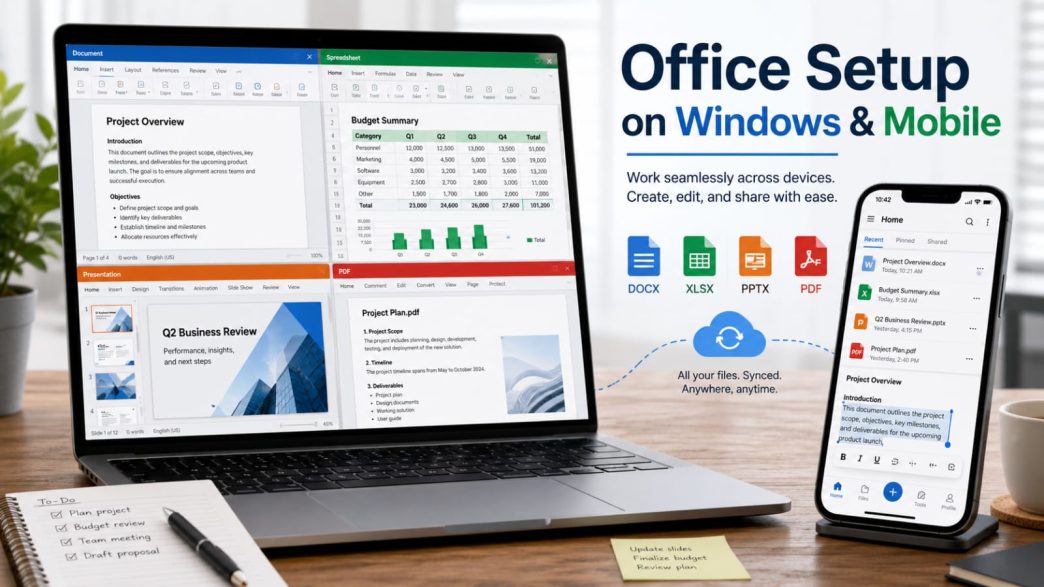
Many office users now work on the same files from both a Windows computer and a mobile device. A report may be created on a laptop, reviewed on a phone, edited again on Windows, and finally exported as a PDF for sharing. This flexibility is useful, but simply installing an office application on two devices does not guarantee a consistent workflow.
Files can display differently when devices use different fonts, page settings, application versions, or storage locations. A document may open successfully on both devices while still showing changed line breaks, moved images, altered spreadsheet formatting, or duplicated versions.
The best time to prevent these problems is during the initial setup. Users should decide which device will be used for primary editing, verify the correct software version, configure default file associations, choose a shared storage location, and test compatibility before relying on the workflow for important documents.
Decide How Each Device Will Be Used
Before installing anything, decide what role each device will play.
A Windows computer is usually the best primary editing device. It provides a larger screen, a physical keyboard, precise pointer control, and easier access to folders. These advantages make Windows suitable for creating long documents, working with complex spreadsheets, adjusting presentation layouts, and performing final PDF checks.
A smartphone is better suited to viewing files, reading comments, adding short annotations, signing or approving documents, and making quick corrections. Although mobile office applications can edit documents, detailed formatting is often more difficult on a small screen.
A tablet can serve as a middle option. It is useful for presentations, mobile meetings, reviewing large PDFs, and light document editing.
Assign one device as the main editing environment. When several devices modify the same file at the same time, users may create conflicting versions or overwrite recent changes. A clear division of responsibilities reduces this risk.
Check Windows and Mobile System Requirements
Confirm that each device can run the selected office software before downloading it.
On Windows, check the operating system version and whether the computer uses a 32-bit or 64-bit architecture when the installer provides different options. Make sure there is enough free disk space for the application, updates, temporary files, and local document storage.
Install current Windows security and stability updates before beginning. An outdated system may cause installer errors or compatibility problems.
For mobile devices, check the supported Android or iOS version and confirm that sufficient storage is available. Older phones may install the application but perform poorly when opening large presentations, image-heavy documents, or complex spreadsheets.
Security software should remain enabled during installation. If a legitimate installer is unexpectedly blocked, verify the source and publisher rather than disabling protection completely. Unknown installers should not be allowed simply because they are inconvenient to scan.
Verify the Desktop Download Page
The desktop download source should be checked before any installer is opened.
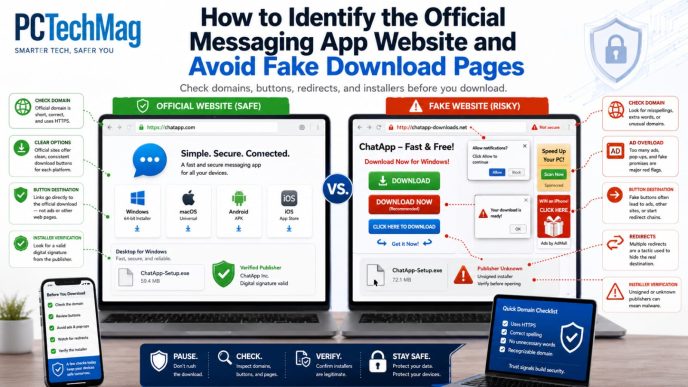
Read the website address carefully and confirm that the connection uses HTTPS. Do not rely only on logos, colors, or claims such as “official download.” Similar-looking domains and third-party download pages may imitate the appearance of a legitimate software website.
The page should clearly identify the Windows version and provide reasonable information about the installer, such as its file name, format, current version, or supported system. If the page provides the same unidentified file for Windows, macOS, and mobile devices, the download structure should be treated cautiously.
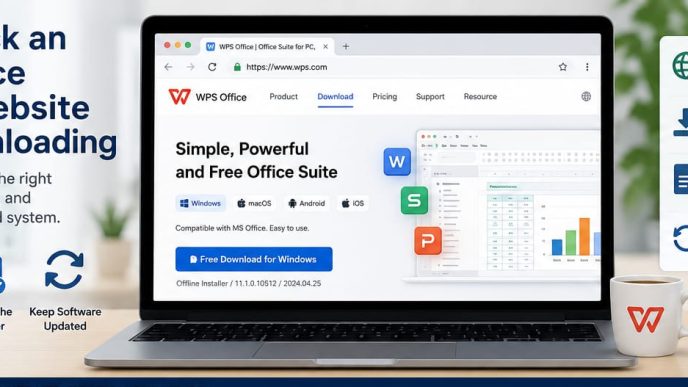
When checking a source for wps电脑版, users should verify that the page clearly relates to the Windows desktop version and that the download information matches their device. The domain, installer details, operating-system label, and download behavior should all be consistent.
Avoid modified, “cracked,” or unofficially repackaged versions. Such packages may remove update functions, change application components, include unrelated software, or create security risks. A free office application does not require an unknown modified installer to function.
Install the Windows Version Safely
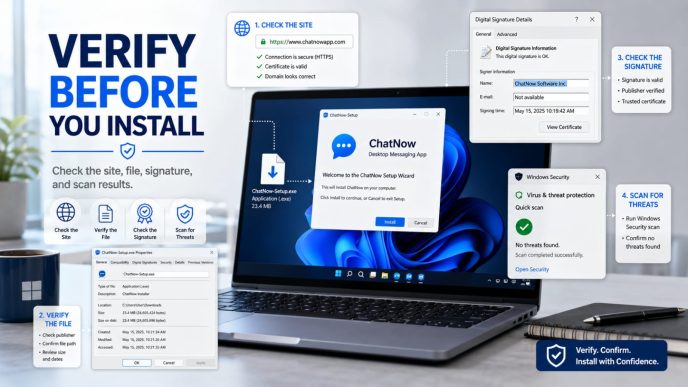
After downloading the installer, inspect the file before running it.
Check the file name, extension, approximate size, and publisher information in the Windows file properties. Unexpected names, unusual extensions, or missing publisher details should be reviewed carefully.
Close unnecessary applications before installation, especially other office programs that may be using shared file components. This can reduce installation conflicts and make it easier to restart the computer if required.
During setup, read each screen instead of repeatedly selecting the default option. Confirm the installation path and look for optional settings such as desktop shortcuts, automatic startup, file associations, browser changes, or additional software.
Do not install components that are unrelated to the office application. If the installer attempts to add unknown utilities, browser extensions, or download managers, cancel the process and verify the source again.
After installation, open the application once and confirm that the main document, spreadsheet, presentation, and PDF tools start normally. Check for available updates before opening important files.
Configure Default File Associations
Windows may have several applications capable of opening the same document type. Without clear default settings, files may open in different programs depending on how they are accessed.
Set the preferred office application as the default for formats such as DOCX, XLSX, PPTX, and PDF when appropriate. This can be done through Windows default-app settings or by selecting “Open with” and choosing the desired application.
Avoid repeatedly allowing different office programs to compete for the same file associations. Inconsistent defaults can confuse users and make compatibility problems harder to diagnose.
Test the settings by double-clicking one file of each important type. Confirm that the expected application opens and that the content displays correctly.
Also check the right-click menu and recent-file list. These shortcuts can improve productivity, but recent-file history may expose document names on shared computers. Clear or disable recent-item records when privacy is important.
Install and Configure the Mobile Version
Install the mobile application through a trusted mobile source. On Android and iOS, users should verify the application name, publisher information, update history, and permissions before proceeding.
When choosing wps手机版, the mobile setup should support the role already assigned to the phone or tablet. For most users, this means viewing, commenting, approving, sharing, and making limited edits rather than replacing the Windows computer as the main production environment.
Grant only the permissions needed for normal use. Storage or file-access permission may be necessary to open local documents. Notification access is optional and should be configured according to whether the user needs editing, sharing, or approval alerts.
Choose a clear default save location. Files may be stored locally, in a synchronized folder, or in an approved cloud service. Avoid saving some documents in the phone’s downloads folder and others inside unrelated app directories without a clear system.
Test four basic actions after installation: open a document, make a small edit, save the change, and share or reopen the updated file. This confirms that the mobile application can access the intended storage location.
Test Document Compatibility
Before relying on the setup for important work, test representative files.
Start with a document containing headings, tables, images, page breaks, and more than one font style. Open it on Windows and mobile, then compare page structure, image placement, and text wrapping.
Next, test a spreadsheet with formulas, merged cells, conditional formatting, and date or currency formats. Verify that formulas produce the same results and that cell formats remain intact.
For presentations, inspect slide dimensions, text boxes, charts, images, and speaker notes. Mobile previews may simplify certain effects, so final presentation design should still be checked on Windows.
Test PDF annotation and export as well. Add a comment or highlight on mobile, reopen the file on Windows, and confirm that the annotation remains visible. Export a document to PDF and verify that margins, page breaks, and fonts are preserved.
Compatibility should be tested with real working files, not only with empty documents.
Desktop and Mobile Office Setup Checklist
Create a Consistent File Naming System
A simple naming system prevents duplicate and unclear versions.
Include the project name, document type, date, and version number. For example: ProjectName_Report_2026-07-19_v03.docx.
Use clear status terms such as Draft, Review, Approved, and Final. These labels should have defined meanings. “Final” should only be used after approval, not every time a user finishes an editing session.
Avoid vague file names such as “new,” “latest,” “final-new,” or “updated-copy.” They become especially confusing when several versions are downloaded through messaging apps or mobile browsers.
Only one file should be designated as the authoritative final version. Older drafts can be archived in a separate folder rather than mixed with active working files.
Prevent Formatting Conflicts
Common fonts are more likely to display consistently across Windows and mobile devices. Specialized fonts may be replaced when they are unavailable on another device, changing line breaks and page layouts.
Use a fixed page size, margin structure, heading style, and paragraph spacing for documents that will move between devices. Shared templates can reduce variation.
Avoid complex page design on a phone. Mobile editing is suitable for text corrections and short additions, but detailed image positioning, section breaks, advanced tables, and presentation alignment should be completed on Windows.
Before exporting a final PDF, review the document on the primary Windows computer. Check pagination, headers, footers, tables, formulas, and image quality.
Whenever a file has been edited on another device, inspect it again before distribution. A change that appears minor on mobile may affect layout elsewhere in the document.
Troubleshoot Common Installation and File Problems
If the Windows installer does not start, confirm that the file is complete, matches the operating system, and was obtained from a trusted source. Restart Windows and try again with unnecessary applications closed. Do not bypass security warnings without first identifying their cause.
When document fonts change, install the required licensed font where permitted or replace it with a common cross-device alternative. Recheck page breaks after changing fonts.
If spreadsheet formulas display errors, confirm that the mobile application supports the functions used in the original file. Also check regional number formats, decimal separators, date formats, and external data references.
When a mobile application cannot locate a file, review its storage permissions and confirm whether the document is stored locally, in a downloads folder, or in a cloud account that has not been connected.
If a PDF export shows shifted pages, return to Windows and check page size, margins, hidden objects, and embedded fonts before exporting again.
Multiple duplicate versions usually indicate that users are downloading the same attachment repeatedly or saving copies in several locations. Move the authoritative file to one approved folder and archive or delete outdated duplicates.
Conclusion
Windows and mobile office applications should be configured as parts of one complete workflow rather than as two unrelated installations.
The Windows computer should normally serve as the primary creation and formatting environment, while the mobile device supports viewing, annotation, approval, and limited editing. Consistent file formats, default applications, storage locations, fonts, naming rules, and version controls are more important than simply having the software installed.
By verifying download sources, configuring both devices carefully, and testing real documents before regular use, ordinary office users can create a reliable cross-device setup with fewer formatting conflicts, duplicate files, and installation problems.