Introduction
Messaging applications often require access to a phone number, notifications, local storage, contacts, a camera, or a microphone. Some of these permissions support normal communication features, but they also make the installation and first-login process more sensitive than installing a basic utility.
Choosing the wrong version, downloading from an unclear source, sharing a verification code, or leaving an account active on an old device can create avoidable security and privacy problems. Even when the application itself works correctly, unsafe installation habits can expose the user to misleading websites, modified installers, unnecessary permissions, or unauthorized account sessions.
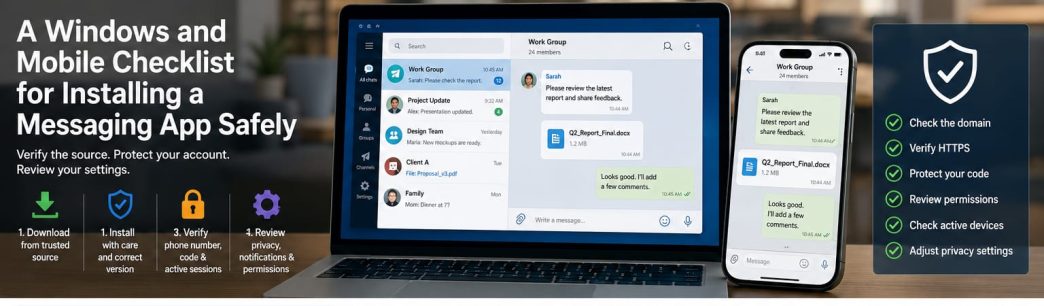
A safer approach is to divide the setup process into four stages: download, installation, verification, and post-installation review. Each stage has its own checks. Users should verify the source before downloading, review permissions during installation, protect the verification process, and inspect active sessions and privacy settings after login.
Start with the Website, Not the Download Button
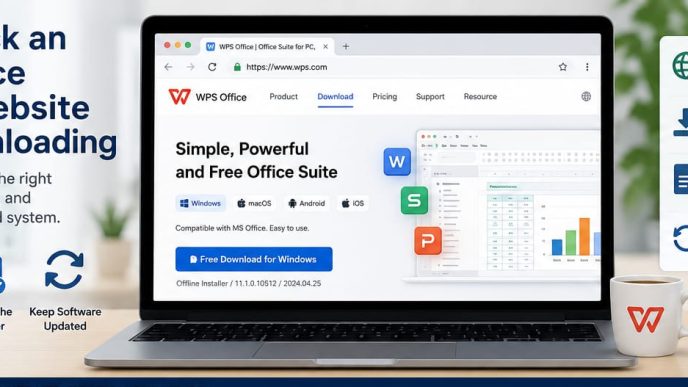
The first security check should begin before any file is downloaded.
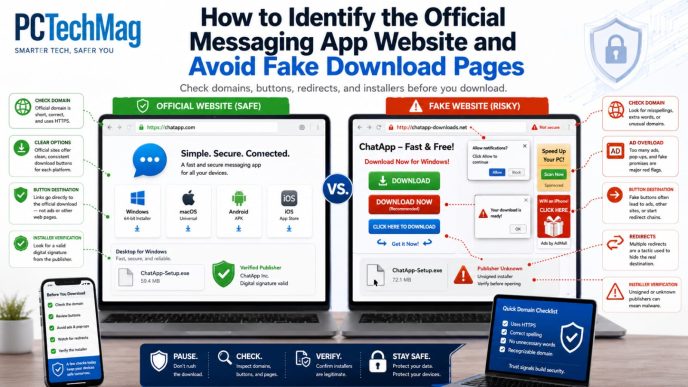
Read the complete website address carefully. Look for missing letters, additional words, unusual numbers, extra hyphens, or unfamiliar subdomains. A page can copy the appearance of a popular messaging platform while using a domain that differs from the expected source by only one or two characters.
Confirm that the site uses HTTPS, but remember that HTTPS alone does not prove the website is official. It only means that the connection between the browser and the website is encrypted. Misleading websites can also obtain security certificates.
A trustworthy software page should normally provide more than a download button. Look for privacy information, support or help pages, terms of service, platform details, and reasonable installation guidance. Broken links, excessive advertising, multiple competing download buttons, and repeated redirects are warning signs.
Search advertisements require particular caution. A paid result may appear above an official or more reliable result, but search position does not confirm authenticity. Do not click immediately simply because the page says “Download Now.” Verify the domain and page structure first.
Choose the Correct Mobile Version
Mobile users must select the version designed for their operating system. Android and iOS applications are distributed differently, and a download intended for one platform should not be installed on the other.
Before installing, check the phone’s available storage and operating system version. An application may require a newer Android or iOS release, and insufficient storage can cause incomplete installation, update failures, or poor performance when handling large files.
Review the application name and publisher information carefully. Similar names and icons can make unrelated applications appear legitimate. On an app marketplace, inspect the developer or publisher details, update history, user reviews, required system version, and listed permissions.
When reviewing a source for 电报app下载, users should confirm that the mobile option corresponds to the correct operating system and leads to a reasonable, trusted installation path. The application name, publisher information, version details, and download destination should be consistent.
Avoid installing mobile packages sent through unknown messages, forums, file-sharing links, or unofficial support accounts. Even when an installation file uses a familiar name, its contents may have been modified.
Review Mobile Permissions Before Accepting Them
Mobile applications may request access to contacts, notifications, storage, the camera, and the microphone. Users should understand why each permission is needed instead of approving every request automatically.
Contact access may help users find people already using the platform, but it is not always necessary for basic messaging. Users who prefer not to synchronize their address book can often decline the permission initially and reconsider later.
Camera and microphone permissions are usually connected to video calls, voice messages, QR-code scanning, or media capture. These permissions can be enabled when the feature is first used rather than during initial setup.
Storage or media access may be needed to send and save documents, images, or videos. On newer mobile systems, access may be limited to selected files or specific media categories. Choose the narrowest permission that supports the intended use.
Background activity can affect battery consumption and notification delivery. Users should decide whether constant background access is necessary. Permissions that are not used can normally be reviewed and disabled later through the phone’s system settings.
Prepare the Phone Number and Verification Process
Many messaging services use a phone number to create or confirm an account. Before beginning, make sure the number is active and can receive the expected verification message or call.
Enter the country code and phone number carefully. An incorrect country code may send the verification attempt to the wrong number or prevent delivery.
Avoid requesting codes repeatedly within a short period. Frequent attempts may trigger delays, temporary restrictions, or additional verification checks. If a code does not arrive, wait and review the number and network connection before trying again.
Verification codes should never be sent to another person. Legitimate support representatives should not need the user’s one-time login code. Messages claiming to offer remote assistance, account recovery, or priority activation in exchange for a code should be treated as suspicious.
Users should also avoid allowing unknown individuals to remotely control the device during setup. A scammer with screen access may be able to view codes, change account settings, or add another session.
Download the Correct Windows Version
Windows users should confirm that the desktop version matches their operating system and device architecture when multiple versions are offered.
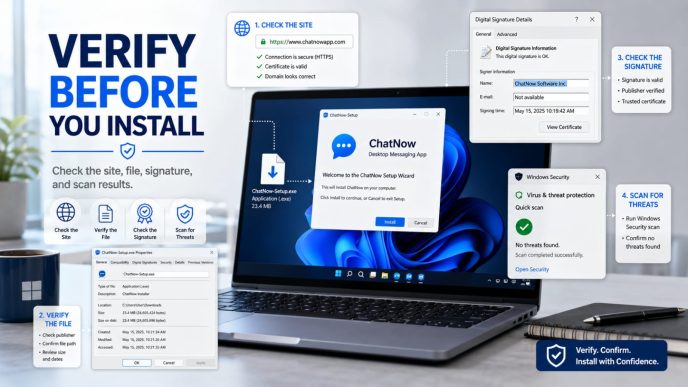
Check the file extension before running the installer. Standard Windows installers commonly use formats such as .exe or .msi, while unexpected archive formats, script files, or unusually named executables deserve additional review.
Inspect the downloaded file’s properties. Windows may display publisher information, digital signature details, file size, and creation or modification data. A valid digital signature does not guarantee complete safety, but matching publisher information can provide another useful verification signal.
The file should also be scanned with the computer’s trusted security software. If the installer is blocked, do not immediately disable protection. First confirm that the file came from the expected source and that its name, signature, and platform version are reasonable.
When selecting 电报电脑版, the verification process should focus on the Windows download path, installer identity, file extension, signature information, and operating-system compatibility. The desktop installer should be reviewed as carefully as the website that provided it.
Avoid “cracked,” modified, portable, or repackaged versions from unknown websites. These versions may include altered components, bundled utilities, or disabled update mechanisms.
Complete the First Desktop Login Safely
Use your own phone or approved verification method to complete the first desktop login. Do not ask another person to receive or forward the login code.
Pay attention to any new-device notification generated during the process. The listed computer name, approximate location, time, and session details should match the device being configured.
Do not keep a messaging account logged in on a public, shared, hotel, library, or temporary computer. If temporary access is unavoidable, avoid saving credentials and sign out fully when finished.
After login, confirm that the desktop application displays the expected account and conversations. An unexpected profile, missing account information, or unfamiliar session notification may indicate that the wrong account or verification route was used.
Review Active Sessions After Installation
Once the mobile and Windows versions are active, review the account’s connected-device or active-session list where available.
The list should contain only devices that the user recognizes. Check device names, platform types, recent activity, and approximate locations. Minor location differences can occur because of network routing, but an unfamiliar country, device type, or login time should be investigated.
Remove sessions associated with old phones, replaced computers, borrowed devices, or systems that are no longer in use. Leaving inactive sessions connected increases the number of places from which the account may be accessed.
Session review should not be limited to the installation day. Users who regularly change devices or travel frequently should inspect the list periodically.
If an unknown session appears, terminate it, review account security settings, and consider changing related credentials or enabling additional account protection options where supported.
Configure Privacy and Notification Settings
Default settings may not match every user’s needs. Review who can see profile information, phone-number details, activity status, or other account data where those controls are available.
Group and invitation settings should also be checked. Users may be able to restrict who can add them to groups, contact them directly, or invite them to communication spaces.
Notification settings should support productivity rather than create constant interruption. Keep alerts enabled for important conversations and reduce or mute low-priority groups. Desktop banner, sound, mobile lock-screen, and preview settings can often be adjusted separately.
Review automatic media download and playback options. Automatically downloading every image, video, or file can consume storage and may place unnecessary content on the device.
Contact synchronization should be a deliberate choice. Users who do not need automatic contact discovery can limit or disable synchronization and review whether previously uploaded contact data can be managed.
Run a Final Post-Installation Check
Send a test message from the phone and confirm that it appears correctly on Windows. Reply from the computer and verify that both devices display the same conversation state.
Download a small test file and confirm where it is saved. The Windows downloads folder and the mobile application’s storage location should be easy to identify.
Check whether notifications arrive correctly on both devices. If every event creates duplicate alerts, adjust the settings so that desktop and mobile notifications match the user’s working habits.
Review the active-session list one more time and confirm that no unknown device appeared during setup. Also verify that the desktop and mobile applications show the same account identity and expected conversations.
Finally, check that no unrelated browser extension, additional application, or download manager was installed during the process.
Four-stage installation and account-safety checklist for Windows and mobile users.
Common Problems and Safe Responses
If a verification code does not arrive, confirm the phone number, country code, mobile signal, and network connection. Wait before requesting another code, and do not use unofficial services that claim to provide verification codes.
If the Windows installer does not open, confirm that the download completed successfully and matches the Windows version. Scan the file and review its properties before trying again.
When the phone logs in successfully but the desktop application does not synchronize, check the network connection, account identity, session status, and application version. Avoid reinstalling repeatedly before identifying the cause.
An unfamiliar device alert should be treated seriously. Review active sessions, remove unknown devices, and inspect related security settings.
If security software blocks the installer, do not ignore the warning automatically. Recheck the domain, file name, signature, and download source. When uncertainty remains, delete the file and obtain a new copy from a trusted source.
Conclusion
Safe messaging-app installation includes more than clicking a download button. Users must verify the source, select the correct platform version, review permissions, protect the verification code, and inspect active device sessions.
The process should continue after the first successful login. Privacy controls, notification behavior, file-download settings, contact synchronization, and session lists all deserve review.
By following a structured checklist across download, installation, verification, and post-installation stages, Windows and mobile users can reduce the risk of modified installers, unnecessary permissions, verification scams, and forgotten account sessions.