Introduction
A Windows messaging app can consume a surprising amount of disk space after months of use. Photos, videos, documents, voice messages, temporary previews, and repeated downloads may accumulate without attracting attention.
The main difficulty is that cached media and permanently saved files are not the same. Some attachments remain in temporary application storage, while others are copied into Downloads or another Windows folder. A clear download path, controlled automatic downloads, and a regular cleanup routine can reduce clutter without removing important files.
This organization also improves everyday work. Users spend less time searching for attachments, avoid sending outdated document versions, and can identify which files belong to the app, a project folder, or a temporary Windows location.
Understand the Difference Between Cache and Saved Files
Cache is temporary data retained to load images, videos, and previews faster. Saved files are attachments the user deliberately downloads or exports to a permanent folder. Clearing cache may remove temporary copies while leaving separately saved files untouched, but behavior can vary by application version and installation method.
Users should treat clearing cache, deleting a local file, removing a message, and uninstalling the application as different actions. Before cleanup, identify which attachments are temporary and which files must be preserved or backed up.
A useful test is to save one non-sensitive attachment into a known folder, note its location, and then review the cache controls without deleting anything. This helps users understand the difference before performing a larger cleanup.
Locate the Default Windows Download Folder
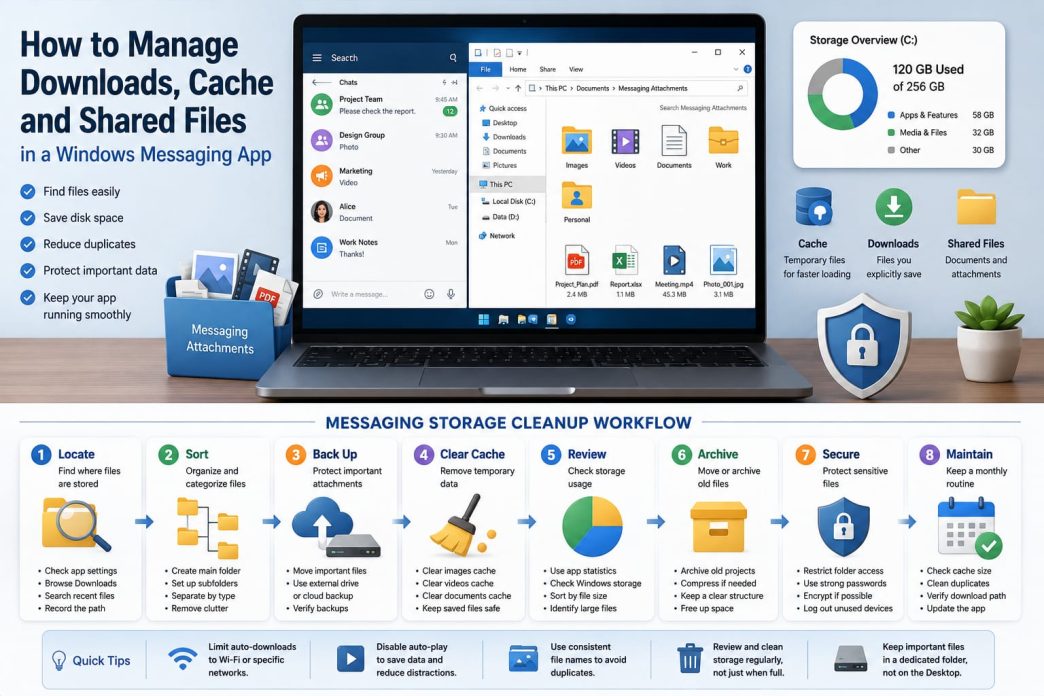
Open the application settings and look for Downloads, Storage, Data, Files, or Advanced Settings. Record the current path before changing it. Then open File Explorer, check the standard Downloads folder, and sort by Date modified to locate recent attachments.
When a file is missing, search by its name, extension, or approximate download date. Useful searches include .pdf, .docx, .xlsx, .jpg, and .mp4. The Recent files view can also reveal documents opened from a conversation.
People using resources related to 纸飞机电脑版 should confirm the download path within their own installed version. The folder structure may differ according to the app build, installation type, Windows account, and user preferences.
After locating the folder, add it to File Explorer Quick Access or write down the path. This simple step prevents attachments from becoming difficult to find after settings are changed.
If multiple Windows accounts use the same computer, repeat the check inside the correct user profile because each account may have its own Downloads and Documents directories.
Create a Dedicated Messaging Download Folder
The general Downloads folder usually contains browser files, email attachments, installers, and messaging content. Create a dedicated directory such as Documents\Messaging Attachments, then add subfolders for Work, Personal, Images, Videos, Documents, or individual projects.
Avoid keeping important attachments on the desktop. They are harder to organize and may be exposed during screen sharing. After selecting a new folder in the application settings, download a small test file and verify that it appears in the intended location. Important files should also be backed up separately.
For active projects, a simple hierarchy such as Client, Project, Year, and File Type makes later archiving easier. The structure should remain understandable without depending on the messaging app search history.
Control Automatic Media Downloads
Automatic downloads can fill storage with media the user never opens. Review whether private chats, groups, and channels can use different rules. Small images may be acceptable, while large videos, archives, and documents can require manual approval.
Disable unnecessary video and GIF auto-play, particularly in high-volume conversations. Users with limited or metered connections should also restrict large downloads by network type. The objective is selective access, not blocking all media.
Review these rules again after joining a busy group or channel. A setting that was reasonable for a few private chats may create substantial storage growth when hundreds of media posts arrive each week.
Review Storage Usage Regularly
Use the application storage summary, when available, to compare images, videos, documents, audio, and cached data. In Windows, open Settings, select System, and review Storage to identify large categories and low disk space.
File Explorer can sort a folder by size, making old videos, duplicate exports, archives, and forgotten installers easier to identify. Check a file before deleting it: a large file may still be important, and another copy may not exist.
Windows Storage Sense can help with general temporary files, but users should not rely on automated cleanup for project attachments. Messaging downloads need a separate review based on content, ownership, and retention requirements.
Clear Cache Without Removing Important Files
Begin with a backup check. Move essential documents, photos, and project files into a permanent folder before using any cleanup control. Do not assume that every attachment visible in a conversation has already been saved elsewhere.
Where possible, clear cache by category rather than deleting everything at once. Images and videos may consume the most space, while documents may contain records that require closer review.
People reviewing 纸飞机中文版下载 information should separate version installation from storage maintenance. Installing or updating a localized Windows build does not organize old attachments, and clearing temporary media should not be confused with reinstalling the application.
After cleanup, reopen several frequently used conversations. Previews may download again, which is normal. Confirm that important files remain in the permanent folder before emptying the Recycle Bin or performing a larger deletion.
If the application reports storage savings but Windows disk space does not change immediately, close and reopen the app, then check the folder and Recycle Bin. Some temporary data may not be released until the application finishes its cleanup process.
Prevent Duplicate Files Across Multiple Devices
Using the same account on a phone and computer often creates duplicate copies. Choose one device as the primary archive, use a consistent naming format such as Project-Plan-2026-07-v3.pdf, and avoid repeatedly forwarding the same document between chats.
Review folders periodically and compare modification dates and file contents before deleting older versions. The aim is one identifiable working copy and one deliberate backup, not several uncertain files with names such as final, final-new, and final-2.
File hashes or dedicated duplicate-finder tools can assist advanced users, but ordinary users can usually start with size, date, folder location, and a quick content comparison before removing a copy.
Separate Work and Personal Attachments
Store work documents by client, project, department, or date, and keep personal photographs, receipts, and videos in separate folders. Sensitive business files should not remain in a public Downloads directory, especially on a shared computer.
Archive completed projects and remove obsolete drafts only after the final version is confirmed. A clear boundary between work and personal storage improves privacy and makes Windows search more useful.
Organizations may also need retention rules for contracts, invoices, or client records. Those documents should be moved out of chat folders and into the approved business repository.
Protect Sensitive Downloaded Files
Downloaded attachments can remain accessible after a conversation is closed. Use separate Windows profiles on shared computers, protect the device with a password or secure sign-in method, and apply disk encryption where appropriate.
Review the Recycle Bin before emptying it. End messaging sessions on old, borrowed, or public computers because deleting local files does not necessarily remove account access. Before selling or returning a device, sign out, remove attachments, review active sessions from a trusted device, and complete the appropriate Windows reset process.
Sensitive attachments may also appear in recent-file lists, backup tools, or synchronized folders. Users should check those locations when removing confidential material from a device rather than focusing only on the original download directory.
Build a Monthly Storage Maintenance Checklist
A short monthly routine prevents storage problems from becoming emergencies. Schedule the review at a predictable time, such as the first working day of each month, and complete the same checks in the same order:
- Check cache size and available Windows disk space.
- Review large videos, archives, and old installation files.
- Move important work documents into project folders.
- Delete only confirmed duplicate files.
- Verify the current download path.
- Review automatic download and auto-play settings.
- Back up essential attachments.
- Update the messaging application through a trusted source.
Conclusion
File management is a core part of long-term desktop messaging use. Understanding cache, selecting a dedicated download folder, limiting automatic media, and reviewing storage regularly can improve performance and prevent accidental loss.
With selective cleanup, consistent file names, protected folders, and a repeatable monthly routine, Windows users can locate shared documents faster while reducing duplicates, unnecessary disk usage, and exposure of sensitive attachments.
The best storage system is not complicated; it is one that users can understand, maintain, and verify every month.