Introduction
Office software is one of the most important categories of software on a personal or work computer. It handles documents, spreadsheets, presentations, and PDFs, and it often needs access to local files, recent documents, printers, and shared storage locations. Because these applications become part of everyday work, downloading them from the wrong website can create both security and stability problems.
A misleading download page may offer an outdated installer, a modified package, a bundled downloader, or a version that changes browser settings and adds unwanted software. In some cases, the program may still appear to work, which makes the risk less obvious. But unsafe download sources can affect updates, document compatibility, and the security of the files users work with every day.
That is why users should not judge a software website only by its visual appearance. Before downloading an office application, it is better to check the site identity, the platform versions offered, the installer details, and the update information. A few extra minutes of verification can help users avoid unnecessary risk.
Why Search Results Can Be Misleading
Many users begin with a search engine. This is convenient, but search results can be misleading in several ways.
First, results may include both organic listings and paid advertisements. A page that appears at the top may simply be a paid placement, not the most trustworthy or relevant result. Second, third-party software sites often use terms such as “official,” “safe,” or “recommended” in their page titles or descriptions. Those words can create a false sense of confidence.
Third, software names are often reused in similar-looking domains. A page may include the right product name but appear on a domain with added letters, unusual numbers, or a different structure than expected. If users only recognize the product name and do not inspect the full address, they may land on an unofficial page without realizing it.
Search results are useful for discovery, but they should not replace manual checking. The website itself still needs to be verified before any download begins.
Inspect the Domain Carefully
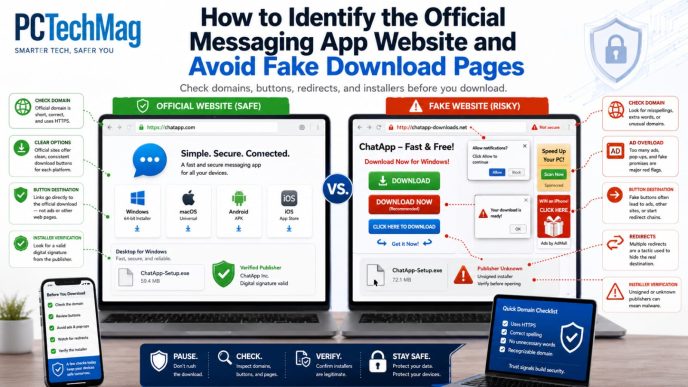
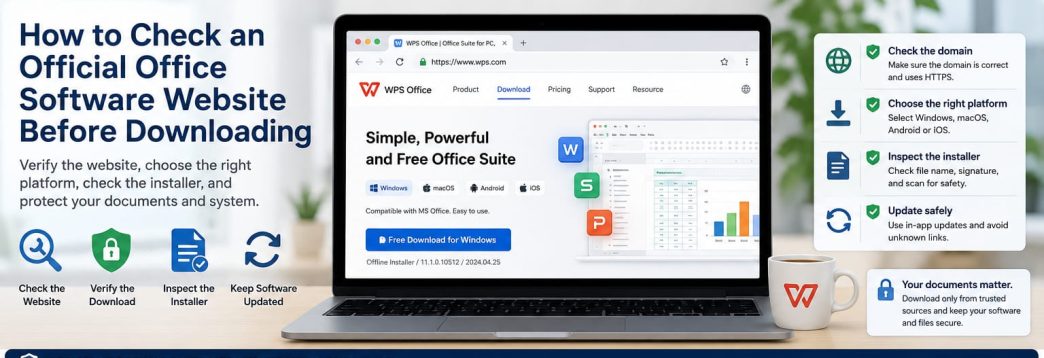
The domain name is one of the most important trust signals available to an ordinary user. Before clicking a download button, read the address carefully from left to right.
Look for extra hyphens, spelling errors, inserted numbers, or unusual domain structures. Some deceptive pages imitate a real brand by changing only one small detail in the domain. That small difference is easy to miss when users are in a hurry.
The connection should also use HTTPS. HTTPS is necessary because it protects the connection between the user and the website, but it does not automatically prove the site is official. A misleading website can also use HTTPS.
When checking a page that claims to be a source such as wps官网, users should focus on the exact domain rather than relying on logos or page colors. A professional-looking design on an incorrect or suspicious domain should still be treated carefully.
Also review the subdomain structure. A brand name placed inside a long unrelated domain is not the same as a brand-owned website. The safest habit is to inspect the full address, not just the part that looks familiar.
Review the Website Structure
A trustworthy office software site usually looks like a maintained product website rather than a simple download trap.
There should normally be some product information explaining what the software is for and which platforms it supports. Users should also be able to find links to support or help content, privacy information, and some form of contact or company information. These pages do not guarantee legitimacy, but their absence makes the site harder to trust.
The design and language should also be reasonably consistent. A page that mixes several writing styles, contains broken English, changes tone suddenly, or links to unrelated products may indicate a low-quality or repurposed download site.
Watch for excessive advertising, aggressive pop-ups, auto-opening tabs, and unrelated promotional content. If the page seems more interested in driving clicks than explaining the software, the download path deserves extra caution.
Users do not need a website to be perfect, but they should expect structure, clarity, and consistency.
Check Available Platform Versions
An office software site should clearly explain which platform versions are available. Users should be able to understand whether the software supports Windows, macOS, Android, and iOS, and how those versions are distributed.
The platform entry points should be clearly separated. A Windows installer should not be confused with a mobile app page, and a mobile version should lead toward a trusted app distribution path rather than a random downloadable archive.
Clarity matters here because platform confusion often leads users to download the wrong file. If a website presents all platforms in a vague or mixed way, users may not be able to tell which installer actually belongs to their device.
Mobile versions deserve special attention. If the site claims to support Android or iOS, the expected path should look reasonable for mobile software distribution. If it instead directs users to unrelated files, unknown stores, or generic mirror pages, that inconsistency should raise questions.
A trustworthy page makes the platform choices easy to understand.
Review Version and System Requirements
Before downloading, review whether the website provides version and system-requirement information.
For Windows users, this may include the supported Windows versions, whether the installer is for 32-bit or 64-bit systems where relevant, and any disk-space or hardware requirements. Even for ordinary users, this information matters because an incompatible version may fail to install properly or may behave poorly after installation.
Look for installer version information, release dates, or update notes. A page that identifies the build version or recent update timing feels more transparent than one offering a generic “latest version” label with no details.
If available, check for a changelog, release notes, or update explanation. This can help users understand whether the software is actively maintained. Again, the existence of update notes is not absolute proof of legitimacy, but it strengthens the impression that the site is a real software destination rather than a one-page download page.
Users should also compare the version information with the rest of the page. If the site appears outdated, inconsistent, or vague about what it is offering, it deserves extra review.
Inspect the Download Button and Redirect Path
A download button should not be trusted automatically just because it is large, colorful, or prominently placed.
Hover over the button when possible and inspect the destination link shown by the browser. If the visible page is on one domain but the download button points to an unrelated or unfamiliar domain, users should pause and investigate.
Some pages redirect visitors through several websites before presenting a download. Excessive redirection increases uncertainty and may expose users to ad networks, bundled downloaders, or misleading pop-ups. Similarly, websites that require users to install a separate downloader before getting the actual office software should generally be avoided.
Be careful with pages that display several different “Download” buttons. In some cases, only one leads to the intended file while the others serve advertisements or unrelated software. Pop-up “Update Now” buttons should also be treated cautiously unless they are clearly part of a trusted in-app update flow.
A normal software download path should be straightforward, readable, and free of unnecessary detours.
Verify the Installer Before Running It
Once the installer has been downloaded, the verification process should continue. Do not run the file immediately.
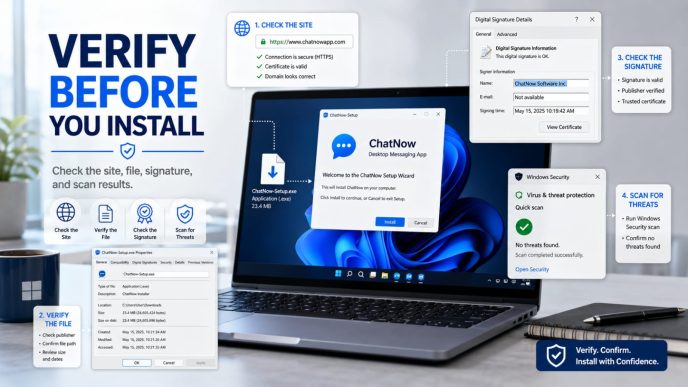
Check the file name and extension first. On Windows, common installer types include .exe and .msi. Unexpected file types, double extensions, or ZIP files containing scripts should receive additional scrutiny.
Users should also review file size and version information where available. Then inspect the digital signature through Windows file properties if the installer provides one. A valid signature does not guarantee absolute safety, but it provides useful evidence that the file has been signed by an identifiable publisher.
At this stage, a user checking a package obtained through a source such as wps官方网站 should compare the downloaded installer with the website context: file name, version, platform, signature details, and size should all look consistent. A mismatch between the website claim and the file itself is a warning sign.
Finally, scan the installer with trusted security tools before running it. A clean scan result is helpful, but it should support—not replace—the other verification steps.
Avoid Modified and Unofficial Builds
Modified and unofficial builds are especially risky for office software because these applications interact with important working files.
Users should avoid cracked versions, ad-free modifications, pre-activated installers, bundled plugin editions, and portable builds from sources that cannot be verified. Even if such versions promise convenience, they often create update problems or reduce confidence in the integrity of the program.
Office software is not just another app. It opens documents, saves new versions, exports PDFs, and may integrate with printers and cloud storage. If the build itself is modified, users lose confidence in how the software handles those workflows.
Unofficial builds may also interfere with future updates. Some disable automatic updates, others overwrite installation paths in unusual ways, and some include additional components that were never meant to be part of the software.
The safest approach is to prefer standard, clearly attributable builds that can be checked and updated in a normal way.
Save the Verified Website for Future Updates
Once a website has been reviewed and accepted as trustworthy enough for use, save it for the future. Adding the verified page to bookmarks is a practical habit because it reduces the need to repeat broad searches every time an update is needed.
Whenever possible, use the software’s built-in update mechanism or return to the saved trusted page rather than following update prompts sent by email, chat messages, forum posts, or unknown download links.
Before major updates, back up important working documents or confirm that they are already stored safely. After updating, test whether your most common document formats still open and export correctly. This is especially useful for office software, where even a legitimate update can affect compatibility or default file behavior.
The goal is consistency. Once a safe source has been identified, users should continue using that source instead of restarting the search process from scratch each time.
Final Official Website Checklist
Before downloading, users can run through a short final checklist:
Is the domain spelled correctly? Does the site use HTTPS? Are the platform options clear? Are the Windows or mobile requirements explained? Does the download path behave normally? Do the installer name, size, and version look consistent? Is there privacy, help, or support information on the site?
This kind of checklist is useful because it keeps users from relying on a single trust signal. A clean-looking page, by itself, is not enough. The website, the download path, and the installer should all support the same conclusion.
Users do not need to make a perfect technical judgment. They simply need to slow down and verify enough details to avoid obvious or avoidable risks.
Official Software Website Verification Checklist
Conclusion
Official website checking cannot depend on page appearance alone. A software site may look professional and still lead to a questionable installer or a confusing download path.
The safer approach is to verify multiple elements together: the domain, the website structure, the platform versions, the system requirements, the download destination, and the installer details. Each check adds context, and together they provide a stronger basis for trust.
For ordinary users downloading office software, this process is practical and worthwhile. By reviewing the site carefully before downloading, users can reduce the risk of installing the wrong package and improve the safety of the files and systems they rely on every day.