Introduction
Installing a desktop messaging app on Windows requires more user judgment than installing a mobile app from an official app store. On a phone, the operating system usually provides a controlled distribution channel. On Windows, users may reach the installer through search results, ads, forums, shared links, mirror sites, or third-party download pages. That flexibility is useful, but it also increases risk.
Lookalike domains, fake download buttons, bundled installers, and modified packages are common problems. A page may look convincing, yet still lead to a misleading file. Even a valid download can become risky if the user ignores file extensions, digital signatures, or unusual installer behavior.
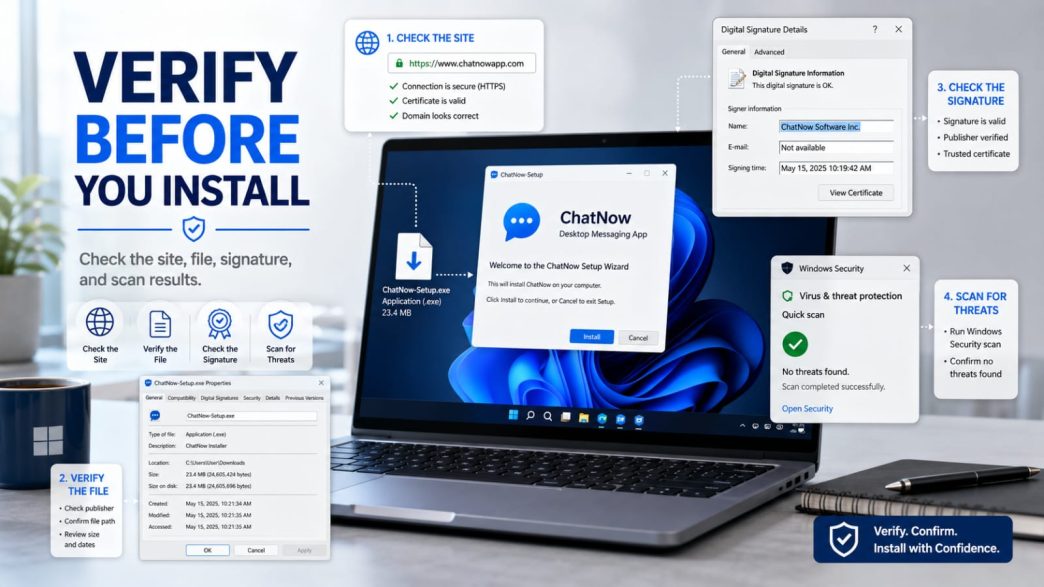
For that reason, Windows users should not judge an installer by a single signal. Before running an EXE or MSI file, it is better to complete several checks: verify the website, inspect the file name and extension, review file properties, examine digital signature details, scan the file, and watch the installer’s behavior closely. These steps do not eliminate all risk, but they greatly improve the user’s ability to recognize suspicious software before it runs.
Confirm the Website Before Downloading
The first check should happen before the download starts. Open the page and read the full domain name carefully. Do not rely only on a logo, color scheme, or page layout. Many deceptive pages succeed because they imitate familiar branding while using a slightly altered address.
Look for extra characters, missing letters, added words, unusual hyphens, or strange subdomains. These small differences are easy to miss when users are in a hurry. Also check whether the connection uses HTTPS. HTTPS is useful because it protects the connection, but it does not prove that the site itself is official or trustworthy.
A credible software page should usually include more than one button. Look for privacy information, help or support links, product details, and some mention of Windows compatibility or version information. If the page only contains oversized download buttons, aggressive banners, or little explanation, it deserves extra caution.
When users search for a source such as telegram下载, they should evaluate the full site structure rather than clicking immediately. The domain, HTTPS status, support links, and platform information should all make sense together. A download page is more trustworthy when it behaves like a maintained software site, not like a traffic trap.
Avoid Misleading Ads and Third-Party Download Pages
Search ads often create confusion. A paid result may appear above better results, but ad placement does not mean the destination is official. Users should notice the ad label and still inspect the domain before visiting the page.
Once on the page, be cautious of multiple “Download Now” buttons in different colors or locations. Some sites design their layout so that users click an advertisement, a downloader, or another unwanted file instead of the actual installer. Others redirect visitors through two or three domains before the file appears.
Avoid websites that require you to install a separate “download manager,” “accelerator,” or “setup assistant” before you can get the software you originally wanted. These layers introduce unnecessary complexity and can bundle unrelated programs or browser changes.
Users should also avoid so-called cracked versions, portable repacks from unknown sources, or “modified” editions claiming to unlock extra features. Even if the software launches, those versions may disable updates, change core files, or add other components that were never intended by the original developer.
Check the Installer Name and Extension
After the file is downloaded, do not run it immediately. First check the installer name and file extension.
On Windows, common installer formats include EXE and MSI. These do not guarantee safety, but they are expected file types for desktop installation. Users should be more cautious when they receive ZIP files containing scripts, unknown executables, or several unrelated files.
The file name should look reasonable and consistent with the product and version. A meaningful name is not proof of legitimacy, but a confusing name full of random characters, misleading labels, or unrelated words should raise questions.
Double extensions are another warning sign. A file named something like setup.pdf.exe or messenger_update.jpg.scr is designed to mislead the user. Windows should be configured to show file extensions so that this trick becomes easier to detect. If extensions are hidden, users may mistakenly trust a dangerous file because the visible part of its name appears harmless.
When in doubt, pause and inspect. The small effort required to confirm the file extension can prevent much larger problems later.
Review the File Properties
Windows file properties provide useful clues before installation. Right-click the file, open Properties, and review the information carefully.
Start with file size, creation date, and modification date. These details are not final proof of anything, but they can help users spot something unusual. A file that claims to be a modern installer but has strange metadata or an implausible size may deserve further investigation.
Check whether Windows marks the file as originating from the internet. In many cases, the Properties window will indicate that the file came from another computer or from the web. This is normal for a downloaded file, but it reminds the user that the file should be verified before execution.
The Details tab can also be useful. Look for product name, company information, file description, and version data. Missing or inconsistent details do not automatically prove the file is malicious, but a well-prepared installer often has more complete metadata than a suspicious one.
This step is simple, quick, and often overlooked. For ordinary users, file properties are one of the easiest pre-installation checks available directly inside Windows.
Inspect the Digital Signature
Digital signature inspection is one of the most valuable Windows-specific checks. Open the file’s Properties window and look for the Digital Signatures tab, if it exists.
If a signature is present, review the signer’s name and check whether Windows reports the signature as valid. A valid signature suggests that the file has been signed by an identifiable publisher and has not been altered since signing. That does not make the installer automatically harmless, but it provides an additional layer of confidence.
If no signature is present, the file should be treated more cautiously. Lack of a signature does not always mean the installer is malicious, because some smaller publishers may distribute unsigned files. However, when the source is uncertain, the absence of a signature becomes more important.
This is especially relevant when reviewing a Windows package obtained through a source such as telegram电脑版下载. Users should compare the signature status, signer identity, and Windows compatibility context rather than trusting the download page alone. A sensible Windows installer path, combined with reasonable file metadata and a valid signature, creates a stronger verification picture than any single clue by itself.
Scan the File Before Running It
Before launching the installer, scan it with Windows Security or another trusted security tool already present on the computer. This step can catch some known threats or suspicious behavior patterns.
However, users should avoid overconfidence. A clean scan result does not mean the file is fully trustworthy. Security tools are helpful, but they do not detect every possible problem. That is why scanning should be treated as one part of a broader review process.
If the file came from an uncertain source, consider using an additional scan method or a second opinion from another trusted security solution. Again, this does not provide certainty, but it adds context.
If a file produces warnings, suspicious prompts, or unusual behavior even before installation starts, stop immediately. Do not continue simply because “it might still be okay.” The cost of caution is low compared with the consequences of installing the wrong package.
Five Checks Before Running an EXE File
Review Installer Permissions
When the installer starts, read each screen carefully. Do not rush through the setup by clicking Next repeatedly.
Many Windows installers request administrator privileges because they need to write files into protected directories, create shortcuts, or register components. That alone is not unusual. What matters is whether the installer’s behavior matches what the software is expected to do.
Review the installation path and confirm where the program will be placed. Watch for options that add startup behavior, background services, desktop icons, browser changes, or unrelated components. Uncheck features that are not required.
Be especially cautious if the installer offers to change your browser homepage, search provider, or new-tab page. A desktop messaging app does not need to modify browser settings in order to function. Such options often indicate a bundled distribution model that adds unwanted extras.
The same principle applies to optional components. If the installer includes tools or add-ons that seem unrelated to messaging, it is better to decline them or stop the process and reassess the source.
Monitor the First Launch
Verification should continue after installation. When the application opens for the first time, confirm that it behaves as expected.
Check whether the interface, branding, and basic login flow match the type of program you intended to install. Unexpected pop-ups, forced account prompts, unusual advertising, or requests unrelated to the app’s main purpose should be treated seriously.
Review what appears in Windows after installation. Look for new programs in the installed-app list, new startup entries, or unexpected background tools. Open Startup Apps in Windows settings or Task Manager and check whether anything unfamiliar has been added.
Confirm that the desktop shortcut points to the expected installation folder and that the program files are located where the installer said they would be. A clean installation should not scatter unrelated tools around the system.
Keep the Application Updated Safely
After installation, updates should also be handled carefully. Where possible, use the application’s built-in update process or other verified update mechanisms associated with the installed software.
Do not trust update links sent through random chats, unknown websites, or unsolicited messages. A fake critical update notice can be used to push users toward a different installer than the one they originally verified.
Before major updates, it is wise to back up important files or at least confirm that key folders and settings are in order. After the update, review the application version, active login sessions if relevant, and any permission or startup changes that may have been introduced.
Safe updating follows the same logic as safe installation: verify the source, inspect the file or process, and watch for unexpected behavior.
What to Do If the Installer Looks Suspicious
If anything feels wrong during the verification process, do not run the file.
Delete the installer package and remove it from the downloads folder. If needed, also clear the browser’s recent download list so you can more easily identify any future files.
Run a security scan on the computer, especially if the file was opened, extracted, or partially executed. Then check the browser for unfamiliar extensions and review installed programs for anything unusual.
If the suspicious download came from a page where you entered login credentials or account details, consider changing related passwords. It is also wise to review important account activity for unexpected sessions or access events.
In many cases, the safest decision is simply to stop and obtain a fresh file from a more clearly verified source.
Conclusion
Windows installation safety depends on checking the website, the file itself, and the installer’s behavior. No single signal is enough. A secure-looking website, a valid file extension, or a clean security scan each helps, but none should be treated as complete proof on its own.
A more reliable approach is layered verification: inspect the domain, avoid deceptive download pages, confirm the file name and extension, review properties, check the digital signature, scan the file, and pay attention during installation and first launch.
For Windows users, careful software installation is a practical cybersecurity habit. A few minutes of inspection before running an EXE or MSI file can reduce the chance of installing a misleading, modified, or otherwise unsafe package.