By Digiera Editorial Team
SEO Title: External SSD Speed for iPhone ProRes: 4K60 and 4K120
Meta Description: Learn the sustained SSD speed, 10Gbps cable, exFAT format, power limit, capacity, and testing steps required for iPhone ProRes recording.
URL Slug: /external-ssd-speed-iphone-prores/
One-Sentence Summary: iPhone ProRes recording depends on sustained write performance, a 10Gbps USB-C data path, exFAT formatting, stable power, and a drive that has been tested beyond a short benchmark.
The direct answer is simple: Apple specifies an external drive that can sustain at least 220 MB/s for supported 4K60 ProRes recording and at least 440 MB/s for supported 4K120 ProRes recording. Those numbers are minimum sustained write requirements, not peak read-speed targets.
A package showing 1,000 MB/s or 2,000 MB/s does not prove that the complete recording setup will work. The iPhone, USB-C cable, SSD interface, controller, flash cache, free capacity, temperature, file system, and power draw all affect the result. The slowest or least stable part of that path determines whether the recording continues.
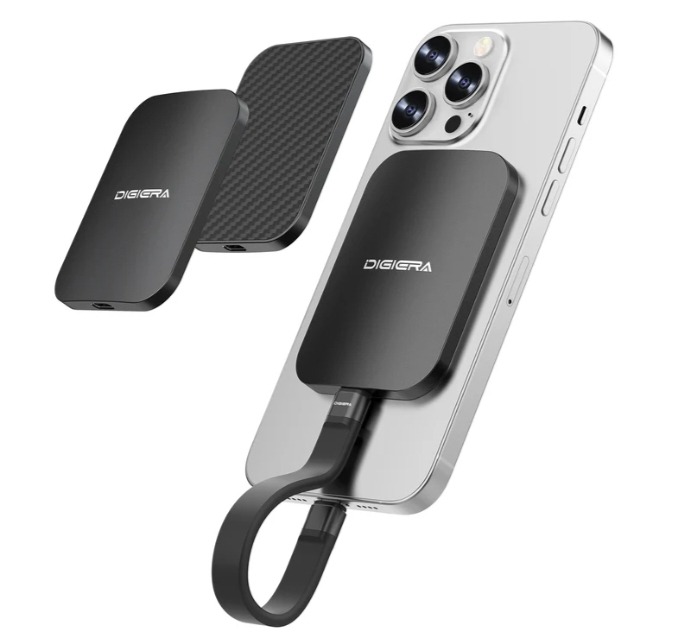
For creators choosing a phone-mounted SSD, there is another practical requirement: the drive and cable must remain physically secure while the camera moves. Magnetic mounting can solve that handling problem, but it does not replace the USB-C cable or increase the iPhone’s interface speed.
The DIGIERA LPS2000M ultra-thin MagSafe portable SSD attaches magnetically while USB-C carries data and power. Image courtesy of Digiera.
The Short Answer: 220MB/s or 440MB/s Sustained
Apple’s current ProRes guidance applies different requirements to different recording modes and supported iPhone models.
For direct external recording, Apple specifies:
- An external storage device formatted as exFAT
- A USB 3 cable rated for at least 10Gbps
- At least 220MB/s sustained write speed for 4K60 ProRes
- At least 440MB/s sustained write speed for 4K120 ProRes on supported models
- A maximum external-device power draw of 4.5W
- No password-encrypted external drive for this workflow
- Reformatting the external drive before each 4K120 ProRes recording session for optimal performance
The 4K120 mode is supported on newer Pro models identified by Apple, while 4K60 support covers a broader group of USB-C Pro iPhones. Creators should check the current Apple support page for the exact phone and mode rather than assume that every USB-C iPhone records every ProRes format.
The word “sustained” is crucial. A drive may show a strong result during a short test because it is writing into a fast cache. A long clip can continue after that cache is full and after the controller has warmed up. The SSD must remain above the required write rate through the recording, not only for the first few seconds.
Why a 2,000MB/s SSD Will Not Reach 2,000MB/s on an iPhone
The Digiera LPS2000M is specified as a USB 3.2 Gen 2×2 drive, a 20Gbps interface class. Digiera lists peak manufacturer ratings of up to 2,000 MB/s read and 1,800 MB/s write when the drive is connected to a compatible 20 Gbps host under suitable conditions.
The current iPhone 15 Pro, iPhone 16 Pro, and iPhone 17 Pro models support USB 3 data transfer up to 10 Gbps. The theoretical byte-rate ceiling of a 10Gbps link is 1,250MB/s before protocol overhead. Real transfers are lower.
Therefore, a creator should not expect the LPS2000M or any other 20Gbps Gen 2×2 SSD to reach 2,000 MB/s when connected to an iPhone. The host connection is already limited to 10Gbps. A 20Gbps-capable drive may reach a higher transfer class later when connected to a compatible PC, but the iPhone cannot provide that path.
This is not a reason to choose the slowest possible drive. It is a reason to choose based on the correct metric. For direct ProRes recording, stable sustained write performance above Apple’s minimum is more important than a peak interface number the phone cannot use.
Gbps, MB/s, and the Complete Data Path
USB ports are described in gigabits per second, or Gbps). SSD file transfers are usually described in megabytes per second, or MB/s). Eight bits make one byte, so dividing the Gbps number by eight provides a rough theoretical ceiling.
- A 5Gbps connection has a theoretical ceiling of 625MB/s.
- A 10Gbps connection has a theoretical ceiling of 1,250MB/s.
- A 20Gbps connection has a theoretical ceiling of 2,500MB/s.
Those are not expected file-copy results. Encoding overhead, controller behavior, flash performance, file size, temperature, background activity, the source device, and the file system reduce actual throughput.
USB-C is only the connector shape. Some USB-C cables are designed mainly for charging and use a slow data mode. Some hubs divide bandwidth among several devices. A 20Gbps drive, 10Gbps iPhone, and 5Gbps cable produce a path limited by the cable.
Peak Speed Versus Sustained Write Speed
Portable SSD marketing commonly emphasizes sequential read speed because it produces a large and easy-to-compare number. Direct video recording is a write workload, and it can continue for far longer than a typical benchmark.
Three effects can reduce write performance during a long recording:
- Cache exhaustion: Some SSDs use a portion of their flash as a faster write cache. Performance can fall after that cache fills.
- Thermal control: The controller may reduce speed as the enclosure heats up.
- Free-capacity pressure: A nearly full drive has less room for cache management, temporary data, and file-system housekeeping.
A creator does not need to understand every NAND configuration to test the outcome. The practical question is whether the drive can record the intended mode for longer than the longest planned take without a warning, dropped frames, corruption, or disconnect.
Magnetic Mounting Solves a Different Problem
A MagSafe-style SSD is not a wireless storage device. The magnetic surface holds the enclosure against a compatible iPhone or magnetic ring. A USB-C cable transfers the footage and powers the SSD.
That separation matters because a product can be fast enough electrically and still fail as a mobile setup. A long cable can catch on a rig. A loose SSD can pull against the connector. A thick case can weaken the magnetic hold. A gimbal can become unbalanced when storage is added.
Before recording, test:
- The magnetic hold with the exact phone case or ring
- Cable length and strain at both connectors
- Every planned phone orientation
- Gimbal balance, if applicable
- Access to microphones, charging accessories, and camera controls
- Heat around the phone and SSD during a long take
- Whether the SSD remains mounted during walking or handheld movement
The Digiera LPS2000M ultra-thin MagSafe portable SSD is designed around this physical requirement by keeping the drive close to the phone. Its magnetic design should still be tested as part of the complete rig.
How to Test an SSD Before a Paid Shoot
Do not make a client session the first full-length test.
- Format the SSD as exFAT using Apple’s supported workflow.
- Use the exact iPhone, recording app, codec, resolution, and frame rate planned for the job.
- Connect the drive directly with the intended 10Gbps-rated cable.
- Confirm that the drive appears correctly and has enough free capacity.
- Record longer than the longest expected continuous take.
- Repeat after the phone and SSD are warm.
- Watch for slow-recording messages, dropped frames, disconnects, or app errors.
- Play multiple clips from the beginning, middle, and end of the test.
- Copy the files to another device and confirm that they open.
- Repeat the test after any change to a cable, case, phone, app, or recording setting.
A synthetic benchmark can support troubleshooting, but it cannot replace a real recording test. The recording app, operating system, cable, power behavior, and sustained workload are part of the result.
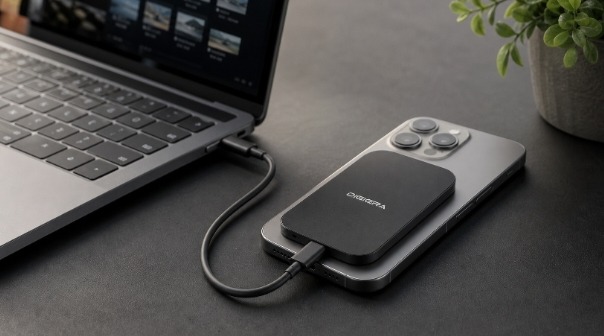
A realistic phone-to-laptop workflow keeps the SSD attached during capture and verifies footage before reuse. Product-referenced illustration; image courtesy of Digiera.
How Much Capacity Is Enough for ProRes?
There is no universal number because file size changes with resolution, frame rate, codec, recording length, and the production’s ratio of captured footage to finished footage.
A practical estimate starts with the real device:
- Record one representative minute in the intended mode.
- Check the resulting file size in the Files app.
- Multiply by the expected number of recording minutes.
- Add room for retakes, multiple angles, audio, stills, and unexpected overtime.
- Add working space for proxies, project files, caches, and exports if editing from the SSD.
- Confirm that every full drive can be copied to a second location before it must be reused.
One terabyte can work for shorter sessions, photography, social content, or creators who offload frequently. Two terabytes give more room for multi-day production and high-frame-rate footage. The larger drive is not automatically safer; it simply places more footage on one device if there is no second copy.
Avoid planning to fill the SSD completely. Free capacity makes file management easier and provides room for unexpected recording. It may also help the drive manage cache and temporary operations more effectively.
exFAT Is Required, but It Is Not a Backup Feature
Apple specifies exFAT for direct ProRes recording to external storage. exFAT is also convenient when footage must move between iPhone, macOS, and Windows.
That convenience comes with trade-offs. exFAT does not provide the same native journaling and platform-specific features as APFS on macOS or NTFS on Windows. It should not be treated as protection against unsafe removal, cable disconnects, file corruption, or device failure.
Always stop recording before disconnecting the cable. Use safe-ejection procedures when the operating system provides them. Never reformat the drive until the footage exists in another verified location.
The First Copy Is Not the Backup
Direct recording places the original file on the SSD. If the phone is not keeping another copy, that drive may contain the only version of the take.
After recording:
- Confirm that the expected clips exist.
- Open representative files rather than relying only on filenames.
- Compare file counts or use checksum-capable copy software for critical projects.
- Copy the project to another independent drive, laptop, NAS, or protected cloud destination.
- Keep one copy away from the primary equipment bag or studio.
- Test that the project can be restored, including linked media, audio, fonts, and project databases.
A portable SSD is an excellent working drive. It becomes part of a backup system only when another independent copy exists.
Where the LPS2000M Fits
The LPS2000M combines a phone-mounted magnetic enclosure, USB-C connectivity, capacities up to 2TB, a metal housing, and a manufacturer-specified USB 3.2 Gen 2×2 interface. The higher interface rating can be useful when the drive later connects to a compatible 20Gbps computer.
On an iPhone, the buying case is different. The main benefits are sufficient sustained write headroom for the intended ProRes mode, compact physical mounting, capacity, and the ability to move footage to another system. The iPhone’s 10Gbps host limit must remain explicit.
Creators comparing other form factors can review the Digiera portable SSD, but they should apply the same checklist to every product: host compatibility, sustained writes, cable, power, thermal behavior, capacity, format, and backup.
Troubleshooting Slow Recording or Low Transfer Speed
If performance is lower than expected, isolate one variable at a time.
- Confirm that the iPhone model supports the selected ProRes mode.
- Verify exFAT formatting and available free capacity.
- Replace the cable with a known 10Gbps-rated data cable.
- Remove unverified hubs, adapters, and extensions.
- Check that the SSD stays within the supported power requirement.
- Allow the phone and SSD to cool, then repeat the test.
- Test a longer recording to expose cache or thermal behavior.
- Copy the same file to a verified fast computer port.
- Check whether the computer supports 10Gbps or 20Gbps rather than assuming every USB-C port is identical.
A result near 1,000 MB/s from a nominal 20 Gbps SSD often indicates a 10 Gbps host path. That can be normal. A slow-recording warning during ProRes capture indicates a different problem: sustained write speeds have fallen below the workflow requirement, or the connection has become unstable.
Frequently Asked Questions
What sustained SSD speed is required for iPhone ProRes?
Apple specifies a minimum of 220 MB/s for supported 4K60 ProRes recording and 440 MB/s for supported 4K120 ProRes recording.
Can an iPhone use a 20Gbps external SSD?
Yes, through backward compatibility, but current iPhone 15 Pro, 16 Pro, and 17 Pro models provide USB 3 data rates up to 10Gbps. The drive operates through the lower common host speed.
Will a 2,000MB/s SSD transfer at 2,000MB/s on an iPhone?
No. A 2,000 MB/s-class Gen 2×2 drive requires a compatible 20 Gbps host to approach that rating. Current USB-C iPhone Pro models are limited to 10Gbps before overhead.
Does MagSafe transfer data to the SSD?
No. The magnetic attachment holds the drive against the phone. USB-C transfers data and supplies power.
Can APFS be used for direct ProRes recording on an iPhone?
Apple’s supported external ProRes workflow specifies exFAT. Creators should follow the current Apple guidance rather than choose a Mac-only format for direct recording.
Should the SSD be reformatted before every shoot?
Apple specifically advises reformatting before each 4K120 ProRes recording session for optimal performance. In every mode, verify that all footage has been copied and tested before reformatting.
Is a portable SSD a complete backup?
No. It may hold the original recording or one working copy. Important footage should also be stored on another independent device or at an off-site location.