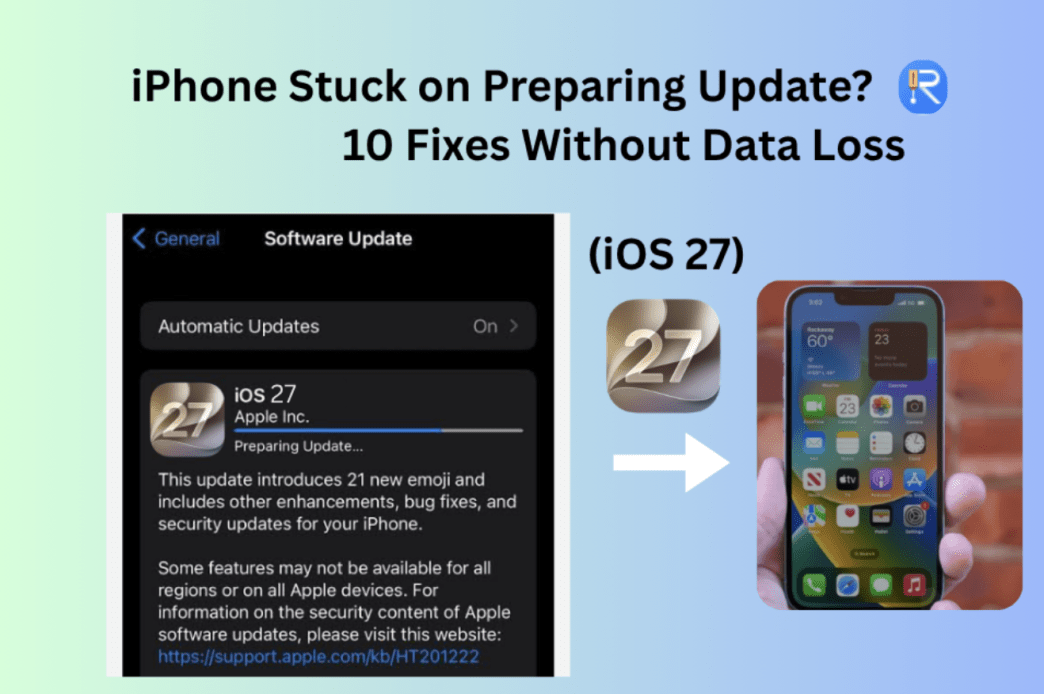
Are you looking forward to the new iOS 27 version? Eager to try it out, but your iPhone is on “Preparing Update” for over 1 hour? No matter how you refresh it, it gets stuck on the Install Now screen no matter how long you wait. Do be worried, we will provide 10 effective fixes to help you get out of your iPhone stuck on Preparing Update without data loss!
Why is my iPhone stuck on the “Preparing Update” screen?
iPhone usually Preparing Update iOS 27 system needs 5–20 minutes. If an iPhone is preparing to update iOS 27 over 1 hour ,your iPhone must be stuck on Preparing Update.It is annoying,but your data is safe.
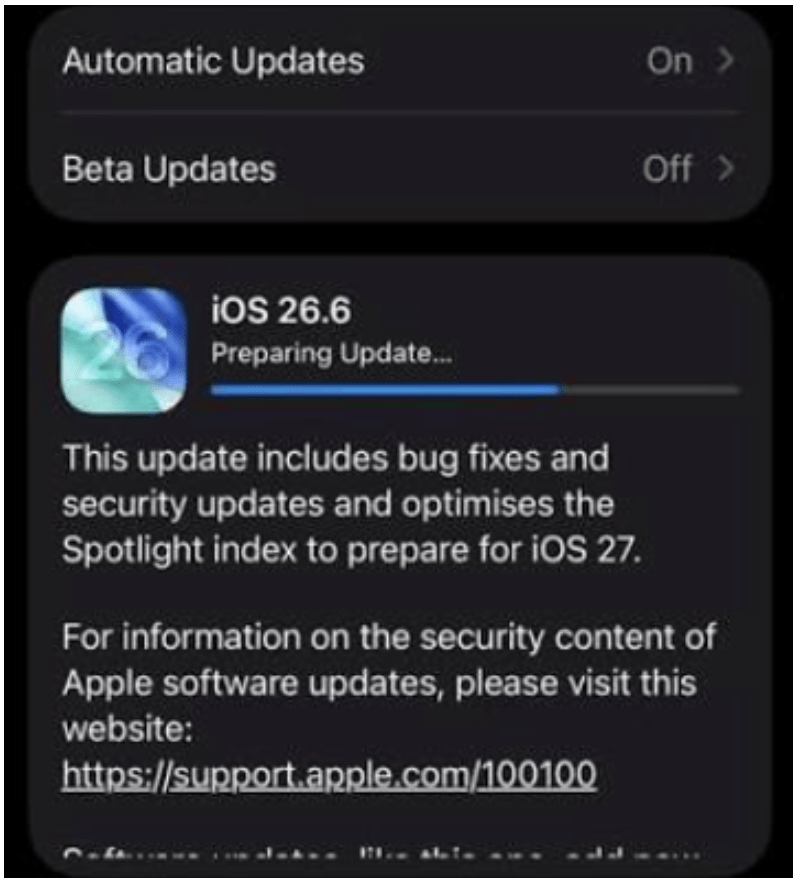
The reason why the iPhone gets stuck on “Preparing Update” over 1 hour is usually due to low storage space for iOS 27 version, a slow or unstable Wi-Fi connection, low battery/Low Power Mode, or a corrupted iOS 27 update file. It can also simply take a long time to process large software packages.
Before You Start to Update iOS 27: Preparation & Backup
Before attempting any fix for an iPhone stuck on “Preparing Update” that won’t progress, take these essential precautions:
- Charge your battery at least 50% to update before you upgrade iOS 27.
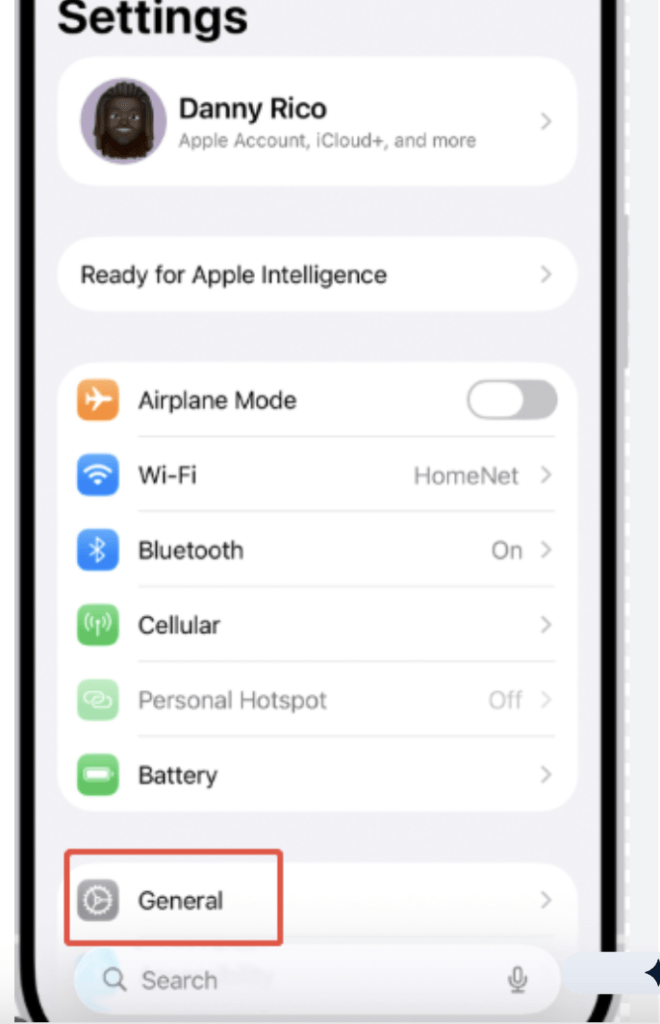
- Check your storage.iOS 27 stuck on preparing update is because that iOS 27 version updates require several gigabytes of free space to unpack and verify. Go to Settings > General > iPhone Storage and free up space if needed—aim for at least 8–10 GB free.
- Check your Wi-Fi. When you find that the iPhone is stuck on preparing iOS 27 updates for hours ,you need a stable, reliable Wi-Fi connection.
- Back up your iPhone (highly recommended). While the “Preparing Update” screen itself doesn’t erase data, the update iOS 27 can fail because of network issues, low storage, file corruption, or a power loss. Back up via iCloud or use a tool like iCareFone to save your data to a computer before proceeding.
How to fix an iPhone stuck on preparing updates without data loss?
Fixes 1: Toggle Airplane Mode (No data Loss)
If your iPhone is stuck on “Preparing Update iOS 27” or “Update Requested iOS 27,” it likely can’t connect to Apple’s servers or the download has stalled. Toggling Airplane Mode resets the connection.
Here are the steps to fix iPhone stuck on preparing update:
Step1. Swipe down from the top-right corner to open the Control Center.
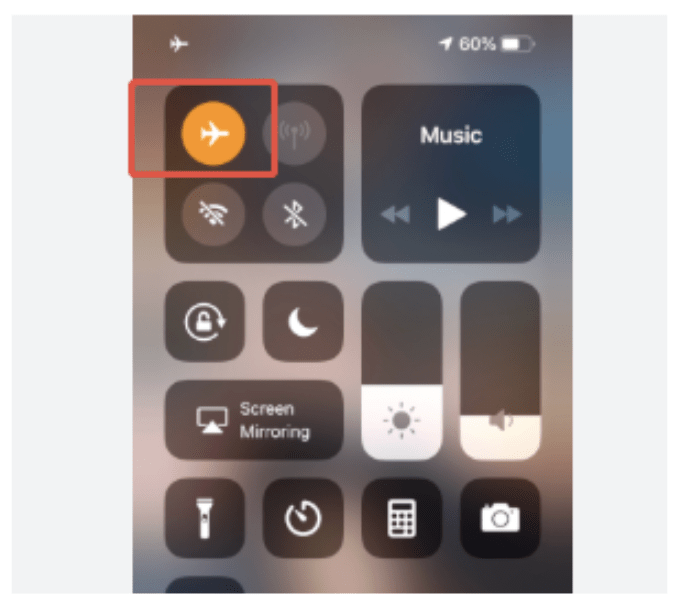
Step2. Tap the Airplane Mode icon to turn it on.
Step3. Wait 10 seconds, then tap it again to turn it off.
Step4.Go back to Settings > General > Software Update and try again.
Fixes 2: Force-Quit Settings & Retry (No data Loss)
If your update gets stuck on the ‘Preparing Update during installing iOS 27 ‘ screen, Force-quitting the Settings app is a low‑risk, high‑reward first step. It clears freezes caused by a crashed Settings process or a pending network request, and upon relaunch, it establishes a fresh network connection so the update can continue.
Steps to clear the frozen to fix iPhone preparing update stuck screen:
Step1. Swipe up from the bottom (or double-tap the Home button) to open the app switcher.
Step2. Swipe the Settings app away to close it.
Step3. Relaunch Settings > General > Software Update and try again.
Fixes 3: Turn Off VPN, Low Power Mode & Low Data Mode (No data Loss)
Turn off VPN and Low Power Mode and Low Data Mode to avoid blocking your iPhone verification timeouts during updates that will make the iPhone stuck on the install screen during iOS 27 update.
Steps to Get iPhone out of install screen:
Step1. Go to Settings > VPN and disconnect any active VPN.
Step2. Go to Settings > Battery and turn off Low Power Mode.
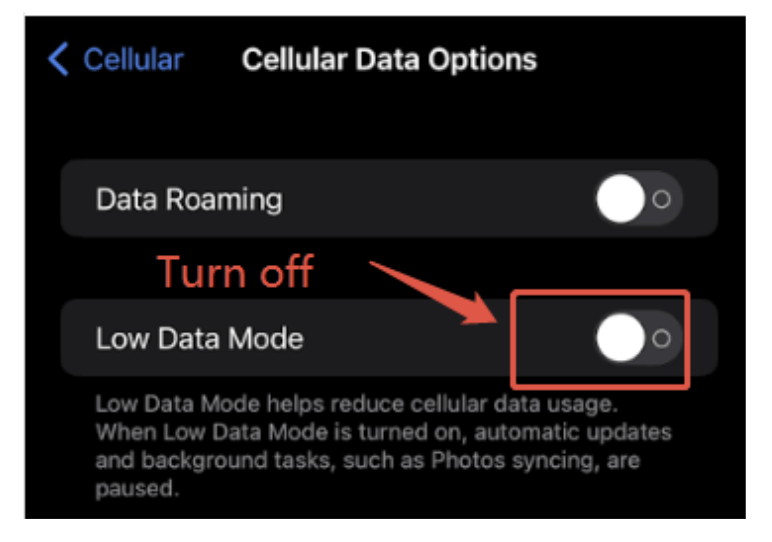
Step3. Go to Settings > Wi-Fi > (i) next to your network and disable Low Data Mode
Fixes 4.Advanced Fix via Automated System Repair Tool –Tenorshare ReiBoot (1-Click fix iPhone stuck/Laggy without data loss)
If your iOS 27 is stuck on preparing updates after trying all the standard fixes (force restart, network checks, deleting the update file, etc.), it’s time to turn to a professional tool.
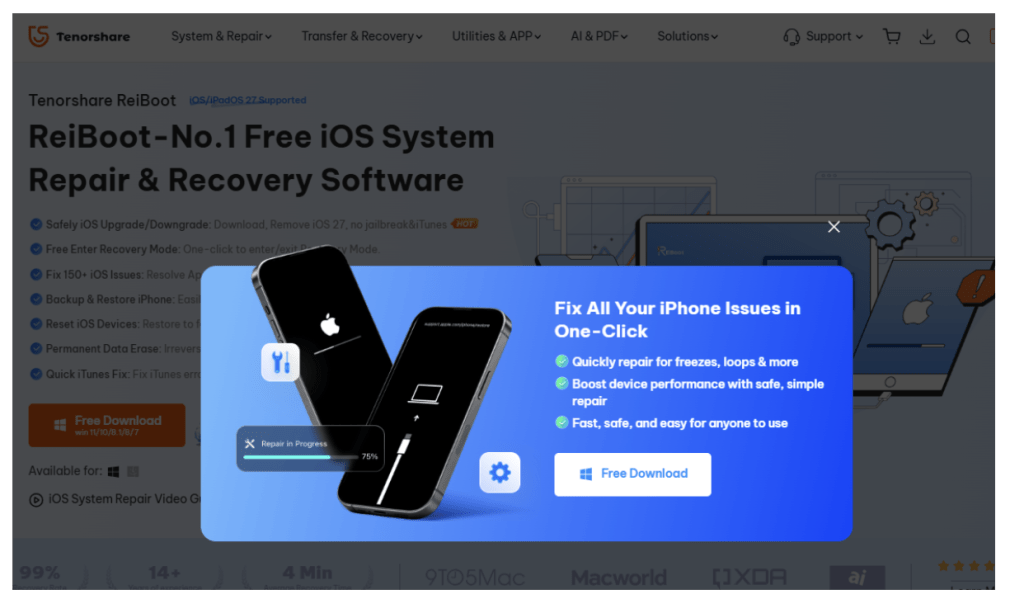
Tenorshare ReiBoot is a dedicated iOS system repair tool designed to resolve over 150 iOS system issues, including downgrading iOS 27 to 26; iPhone stuck in update freezes, iPhone/iPad white Apple logo, iPhone stuck in Recovery Mode loops, and more. It fully supports the latest iOS 27 and iPhone 17 series.
Why Choose Tenorshare ReiBoot Over Other Methods?
- Compared to the manual fixes mentioned above or updating via a computer, Tenorshare ReiBoot offers several distinct advantages:
- Simpler operation: No need to memorize complex button combinations. Its user-friendly interface guides you through the repair process with a few simple clicks.
- Higher success rate: With a reported success rate of up to 99%, ReiBoot can effectively handle deep software glitches that manual methods often fail to resolve.
- Data safety: Its “Standard Repair” mode is designed to fix system problems like iPhone stuck on Prepaling Update;iPhone white screen,iPhone won’t turn on ,ect bugs while preserving all your data—no photos, messages, or files are lost.
How to Use Tenorshare ReiBoot to Fix an iPhone Stuck Update?
Using Tenorshare ReiBoot typically takes just three steps:
Step1. Download official Tenorshare ReiBoot from the official website and install it on your Mac or Windows PC.
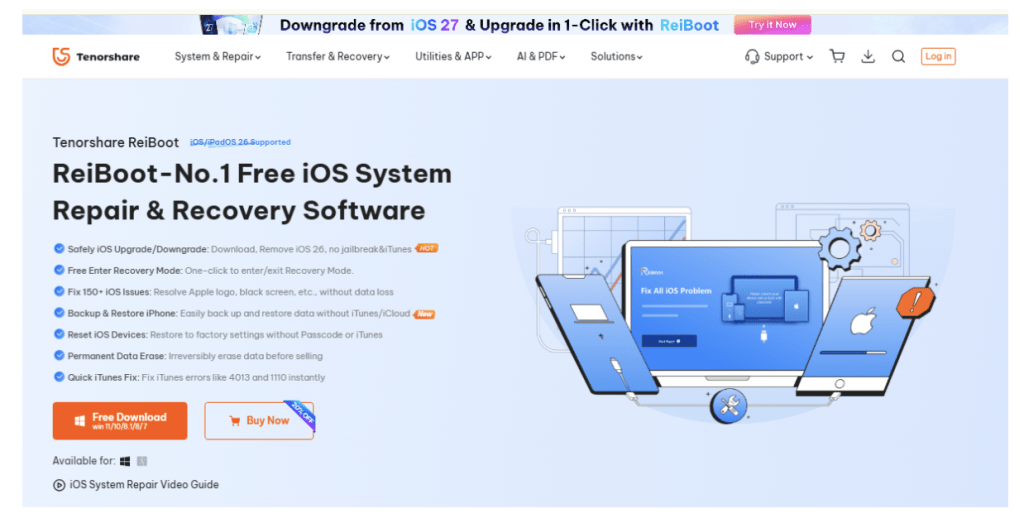
Step2. Use a USB cable to connect your stuck iPhone to the computer and open ReiBoot. The software should automatically detect your device.
Step3. On the ReiBoot main interface, click “Standard Repair” or “Start”.The software will then match and download the latest official firmware for your device.
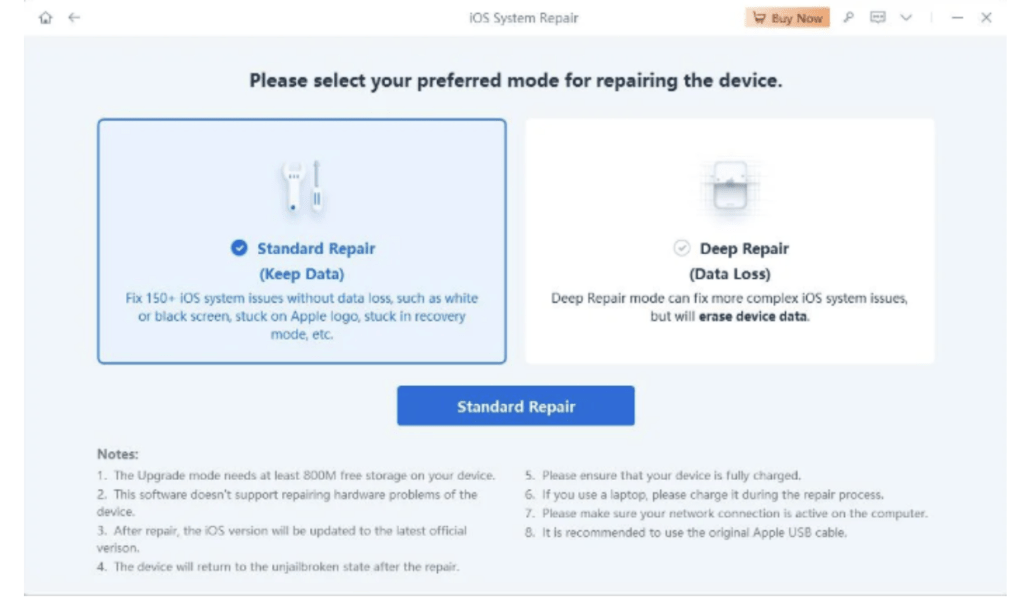
Step4. Once the download is complete, click “Start Standard Repair” and wait for the process to finish.Your iPhone will leave preparing update successfully.
Fixes 5: Delete the incorrect iOS 27 file Update & Redownload (No data Loss)
If the iOS 27 update file is corrupted that makes your iPhone say Preparing Update over 1 hour, deleting it and starting fresh is the most effective fix.
- Go to Settings > General > iPhone Storage.
- Scroll down and find the iOS Update in the list of apps.
- Tap it, then select Delete Update.
- Restart your iPhone
- Go to Settings > General > Software Update and download the update again.
Fixes 6: Force Restart Your iPhone (No data Loss)
A force restart clears temporary system glitches when preparing to update an iOS 27 fail file without erasing any data. The button sequence depends on your iPhone model:
iPhone 8 or later (including all Face ID models):
- Press and quickly release the Volume Up button.
- Press and quickly release the Volume Down button.
- Press and hold the Side button until the Apple logo appears.
iPhone 7 and 7 Plus:
- Press and hold the Volume Down and Side buttons together until the Apple logo appears.
iPhone 6s and earlier:
- Press and hold the Home and Sleep/Wake buttons together until the Apple logo appears.
Fixes 7: Reset Network Settings (No data Loss)
If the iPhone process updating iOS 27 and the connectivity issues persist, resetting network settings can remove hidden problems. Go to Settings > General > Transfer or Reset iPhone > Reset.Select Reset Network Settings.
Note: Resetting network will remove saved Wi-Fi passwords and VPN settings, but does not delete personal data.
Fixes 8: Update via Mac or PC (No data Loss)
If none of the above work, use a computer to install the update. When your iPhone is stuck on ‘Preparing Update,’ the internal update process may have entered a deadlock—the system believes an update is in progress, but nothing is actually happening. Updating via Mac or PC can fix the ‘stuck on preparing update’ issue bypassing many over-the-air issues.
Steps to fix the ‘stuck on preparing update via Update iOS 27
Step1. Connect your iPhone to a Mac or PC.
Step2. On macOS Catalina or later: open Finder. On Windows or older macOS: open iTunes.
Step3. Select your device, then click Check for Update (not Restore—Restore will erase your data).
Step4. Follow the on-screen instructions to install the update.
Fixes 9.Restore iOS 27 via Recovery mode (Data Loss,No recommend)
If your iPhone remains stuck on preparing Update iOS 27 for a long time,after all these steps, you may need to use Recovery Mode.Restore iOS 27 via Recovery mode is more advanced and should be done carefully,it will lose all data.
Steps to fix the ‘stuck on preparing update via Restore iOS 27
Step1. Put your iPhone into Recovery Mode (button sequence varies by model).or use Tenorshare ReiBoot 1-click free enter Recovery Mode.
Step2. Connect to a computer and select Restore.
Step3. Restore iOS 27 will reinstall iOS without erasing your data.
Fixes 10. Apple Service Help (Data maybe Loss)
If Recovery Mode also fails, contact Apple Support—your device may need service.
How Long Should You Wait When the iPhone Stuck on“Preparing Update” ?
Before you prepare to update iOS 27 and do anything else: give it time. A normal iOS 27 update can take up to an hour from start to finish. The “Preparing” and “Verifying” phases typically take 5 to 20 minutes—sometimes up to 30–45 minutes for major releases.
If the iPhone Stuck on Preparing Update screen hasn’t changed at all for more than an hour, the update is probably stuck. Proceed to the steps below.
| What you’re seeing | What it means | What to do |
| iiPhone stuck on “Preparing Update” for under 1 hour | Normal—just slow | Wait it out or use iOS repair to reinstall it |
| iiPhone stuck on “Preparing Update” for over 1 hour | Stuck—needs intervention | Try Tenorshare ReiBoot or iTunes |
| iiPhone stuck on “Verifying Update” for over 30 min | Server or connection issue | Toggle Airplane Mode, check Wi-Fi |
| iiPhone stuck on Apple logo with progress bar not moving | Installation frozen | Force restart pr Tenorshare ReiBoot |
Final
The iPhone shows an “Preparing Update” screen is rarely a hardware problem. In almost all cases, it’s a network, storage, or corrupted file issue—and it’s fixable without losing your data. Stay calm, work through the steps or 1-click iOS repair bugs Tenorshare ReiBoot in order, and your iPhone will be up and running with the latest iOS in no time.