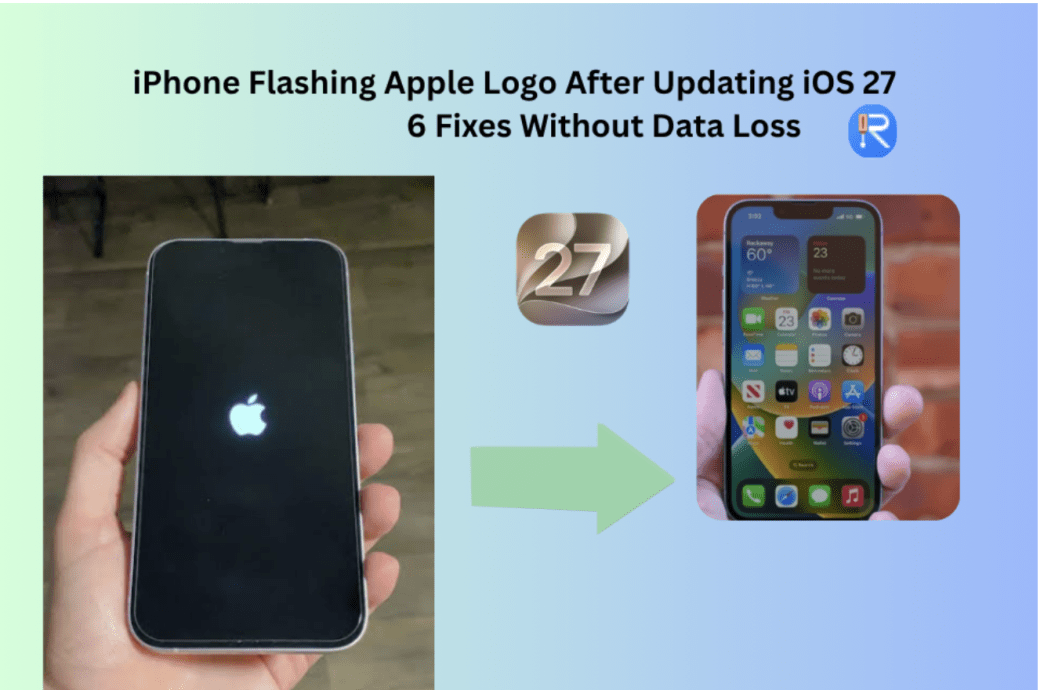
When you install iOS 27,a normal iPhone boot takes under a minute ,if an iPhone stuck in a flashing Apple logo takes up to 1 hour. It means your iPhone is a stuck boot loop,which is a critical iOS 27 system error where the device continuously restarts without loading the iOS home screen. What do you do if your iPhone keeps flashing the Apple logo?Don’t be worried. In this article ,I will show you how to fix the iPhone flashing Apple logo boot loop without data loss.
Prerequisites and Preparation before fix iPhone flashing Apple Logo after iOS 27 install
Before starting any iOS 27 flashing Apple logo troubleshooting, gather the required equipment and verify your setup to prevent connection drops mid-process:
- Original Data Cable: Use an official Apple or MFi-certified USB-A/USB-C cable. Damaged or non-certified cables frequently cause connection interruptions during firmware updates.
- Computer Setup: Ensure access to a Mac (running macOS Catalina or later using Finder) or a Windows PC (with the latest version of Apple Devices app or iTunes installed).
- Stable Internet Connection: A high-speed connection is required to download the iOS firmware file (typically 5GB–7GB) without timing out.
- Charge the Device: Connect the iPhone to a wall charger for at least 30 minutes. A low battery during firmware extraction will cause the process to fail.
When an iPhone flashes the Apple logo repeatedly without turning on iOS 27 , you cannot perform a new backup because iOS 27 cannot load the system environment needed to authenticate local or iCloud data transfers.
- iCloud Auto-Backups: If your device had automatic iCloud backups enabled, your data up to the last successful sync remains safe in the cloud and can be restored after fixing the hardware or software.
- Try Tenorshare iCareFone to Free back up iPhone data and restore data without iCloud/iTunes.
Youtube Guide for iPhone stuck problems:https://www.youtube.com/watch?v=QGI6vzVUpNs
Why does the iPhone keep flashing the Apple logo after updating iOS 27?
If you have just updated to iOS 27 or performed a system restore, it is normal for the initial boot process to take 10–15 minutes, during which the Apple logo may appear in a loop.
However, if the Apple logo or progress bar shows no change for more than an hour,and the iPhone’s screen shows the Apple logo, disappears, then reappears repeatedly without ever reaching the lock screen, your iPhone is stuck in a boot loop. iPhone boot loop may be caused by a failed iOS 27 version update,or a low battery which lacks power,or bad app software corrupted system ,and hardware damage.
How can you fix your iPhone that is flashing on the Apple logo?
Fixes 1. Charge Your iPhone for 30 Minutes and Clean the port and Try a different charging cable
When an iPhone’s battery is extremely low and enters a deep‑discharge state, the system may not have enough stable power to boot up. Cleaning the charging port and using a known‑good cable to charge for 30 minutes is a good way to fix the iPhone flashing apple logo on iOS 27, ensuring the battery has enough reserve to complete a restart without power‑cut interruptions.
Fixes 2: Force Restart Your iPhone
How do I get my iPhone out of a boot loop on iOS 27? The best way to get your iPhone out of flashing apple logo and a boot loop is forced restart,which can cut off power to the processor temporarily, clearing corrupted temporary cache files causing the loop.
Here are the steps to force restart an iPhone to fix iPhone flashing Apple Logo:
- iPhone 8, iPhone SE (2nd/3rd Gen), iPhone X, 11, 12, 13, 14, 15, 16 Series:
- Press and quickly release the Volume Up button.
- Press and quickly release the Volume Down button.
- Press and hold the Side/Power button.
- Keep holding the button even when the Apple logo flashes, and release only when the Apple logo stays solid on screen or the screen turns dark.
- iPhone 7 and 7 Plus:
- Press and hold both the Volume Down button and the Sleep/Wake button simultaneously until the screen resets.
- iPhone 6s and earlier / iPhone SE (1st Gen):
- Press and hold both the Home button and the Sleep/Wake button simultaneously until the screen resets.
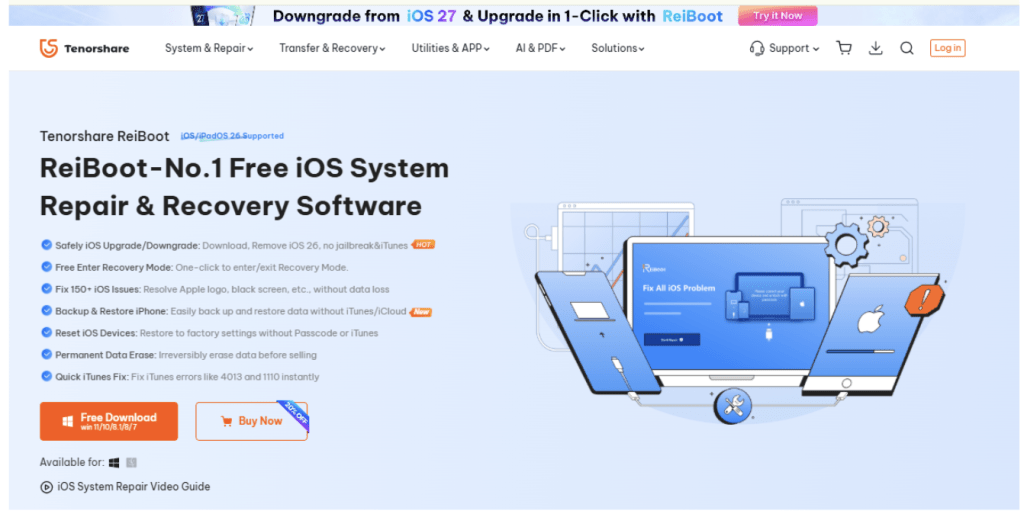
Fixes 3: Use Powerful iOS repair tool-Tenorshare ReiBoot for One-Click iOS Bugs Repair (Data Safe)
If your iPhone keeps showing the Apple logo and turning off after installing iOS 27,it must be stuck in a iOS 27 boot loop.If a force restart fails, an professional iOS system repair software like Tenorshare ReiBoot can repair system glitches and fix boot loops without wiping your device data.
Tenorshare ReiBoot is a feature‑rich mobile management toolkit that focuses on resolving operating system issues for iOS and Android. It can fix over 150 common iOS problems on iPhone/iPad, including the white Apple logo, black screen, device freezing, recovery mode loops, and more.
Similarly, it can repair Android issues like being stuck on the boot logo or black screen. Additionally, it can specifically address iTunes errors (e.g., 4013, 4014) and iOS system errors (e.g., 1110) without data loss.
Tenorshare ReiBoot is also very user‑friendly for beginners who are just getting started with fixing iOS system bugs.
Steps of get iPhone out of flashing apple logo in boot loop via Tenorshare ReiBoot:
Step1.Free Download official Tenorshare ReiBoot on your PC or Mac, then connect your iPhone via USB.
Step2. Once the device is detected, click Start Repair on the main dashboard.
Step3. Select Standard Repair. This mode fixes iOS system issues while preserving all personal data on the device.
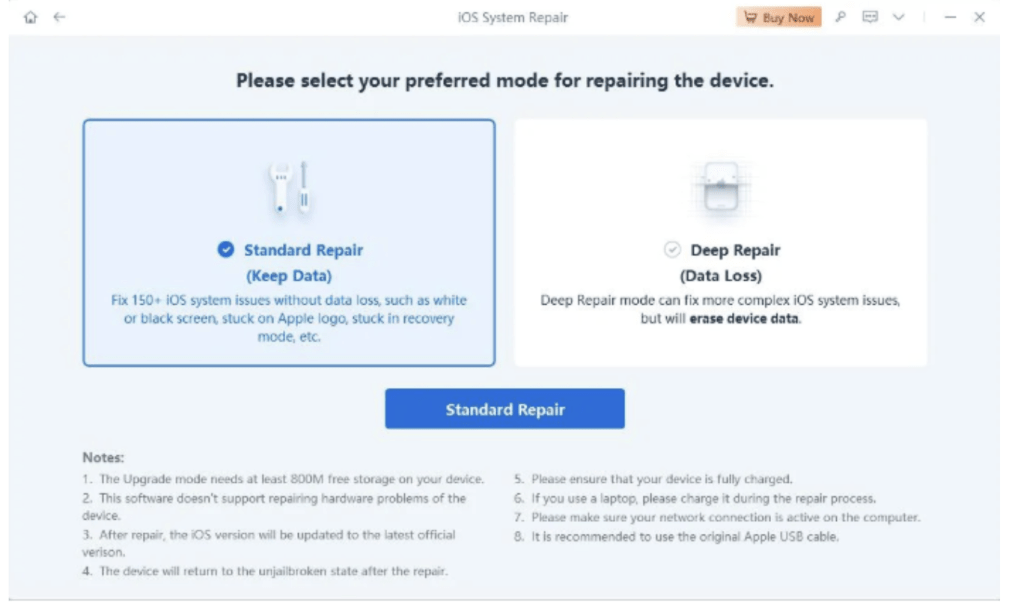
Step4. Click Download to let the tool fetch the matching official iOS firmware package for your iPhone model.
Step5. Once the firmware download completes, click Start Standard Repair. Keep the iPhone connected throughout the process. The device will automatically reboot back to the home screen once finished
Fixes 4: Enter Recovery Mode and Update iOS via iTunes/Finder (Data Safe)
If your iPhone still keeps blinking the Apple logo and not turning on after installing iOS 27 ,and you prefer using Apple’s official desktop utilities, putting the device into Recovery Mode allows your computer to interface directly with the bootloader to reinstall damaged iOS files.
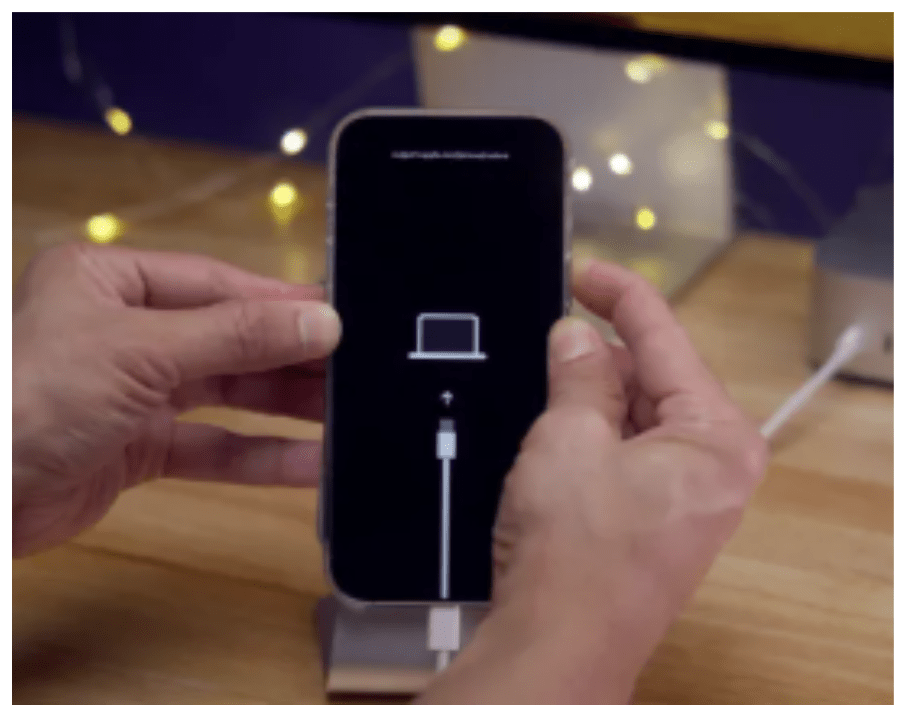
Recovery Mode “Update”: Update iOS 27 version via recovery mode attempts to reinstall iOS 27 without touching your user data. It is your best chance to preserve photos, messages, and app data.
Steps of remove iOS 27 keeps blinking the Apple logo and not turning on via iTunes/Finder:
Step1.Connect your iPhone to your computer via cable.
Step2.Open Finder (macOS) or Apple Devices / iTunes (Windows).
Step3.Put your iPhone into Recovery Mode by performing the Force Restart sequence for your model, but do not release the final button when the Apple logo appears. Continue holding until the Connect to Computer icon appears on the iPhone screen.
Step4.On your computer, a prompt will automatically appear stating: “There is a problem with the iPhone that requires it to be updated or restored.”
Step5.Select Update. Your computer will download the latest compatible iOS 27 version and attempt to reinstall it without erasing data.
Note: If the download takes longer than 15 minutes, your iPhone will exit Recovery Mode automatically. Wait for the download to finish on your computer, then repeat Step 3 to re-enter Recovery Mode.
Fixes 5: DFU Mode Restore (Complete Firmware Wipe)
If the Update iOS 27 option fails or throws error codes (e.g., Error 4013, Error 9), the system partition is severely corrupted. You must perform a Device Firmware Update (DFU) restore, which bypasses the bootloader entirely to rewrite the software from scratch.Warning: DFU Mode erases all data on the iPhone.
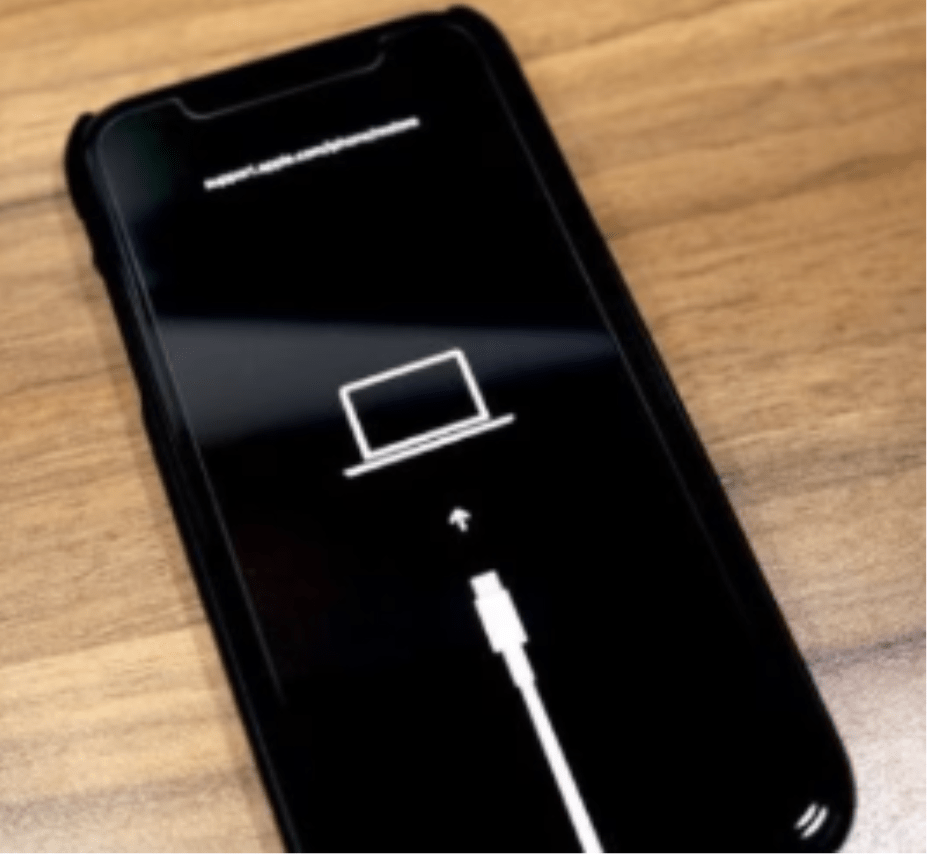
Steps of Restore iOS 27 via iTunes/Finder:
Step1. Connect the iPhone to your computer and open Finder/iTunes.
Step2. Execute the DFU button combination for your model: For iPhone 8 and Newer: Press Volume Up, then Volume Down, then hold the Side button for 10 seconds. While holding the Side button, press and hold Volume Down for 5 seconds. Release the Side button, but continue holding Volume Down for another 10 seconds.
Step3. If executed correctly, the iPhone screen will remain completely black (no logos or icons), and your computer will detect an iPhone in recovery mode.
Step4. Select Restore iPhone on your computer screen to reinstall clean firmware.
Note:Recovery Mode “Restore” / DFU Mode: Restore iOS 27 via Recovery Mode completely wipes the storage chip and reinstalls a clean version of iOS 27. You will lose all un-backed-up data.
Fixes 6: Hardware Inspection and Repair Options
If your iPhone fails to exit the loop after a DFU restore or Deep Repair, the issue is hardware-level. Common hardware root causes include:
- Extremely Low Storage (NAND Corruption): If the internal storage was 100% full prior to the loop, the system memory index may be corrupted beyond software recovery.
- Degraded Battery: A worn-out battery cannot supply the steady voltage needed during the boot sequence, triggering a safety shutoff loop.
- Liquid Damage / Proximity Sensor Short: Water entry around the top earpiece speaker often shorts the proximity sensor flex cable, forcing continuous restarts.
Recommended Action: Visit an authorized Apple Service Provider or Apple Store to inspect internal hardware components. If the proximity sensor or battery is shorted, replacing that specific modular component can resolve the boot loop without requiring a full motherboard replacement.
Final:
For an iPhone that keeps flashing at the Apple logo, following a step‑by‑step strategy—from basic physical checks to professional third‑party software repair Tenorshare ReiBoot—not only ensures maximum safety for the device and its data, but also provides a reliable way to resolve such startup issues