Ever switched phones and panicked because your WhatsApp chats seemed gone? You’re not alone. Millions search “how to back up WhatsApp” every year, hoping to save years of memories, photos, and conversations before it’s too late.
Backing up WhatsApp is quick, free, and works differently depending on your device. iPhone users rely on iCloud, while Android users lean on Google Drive. In this guide, we’ll walk you through both methods step by step, plus tips to automate backups so you never lose a chat again no tech skills required.
How to Back Up WhatsApp on iPhone (iCloud)
Backing up WhatsApp on iPhone is one of those things everyone should do but almost nobody thinks about until it’s too late. Luckily, Apple built this feature directly into WhatsApp, so there’s no third-party app needed just a few taps and your chats are safe.
Here’s how to backup WhatsApp messages step by step:
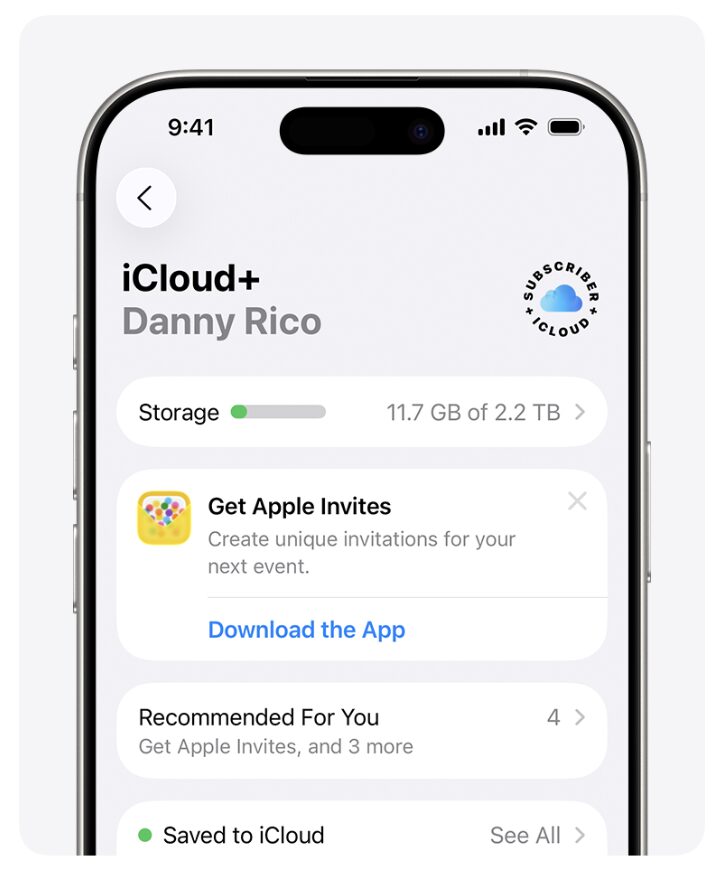
- Go to Settings > [Your Name] > iCloud and see how much free space you have. WhatsApp backups especially with lots of photos and videos can be surprisingly large. If you’re low on space, delete unused files or upgrade your iCloud plan.
- Launch WhatsApp, then tap Settings in the bottom-right corner.
- Tap Chats, then select Chat Backup.
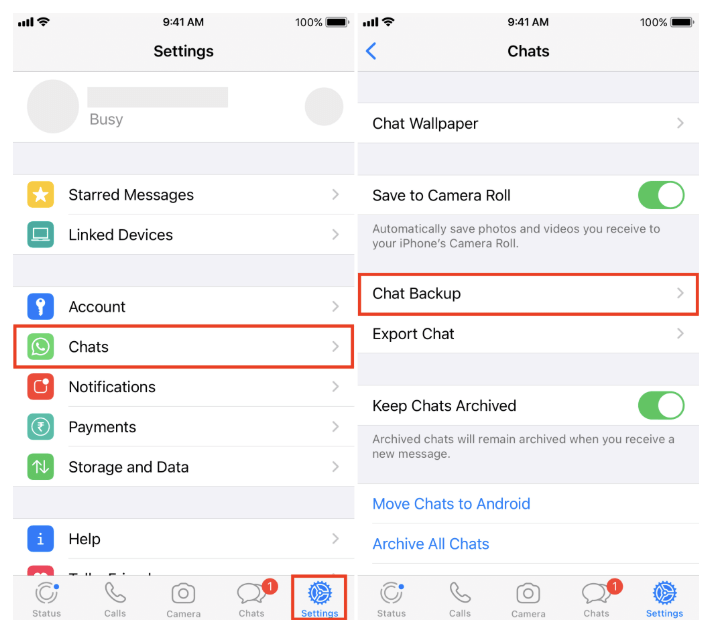
4. Tap Back Up Now to create an instant backup. This is a good habit before switching phones or updating iOS.
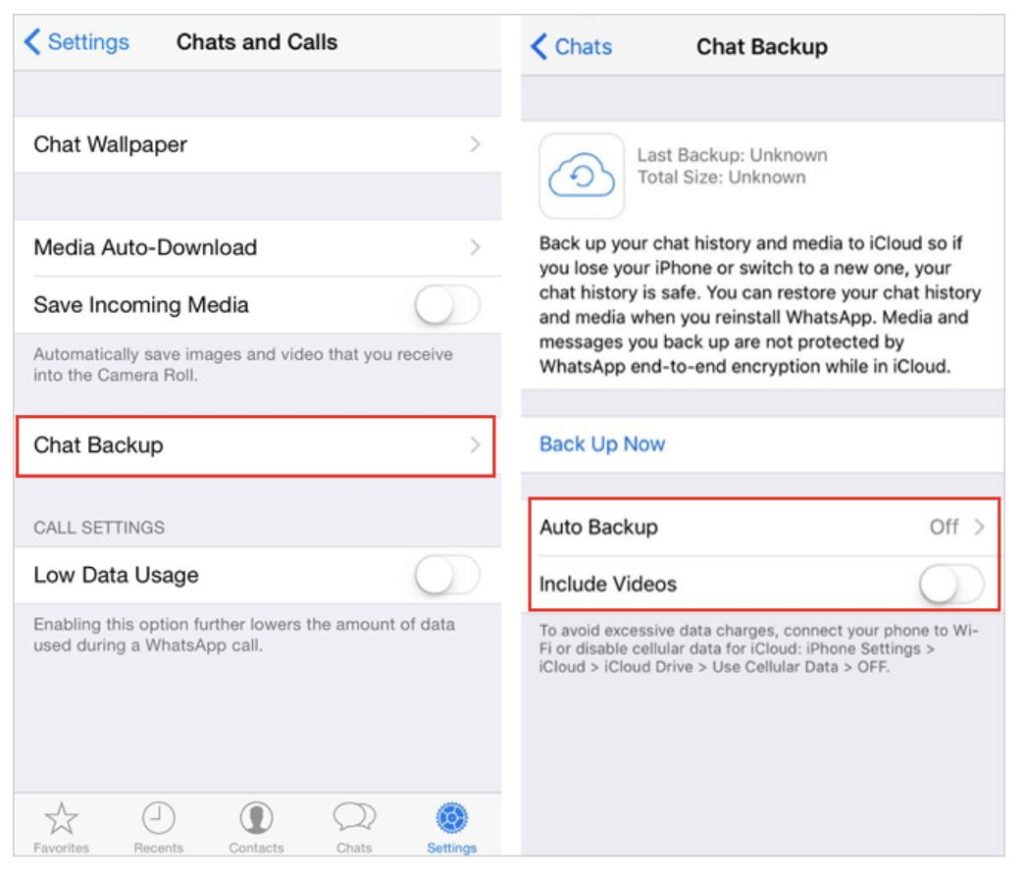
- Choose how often you want backups to happen automatically daily, weekly, or monthly. Daily is ideal if you chat a lot and don’t want to risk losing recent messages.
- Make sure the iCloud account shown matches the one you’ll use to restore your chats later. This step trips people up more than any other mismatched accounts mean lost backups.
How to Back Up WhatsApp on Android (Google Drive)
Google Drive makes it quick and easy to backup WhatsApp messages on Android. You can save your chats and media to your Google account in just a few taps. Once enabled, WhatsApp can also create automatic backups, so your latest conversations are always protected.
How to backup whatsapp on iphone
- Before backing up, confirm your Google account is active on your phone. Go to Settings > Accounts and check that Google Drive access is enabled.
- Launch WhatsApp, tap the three dots in the top-right corner, then select Settings.
- Tap Chats, then choose Chat Backup.
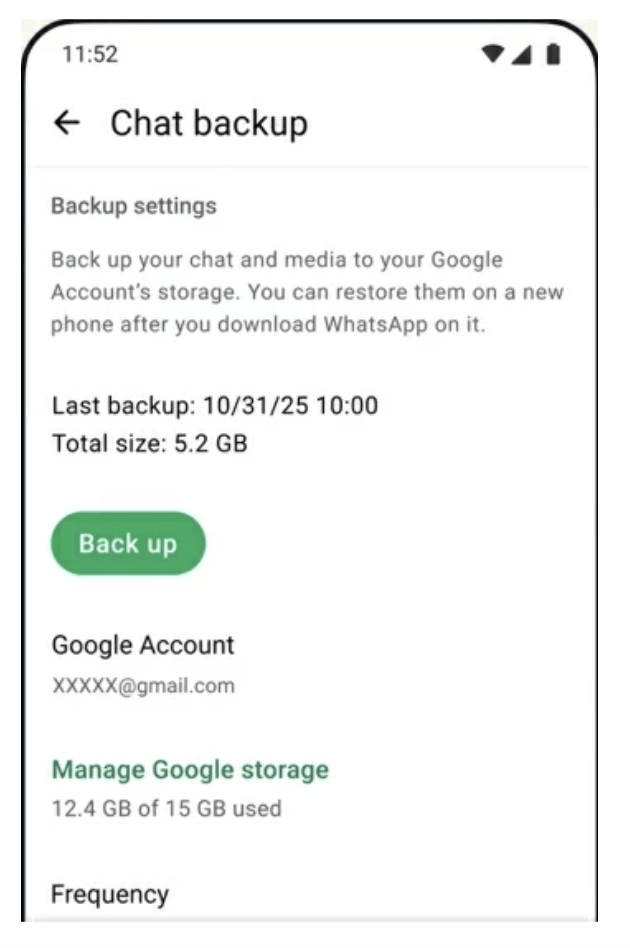
4. Tap Back Up to Google Drive and select the account you want to use. This is the account you’ll need later to restore your chats.
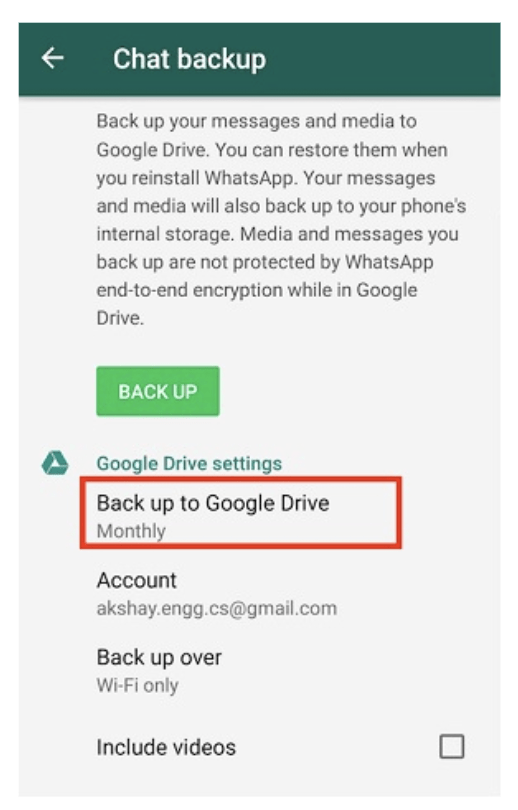
- Choose how often backups happen daily, weekly, monthly, or only when you tap manually. Daily backups are safest if you message a lot.
- To avoid using mobile data, set backups to occur only on Wi-Fi. This keeps things fast and saves your data plan. For an instant backup, hit this button anytime especially before switching phones or resetting your device.
How to Restore WhatsApp Backup on the Same System
Restoring a WhatsApp backup lets you recover your chats, photos, videos, documents, and other data after switching to a new device or reinstalling the app. WhatsApp automatically checks for an available backup during setup. For a successful restore, use the same phone number and the same iCloud or Google account that was used to create the backup.
Restore WhatsApp Backup from iPhone to iPhone
WhatsApp stores iPhone backups in iCloud, making it easy to recover your chat history on another iPhone.
Here how to backup whatsapp messages:
- Sign in to your new iPhone with the same Apple ID used for the WhatsApp backup.
- Turn on iCloud Drive by going to Settings > [Your Name] > iCloud > iCloud Drive.
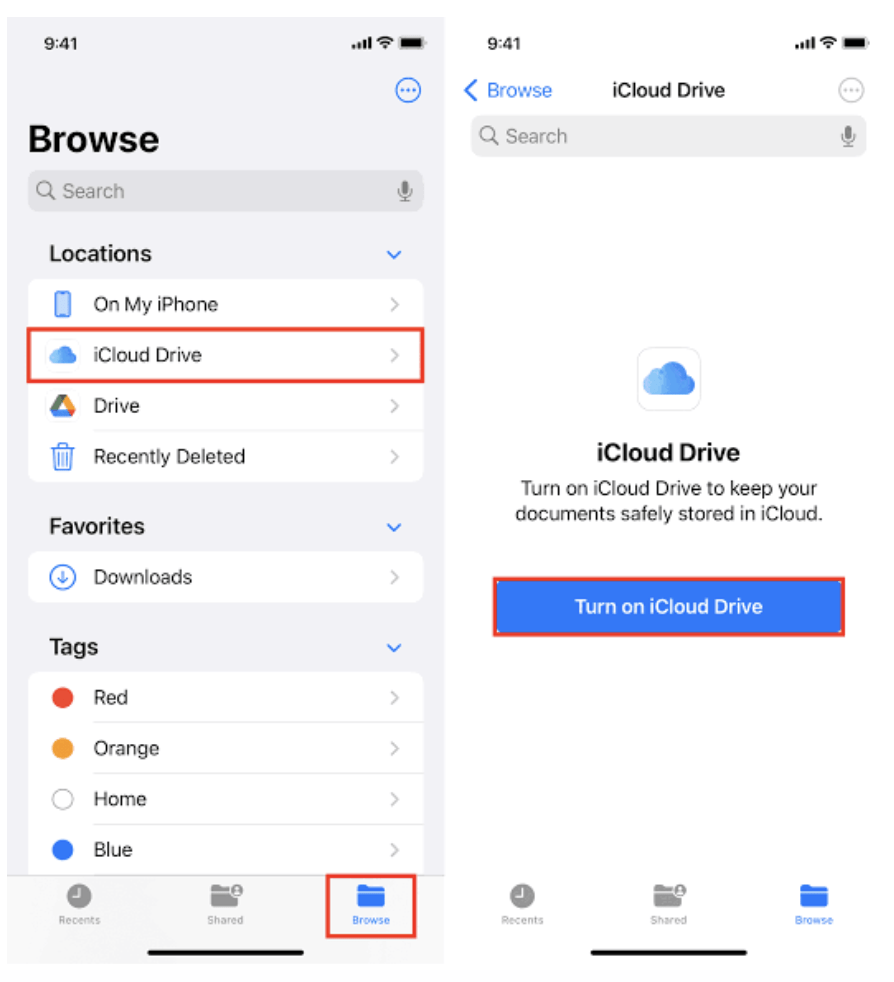
- Connect your iPhone to a stable Wi-Fi network. Download and install WhatsApp from the App Store.
- Open WhatsApp and verify the same phone number linked to your backup.
- WhatsApp will automatically search for an available iCloud backup.
- Tap Restore Chat History when the backup appears. Wait until the restoration is complete, then finish the setup process.
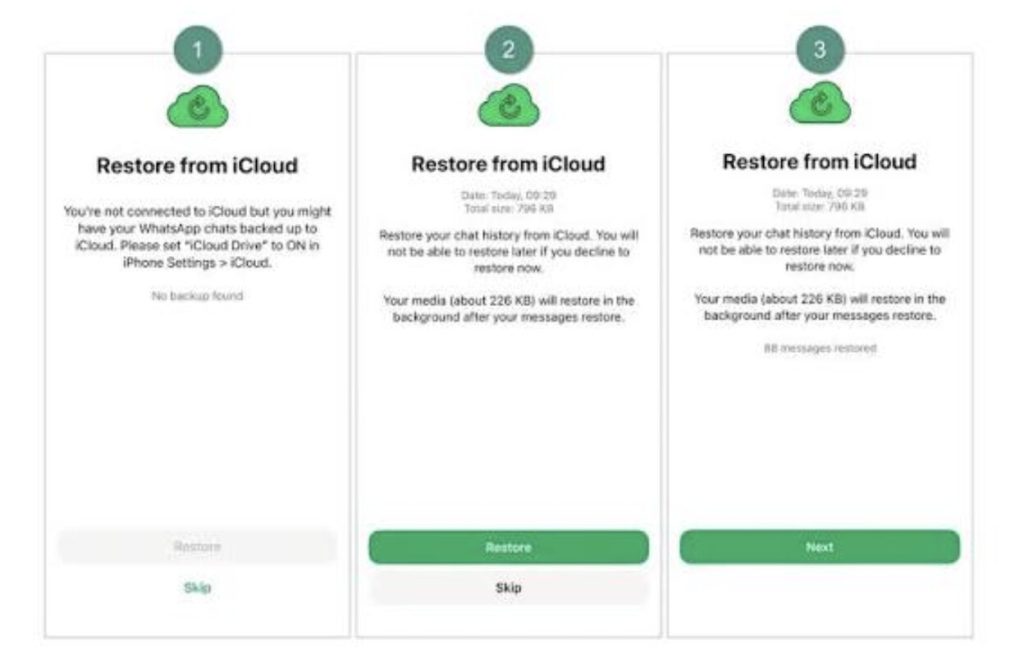
- Your chat history will be available immediately, while photos and videos may continue downloading in the background.
Note: Restoring won’t work if you sign in with a different Apple ID or verify a different phone number.
Restore WhatsApp Backup from Android to Android
Google Drive backups allow you to restore your WhatsApp data to another Android phone in just a few minutes.
Follow these steps for whatsapp back up chat:
- Sign in to the new Android device using the same Google account used to create the backup.
- Connect the phone to Wi-Fi and ensure Google Play Services is enabled. Install WhatsApp from the Google Play Store.
- Open WhatsApp and verify the same phone number. WhatsApp will automatically detect the Google Drive backup associated with your account.
- Tap Restore to begin recovering your chat history. Wait for the messages to finish restoring, then tap Next.
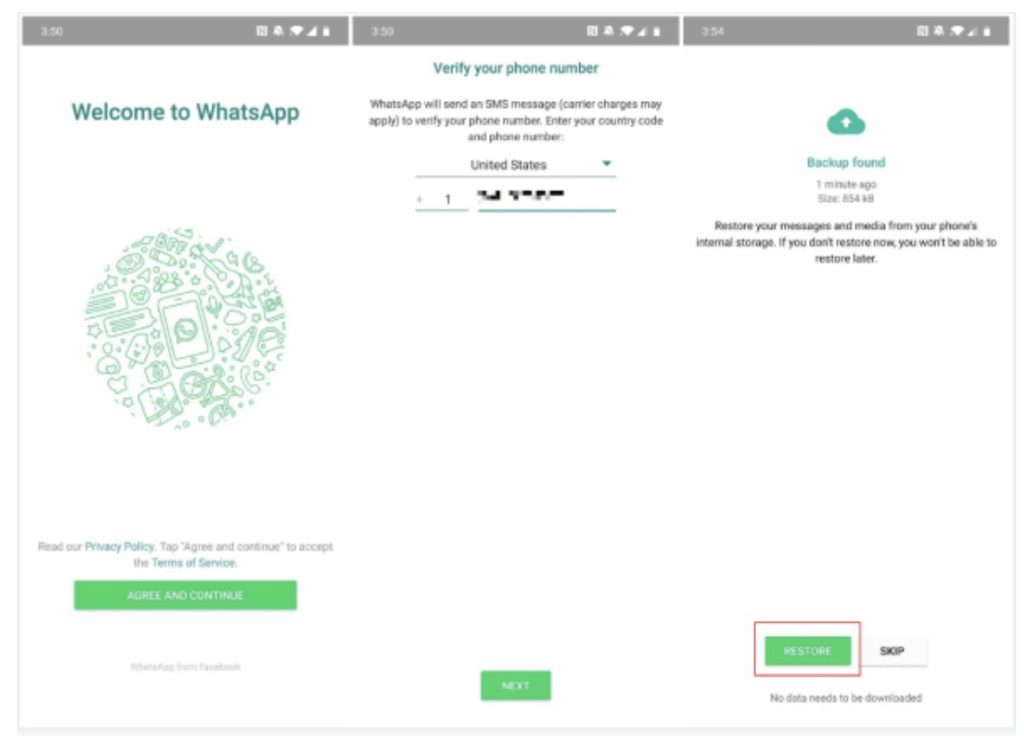
- Media files such as photos and videos will continue downloading after your chats appear.
How to Transfer WhatsApp Chats Between iPhone and Android
WhatsApp provides an official way to transfer chat history between iPhone and Android without relying on iCloud or Google Drive backups. The transfer moves your messages, photos, videos, voice messages, documents, profile information, and account settings directly from one device to another. Both devices should have the latest version of WhatsApp installed before starting the transfer.
Transfer WhatsApp from Android to iPhone
Apple’s Move to iOS app works with WhatsApp to securely transfer your chat history from Android to iPhone during the initial device setup.
How to back up whatsapp:
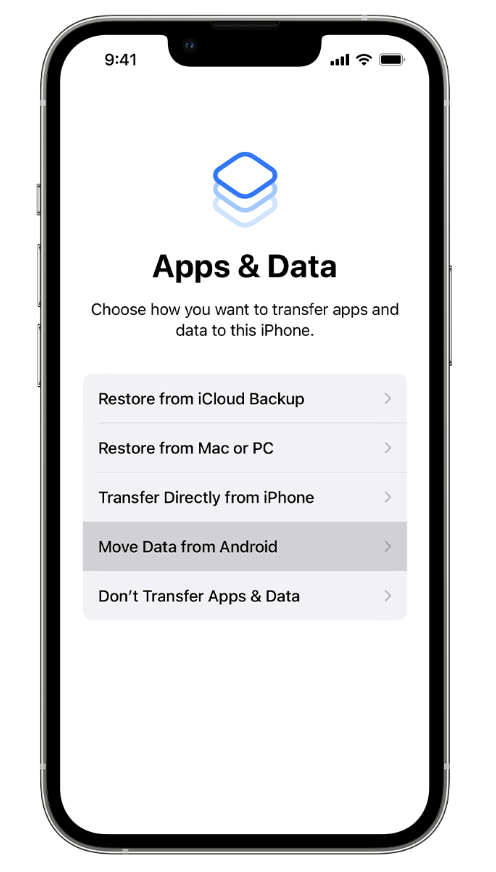
- Turn on your new iPhone and continue the setup until you reach the Apps & Data screen. Select Move Data from Android.
- Install and open the Move to iOS app on your Android phone. Enter the code displayed on your iPhone to pair both devices.
- Choose WhatsApp from the list of transferable data. Tap Start on your Android phone and wait for WhatsApp to prepare your data.
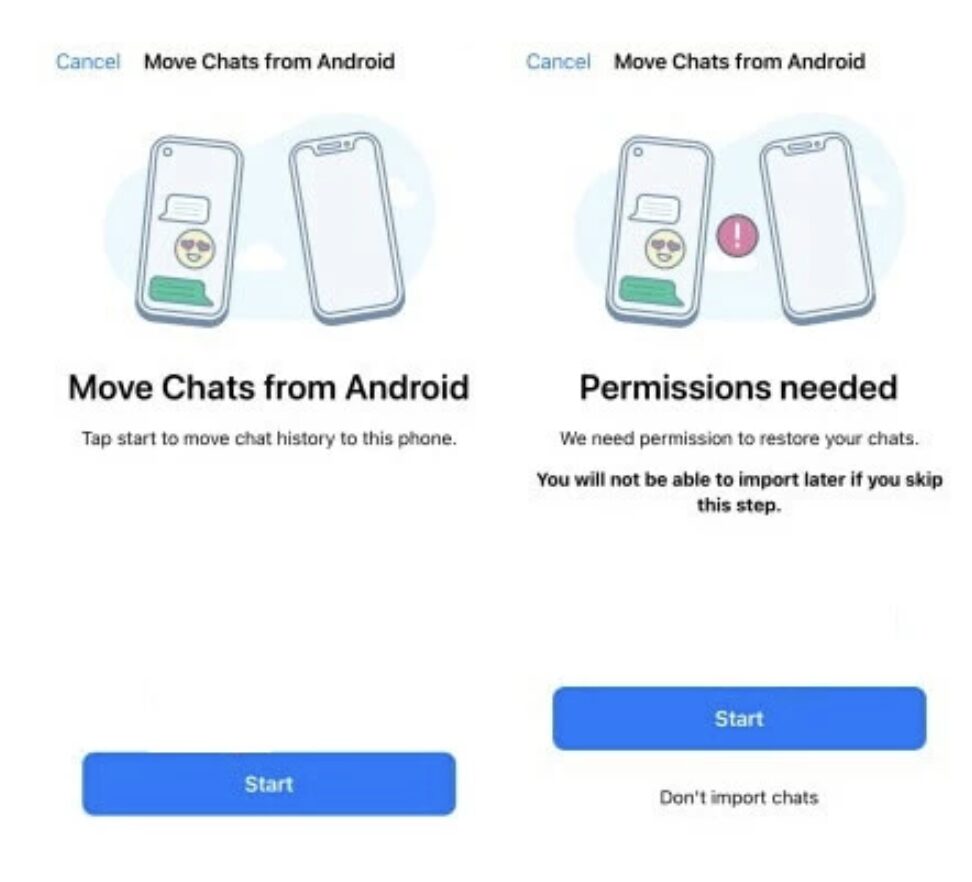
- Return to the Move to iOS app and continue the transfer. After the transfer finishes, complete the iPhone setup.
- Install WhatsApp from the App Store and verify the same phone number. Tap Start to import the transferred chat history.
Transfer WhatsApp from iPhone to Android
Many Android devices support WhatsApp chat transfer during the initial setup using WhatsApp’s official migration feature.
Follow these steps for how to backup whatsapp on iphone:
- Turn on your new Android phone and begin the setup process.
- Choose the option to copy apps and data from your old iPhone.
- Connect both devices using a compatible USB-C to Lightning cable, or follow the wireless transfer instructions if supported.
- Select WhatsApp when choosing the data you want to transfer. Keep both devices unlocked and connected until the transfer is complete.
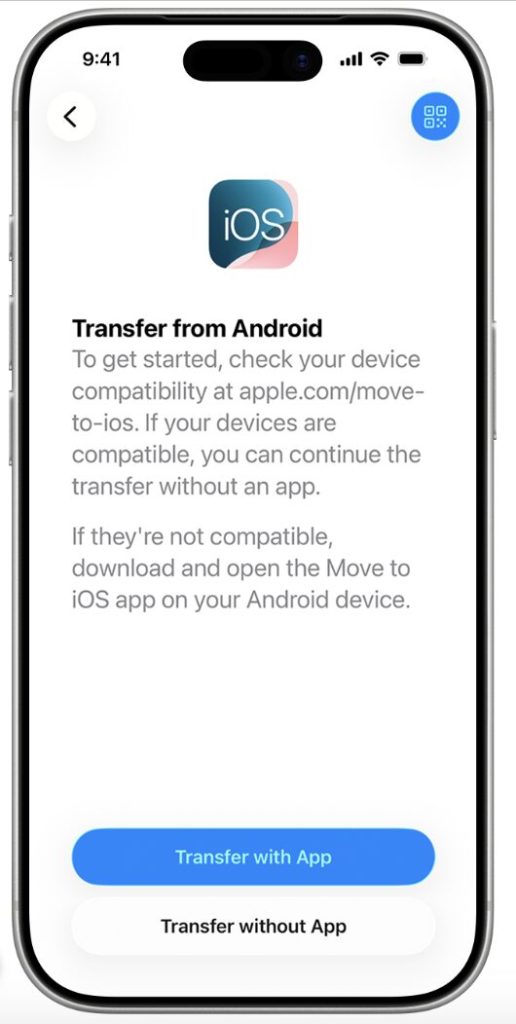
- Finish setting up your Android phone. Open WhatsApp and verify the same phone number used on your iPhone.
- Tap Import or Restore when prompted to complete the migration. Wait for the import to finish before using WhatsApp.
Tenorshare iCareFone Transfer: An All-in-One WhatsApp Management Tool
Tenorshare iCareFone Transfer is an all-in-one solution designed to make WhatsApp migration, backup, and restoration much easier than traditional cloud-based methods. Unlike iCloud or Google Drive, it lets you transfer WhatsApp data directly between Android and iPhone without resetting your device or depending on cloud backups.
Beyond chat transfers, the software also supports WhatsApp Business and GBWhatsApp, making it a practical choice for users managing multiple WhatsApp accounts. With support for the latest iOS 26 and Android 16, iCareFone Transfer provides a simple way to move, back up, restore, merge, and manage WhatsApp data across mobile devices and computers.
Why Choose iCareFone Transfer?
- Transfer WhatsApp and WhatsApp Business between Android and iPhone without a factory reset.
- Supports all transfer scenarios, including Android to iPhone, iPhone to Android, Android to Android, and iPhone to iPhone.
- Back up WhatsApp chats, photos, videos, and attachments to a Windows PC or Mac with no storage limits.
- Restore WhatsApp backups from Google Drive, iCloud, or local computer backups.
- Selectively transfer messages, media, documents, stickers, and voice notes.
- Merge WhatsApp conversations without overwriting existing chats.
- Transfer and restore GBWhatsApp and WhatsApp Business data.
- Export WhatsApp chats to a computer for viewing or archiving.
- Fully compatible with iOS 26 and Android 16.
How to Transfer WhatsApp from Android to iPhone Using iCareFone Transfer
Step 1: Install Tenorshare iCareFone Transfer on your Windows PC or Mac. Open the software and connect both your Android phone and iPhone using USB cables.
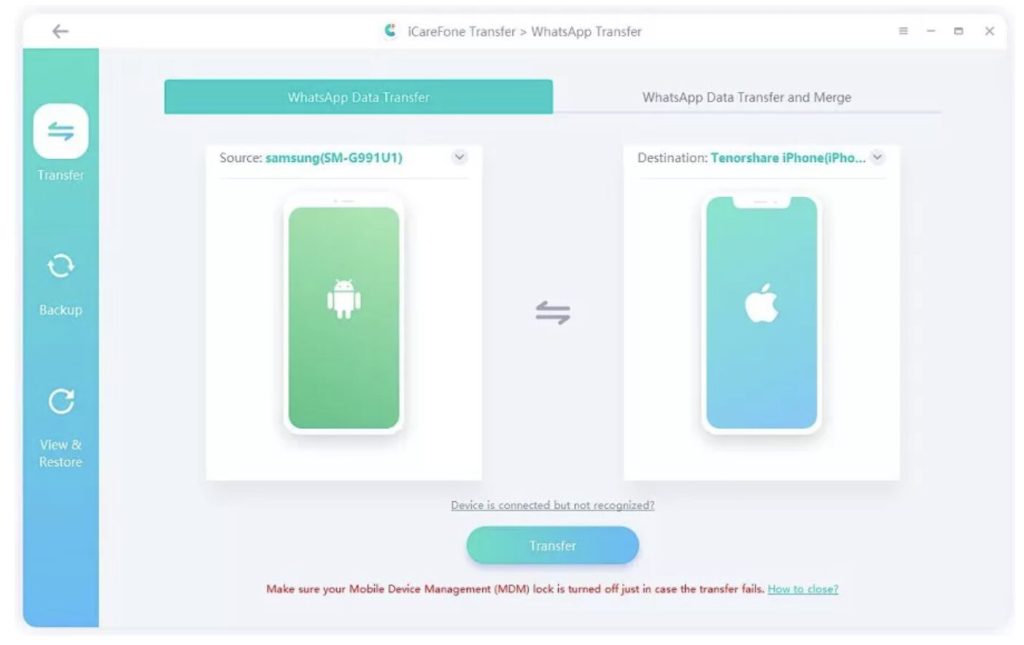
Step 2: Click Transfer from the home screen. Confirm the Android phone as the source device and the iPhone as the destination device, then select Continue.
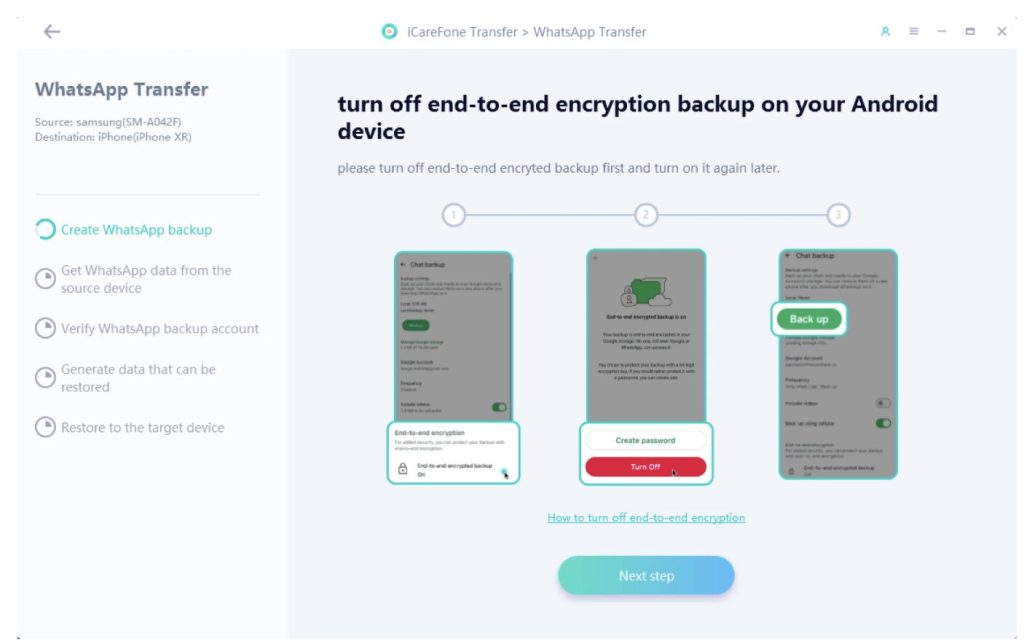
Step 3: Follow the on-screen instructions to create a new WhatsApp backup on your Android device. The software will also guide you through the required encryption settings when necessary.
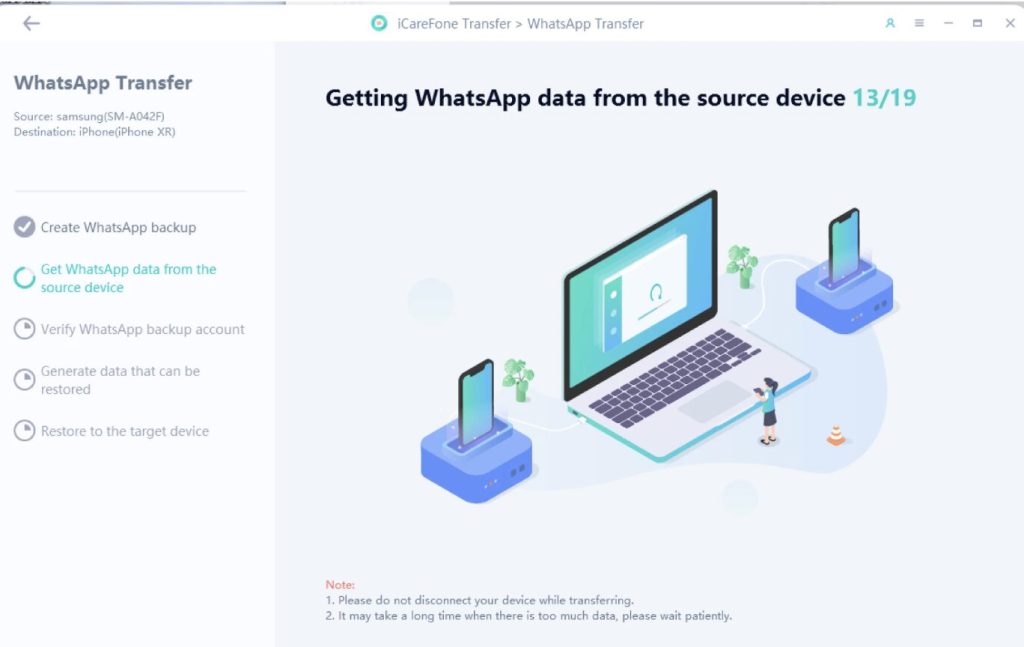
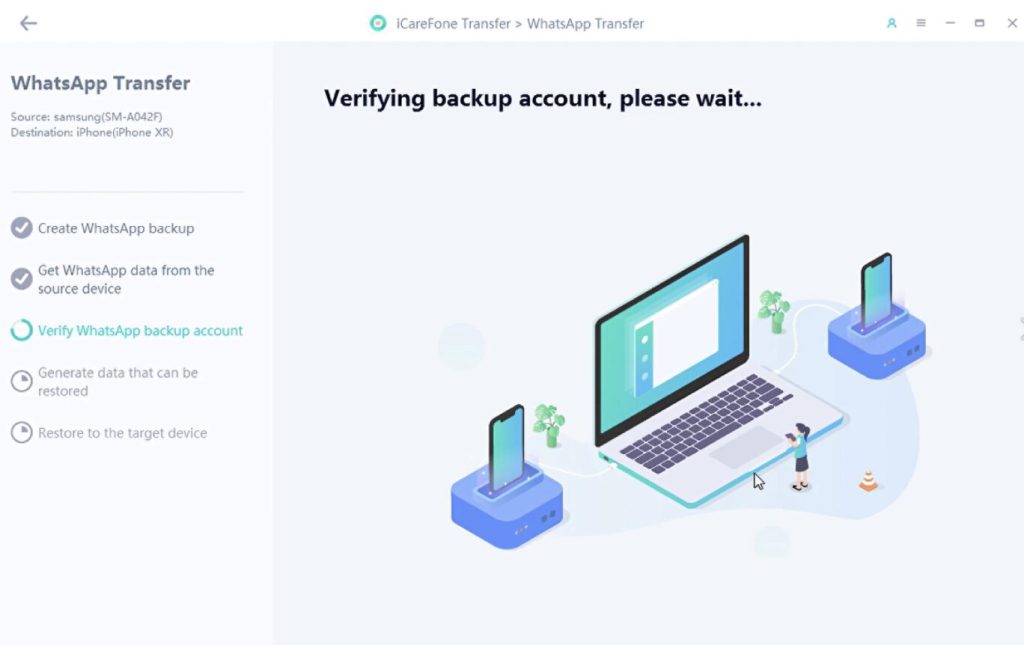
Step 4: iCareFone Transfer securely verifies the WhatsApp account associated with the backup before preparing the data for transfer.
Step 5: Choose whether to transfer all WhatsApp data or only selected content, including chats, photos, videos, documents, and other attachments.
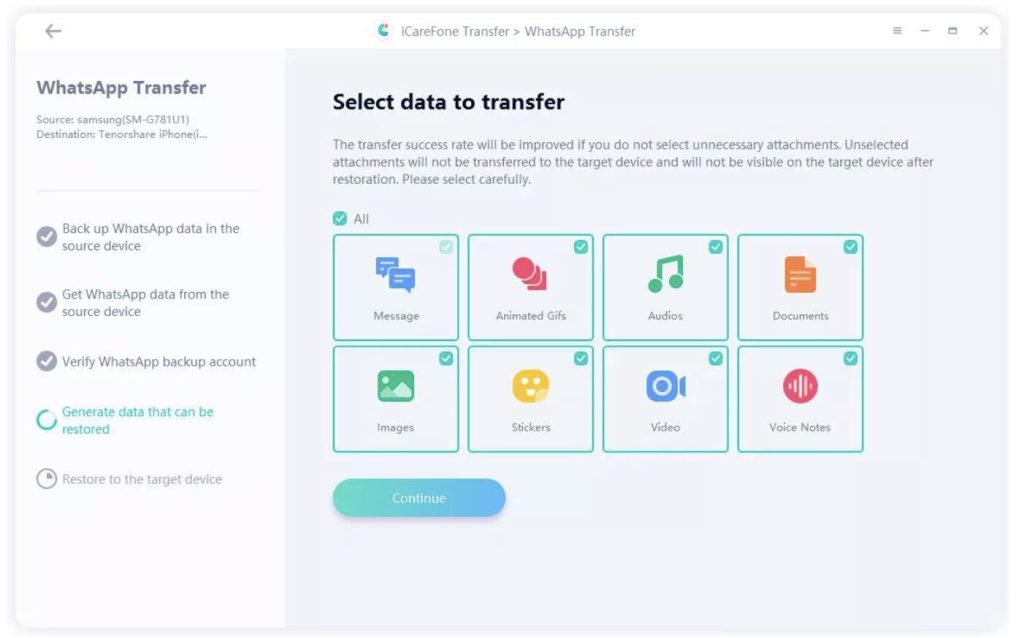
Step 6: Sign in to WhatsApp on your iPhone using the same phone number, then click Continue. iCareFone Transfer automatically restores the selected WhatsApp data to your new device.
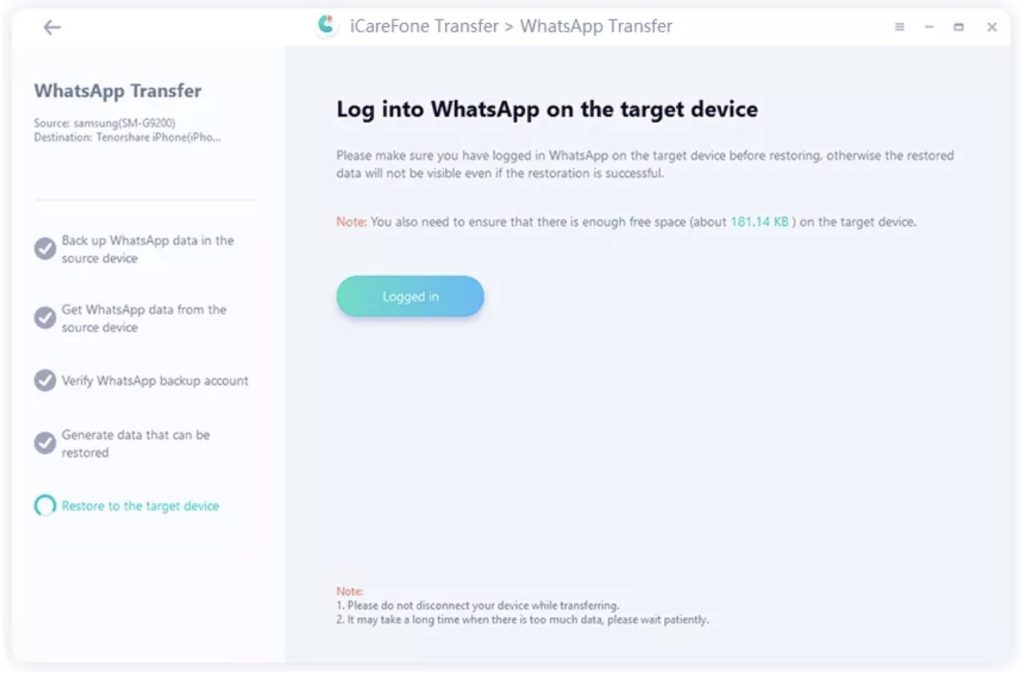
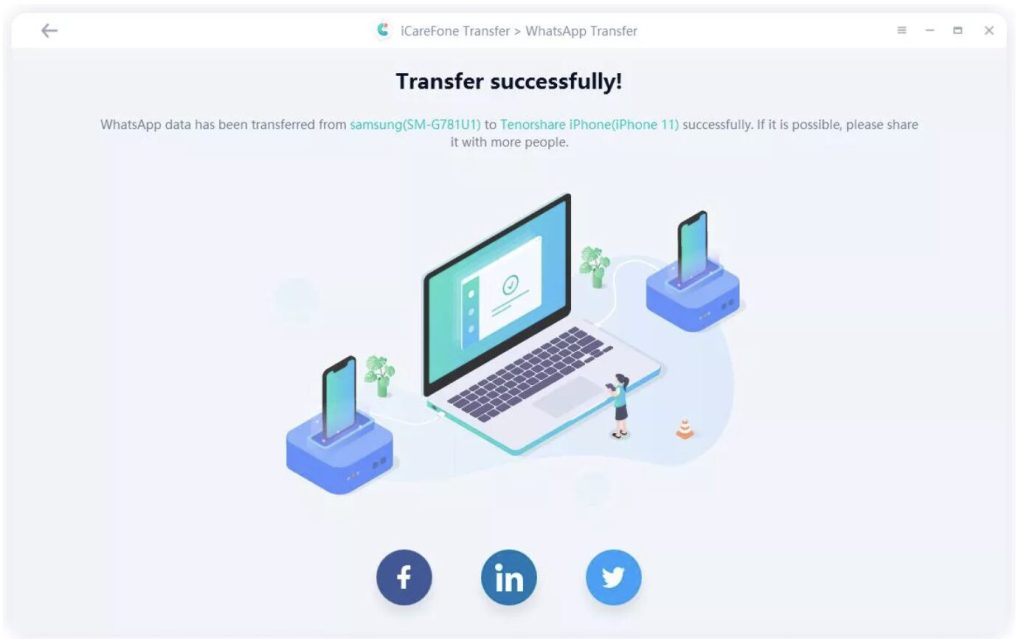
Step 7: Keep both devices connected until the process is complete. Once finished, open WhatsApp on your iPhone to access your chats, media, and other transferred data.
FAQ About How to Back Up Whatsapp
1. How to back up WhatsApp on PC without a phone?
You can’t create a new WhatsApp backup on a PC without your phone. However, you can use tools like iCareFone Transfer to back up your WhatsApp data from your phone to a Windows PC or Mac.
2. Is it possible to use WhatsApp on PC completely without a smartphone?
Yes. After linking your account to WhatsApp Web or the desktop app, you can use WhatsApp on your PC even when your phone is offline for a while. You’ll still need your phone to link the account the first time.
3. Can I recover my WhatsApp chats without a backup?
No. Without an iCloud, Google Drive, or local backup, deleted WhatsApp chats usually can’t be recovered.
4. How do I restore WhatsApp chats from Google Drive?
Install WhatsApp on your Android phone, verify your phone number, and sign in with the same Google account used for the backup. When prompted, tap Restore to recover your chats.
Conclusion
Protecting your WhatsApp data starts with knowing how to back up WhatsApp before it’s too late. Regular backups keep your chats, photos, videos, and documents safe and make switching to a new device much easier. While WhatsApp offers official backup options, Tenorshare iCareFone Transfer makes backups, restores, and cross-platform transfers much easier. It gives you complete control over your WhatsApp data without relying on iCloud or Google Drive.