If you use Microsoft Outlook with POP3, your emails, contacts, calendar data, notes, and personal items are likely stored in a PST file. When this file gets corrupted, you can lose access to years of important data. The good news: most PST corruption issues are fixable without professional help.
This guide walks through every practical method we tested to repair a corrupt PST file — from Microsoft’s built-in ScanPST.exe tool, to the online Outlook PST repair service, to the third-party desktop PST repair tool — so you can get your Outlook mailbox data back.
What Is PST File Corruption?
A PST is a local Outlook data file that Outlook uses to store your emails, attachments, calendar entries, contacts, personal folders, and tasks. When it becomes corrupted, Outlook may fail to open it, display corruption messages, or show missing or incomplete data.
PST corruption can happen for many reasons, including abrupt shutdowns, sudden power loss, oversized files, hardware failures, malware, or storing the PST file on a OneDrive or network drive.
It can range from minor issues, like a few unreadable emails, to severe damage where the entire file becomes inaccessible. Knowing the likely cause helps you choose the right repair approach.
What to Do Before Repairing a Corrupt PST File
Before you attempt any repair, take these steps to protect your data:
- Back up the corrupt PST file first. Copy it to a separate folder or external drive before touching it. If a repair attempt makes things worse, you still have the original.
- Close Outlook completely before running any repair method. Repairing an open file can cause additional damage.
How to Repair a Corrupt PST File and Get Your Data Back
In this review, we first tested Microsoft’s built-in tool (ScanPST) to see whether it could repair the entire mailbox. Where it fell short, we tested how a professional tool like Stellar Repair for Outlook helped us recover the remaining mailbox data.
Let’s Start With Microsoft’s Built-in ScanPST.exe (Inbox Repair Tool)
As noted earlier, ScanPST.exe is a free repair tool included with every Outlook installation. It scans your PST file for structural errors and attempts to fix them, and it is the right first step for most corruption cases. That said, it works best on minor to moderate corruption and cannot recover severely damaged or overwritten data.
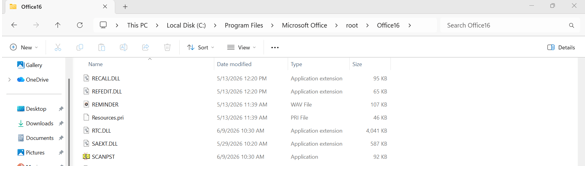
Before running ScanPST, you first need to find it on your system. The location of ScanPST can differ depending on the Outlook version you are using. You can check this article to locate the ScanPST within your system.
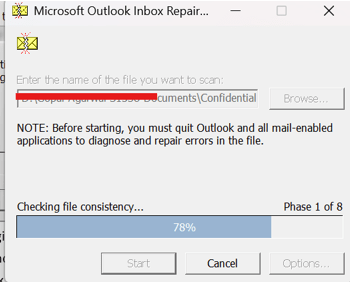
Steps to repair your PST file
- Close Microsoft Outlook completely before starting.
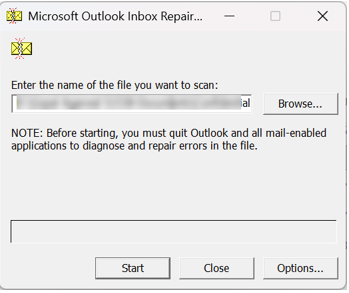
- Navigate to the ScanPST.exe location and double-click to open it.
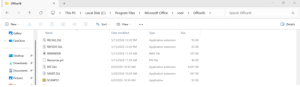
- Click Browse and select your corrupt PST file.
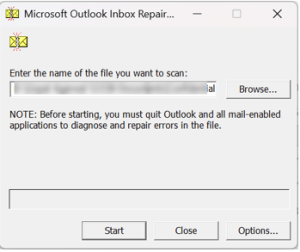
- Click Start to begin the scan.
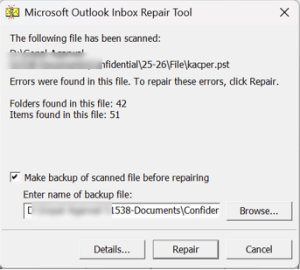
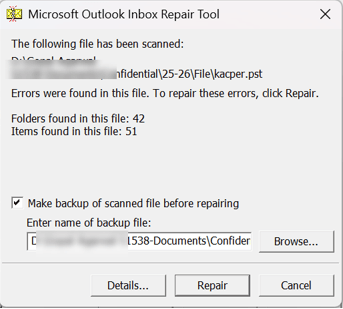
- If errors are found, make sure the option to back up the file before repairing is checked.
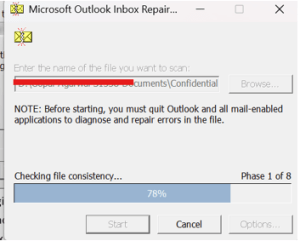
- Click Repair to fix the errors.
- Once complete, open Outlook and check whether the issue is resolved.
- If errors persist, run ScanPST again — severely corrupt files sometimes need multiple passes.
Method 2: Use the Online PST Repair Service
When ScanPST fell short, we turned to the Stellar® Online PST Repair. It is a browser-based online PST repair 1service that requires no installation and lets you preview recovered data before downloading anything. We signed in, uploaded our corrupt PST file, let the service scan and repair it automatically, and downloaded the result.
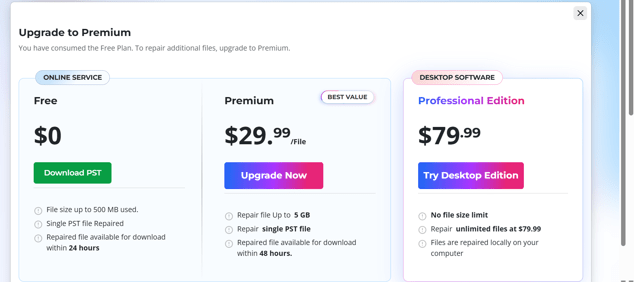
The online service offers two plans:
- A free plan that handles files up to 500 MB at no cost, with an in-browser preview of recovered folders and item counts before download.
- A premium plan for larger files up to 5 GB, with a per-file fee and a 48-hour download window.
Step 1: Opening the service and signing in
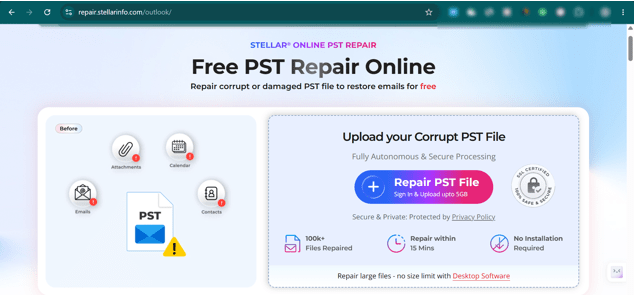
We opened repair.stellarinfo.com/outlook in Chrome and were met with a clean, no-clutter landing page. A single prominent button reads “Repair PST File.” We clicked it, signed into our Stellar account, and were in within seconds — no lengthy onboarding, no confusing setup.
Step 2: Uploading the corrupt PST file
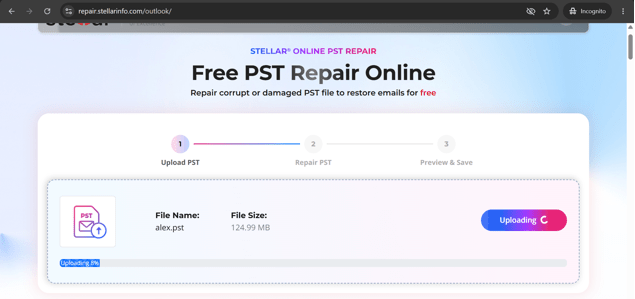
Once signed in, the service prompted us to upload our PST file. We clicked upload, browsed to our corrupted file, and selected it. Since our test file was under 500 MB, it fell comfortably within the free plan. If your file sits between 500 MB and 5 GB, the service prompts you to upgrade to the premium plan before the upload proceeds.
Step 3: Automatic analysis and repair
This was the most hands-off part of the process, which we mean as a compliment. After the upload finished, the service took over completely and started analyzing the file. The file was processed in a fully automated environment, and according to the platform, no human accesses your data during this stage.
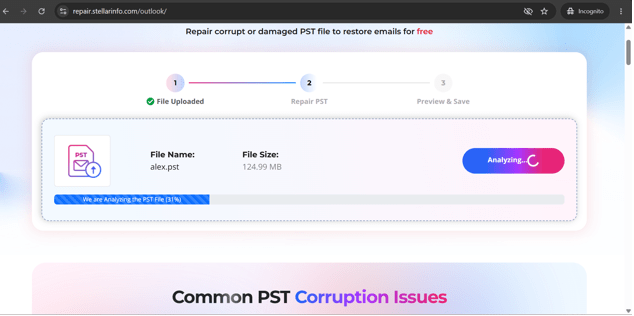
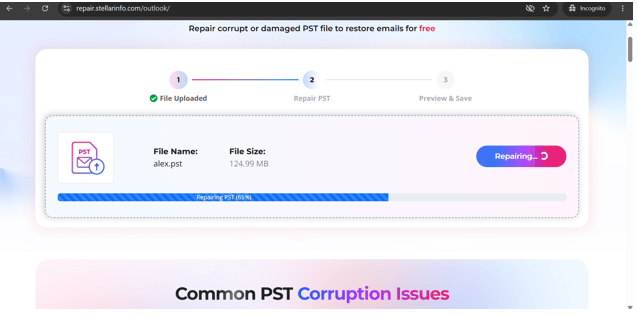
Once the analysis was complete, the service automatically began repairing the corrupted PST file. For our test file, the repair finished in under 15 minutes.
Step 4: Previewing the recovered data
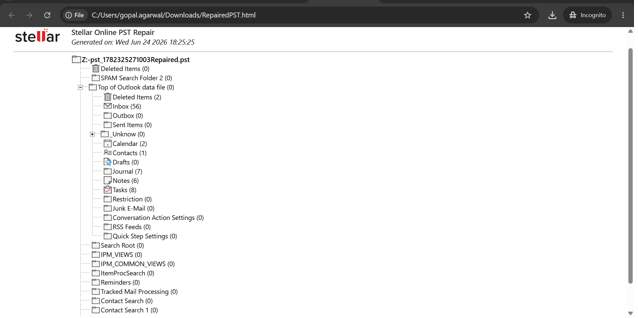
This was the step we were most curious about, and it did not disappoint. Before downloading anything, the service showed an in-browser preview of the recovered folder structure along with the item count in each folder.
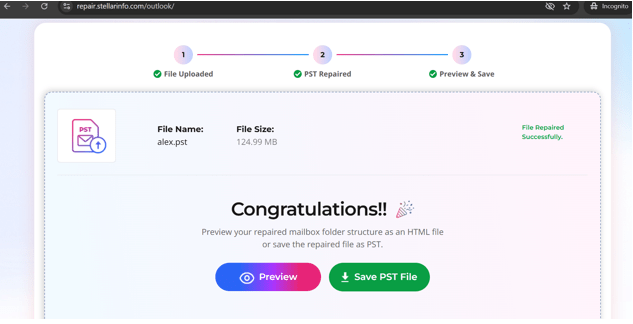
We could see exactly which folders had been recovered and how many email items were in each — real confidence that the repair had worked before committing to a download.
Step 5: Save the repaired file
We clicked download and saved the repaired PST to our desktop. On the free plan, the file stays available for 24 hours before it is permanently deleted; premium users get 48 hours. Either way, the file is auto-deleted afterward — a meaningful privacy assurance when dealing with sensitive mailbox data.
Step 6: Loading the file back into Outlook
Back in Outlook, we went to File, then Open & Export, then Import/Export, chose “Import from another program or file,” selected “Outlook Data File (.pst),” and browsed to the repaired PST. Within moments, our recovered folders and emails appeared in the folder pane. From upload to a working mailbox in Outlook, the whole process took well under 20 minutes.
What we liked
- The free 500 MB single-file repair is genuinely useful for anyone with a smaller PST.
- In-browser preview before downloading removed all guesswork.
- The entire process took under 20 minutes.
- No technical knowledge needed.
- Files auto-deleted after 24 to 48 hours for privacy.
- No software to download or install before using the service.
What to keep in mind
- Handles one file at a time, up to 5 GB — well suited to individual repair jobs.
- For direct export to Office 365 or live Exchange, the desktop edition is the better fit.
- Saves the repaired output in PST format, ready to import straight into Outlook.
- The in-browser preview focuses on the recovered folder structure and item counts.
- Recovers the full mailbox as-is; selective filtering of Junk or Deleted Items is available in the desktop edition.
- Repaired files are auto-deleted from the server after 24 to 48 hours; a manual delete option would be a welcome addition for those who prefer to clear their data sooner.
Method 3: Repairing an Oversized PST File
Older Outlook versions (2002 and earlier) used the ANSI PST format, which has a hard 2 GB size limit; exceeding it causes corruption. Newer versions use the Unicode format with a much higher limit (up to 50 GB by default), but even these can become unstable if the file grows too large.
When we ran into this scenario in testing, the online service was no longer enough. Files beyond 5 GB, multiple PSTs, or the need to export recovered data directly to Office 365 or Exchange all pointed us toward Stellar Repair for Outlook, the desktop software. Here is how we tested it and what we found.
Step 1: Downloading and installing the software
First, we grabbed the free trial. What we appreciated straight away is that the trial is not a crippled demo — it runs a full scan and previews everything it recovers before you activate, so we could see exactly what was salvageable before spending a penny. Installation was straightforward and the software launched without issues.
Step 2: Loading the corrupt PST file
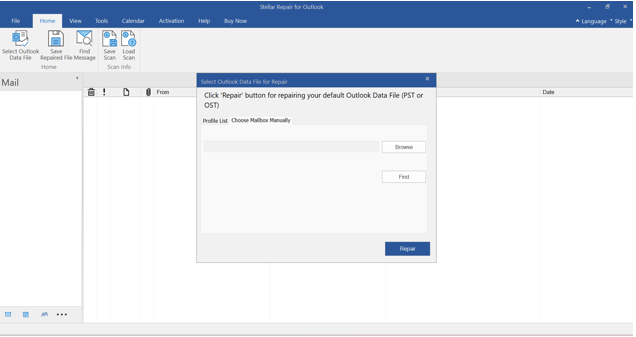
On the home screen, we clicked Select Outlook Data File, located our PST, and selected it. There is also a Find option if you are not sure where Outlook stored the PST — a handy touch. The software can also automatically identify and list available Outlook profiles, or you can browse manually. What immediately stood out was the complete absence of any file-size restriction: we threw a large, badly corrupted PST at it, and the software accepted it without warnings.
Step 3: Running the repair scan
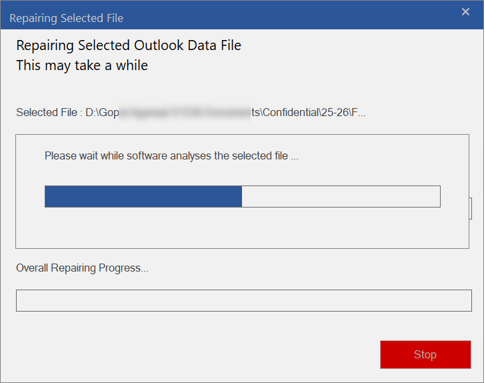
We clicked Repair and watched the software work through the file. Scan progress is shown on screen throughout, so you are never left staring at a frozen interface. It surfaced folder structures and email content that ScanPST had not come close to recovering — noticeably more thorough than anything at the free or online level.
Step 4: Previewing the recovered mailbox
Once the scan finished, the software presented a full preview of everything recovered — emails with attachments, contacts, calendar entries, tasks, notes, and journal entries — laid out in a familiar folder tree. We could click into individual emails and read them in the preview pane. All of this was available in the free trial before activation, making it easy to verify the recovery was complete before buying a license.
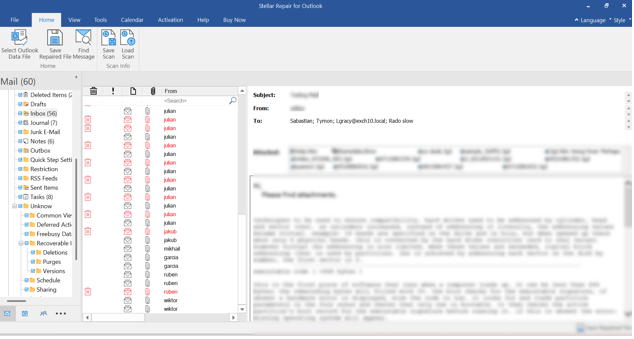
Note: The tool also recovered permanently deleted items, shown in red, so if you have mistakenly deleted important emails or other items, they can be easily recovered too.
Step 5: Activating and saving the repaired data
After confirming the preview looked good, we entered the activation key and unlocked the save function. We selected the folders we wanted and saved the repaired output as a PST file locally. Moreover, you can save the repaired file in other formats such as MSG, EML, RTF, HTML, and PDF. Worth noting: the Professional Edition covers multiple files under a single license, so if you have several corrupt PSTs, you can work through all of them with no per-file cost.
Step 6: Exporting directly to Office 365 or live Exchange
This feature genuinely surprised us. Rather than saving a PST and manually importing it, the software exports the repaired mailbox data directly to an Office 365 mailbox or a live Exchange server with Technician Edition. During the save step, we selected the Office 365 export option, entered the account credentials, and the software handled the rest. For anyone recovering mailboxes in a business environment, this is a significant time-saver — and a capability you will not find in the online service.
What we liked
- No file-size limit, and unlimited PSTs under one license.
- Data never leaves your machine at any point.
- A detailed preview of mailbox items lets you verify the recovery before saving.
- Recovers deleted items, clearly highlighted in red.
- An auto-split option helps manage large PST files.
- Multiple save formats, including MSG, EML, RTF, HTML, and PDF.
- Direct export to Office 365 and live Exchange (Technician Feature)
- The free-trial preview is a full scan, not a teaser.
Which One Should You Use?
If you have a single PST file under 5 GB, the online service is the faster, simpler choice — the free plan if your file is under 500 MB, or the premium plan for anything larger.
Switch to the desktop software if your file exceeds 5 GB, you have multiple PSTs to repair, or you need recovered data to go directly into Office 365 or Exchange. With multiple files under a single license, it also makes more financial sense once you are dealing with more than two or three PSTs.
How to Prevent PST Corruption in Future
Repairing a corrupt PST takes time and carries some risk of data loss. These habits help you avoid the problem:
- Keep your PST file size in check. Archive old emails regularly and keep the file well below the size limit.
- Use Outlook’s AutoArchive feature. It moves older items to a separate archive on a schedule you define.
- Back up your PST regularly. Copy it to an external drive or cloud storage at least weekly if you rely on Outlook daily.
- Never store your PST on a network drive. Network interruptions can corrupt the file mid-write — always keep it local.
- Shut down Outlook properly. Avoid force-closing the app or powering off while Outlook is syncing.
- Keep Outlook and Windows updated. Updates often include fixes for bugs that cause data-file issues.
- Run a reliable antivirus program. Malware is a common cause of file corruption.
Conclusion
PST corruption rarely announces itself until you are locked out of years of important email. While Outlook’s built-in ScanPST can handle minor issues, it falls short on anything severe — and Stellar’s offerings pick up exactly where it stops. The online service resolves most everyday repair jobs quickly and for free, while the desktop software handles what ScanPST cannot: oversized files, multiple PSTs, and direct export to Office 365 or Exchange.
Frequently Asked Questions
- Where is the PST repair tool located?
The built-in repair tool, ScanPST.exe, is in the Microsoft Office installation folder. The exact path varies by Outlook version and whether you have a 32-bit or 64-bit installation.
- What causes a PST file to become corrupted?
Abrupt shutdowns, power loss, malware, oversized files, or hardware failures. Storing the PST on a network drive also makes it highly prone to corruption.
- Can I repair a PST file without losing my data?
In most cases, yes. ScanPST and dedicated repair software are designed to recover your data while keeping it intact.
- Is ScanPST enough to fix a corrupt PST file?
ScanPST works well for minor corruption but has limits with severely damaged files. For serious cases, a dedicated repair option gives better results.
- How do I prevent my PST file from getting corrupted again?
Keep the file size in check, back it up regularly, shut down Outlook properly, and avoid storing it on a network drive.