If you’re trying to remove your lock screen password but find the option unavailable, you’re not alone. Many users run into the iPhone Passcode Grayed Out issue when they go to Settings and see that “Turn Passcode Off” is disabled.
This can be frustrating, especially if you’re wondering how do you turn off iPhone passcode or how to remove passcode from iPhone quickly. The good news is that this problem is usually caused by specific settings or restrictions, and in most cases, it can be fixed.
In this guide, you’ll learn why the turn passcode off greyed out iPhone issue happens and the most effective ways to resolve it.
Part 1: Why Is Turn Passcode Off Greyed Out on iPhone/iPad
Before trying to fix the issue, it’s important to understand why the iPhone Passcode Grayed Out problem happens in the first place. In most cases, the option is disabled because your device is being restricted by a system rule or security policy.
The most common reason is Screen Time restrictions, which can block changes to passcode settings when certain limits are enabled. Devices managed by a company or school may also enforce a passcode through an MDM profile, making it impossible to turn it off manually. In addition, some Exchange email accounts apply security policies that require a passcode to stay active.
Sometimes the cause is less obvious. A software glitch, outdated iOS version, or conflicting security settings can also lead to the turn passcode off greyed out iPhone issue. Regardless of the reason, identifying the source will make it much easier to apply the right fix.
Part 2: Fix Turn Passcode Off Greyed Out on iPhone/iPad
Now let’s walk through the most effective solutions. If you’re trying to figure out how do I disable password on iPhone or how do I take off passcode on iPhone, these methods will help you regain control.
Method 1: Turn Off Screen Time Restrictions
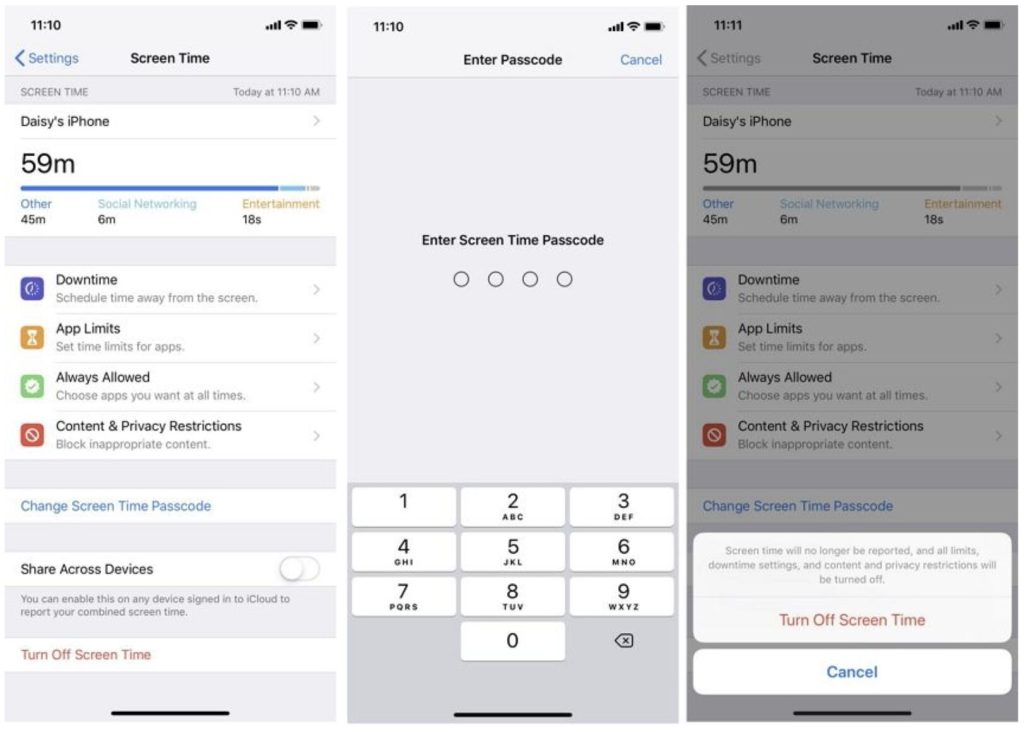
Start by checking whether Screen Time is limiting your settings. Open Settings, tap Screen Time, then go to Content and Privacy Restrictions. If this feature is enabled, try turning it off or adjusting the restrictions.
Once disabled, go back to Face ID & Passcode or Touch ID & Passcode and check if the option becomes available again.
Method 2: Remove MDM Profile
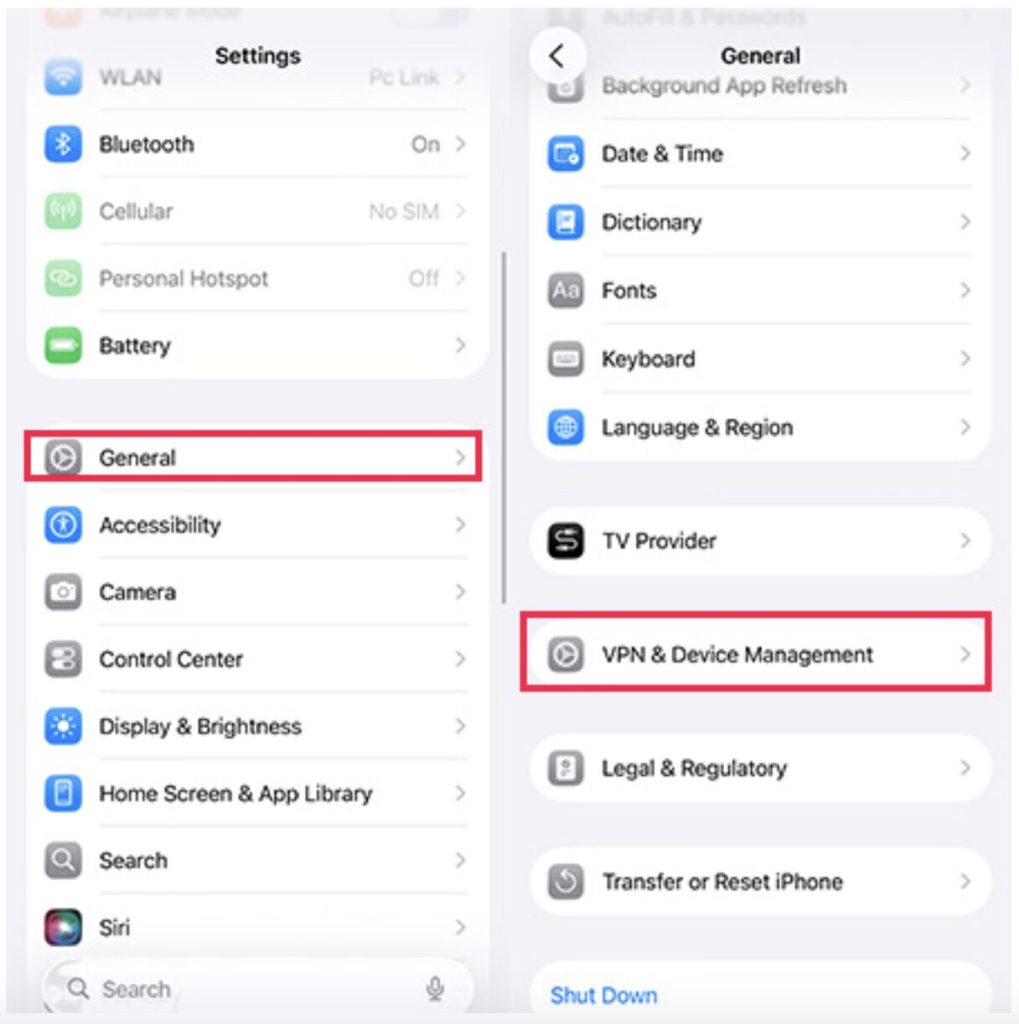
If your device is managed by an organization, the passcode requirement may be enforced through an MDM profile. Navigate to Settings, then General, then VPN & Device Management.
If you see a configuration profile installed, select it and check whether removal is allowed. If it is removable, deleting it may immediately restore access to passcode settings.
Keep in mind that some profiles cannot be removed without authorization.
Method 3: Delete Exchange Email Account
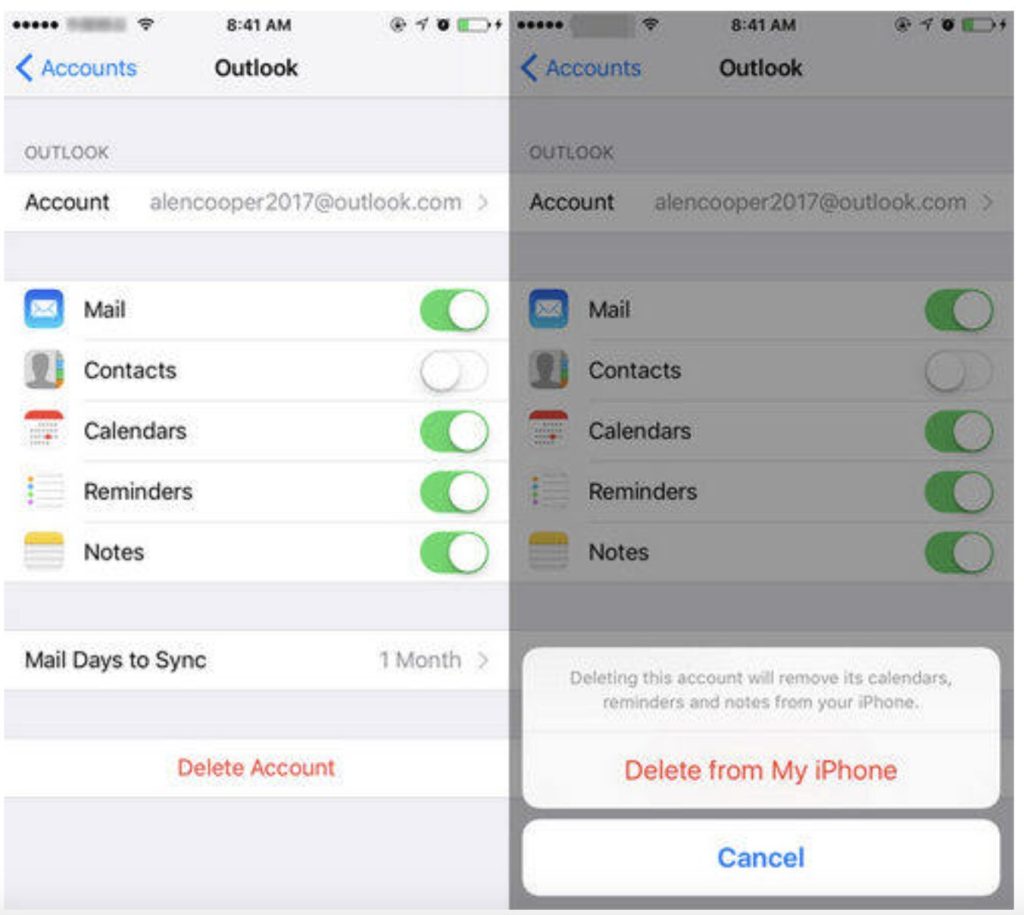
Certain work or corporate email accounts apply security rules that prevent passcode removal. Go to Settings, tap Mail, then Accounts, and look for any Exchange account.
Removing the account can sometimes lift the restriction. After deletion, return to the passcode settings to see if the option is no longer greyed out.
Method 4: Reset All Settings
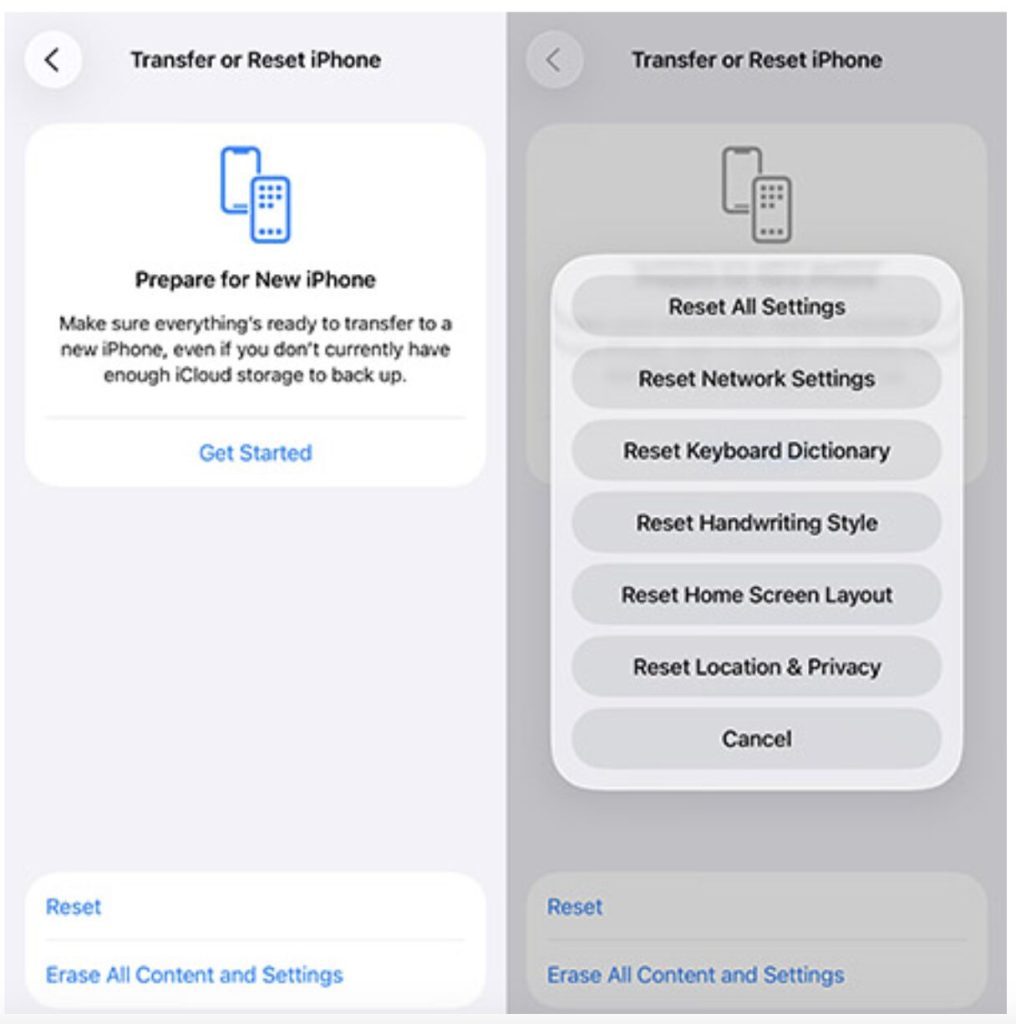
If the issue is caused by a system conflict, resetting settings can help. Open Settings, go to General, then Transfer or Reset iPhone, and choose Reset All Settings.
This will not erase your data, but it will restore system settings to default. After the reset, check if you can now disable the passcode.
Method 5: Update iOS Version
Software bugs can occasionally trigger the turn passcode off greyed out issue. Updating your device ensures you’re running the latest fixes.
Go to Settings, tap General, then Software Update. If an update is available, install it and restart your device. Once done, revisit the passcode settings.
Method 6: Professional Way to Resolve the Turn Passcode Off Greyed Out Problem
If none of the above methods work, a more reliable approach is to use a professional unlocking tool like 4uKey.
This method is especially useful when restrictions cannot be removed manually or when the system is locked in a way that prevents changes.
4uKey allows you to remove the iPhone passcode directly, even when the option is unavailable in settings. It works across different iOS versions and does not rely on changing internal restrictions.
Here’s how to use it:
- Download and install 4uKey on your computer
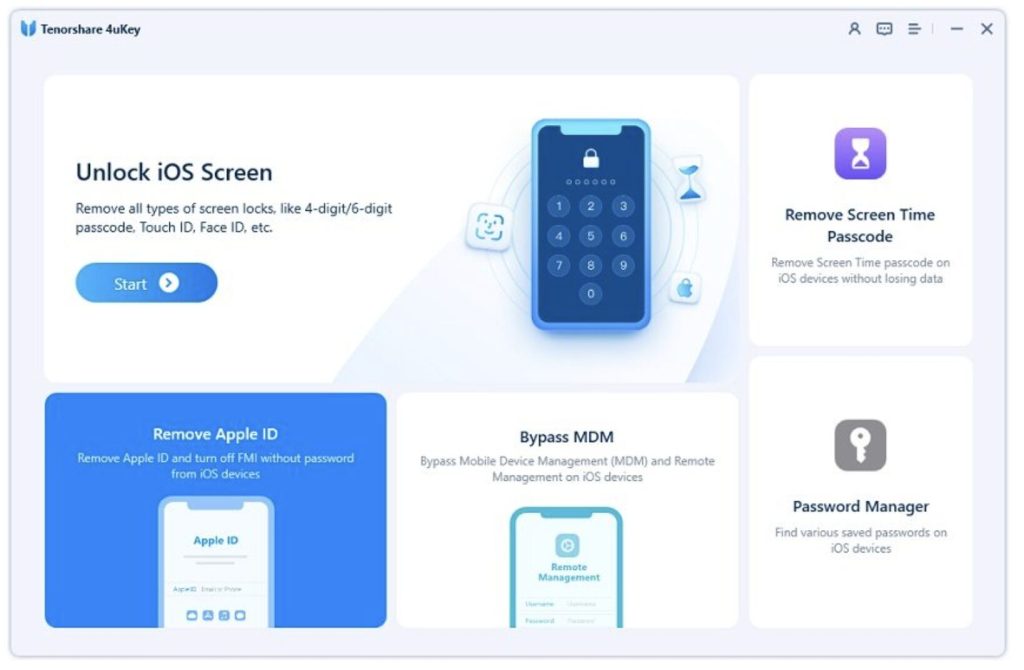
2. Now, connect the iOS device in question. After establishing the proper connection, click on ‘Start’ to initiate the procedure.
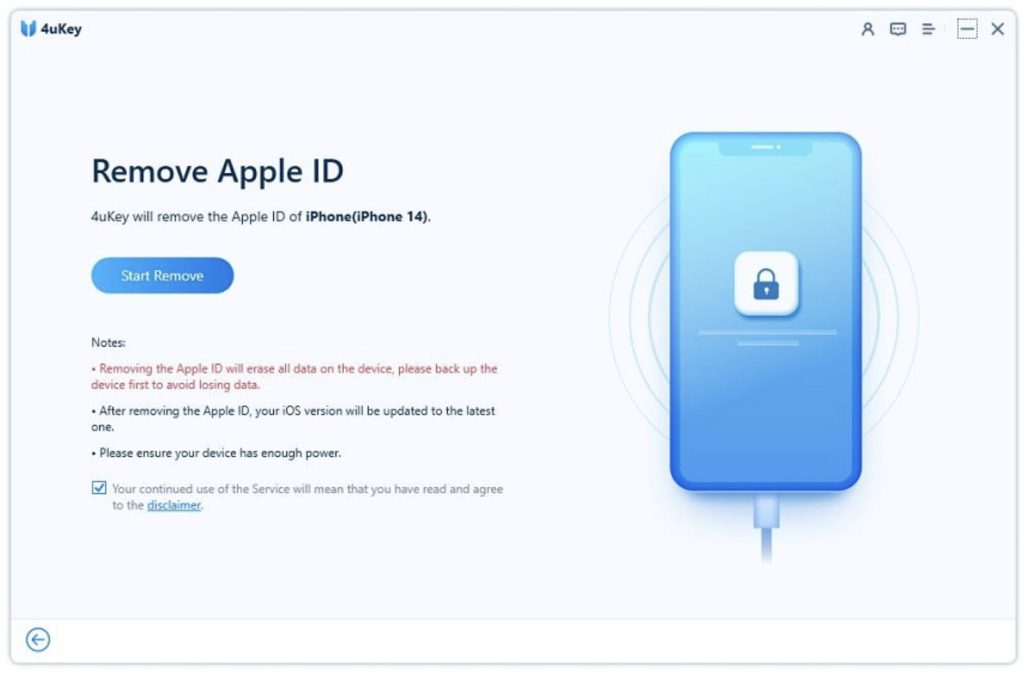
3. Now, you have to wait. After a few minutes, you will be notified about the Apple ID removal.
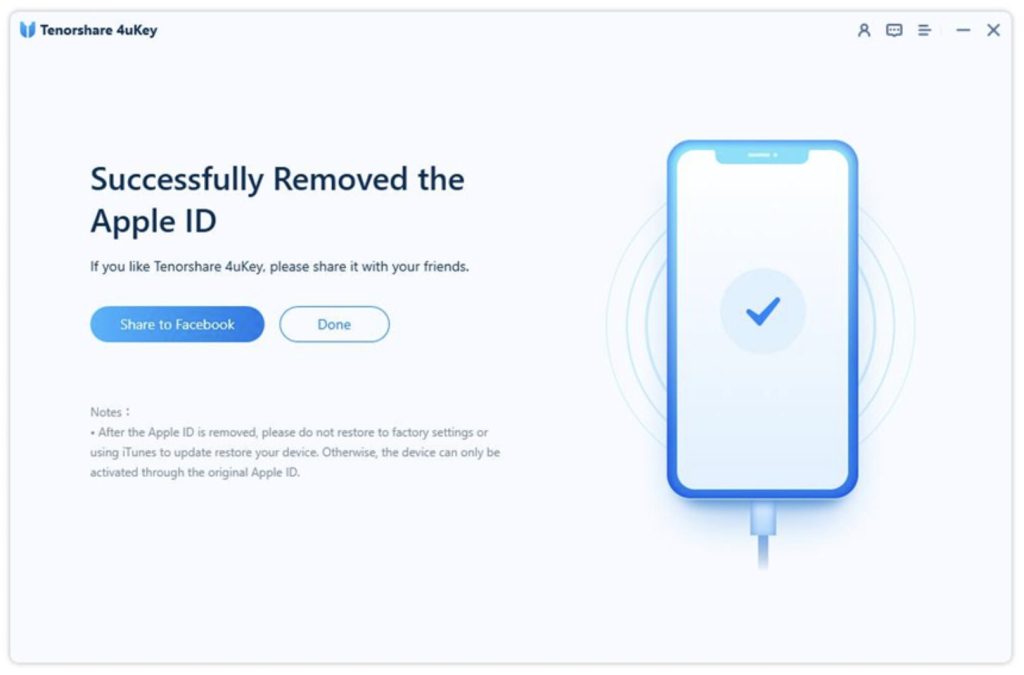
After the process finishes, your iPhone will restart without a passcode. You can then set a new one or continue using the device without it.
This is one of the most straightforward solutions if you’re stuck and still asking how to remove a passcode from an iPhone when settings won’t allow it.
Part 3: Tips to Avoid Passcode Issues on iPhone
To prevent running into the same issue again, it’s worth paying attention to how your device is configured.
- Avoid installing unknown configuration profiles unless you fully trust the source. These profiles can silently enforce restrictions that are difficult to remove later.
- Be mindful when enabling Screen Time, especially if you set a separate passcode. Forgotten restrictions can easily block access to system settings.
- Keeping your iOS version updated is also important, as newer updates often fix bugs related to system controls.
- Finally, if you use work or school accounts on your device, understand that they may apply security policies that override your personal preferences.
Part 4: FAQs About iPhone Passcode Issues
Why is “Turn Passcode Off” still greyed out after resetting Face ID?
Even after resetting Face ID, restrictions like Screen Time, MDM profiles, or email security policies may still prevent you from turning off the passcode.
Why is my iPhone’s lock screen setting unavailable?
This usually happens when certain security settings or system restrictions are in place, limiting access to lock screen options.
Why can’t I disable the passcode on my iPhone?
If your iPhone won’t allow you to turn off the passcode, it is likely due to enforced security rules from Screen Time, work profiles, or system configurations.
How can I fix greyed out settings on iPhone?
You can try disabling restrictions, removing configuration profiles, updating iOS, or resetting settings to restore access to unavailable options.
Why is the passcode option greyed out even without Face ID set up?
The passcode setting can still be restricted by other factors such as Screen Time or device management, even if Face ID is not enabled.
Conclusion
The iPhone Passcode Grayed Out issue is usually not a random glitch, but the result of specific restrictions such as Screen Time limits, MDM profiles, or security policies from email accounts. Once you identify the cause behind the turn passcode off greyed out iPhone problem, it becomes much easier to choose the right fix.
In most cases, adjusting settings will solve it. If the issue still persists, a more direct solution like 4uKey can help you remove the passcode quickly and regain full access to your device. With the right method, you can complete the process of how to remove passcode from iPhone efficiently and avoid similar issues in the future.