Find My iPhone is one of Apple’s most important security features. It helps you track, lock, or erase your device if it is lost. However, there are situations where you may need to turn off Find My iPhone, especially when selling your device or switching accounts.
In this guide, we will explain how to turn off Find My iPhone step by step, including methods with and without a password. We will also answer common questions like how do I enable Find My iPhone and why you may not be able to disable it.
Part 1. When & Why You Should Turn Off Find My iPhone
Before you learn how to turn off Find My iPhone, it is important to understand when you actually need to do it.
Here are the most common situations:
- Selling or giving away your iPhone
- Sending your device for repair
- Switching to a new Apple ID
- Fixing account or iCloud issues
- Removing the activation lock before transfer
Find My iPhone is tied to your Apple ID. If you do not disable it, the next user may face activation lock, which can make the device unusable.
On the other hand, if you are setting up a new device, you might wonder how do I enable Find My iPhone. This can be done easily in Settings by signing in with your Apple ID and turning on the feature.
Part 2. Turn Off Find My iPhone Using iCloud
If you no longer have access to your iPhone, you can still turn off Find My iPhone remotely using iCloud.
Steps:
- Go to iCloud.com on any browser
- Sign in with your Apple ID
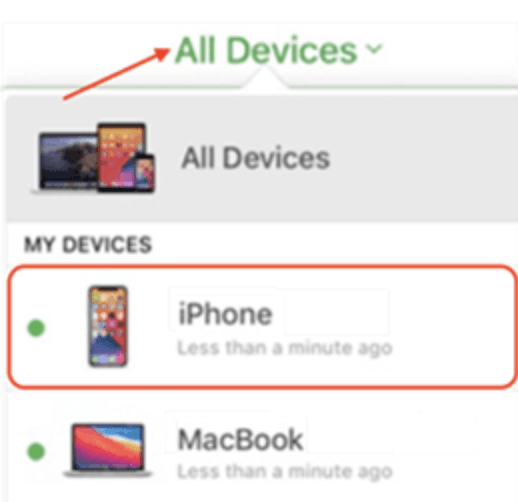
- Then select “All Devices” option that you can see on the top of the screen..
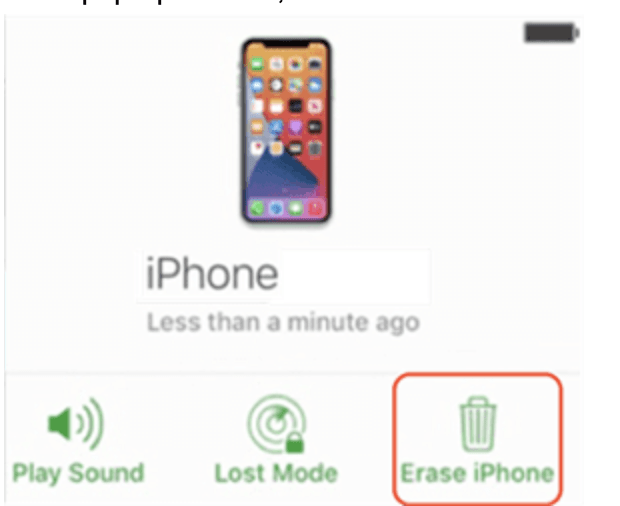
4. In the pop-up window, click “Erase iPhone.”
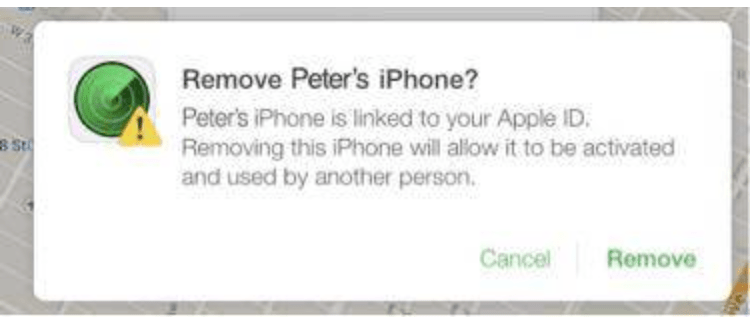
5. Select your device from the list
6. Click “Remove from Account”
This method is useful if your device is lost or already reset. It is also one of the easiest ways to remove Find My iPhone without physically accessing the phone.
Part 3. Turn off Find My iPhone from Settings
If you have your device and know the password, this is the simplest method.
Steps:
- Open Settings on your iPhone
- Tap your Apple ID at the top
- Select “Find My”
- Tap “Find My iPhone”
- Toggle it off
- Enter your Apple ID password
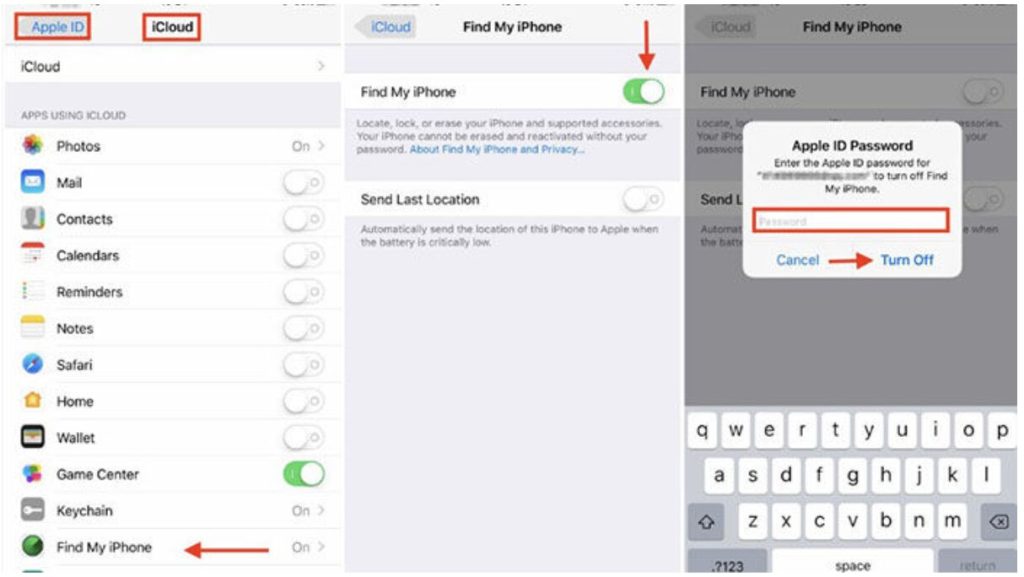
This answers the common question: how do I turn off Find My iPhone in a direct and official way.
If the toggle is greyed out, it may be due to restrictions or Screen Time settings. This is also a common reason people search for how to disable Find My iPhone but cannot proceed.
Part 4. Turn Off Find My iPhone Without Password
If you forgot your Apple ID password or bought a second-hand device, turning off Find My iPhone becomes much harder. In this case, a professional tool like Tenorshare 4uKey can help.
Why choose Tenorshare 4uKey?
Tenorshare 4uKey is a powerful iOS unlocking tool designed for situations where you cannot access your Apple ID or password.
Key features include:
- Unlock iPhone passcode without password
- Remove iCloud activation lock without previous owner
- Remove Apple ID without password and keep data
- Bypass MDM without passcode
- Turn off Find My iPhone without Apple ID
- Remove Screen Time passcode without data loss
- View saved Apple ID and WiFi passwords
It supports the latest iOS and iPadOS versions and works on most devices.
Steps to turn off Find My iPhone without password
- Download and install Tenorshare 4uKey on your computer. Launch the program and connect your iPhone
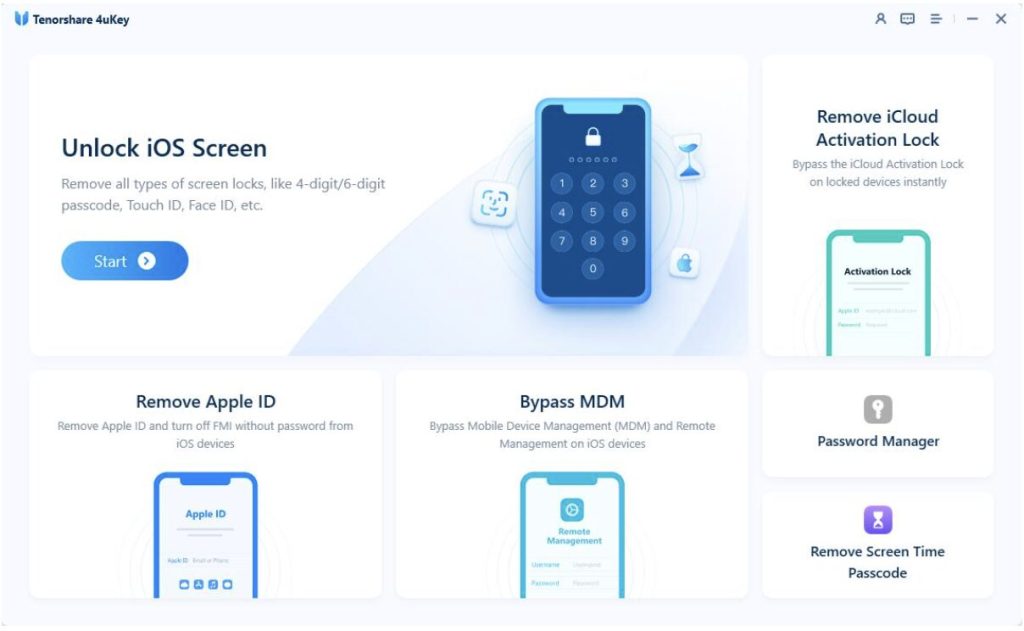
2. Select the option to remove Apple ID
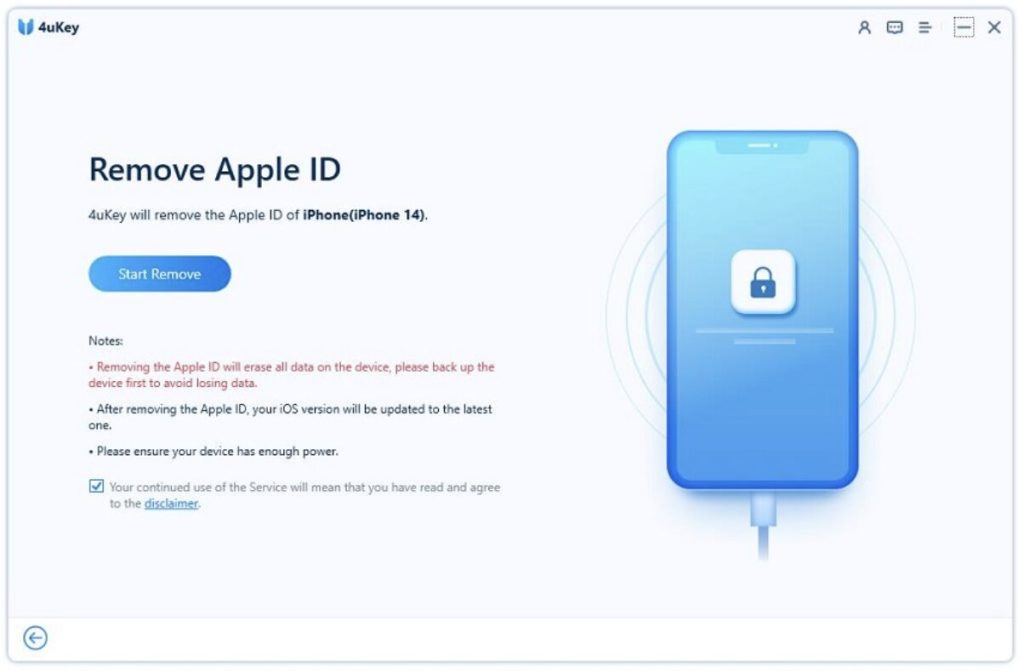
3. Wait for the process to complete
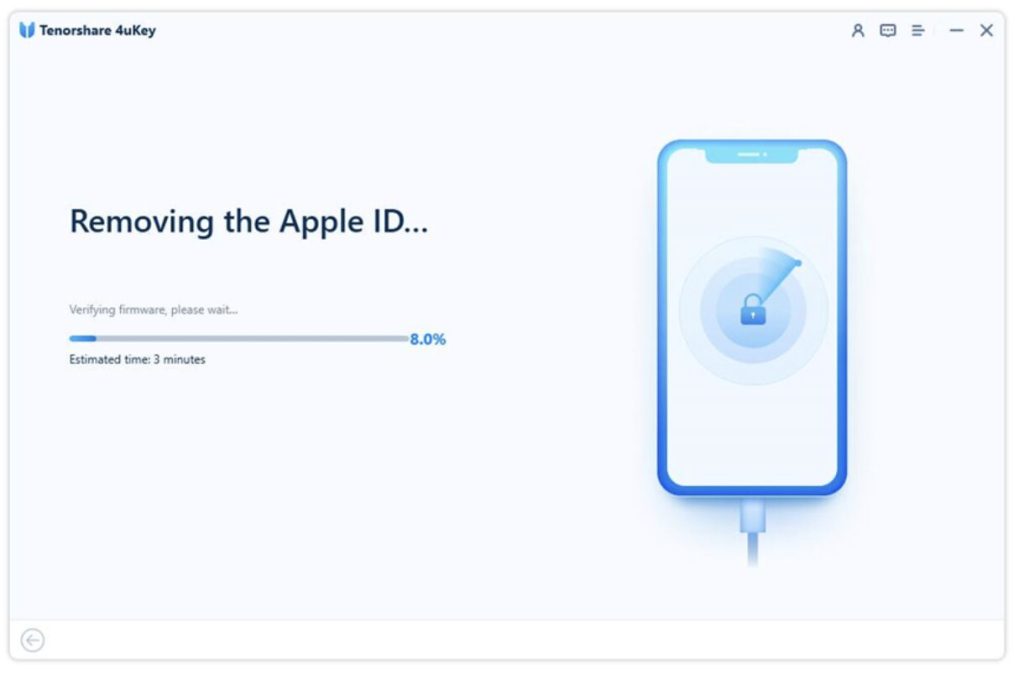
4. Now, your iPhone has been successfully removed form Find My/Apple ID. You can restore and activate your iPhone while Unlock with Passcode.
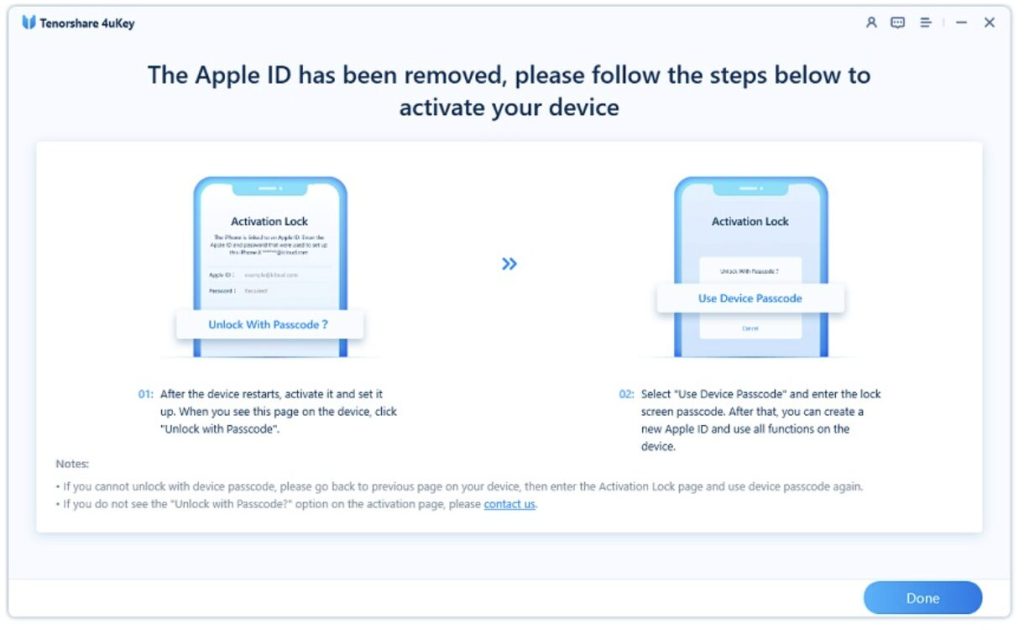
Once finished, Find My iPhone will be disabled automatically, and you can use the device freely.
This is one of the most effective solutions if you are searching for how to remove Find My iPhone without credentials.
Part 5. FAQs About Turning Off Find My iPhone
1. How to turn on Find My iPhone from another device
If you are wondering how do I enable Find My iPhone remotely, you can sign in to your Apple ID on another device and enable Find My from Settings. However, activation usually requires access to the device itself.
2. Why can’t I toggle Find My iPhone off
You can’t toggle Find My iPhone off because your Apple ID password is incorrect, Screen Time restrictions or MDM controls are blocking the setting, or there are iCloud syncing issues, and if none of these can be resolved manually, using a tool like 4uKey is often the quickest workaround.
3. Turn off Find My iPhone from computer
Yes, you can turn off Find My iPhone from a computer by logging into iCloud, selecting your device, and removing it from your account, which works even if you no longer have access to the iPhone.
Conclusion
Turning off Find My iPhone is essential when transferring ownership, fixing account issues, or managing your Apple devices. Whether you use iCloud, Settings, or a professional tool, there are multiple ways to get the job done.
If you know your password, the process is quick and simple. If not, tools like Tenorshare 4uKey provide a reliable workaround.
Now that you understand how to turn off Find My iPhone, you can choose the method that best fits your situation and complete the process without hassle.