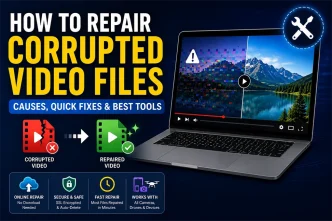
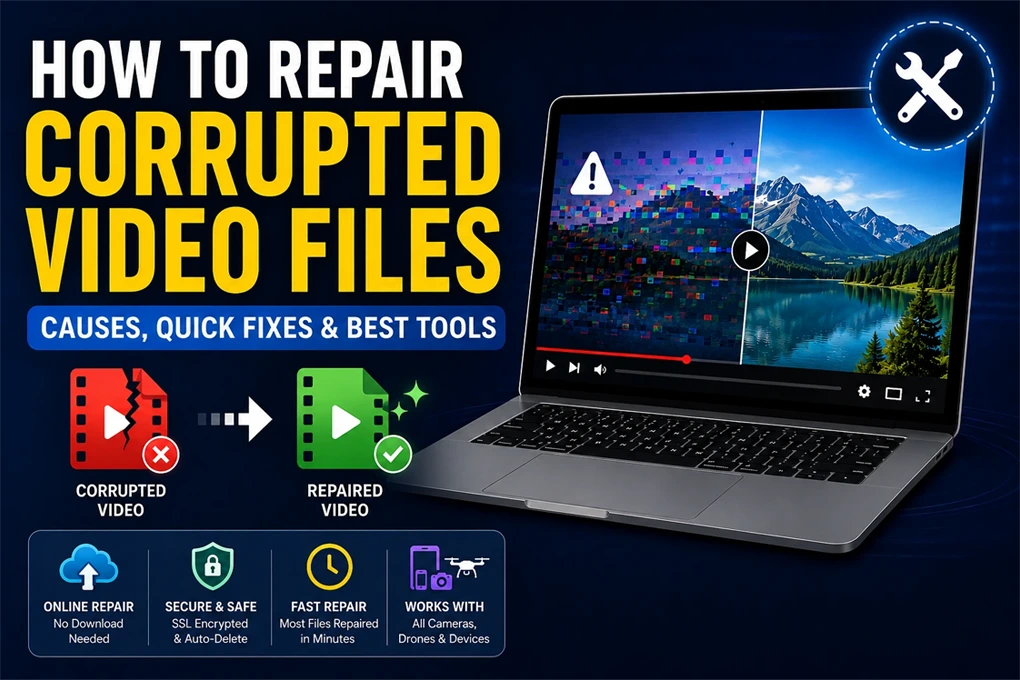
You finally sit down to watch that drone footage from last weekend or pull up a client video from a shoot, and all you get is an error, a frozen frame, or a completely black screen. A corrupted video file is one of those problems that feels catastrophic in the moment but is fixable more often than not.
This guide walks you through exactly what causes video corruption, how to spot it, and the most reliable ways to repair it, including a free online tool that works right in your browser.
Why Do Video Files Get Corrupted?
When a video file is corrupted, it is rarely a random event. Video files contain headers, codecs, audio-video sync data, and frame sequences, all packaged together. When something interrupts that structure, even briefly, the whole file can break.
The most common triggers are physical ones: a cable disconnect mid-transfer, accidental device ejection, a power cut while the camera is still writing the file, or a failing SD card with bad sectors.
Software-side causes are just as common. Errors during editing, format conversion, or encoding can scramble the codec information a media player needs to read the file. Encoding errors can also play a role, often triggered by incorrect format settings during export or software issues mid-render.
If you are unsure which encoding format works best for your footage, it is worth reading up on our guide on best encoding formats before your next project, as the right settings can prevent a lot of avoidable corruption.
How to Tell If Your Video Is Actually Corrupted
Before you start trying fixes, confirm what you are dealing with. A corrupted video typically shows one or more of these symptoms:
- The file throws a playback error or simply will not open
- The video plays but has no audio, no picture, or both
- Playback starts and then freezes or cuts off partway through
- The footage appears pixelated, glitchy, blurry, or shows a persistent black or green frame
- Audio and video are noticeably out of sync
If you see these signs across two or more media players, the issue is with the file itself and not the player.
Quick Fixes to Try First
Before reaching for a repair tool, these two quick checks are worth doing. They take under five minutes and sometimes solve the problem entirely.
- Try a different media player. VLC handles codec errors more gracefully than most default players and can often open files that Windows Media Player or QuickTime refuses to. If you read our guide on VLC v3.0, you will understand that this version can now fix thousands of bugs on its own. So, if VLC plays it fine, your original player was the issue.
- Re-transfer the file. If the source file still exists on a camera, phone, or original drive, copy it again using a fresh cable or a different port. A single bad transfer is often all it takes to corrupt a file, and a clean re-copy fixes it without any repair needed.
If neither of these works, the file itself is damaged and needs a proper repair tool.
How to Repair a Corrupted Video File
For most people dealing with a corrupted video, Stellar Online Video Repair is the fastest path to a fix. It is a completely browser-based tool, which means you do not download or install anything.
Method 1: Stellar Online Video Repair (Free, No Download Needed)
To fix a corrupted video file with Stellar Online Video Repair, you just open the site, upload your file, and let it work. The tool uses AI-powered processing to analyze and repair the corruption automatically, and it preserves your video’s original resolution, frame rate, and bitrate throughout the process.
Over 100,000 files have been repaired through the service, and most repairs are completed within 15 minutes.
It supports a wide range of formats, including:
- MP4
- MOV
- AVI
- MKV
- FLV
- WEBM
- AVCHD
It also handles footage from DSLRs, drones, GoPro cameras, iPhones, Android devices, and CCTV systems.
The free plan lets you repair one file up to 100 MB at no cost and preview 10% of the repaired output before you commit to downloading.
The Premium plan ($9.99/month) repairs up to 10 files with a maximum size of 5 GB per file. Files are processed on a secure, SSL-certified server and automatically deleted after the repair window closes.
How to use it:
- Go to repair.stellarinfo.com
- Click the upload area and add your corrupted video file (up to 5 GB on the Premium plan)
- Then upload a sample video, a working clip shot from the same device in the same format. This step significantly improves accuracy for more severe corruption
- Click Repair and wait for the tool to process your file
- Preview the repaired video once it is ready
- Download it to your device. The file is available for 24 hours on the Free plan and 48 hours on Premium
Best for: Casual users, one-off repairs, and anyone who needs a quick fix without installing software.
Method 2: Stellar Repair for Video Desktop Software (For Power Users and Professionals)
When you are working with files larger than 5 GB, need to repair a large batch of videos at once, or are dealing with severe corruption that online tools cannot fully address, the desktop version is the right tool for the job.
Stellar Repair for Video is a dedicated application available for both Windows and Mac that handles repairs entirely on your own machine, with no file size restrictions and no upload limits.
It supports 17+ video formats. Besides this, footage from Canon, Nikon, Sony, FujiFilm, GoPro, DJI (Mavic, Phantom), Panasonic, and Samsung cameras is also supported, along with CCTV, dashcams, and smartphones.
Its Advanced Repair mode goes a step further for severely damaged files. It uses a “sample file,” a healthy video recorded on the same device in the same format, to cross-reference and reconstruct the damaged file’s structure.
This is particularly useful for drone or DSLR footage where standard repair falls short.
How to use it:
- Download and install Stellar Repair for Video on your Windows or Mac computer
- Click Add File to import one or multiple corrupted video files
- Click Repair to begin the process. The software scans and repairs all added files, including different formats, simultaneously
- For severely corrupted files, use the Advanced Repair option and provide a sample video file from the same recording device
- Preview the repaired videos within the software before saving. The free version previews up to 20% of each file
- Once satisfied, click Save Repaired Files and choose your preferred save location
Best for: Videographers, photographers, content creators, and anyone dealing with large files, bulk repairs, or footage that an online tool could not fully recover.
Which Tool Should You Use?
| Stellar Online Video Repair | Stellar Repair for Video (Desktop) | |
| Cost | Free (1 file / 100 MB) or $9.99 Premium | $49.99/year (Standard) |
| Installation | None | Required |
| File Size Limit | Up to 5 GB | No limit |
| Files Per Session | Up to 10 (Premium) | Unlimited |
| Batch Processing | No | Yes |
| Works On | Any browser | Windows and Mac |
| Best For | Quick, one-off fixes | Professional or bulk use |
How to Prevent Video Corruption Going Forward
Repairing a corrupted file is a win, but avoiding the situation in the first place is better. A few habits make a real difference:
- Always use the “Safely Remove” option before unplugging storage devices
- Keep at least 20% free space on your recording card or drive at all times
- Transfer footage as soon as possible after recording; do not leave critical files sitting on a card indefinitely
- Make backups to at least two locations, ideally one local and one cloud-based
- Replace SD cards and USB drives regularly. Most consumer-grade cards are rated for a finite number of write cycles
Conclusion
A corrupted video is stressful, but it is rarely unrecoverable. Start with the free browser-based Stellar Online Video Repair if you need a quick fix without any setup. It handles the most common corruption scenarios and repairs files from virtually any camera or device in minutes.
If you are working with large files or need to repair footage in bulk, the Stellar Repair for Video desktop software gives you unlimited repair power with no size restrictions.
Frequently Asked Questions
1. Can a corrupted video file be fully recovered?
In most cases, yes. The success of recovery depends on how severely the file structure is damaged and whether the core video data is still intact.
2. Does converting a corrupted video to another format fix it?
Sometimes, converting to a different format can bypass minor codec or container errors and make the file playable again. However, if the corruption is deep within the video data itself, a format conversion will not help.
3. Why does my video play on one device but not another?
Different devices and media players have varying levels of codec support, so a player with broader compatibility may handle a partially corrupted file better. It does not mean the file is fully healthy, just that the other player is more tolerant of the errors.
4. Is it safe to keep using an SD card that produced a corrupted video?
Not without checking it first. Run a disk diagnostic on the card to rule out bad sectors, because a faulty card will likely corrupt future recordings as well.
5. Can a video file get corrupted just from sitting on a hard drive?
Yes, it can. Long-term storage on a failing or aging drive can lead to bit rot, where small pieces of data degrade over time, gradually damaging files even without any active use.