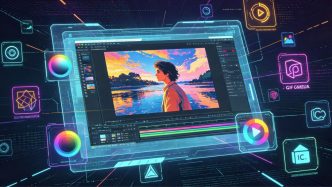
As a full-time content creator, I work with tons of visual assets every single day. Aside from AI image generation, I constantly need to edit, adjust and rework photos for my posts. Over time, I’ve settled on seven web-based image tools that cover most of my editing needs—each with clear strengths and frustrating flaws. Below is my honest, hands-on breakdown based on daily real-world use.
1. iLoveIMG
Pros
The interface is clean and clutter-free with zero annoying pop-up ads. Processing speeds are lightning fast, and it supports batch sequential editing. I rely on it heavily for cropping and resizing dozens of images at once to match social media aspect ratios like 9:16, 16:9 and square 1:1.
Cons
Its tool library is extremely limited, only offering basic tweaks. The free tier caps resolution, file quantities and export quality. To unlock full features and unrestricted exports, you have to upgrade to a paid membership. It’s only built for simple sizing and compression, no advanced retouching functions at all.
2. EZGIF
Pros
It’s the ultimate all-in-one hub for GIF editing. No other free online site comes close when it comes to animated graphics. You can split, merge, crop, speed up, slow down, add text, compress and convert GIFs to video files—pretty much every GIF-related task you could think of gets covered here.
Cons
The workflow is unnecessarily clunky. Every photo or clip first loads locally on your browser, then re-uploads to the server before you can edit it. This double upload creates long waiting times, especially with large files, and uploads often fail if your internet is spotty. The layout also looks outdated, making it hard for new users to navigate quickly.
3. FreeConvert
Pros
This is my dedicated bulk format converter. It supports nearly every image file type under the sun—JPG, PNG, WebP, ICO, SVG, HEIC and more. You can upload a whole folder of images and convert all of them to your target format in one click, perfect for fixing files rejected by different content platforms.
Cons
Free users face strict daily limits on file size and conversion counts. If you process a large volume of visuals daily, you’ll hit the cap fast. Their premium subscription plan is also quite pricey compared to rival conversion tools, so regular heavy users will rack up costly monthly fees.
4. Favicon.io & Iconfont — Two Best Sites for Icons & ICO Files
These two pair perfectly for making favicons and sourcing vector icons, and they’re easily the most generous free icon resources online.
Favicon.io
Pros: After uploading your base image, it auto-generates a full pack of multi-size ICO and PNG files ready for website browser tabs or profile avatars, all downloaded in one zip file with one click. The workflow is beginner-friendly with zero learning curve.
Cons: Customization options are very restricted. You can’t fine-tune icon lines, colors or proportions, so it only works for quick standard favicon exports, not custom branded icon designs.
Iconfont
Pros: 100% free to use, with thousands of editable SVG vector icons. You can tweak icon colors and resize vectors infinitely without pixelation directly on the site, ideal for small decorative graphics on blog headers and social covers.
Cons: Icon quality is hit-or-miss. Most assets are uploaded by random amateur users, resulting in messy, low-quality line art. Polished, professional commercial icons are few and far between, meaning you’ll waste lots of time filtering through bad designs.
5. Rockimg
Pros
Rockimg — It’s an underrated lesser-known tool with tons of handy tiny editing utilities: image splitter, combine multiple photos, add basic filters and simple overlays. No sign-up or account registration required at all. Most edits run locally in your browser instead of uploading files to external servers, so you get instant, real-time previews of every change.
Cons
The whole platform feels rough around the edges. Filters look cheap and low-quality, and there are no advanced adjustment or layer tools. Worst of all, it doesn’t support batch continuous editing—you have to reupload every single image separately, making it only useful for last-minute one-off quick fixes.
6. Photoroom
Pros
A fast-growing AI-powered editing platform packed with smart automated features. Its standout tools include AI object removal, one-click clothing color changing and automatic clean background cutouts. The AI rendering looks surprisingly natural, and it’s tailor-made for polished e-commerce product shots.
Cons
Its feature set is hyper-focused on online sellers and professional store creators. There’s barely anything built for regular content creators making blog graphics, social media thumbnails or casual banners. If you only edit images occasionally for non-commercial posts, this tool is overkill and rarely worth opening.
7. Pixlr.com — Web-Based Photoshop Alternative
Pros
A lightweight free online Photoshop equivalent. You skip downloading bulky multi-GB desktop PS software entirely and access it straight through any browser. It supports layers, masks, basic color grading and precise cutouts, and even opens PSD files. Premium upgrades are reasonably priced if you need extra assets.
Cons
It has a steep learning curve. The layout and tool logic mirror desktop Photoshop closely, so total beginners without any photo editing basics will struggle to pull off complex designs quickly. It also runs slower on unstable international internet connections.
Final Guide: How to Pick the Right Tool for Your Workflow
No single website can handle every image editing task for content creators—you’ll always need to mix and match two or three tools to cover all bases. Here’s my quick cheat sheet based on common needs:
- Bulk cropping, resizing and image compression: Go with iLoveIMG for maximum speed
- All GIF and animated graphic work: Stick to EZGIF
- Quick mass file format conversion: Use FreeConvert as an occasional backup
- Brand icons, website favicons and decorative vector graphics: Favicon.io for ICO packs + Iconfont for editable SVG icons
- Quick emergency simple edits with no login: Keep Rockimg bookmarked as a spare tool
- E-commerce product photos and AI retail retouching: Photoroom
- Detailed layered retouching and professional-style designs without desktop software: Pixlr
Free tiers on every platform come with noticeable limitations, so only pay for premium memberships on tools you use daily to avoid wasting money on unused subscriptions. By combining these seven tools smartly, you can cut down editing time drastically and handle every visual asset task your content creation job throws at you.