As you realize your iPhone is locked, panic starts to set in. Getting stuck outside your own device feels like losing your entire digital life. You might worry about losing photos or missing many important work messages. Yet, understanding the difference between a local passcode and Apple ID locks is vital.
Some methods work through Apple’s tools, while others need guided assistance. For those who want a simple way to recover access, Dr.Fone iPhone Unlock offers clear instructions. Anyhow, in this guide, you explore official options and structured unlock methods.
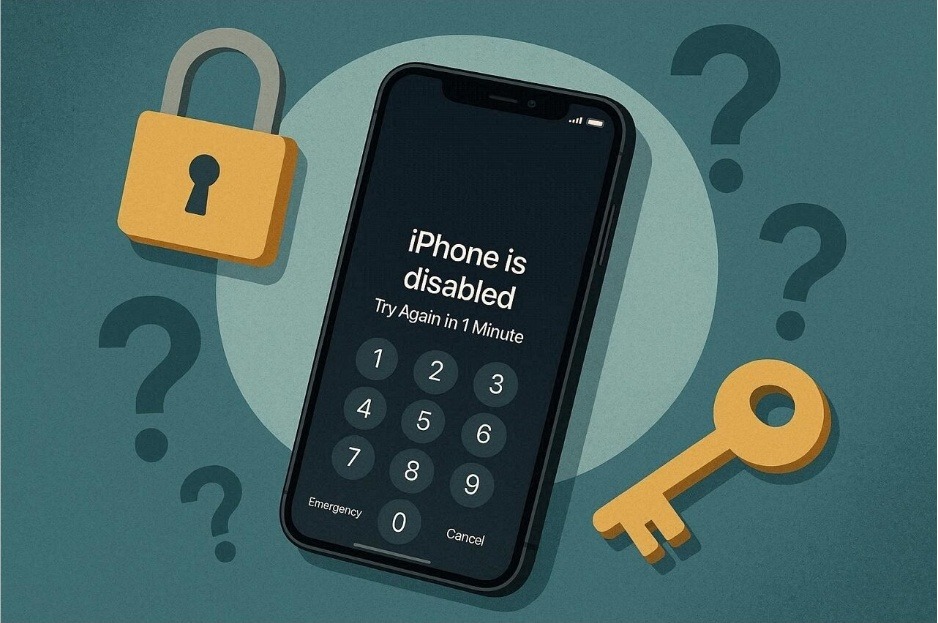
Image name: drfone-iphone-unlock-1.jpg
Image alt: remove iphone passcode
Part 1. Forgot iPhone Passcode? Understand the Type of Lock You’re Facing
A passcode lock is a local security code used to unlock iOS screen access. This digit-based code stays on your phone to keep all your personal data safe. You must enter this specific number to reach your apps and your private files. However, you might see a different message during the initial device setup process. These prompts often ask for a password linked to a specific Apple ID account.
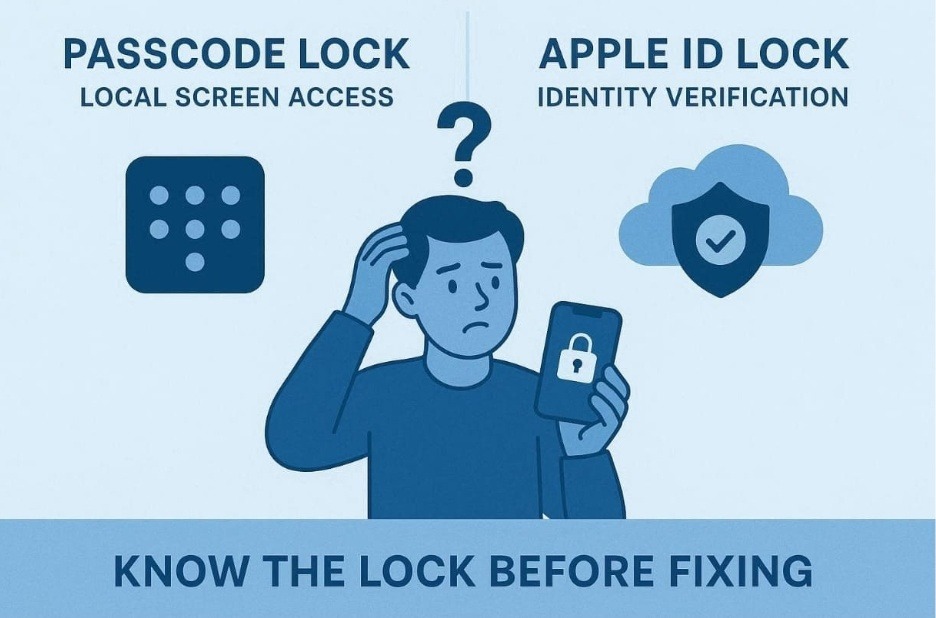
Image name: drfone-iphone-unlock-2.jpg
Image alt: define iphone forgotten password
That is an identity lock, which works differently from a simple local screen code. You need to know which lock you face before you try any repairs. A local passcode only verifies the person who is holding the physical device. Whereas identity locks verify that you are the true owner of that specific account.
Part 2. Apple ID Locked iPhone: Why This Is Different from a Passcode Lock
An Apple ID lock is a deep security layer linked to your identity. This happens after resetting or restoring the phone to factory settings. Unlike a local passcode that protects your data, this lock guards ownership verification. It connects your device to Apple’s servers through the Find My iPhone feature in iCloud.
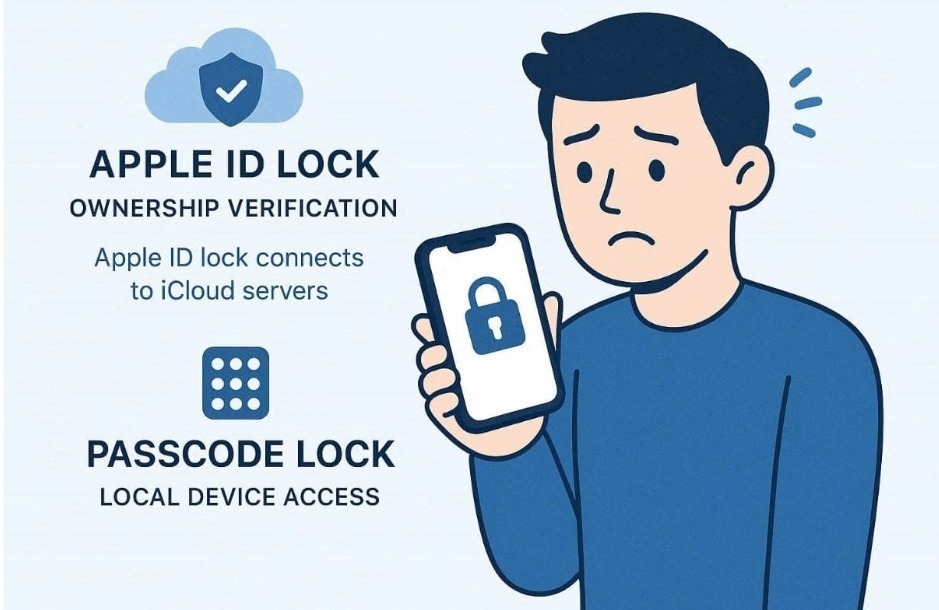
Image name: drfone-iphone-unlock-3.jpg
Image alt: define iphone apple id lock
Many users often search for how to unlock iPhone when they see this. Yet, this specific situation requires your email and your unique personal password. You might also need to answer security questions or use a recovery key. So, standard screen removal steps will not work for these types of account blocks. You must treat this as an identity issue rather than a local hardware problem.
Part 3. Official Apple Methods to Unlock an iPhone Screen
Apple provides official ways to regain access when your screen remains locked. These standard methods usually require a computer or a simple iCloud connection. Below, you will learn how to unlock an iPhone screen through these methods:
1. Use the Previous Passcode to Unlock
The previous passcode feature in iOS 17 and later offers a short recovery window. It lets you unlock the iOS screen using your last known passcode within 72 hours of change. This option is useful for recent passcode updates or accidental mistypes. Yet, once the time limit expires, the old code stops working. So, follow these simple steps below to use your previous passcode right now:
Instructions. As you input the incorrect passcode 5 times, tap the “Forgot Passcode?” option. On the subsequent options, press “Enter Previous Passcode.” After that, input the old passcode and go through the visual prompts to change the passcode.
Image name: drfone-iphone-unlock-4.jpg
Image alt: choose forgot passcode on iphone
2. Erase iPhone from iCloud Find Device
Erasing your iPhone through iCloud removes the existing screen passcode remotely. Yet, remember that this method works if Find My was enabled earlier. You also need your Apple ID credentials and internet access. Besides, this method deletes all data, so always confirm your backup beforehand. It’s a great option if you forgot your passcode or don’t have physical access. While exploring how to unlock an iPhone, go through the given steps:
Step 1. Sign in with your Apple ID credentials upon going to the “iCloud Find Devices” website. After accessing, open the “All Devices” menu and pick the iPhone you wish to erase.
Image name: drfone-iphone-unlock-5.jpg
Image alt: choose iphone from icloud find devices
Step 2. Moving forward, opt for the “Erase” option to wipe the device and initiate the reset.
Image name: drfone-iphone-unlock-6.jpg
Image alt: choose erase on icloud find devices
3. Restore iPhone Using iTunes/Finder
Restoring your iPhone is another native method for complete recovery. It helps reinstall the system software while removing forgotten passwords and configuration issues. Moreover, you must put your device into Recovery Mode for this process to work. Still, be aware that this action will wipe all of your smartphone data. Hence, review these specific steps while learning how to unlock an iPhone screen:
Step 1. Upon powering off your phone, plug it into your computer and launch iTunes or Finder. Now, put your device into Recovery Mode according to your model:
- iPhone 8 or Newer: As you press “Volume Up”, then do the same with “Volume Down.” Subsequently, press the “Side” button until the “Recovery Mode” screen appears.
- iPhone 7 / 7 Plus: Hold the “Side” and “Volume Down” buttons together once you see the “Recovery Mode” display.
- iPhone 6s or Earlier: Keep pressing both the “Home” and “Top (or Side)” buttons until the “Recovery Mode” screen shows up.
Image name: drfone-iphone-unlock-7.jpg
Image alt: put iphone into recovery mode
Step 2. Once Finder detects the iPhone in recovery mode, press the “Restore” button to erase the passcode from your smartphone.
Image name: drfone-iphone-unlock-8.jpg
Image alt: click restore on finder
Part 4. When to Use an iPhone Unlock Tool Like Dr.Fone
Sometimes, none of Apple’s native recovery methods seems to work for everyone. At this point, guided third‑party software becomes a practical alternative option for access. Dr.Fone – Screen Unlock (iOS) is a reliable solution that helps users who have forgotten their passcode. It supports the latest iOS 26 devices, including iPhone 17 Series and iPod touch models. This tool can unlock the iOS screen without needing any previous passcode or iTunes connection.
Image name: drfone-iphone-unlock-9.jpg
Image alt: dr.fone screen unlock on ios
Furthermore, you can even remove 4-digit or 6-digit passcodes in just a few minutes. In addition, the tool works for Face ID and Touch ID sensor issues. During unlocking, Dr.Fone guides you through the whole process with very clear visual instructions. You just connect your device and adhere to the prompts on your computer monitor. In addition, this iPhone passcode unlocker saves a lot of time compared to using manual recovery steps.
Key Features
- Screen Time: Reset your usage limits without needing the original parent or owner passcode.
- MDM Bypass: Remove mobile device management profiles to enjoy full freedom on your iPhone.
- Apple ID: Delete the existing account from your phone without needing the secret password.
Detailed Steps to Use Dr.Fone for an Effortless iOS Screen Unlock
Using Dr.Fone is a very simple process that anyone can easily complete. So, go through the guide below to learn how to unlock iPhone screen access via this program:
Step 1. Open the iOS Screen Unlock Feature
To initiate, go to Dr.Fone’s “Screen Unlock” feature, then choose “iOS” as your device type. Next, connect your iPhone to the computer and click “Unlock iOS Screen.”
Image name: drfone-iphone-unlock-10.jpg
Image alt: select drfone unlock ios screen
Step 2. Check iOS Device Details for Unlocking
Follow the displayed guide to place your iPhone into “Recovery Mode.” Once detected, the software will automatically display your device model and current iOS version. Review the information and click the “Start” button to continue.
Image name: drfone-iphone-unlock-11.jpg
Image alt: connect iphone to drfone
Step 3. Download Firmware and Start Unlocking
The tool will begin downloading the necessary firmware package. After the download and verification are complete, press “Unlock” to start removing the screen lock.
Image name: drfone-iphone-unlock-12.jpg
Image alt: unlock iphone screen lock
Part 5. How to Prevent Getting Locked Out of Your iPhone Again
Preventing a lockout is also essential when learning how to unlock an iPhone screen. Good habits will ensure you never lose access to your important digital files. Follow these essential tips to protect your iPhone from future lock issues:
- Write Passcodes: Keep a physical record of your phone codes in a very secure place. Storing your passwords safely prevents you from forgetting them after a long time.
- Update Software: Keep your iOS version current to benefit from the latest security recovery tools. New updates often include better ways to manage your device and your passcodes.
- Biometric Setup: Use both Face ID and Touch ID for a much faster device entry. These features provide a great backup if you ever forget your numeric passcode.
- Recovery Contacts: Add a trusted friend or a family member as your official recovery contact. They can help you get back into your account if you are stuck.
Conclusion
To conclude, unlocking an iPhone becomes easy once you identify the correct locking barrier. Official Apple methods are reliable, but they often feel too slow or difficult. A structured workflow will help you regain your device access much more quickly. So, using the right tools ensures that your phone stays safe during the entire process. We highly recommend using Dr.Fone iPhone Unlock for an easy and fast result.