
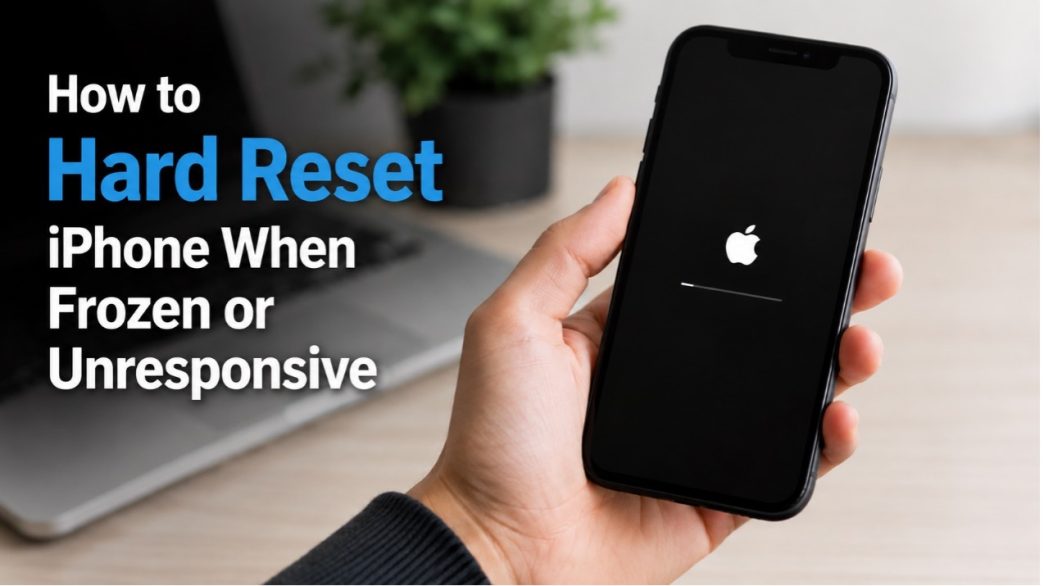
An iPhone freezing unexpectedly can interrupt everything from phone calls to app usage. Sometimes the screen becomes completely unresponsive, while in other cases the iPhone is stuck on the Apple logo or a black screen. When this happens, a hard reset iPhone is often the quickest way to get the device working again.
In this guide, you’ll learn how to hard reset an iPhone when the iPhone screen freezes or becomes unresponsive, what to do if a force restart fails, and additional ways to fix iOS issues without losing data.
What Does a Hard Reset Do on iPhone?
A hard reset, also called a force restart, forces your iPhone to shut down and reboot without using the normal swipe-to-power-off process. Unlike a factory reset, a hard reset does not erase your photos, apps, or personal data. It simply refreshes the system and can help resolve temporary software crashes or frozen screens.
A hard reset is especially useful when:
- iPhone screen unresponsive to touch
- The iPhone is stuck on Apple logo
- iPhone green screen or black screen
- Apps keep crashing
- iPhone won’t turn on or turn off normally
How to Do a Hard Reset on iPhone (For All Models)
The button combination varies depending on your iPhone model.
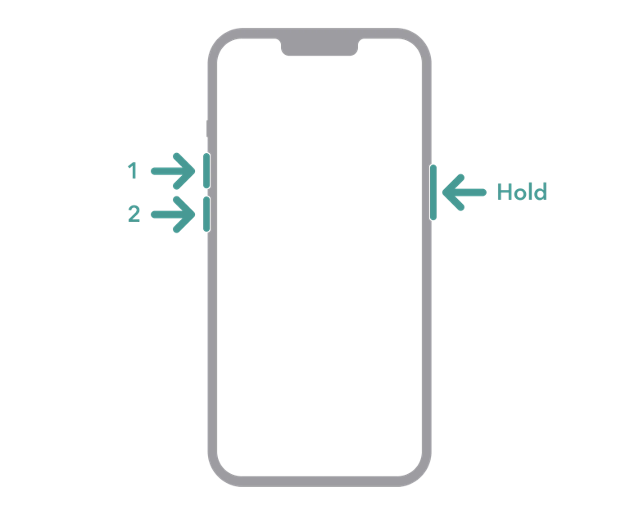
On iPhone 8 and Newer:
This method works for iPhone 8, iPhone X, and later models including the latest iPhone series.
- Quickly press and release the Volume Up button.
- Quickly press and release the Volume Down button.
- Keep holding the Side button until the Apple logo appears.
On iPhone 7 and iPhone 7 Plus:
- Press and hold the Volume Down button and the Power button together.
- Continue holding both buttons and release them when the Apple logo appears.

On iPhone 6s and Earlier:
- Press and hold the Home button and the Power button at the same time.
- Keep holding both buttons for about 10 seconds, release when the Apple logo appears.

What to Do If Hard Reset Doesn’t Work
Method 1: Fix iPhone Freezing Issues Without Data Loss
If your iPhone keeps freezing, gets stuck on the Apple logo, enters a boot loop, or won’t respond after a hard reset, the issue may be caused by deeper iOS system errors. In this situation, using a professional repair tool can help restore the device without deleting your personal data.
One commonly used solution is TunesKit iOS System Recovery, which is designed to fix a wide range of iOS problems on iPhone, iPad, and iPod touch devices. Unlike factory reset methods, it offers a Standard Repair mode that can repair the system while keeping your data intact.
Key Features of TunesKit iOS System Recovery
- Provide multiple functions, including iOS system repair, upgrade and downgrade iOS, factory reset iPhone without passcode.
- Compatible with iOS 7 through iOS 26, and supports most iPhone, iPad, and iPod touch models
- Allows entering or exiting Recovery Mode with one click
- Provides a simple interface and clear instructions suitable for beginners
- Supports both Windows and Mac computers
How to Fix a Frozen iPhone Using TunesKit iOS System Recovery
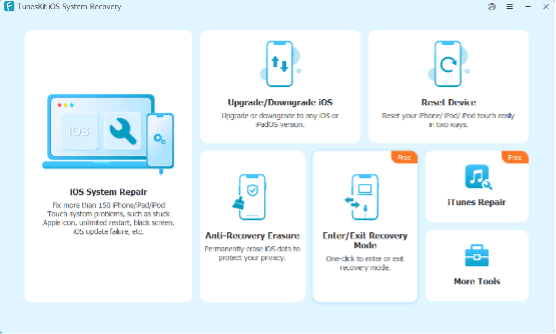
Step 1: Install TunesKit iOS System Recovery on your computer and open the program. Then connect your frozen or unresponsive iPhone using a USB cable. Choose iOS System Repair on the main screen
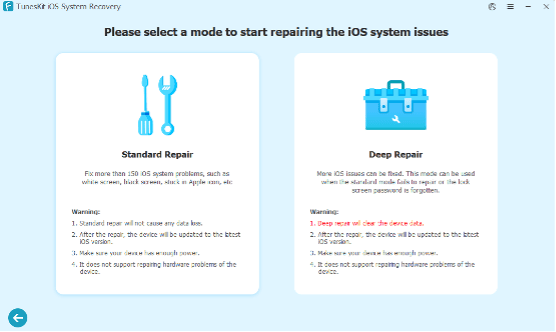
Step 2: TunesKit offers two repair modes:
Standard Repair: Fixes common iOS problems without erasing data
Deep Repair: Resolves severe system issues but erases all content and settings
To avoid data loss, it is recommended to try Standard Repair first.
Step 3: After your device information is displayed, confirm the model and iOS version. Then click the Download button.
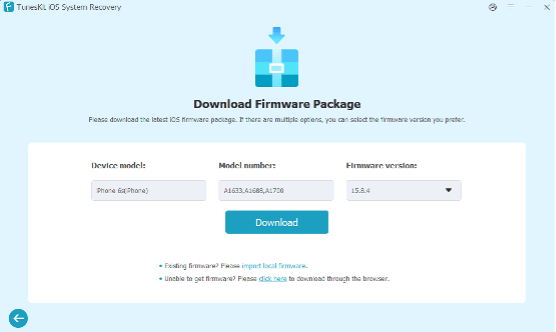
Step 4: Once the firmware download is complete, click the Start Standard Repair button. The software will begin fixing the iOS system automatically. During this process, keep the device connected and avoid interrupting the repair.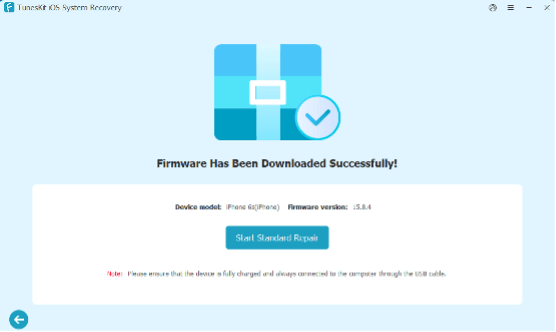
After several minutes, your iPhone should restart normally and become responsive again.
Method 2: Use Recovery Mode to Restore a Frozen iPhone
Recovery Mode is also a good choice to fix severe iOS system problems. It allows you to reinstall iOS using iTunes or Finder.
Steps:
- Connect your iPhone to a computer. Open iTunes or Finder.
- Put your iPhone into Recovery Mode using the same button combinations used for hard reset.
- Don’t release the buttons when the Apple logo appears. Keep holding the final button until the Recovery Mode screen appears.
- iTunes should automatically detect your iPhone in recovery mode and show a pop-up with Update or Restore options. Selecting Update will reinstall iOS without deleting data. If the update fails, you may need to choose Restore, which erases the device completely.
Recovery Mode is effective for fixing serious system issues, but it may take some time and can sometimes lead to data loss if restoration becomes necessary.
Tips to Prevent iPhone from Freezing Again
Although occasional freezes can happen, there are ways to reduce the chances of future problems. Here are some helpful tips:
- Keep your iPhone updated to the latest stable iOS version
- Avoid installing unreliable apps
- Free up storage space regularly, especially before updating iOS
- Restart your iPhone occasionally
- Avoid overheating the iPhone
- Use certified charging accessories
- Backup your data via iCloud or iTunes frequently
Regular maintenance can help your iPhone run more smoothly and prevent system instability.
Conclusion
When your iPhone screen frozen or unresponsive, a hard reset is usually the fastest and simplest fix. Different iPhone models require different button combinations, but the process only takes a few seconds.
If a force restart does not solve the issue, Recovery Mode and professional repair tools like TunesKit iOS System Recovery can help repair deeper iOS problems without data loss. At the same time, it’s important to develop safe iPhone usage habits and back up your data regularly to avoid encountering similar problems again.