Moving from Android to iPhone and want to keep your WhatsApp chats intact? Trying to restore WhatsApp backup from Google Drive to iPhone? You’ve probably noticed it isn’t as simple as tapping Restore. That’s because Google Drive backups don’t work directly on iPhones.
But don’t worry, this doesn’t mean your chats, photos, and videos are lost forever. In this guide, we’ll show you free, step-by-step methods of whatsapp how to backup and restore. So you can move your chats and continue where you left off.
Part 1: Can You Restore WhatsApp Backup from Google Drive to iPhone?
No. You cannot directly restore a WhatsApp backup Google Drive to an iPhone. This is because Android and iPhone use different backup systems that are not compatible with each other.
Why Can’t You Restore a Google Drive WhatsApp Backup on iPhone?
- Different cloud services: Android backs up WhatsApp to Google Drive, while iPhone uses iCloud.
- Different backup formats: Google Drive backups cannot be read or restored by the iPhone version of WhatsApp.
- No official cross-cloud restore: WhatsApp doesn’t support restoring a Google Drive backup directly to iCloud or an iPhone.
- Platform restrictions: WhatsApp only allows backups to be restored from the cloud service designed for the same operating system.
Although you can’t restore a Google Drive backup directly, you can still move WhatsApp from Android to iPhone. You can use the official Move to iOS app, a reliable third-party transfer tool, or export individual chats via email for viewing only.
Part 2. Official Way: How to Move WhatsApp from Android to iPhone
Apple’s Move to iOS app is the official way to move WhatsApp from Android to iPhone for free. It lets you transfer your WhatsApp chat history, photos, videos, voice messages, and other supported data while keeping the same phone number.
However, this method only works during the initial iPhone setup. If your iPhone has already been set up, you’ll need to erase it and start again. It’s also important to know that a WhatsApp backup Google Drive cannot be restored directly on an iPhone because iOS uses iCloud instead of Google Drive for WhatsApp backups.
What You Need Before You Start
Before transferring WhatsApp, make sure:
- Your Android phone runs Android 5.0 (Lollipop) or later.
- Your iPhone runs iOS 15.5 or later.
- Both phones have the latest version of WhatsApp installed.
- You’re using the same phone number on both devices.
- Both devices are connected to the same Wi-Fi network and plugged into power.
- Your iPhone is brand new or has been factory reset to the Apps & Data setup screen.
Steps for how to transfer whatsapp from android to iphone:
- Install the Move to iOS app from the Google Play Store on your Android phone.
- Turn on your new or reset iPhone and continue setup until you reach the Apps & Data screen. Select Move Data from Android.
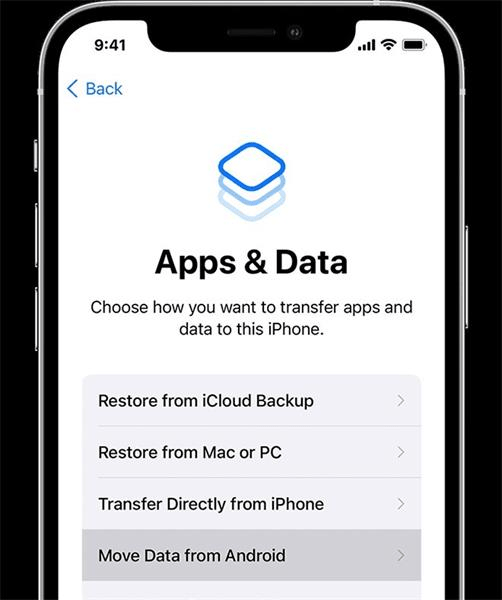
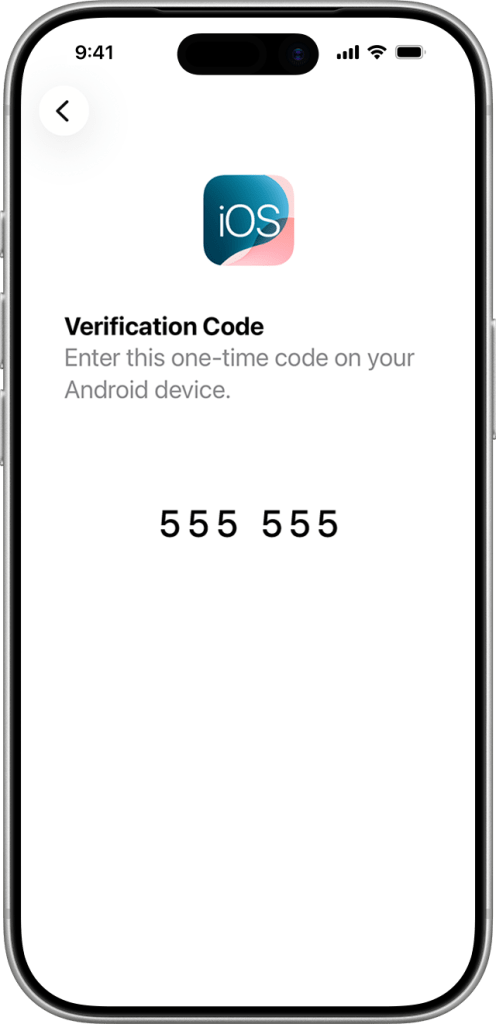
- Enter the verification code shown on your iPhone into your Android phone.
4. On the Transfer Data screen, select WhatsApp, then tap Start on your Android device.
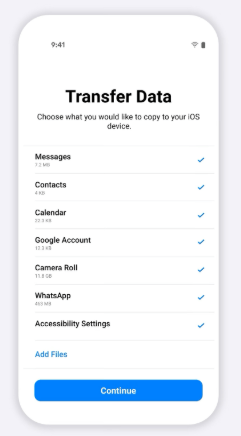
- Wait while WhatsApp prepares your data and signs you out on the Android phone.
- Return to the Move to iOS app and tap Continue to begin the transfer.
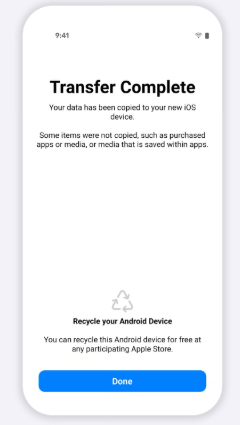
- After the transfer finishes, install WhatsApp on your iPhone, sign in with the same phone number, and your transferred chats will appear.
Part 3 What If You No Longer Have Your Android Phone?
This is a common issue. If you no longer have your Android phone and only have a WhatsApp backup on Google Drive, you cannot restore WhatsApp backup from Google Drive to iPhone using WhatsApp’s official methods.
Google Drive backups only work on Android. The Move to iOS app transfers WhatsApp data directly from an Android phone during iPhone setup, but it cannot restore a Google Drive backup. If your Android device is no longer available, the official transfer method won’t work.
Why you can’t just download and import the backup file
The next instinct is usually: “Can’t I just find the file in Google Drive and load it onto my iPhone?” Unfortunately, no. A few reasons why:
- WhatsApp backups on Google Drive are stored in hidden app data, not in your regular My Drive folder. You can’t view or download them like normal files.
- These backups are also encrypted, so only WhatsApp on Android can read them. Since iPhone uses iCloud instead of Google Drive for WhatsApp backups, iOS cannot recognize or restore these files.
- There’s also no option in WhatsApp for iPhone to manually import a Google Drive backup.
Part 4: Alternative Way — Move WhatsApp from Android to iPhone with iCareFone Transfer
Since Google Drive backups can’t be restored to iPhone directly, most people turn to a dedicated transfer tool instead. One option worth knowing about is iCareFone Whatsapp Transfer. It’s a WhatsApp management tool built for exactly this cross-platform problem. Compatible with both Android and iPhone.
iCareFone Transfer lets you transfer, back up, restore, and merge WhatsApp data without factory resetting your device or erasing existing data. Support extends beyond standard WhatsApp to include WhatsApp Business, GBWhatsApp, Kik, and Viber, making it a complete solution for managing messaging data.
Key Features
- Transfers WhatsApp between iPhone and Android without a factory reset or data loss
- Restores Google Drive WhatsApp backups to iPhone the exact scenario covered in this article
- Restores iCloud WhatsApp backups to Android
- Backs up WhatsApp chats, photos, videos, documents, and other attachments to PC or Mac for free
- Uses AI Smart Merge to combine old and new WhatsApp messages across two devices, so nothing gets overwritten
- Supports WhatsApp, WhatsApp Business, GBWhatsApp, Kik, and Viber
- Compatible with the latest iOS 27 and Android 16
How to transfer whatsapp from android to iphone with icarefone:
Step 1. Download and install iCareFone Whatsapp Transfer on your computer. Open the program, connect your Android phone and iPhone, and click Transfer.
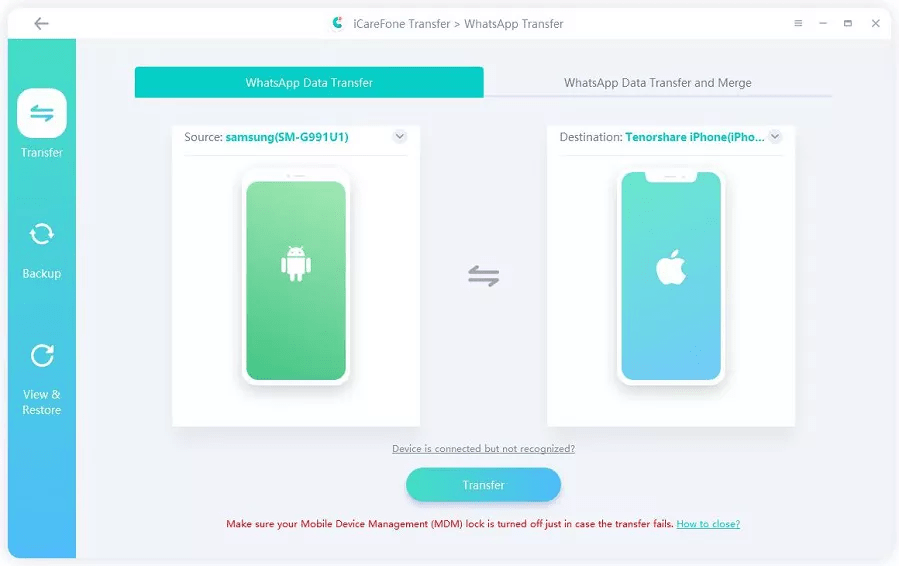
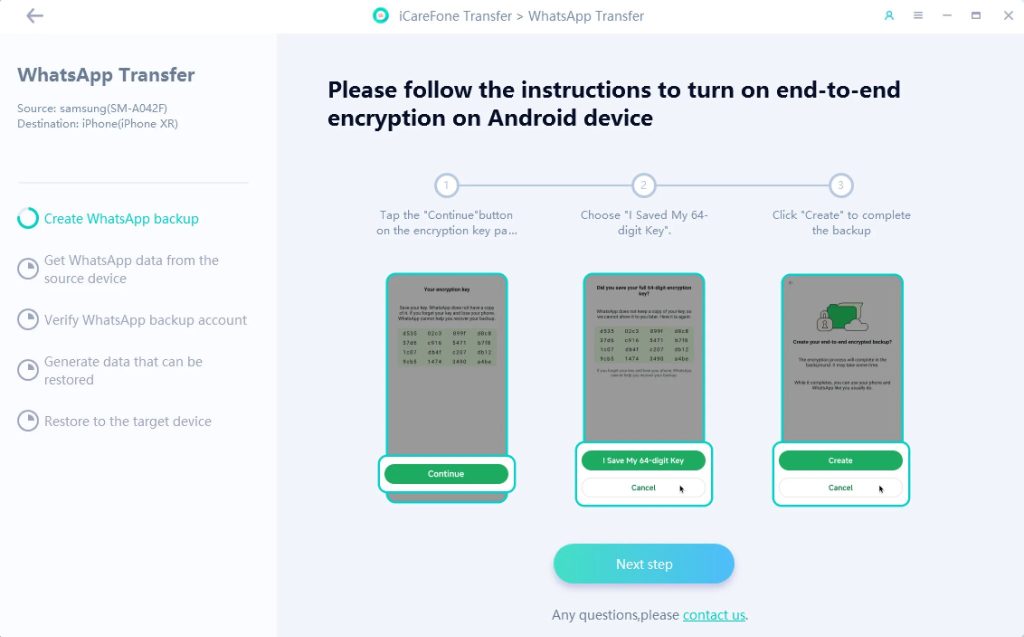
Step 2. Follow the on-screen instructions to create a WhatsApp backup on your Android device. If end-to-end encrypted backups are enabled, temporarily disable them, create the backup, then continue as instructed.
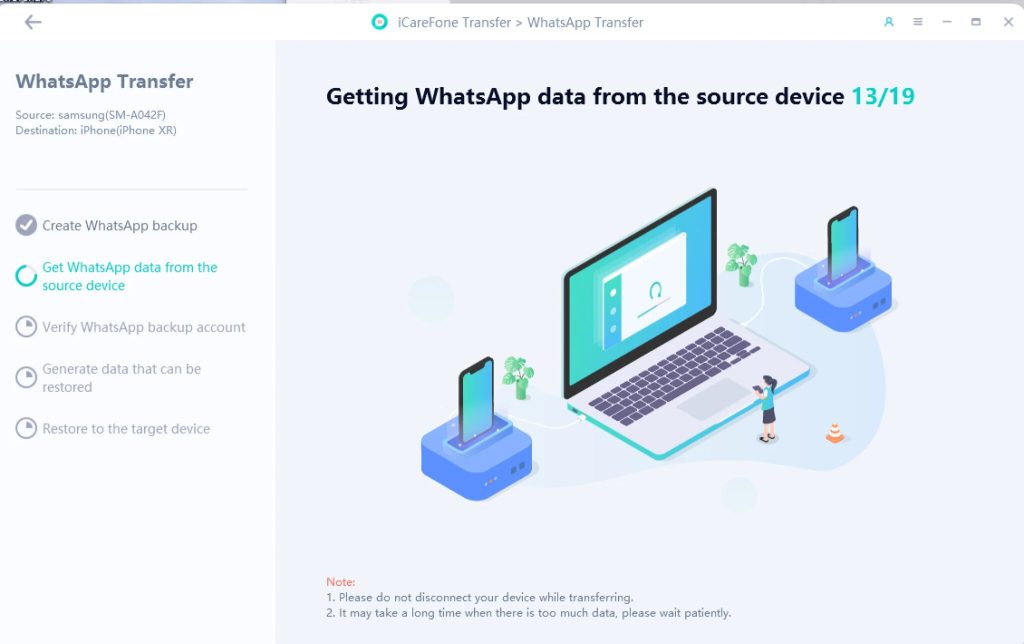
Step 3. The software will scan and extract your WhatsApp data from the Android device. Wait until the process is complete.
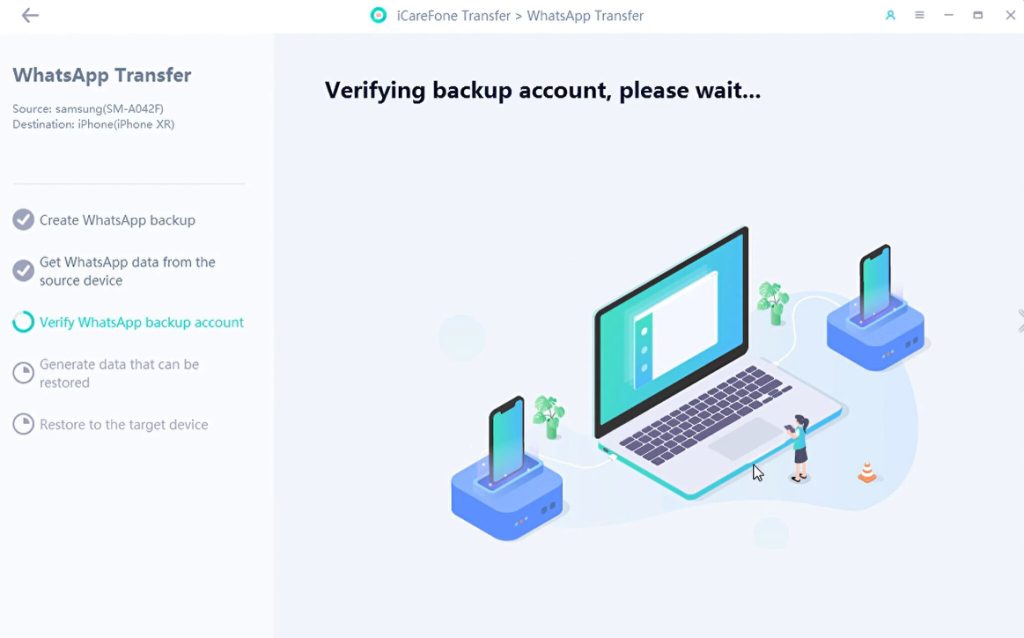
Step 4. Verify your WhatsApp account when prompted. This allows the software to securely access and prepare your backup.
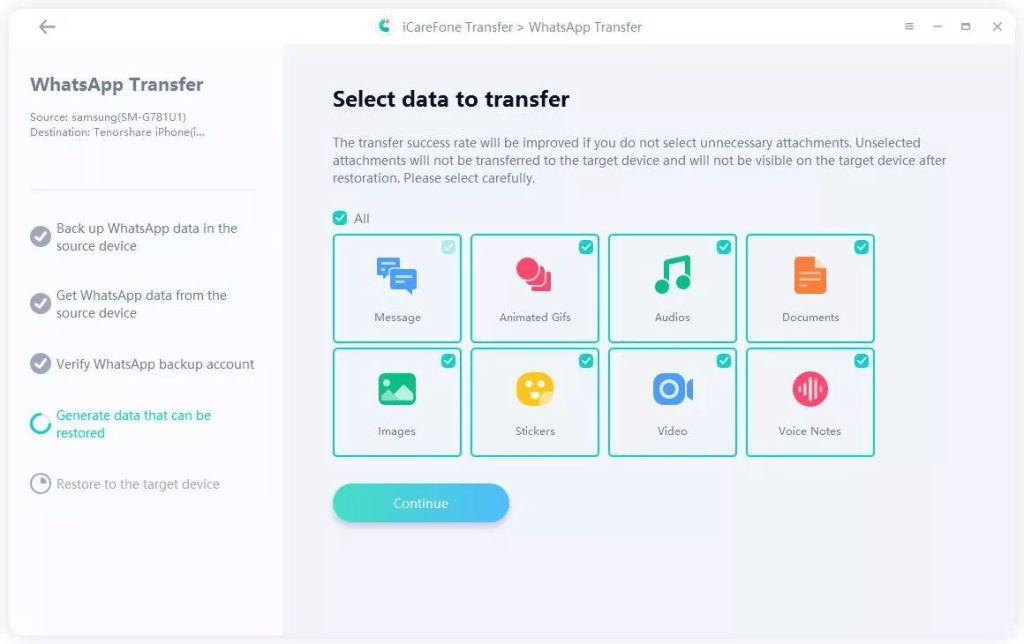
Step 5. Choose the chats and attachments you want to transfer, then click Continue.
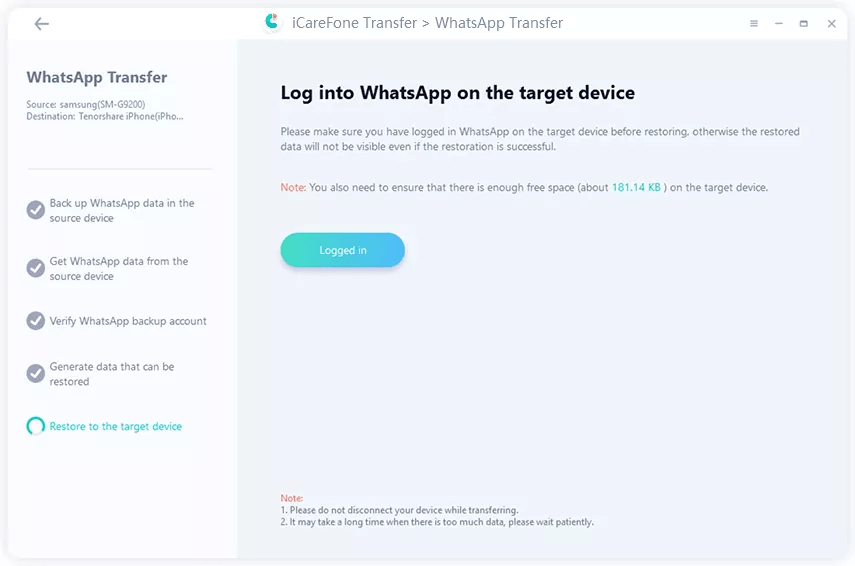
Step 6. Log in to WhatsApp on your iPhone using the same phone number. In iCareFone Transfer, confirm that you’re logged in and start the restore process.
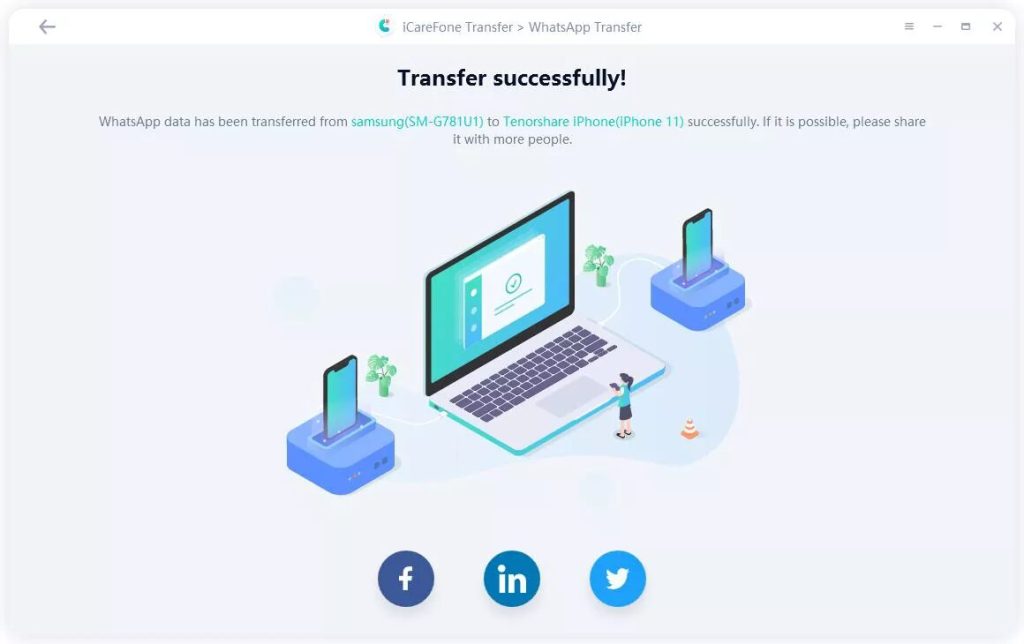
Step 7. Wait for the transfer to finish. Once completed, open WhatsApp on your iPhone to access all your transferred chats, photos, videos, and other WhatsApp data.
FAQ About Restore Whatsapp Backup from Google Drive to iPhone
1. Can I restore my WhatsApp backup from Android to iPhone?
Yes, if you still have your Android phone, you can use Move to iOS during iPhone setup. If you only have a Google Drive backup, you’ll need a third-party tool because WhatsApp doesn’t support restoring it directly to an iPhone.
2. How do I transfer a WhatsApp backup from Google Drive to my phone?
On Android, sign in to WhatsApp with the same phone number and tap Restore. On iPhone, Google Drive backups cannot be restored using WhatsApp, so you’ll need a compatible transfer tool.
3. How to restore WhatsApp backup from Google Drive to iPhone without a PC?
You can’t do it using WhatsApp alone. A computer and a compatible transfer tool are currently required to restore a Google Drive backup to an iPhone.
Closing Thoughts
Although WhatsApp doesn’t officially let you restore WhatsApp backup from Google Drive to iPhone, you still have options. If you have your Android phone, use Apple’s Move to iOS during iPhone setup. If you only have a Google Drive backup or your iPhone is already set up, a reliable tool like iCareFone WhatsApp Transfer makes the process much easier. Choose the method that best fits your situation and move your WhatsApp data without hassle.