When a laptop suddenly refuses to start, crashes repeatedly, or behaves strangely, it can be difficult to know where the problem comes from. Is it a hardware failure, a damaged internal part, or a temporary software issue? Learning how to identify a faulty laptop component can save time, prevent unnecessary expenses, and make laptop repair much easier. This practical laptop troubleshooting guide explains how to recognize the most common warning signs, test essential hardware, and pinpoint the component responsible for the malfunction.
Why Should You Identify a Faulty Laptop Component?
Understanding the basics of laptop hardware diagnostics can save both time and money. Replacing the wrong part without confirming the cause may make the problem worse or lead to unnecessary costs. Carefully analyzing the symptoms can reveal quick and simple solutions, such as reconnecting, reseating, or cleaning an internal component.
Basic hardware knowledge also helps you communicate more effectively with technical support. Clearly describing the signs of failure and any error messages displayed on screen can help a technician identify the most likely cause and recommend the correct laptop replacement part.
Please note: If you need replacement parts for an Asus device, you can find a wide selection of genuine Asus spare parts from Accessoires Asus.
What Are the Most Common Signs of Laptop Hardware Failure?
Before opening the laptop, observe how the device reacts. Its behavior can already provide valuable clues and help identify which laptop component may be defective. Several symptoms are particularly common when a hardware part begins to fail.
Recognizing these laptop failure symptoms is the first essential step in choosing the right troubleshooting method and avoiding unnecessary repairs.
- The laptop does not start even though the charger is connected
- The system emits beep codes or displays hardware error codes
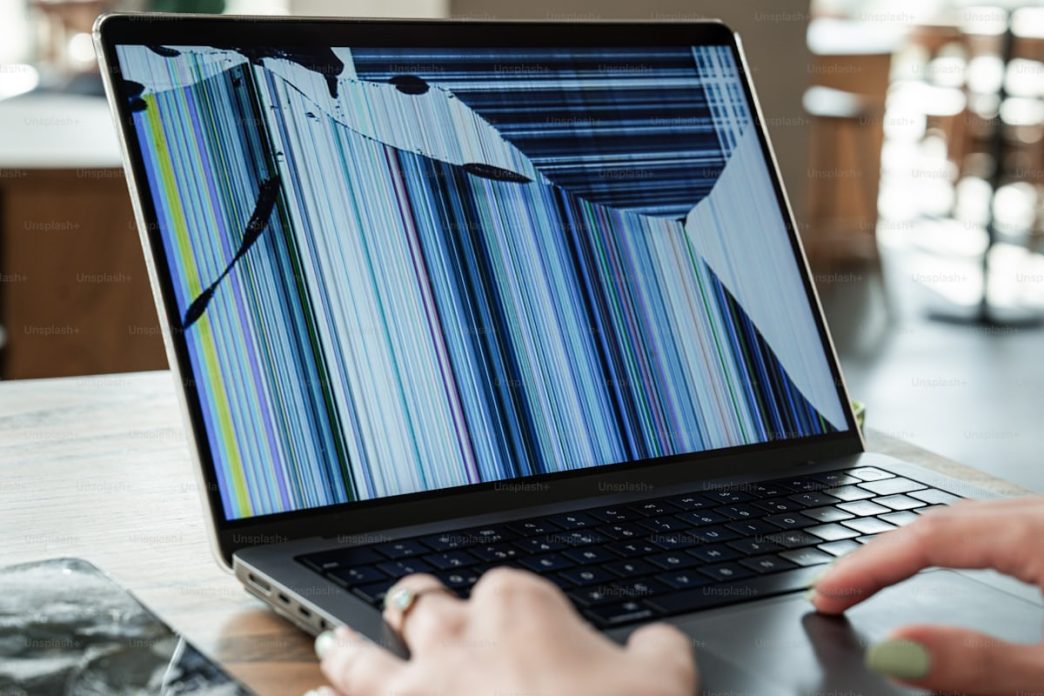
- The screen remains black or shows unusual visual artifacts
- The laptop crashes, freezes, or restarts unexpectedly
- Some ports or internal devices no longer work
- Memory- or storage-related error messages appear regularly
- The cooling fan runs constantly at full speed or stops working
What Precautions Should You Take Before Testing Laptop Parts?
Before handling or testing laptop hardware, shut down the device and disconnect it from every power source. Work on a clean, flat surface and take precautions against static electricity, which can damage sensitive internal components.
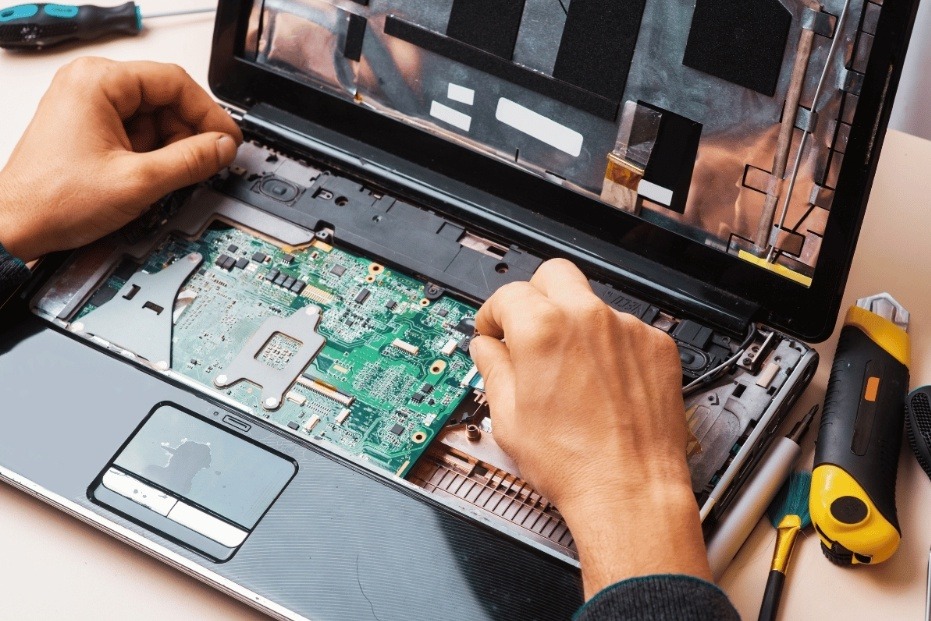
Laptop components are fragile. Avoid putting excessive pressure on the chassis and handle cables and connectors carefully. Whenever possible, consult a repair guide or disassembly tutorial created for your exact laptop model before removing any part.
Where Should You Start Laptop Troubleshooting?
The most effective approach is to rule out simple causes before replacing any hardware. A loose cable, a damaged charger, an empty battery, or a poorly connected component can be enough to prevent a laptop from working correctly.
Test each hardware module progressively and use a process of elimination. This helps isolate the suspected faulty part without dismantling the entire laptop. Careful observation should always come before extensive disassembly.
Should You Test the Laptop Charger or Battery First?
If the laptop appears completely unresponsive, begin by checking the power adapter, power cable, charging port, and battery. A damaged charger or faulty laptop battery is one of the most common causes of power failure. An ageing battery may also swell, overheat, or stop holding a charge.
If the laptop works when connected to mains power but shuts down as soon as it is unplugged, the battery is probably defective. Testing the device with another compatible charger can also confirm whether the power adapter is responsible.
How Can You Diagnose a Laptop Screen or Graphics Problem?
Display problems are among the most visible signs of hardware failure. Common symptoms include a black screen, sudden dimming, flickering, distorted colors, or visual artifacts. Shining an external light onto the screen can help determine whether the LCD panel works but the backlight has failed.
If the image freezes, flickers, or appears pixelated, the issue may involve the integrated graphics processor, the display cable, or the screen itself. If the laptop displays a normal image on an external monitor, the fault is more likely to come from the internal screen or video cable than from the graphics chip.
Which Other Laptop Components Should You Test First?
Beyond the battery and display, several other laptop components can cause major malfunctions. Testing the RAM, storage drive, cooling system, keyboard, and wireless card can help narrow down the source of the problem.
Some failures are indicated by missing startup sounds or short warning beeps when the laptop powers on. Manufacturer documentation and model-specific repair tutorials can help you interpret these signals and test the correct part.
What Are the Signs of Faulty Laptop RAM?
Faulty RAM often causes repeated beep codes at startup, frozen screens, blue screens, or random crashes. A simple test consists of removing or swapping the memory modules and restarting the laptop. If the computer starts normally with only one module installed, the removed RAM stick may be defective.
Free memory diagnostic tools can be launched from a bootable USB drive to detect errors on each installed module. If the test reports recurring errors, replacing the defective laptop RAM is generally the appropriate solution.
How Can You Tell If the Hard Drive or SSD Is Faulty?
Unusual clicking noises from a mechanical hard drive, extreme slowdowns, corrupted files, and startup errors are common signs of storage failure. A faulty SSD may disappear from the BIOS, prevent a partition from being detected, or stop Windows from booting.
To confirm the diagnosis, connect the suspected hard drive or SSD to another computer using a compatible adapter. If the drive cannot be detected, data access is extremely slow, or repeated read errors occur, the storage device may need to be replaced. Back up any accessible data before carrying out further tests.
How Should You Interpret Laptop Error Messages and Beep Codes?
During a major hardware failure, a laptop may emit short or long beep sequences or display hexadecimal diagnostic codes. These signals often correspond to a specific hardware category and are usually explained in the manufacturer’s technical documentation.
Understanding laptop error codes can significantly speed up the troubleshooting process. Depending on the model, a code may point to the memory, processor, graphics system, motherboard, cooling system, or storage drive.
When Should You Replace a Faulty Laptop Part?
Once the exact cause has been identified, you can decide whether to repair the laptop yourself or contact a professional. Common replaceable laptop parts such as RAM, SSDs, hard drives, keyboards, and removable batteries are often relatively accessible. Motherboards and soldered components, however, generally require specialist tools and experience.
The following laptop replacement parts can often be changed individually:
- Battery
- RAM memory
- Hard drive or SSD
- Keyboard
- Wi-Fi or Bluetooth card
- Optical drive on compatible models
The choice between a DIY laptop repair and professional service depends on the accessibility of the component, your technical experience, and the availability of a reliable guide for your exact model. Replacing a faulty part yourself can be rewarding, but every repair should be carried out carefully to avoid damaging other components.
How Can You Prevent Another Laptop Hardware Failure?
Regular laptop maintenance can reduce the risk of recurring hardware problems. Clean the ventilation grilles, monitor internal temperatures, avoid blocking the air vents, and keep system drivers and firmware up to date.
Pay attention to early warning signs such as slow performance, intermittent errors, overheating, unusual noises, or battery swelling. Acting quickly and using reliable repair resources can extend the lifespan of your laptop and help you replace only the component that is genuinely defective.