
H1: C Drive Almost Full? How to Free Up Space Without Risking Important Files
On Windows PC, when the C drive is full, various problems can occur. Your computer may slow down, Windows will fail to update, your app may not be able to install, or your game or creative software may crash unexpectedly. Users tend to start deleting files as soon as they receive a storage capacity shortage warning. But it is not always the safest way. The best way to eliminate the shortage of C drives is to first check what is consuming capacity. After that, delete the temporary file, uninstall the program you are not using, move the personal file if necessary, and consider expanding the C drive if you cannot secure enough free space even if you clean up. By following appropriate procedures, you can ensure free storage space without risking critical files.
Why the C Drive Fills Up So Quickly
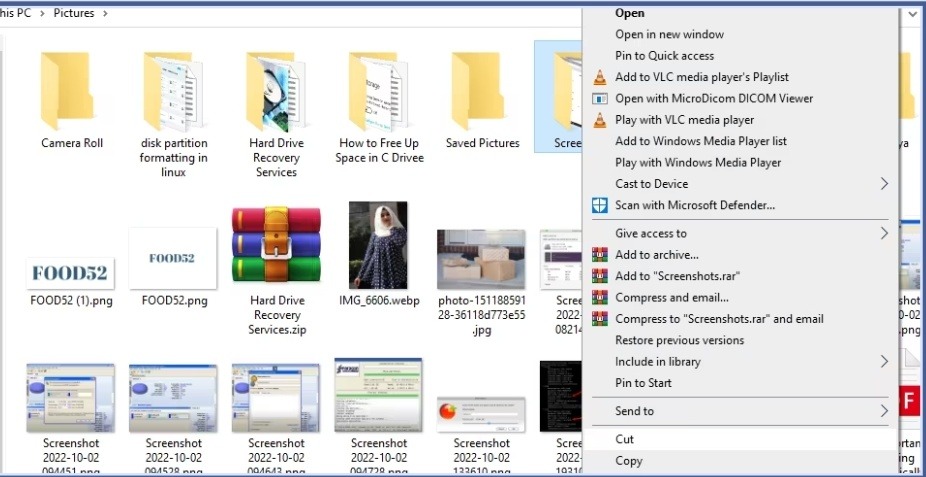
Many users are surprised to find that even though they don’t have much new software installed, the C drive is full. Over time, there are several factors that gradually consume available storage.
Common reasons include:
- Windows update files
- Temporary files and system cache
- Recycle Bin contents
- Large applications and games
- Downloads folder clutter
- Desktop files stored on the C drive
- Restore points and shadow copies
- Browser, launcher, and editing software caches
- Documents, Pictures, and Videos folders
- A C drive that was too small from the beginning
Due to the lack of space in C drives, system files, temporary files, installed programs, user data, and partition size limitations are usually combined. In addition, the latest Windows system generates temporary data on a regular basis. The browser saves cache files, the video editing software creates project files, and the game launcher downloads updates in the background. Over time, these files may occupy several gigabytes of storage.
Check What Is Taking Up Space Before Deleting Anything
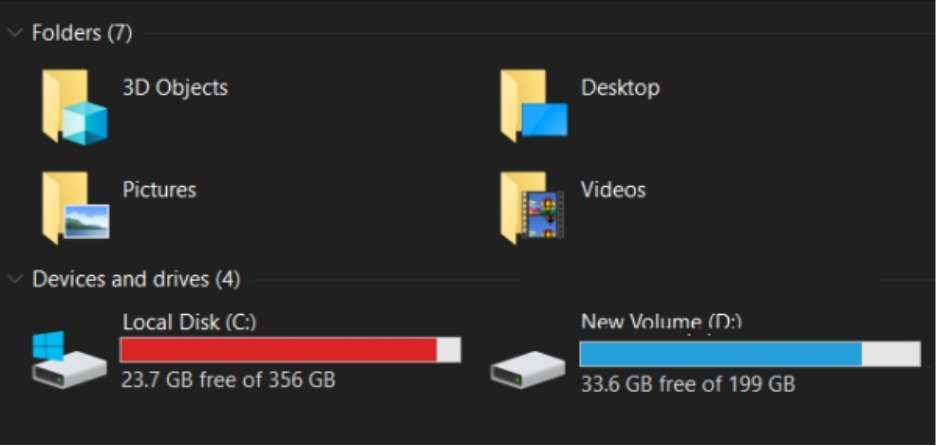
Before deleting files, take a few minutes to find out what is actually using the storage.
Windows includes built-in tools that make this process simple.
Follow these steps:
- Open Settings.
- Select System.
- Click Storage.
Windows will display categories such as:
- Apps
- Temporary files
- Documents
- Pictures
- Videos
- Other files
Review each category carefully.
Pay special attention to:
- Downloads folder
- Large games
- Video editing software
- ISO files
- Screen recordings
- Exported video projects
- Old installers
Many users discover that old downloads or large media files are responsible for most of the storage usage.
Avoid manually deleting files from these locations:
- Windows folder
- Program Files
- Program Files (x86)
- AppData
- System32
Removing files from these folders without understanding their purpose can cause system problems.
Safe Ways to Free Up Space on C Drive
Once you identify what is using storage, you can start cleaning safely.
Use Disk Cleanup
Disk Cleanup is one of the safest Windows tools for removing unnecessary files.
It can remove:
- Temporary files
- System cache
- Windows update cleanup files
- Error reports
Search for Disk Cleanup from the Start menu and follow the prompts.
Turn On Storage Sense
Storage Sense helps automate routine cleanup tasks.
It can:
- Remove temporary files
- Empty the Recycle Bin automatically
- Delete old Downloads files based on your settings
This feature is available in both Windows 10 and Windows 11.
Empty the Recycle Bin
Files inside the Recycle Bin still use storage space.
Before emptying it:
- Review deleted files
- Restore anything important
- Permanently remove the remaining items
Uninstall Unused Applications
Many PCs contain software that has not been used for months.
Go to:
Settings > Apps
Remove programs, games, and utilities that you no longer need.
Move Personal Files
Videos, photos, and downloaded files often take up more space than expected.
Consider moving:
- Videos
- Photos
- Downloads
- Project files
to another internal drive, external drive, or cloud storage service.
Clear Browser Cache
Web browsers store temporary data to improve loading speed. If the cache becomes very large, clearing it can help recover storage space.
Clean Windows Update Files Safely
Never delete update files manually.
Instead, use:
- Disk Cleanup
- Storage Sense
These tools remove old update files safely.
Move Game Libraries
The large capacity games may require a lot of gigabytes as well. It is easy for most game launchers to have the option for you to shift the library of games to another hard disk without re-installing the games. For those who want to know about steps to clean up C drive in Windows 11 and Windows 10, this article can help out.
What Not to Delete from the C Drive
Trying to save space by deleting the wrong files can create serious problems.
Avoid deleting:
- Windows folder
- System32 folder
- Random files inside Program Files
- Unknown AppData folders
- EFI partitions
- Recovery partitions
- Boot partitions
- Driver folders without a clear reason
However, there are a lot of forums which advise manually removing system folders. In fact, this is the way which usually leads to new problems instead of solving them. If you don’t know the function of this folder, I suggest examining its content before removing it. It’s always better to spend several minutes on learning than repairing your Windows.
When Cleaning Is Not Enough
Sometimes users clean their system successfully but run out of space again a few weeks later. This often happens because the C drive itself is too small. Modern Windows installations require more storage than older versions. Updates, applications, games, and user data continue to grow over time.
Signs that cleanup may not be enough include:
- Low space warnings returning quickly
- Frequent update failures
- Large software installations failing
- Constant storage management issues
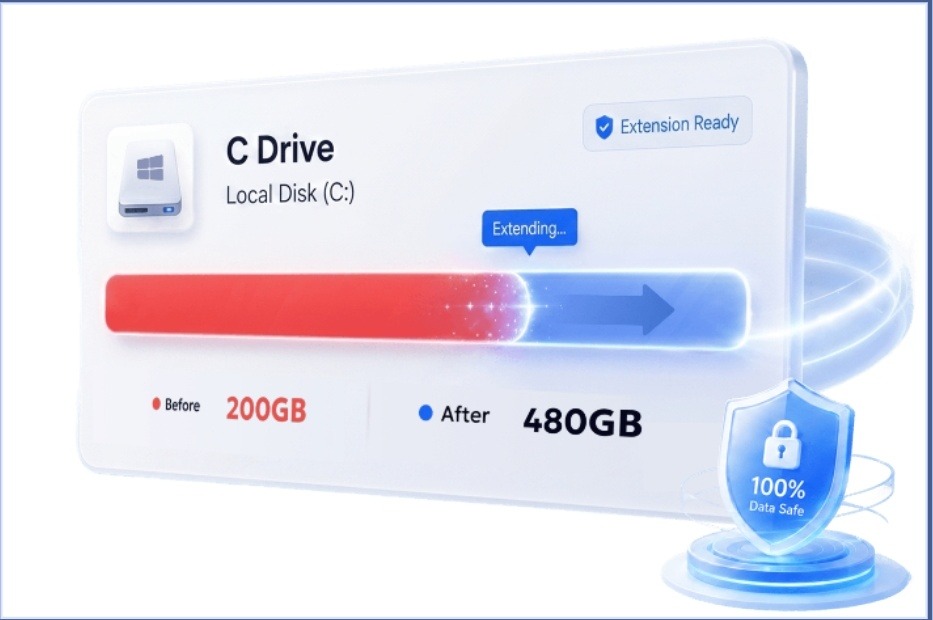
If the C drive becomes full again soon after cleanup, extending the partition or upgrading the drive may be a better long-term solution. Users who have unallocated space on the disk may be able to extend C drive capacity without replacing the drive. Others may need to upgrade to a larger SSD for more storage. Unlike deleting files, extending a partition increases the available capacity of the drive itself.
Extend C Drive or Back Up Before Storage Changes
When temporary file cleanup does not create enough free space, a partition management tool may help. 4DDiG Partition Manager is a Windows partition management and disk backup tool that can help users adjust storage layouts when basic cleanup is no longer enough.
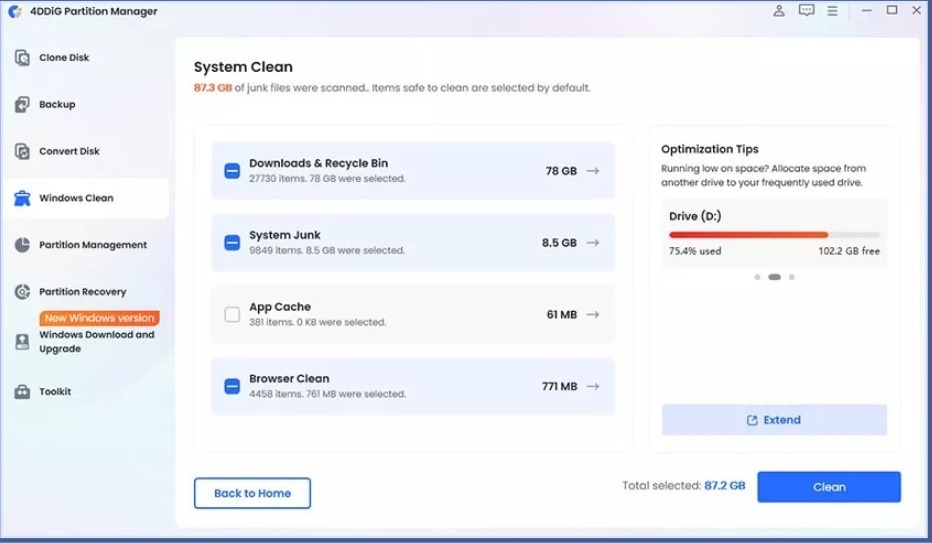
For example, it may be useful when:
- Extending the C drive
- Shrinking another partition
- Adjusting partition sizes
- Cloning a disk before making changes
- Preparing for an SSD upgrade
- Managing storage space beyond Windows Disk Management
If your disk contains unallocated space or another partition with unused capacity, tools like 4DDiG Partition Manager can help reorganize the layout. Before making any partition changes, always back up important files to reduce risk.
Quick Checklist Before Cleaning or Extending C Drive
Use this checklist before making storage changes:
- Back up important files first
- Check Storage settings to identify large files
- Use Windows cleanup tools before deleting files manually
- Review the Recycle Bin before emptying it
- Uninstall applications through Settings or Control Panel
- Move large personal files if necessary
- Avoid deleting unknown system folders
- Check whether the C drive can be extended
- Keep the laptop plugged in during partition changes
- Keep backups until the system works normally
Common Mistakes to Avoid
Many storage problems happen because users rush through the cleanup process.
Avoid these common mistakes:
- Deleting system folders to save space
- Emptying everything without checking backups
- Using unsafe cleanup tools
- Forgetting that Desktop and Downloads are stored on the C drive
- Deleting application folders instead of uninstalling software
- Ignoring Windows update cleanup files
- Extending partitions without checking the disk layout
- Making partition changes without a backup
A careful approach is usually safer and more effective.
Conclusion
In the case of a full C drive, you may find that updates for Windows become harder, application processes take more time, and game installations become impossible. However, although deleting files might seem an easy way out, it is necessary to first identify which processes use up all of your space. You need to start with identifying how much space each process uses, using the clean-up function from Windows, removing unnecessary applications, and transferring personal files. This way, you will guarantee the safety of your files while freeing up the disk space on C drive. In case cleanup cannot solve the issue, there might be another reason: you may have simply run out of space due to the small partition size. This can be solved by increasing the C-drive capacity or replacing the current SSD drive. In addition, tools such as 4DDiG Partition Manager can assist you in these tasks.