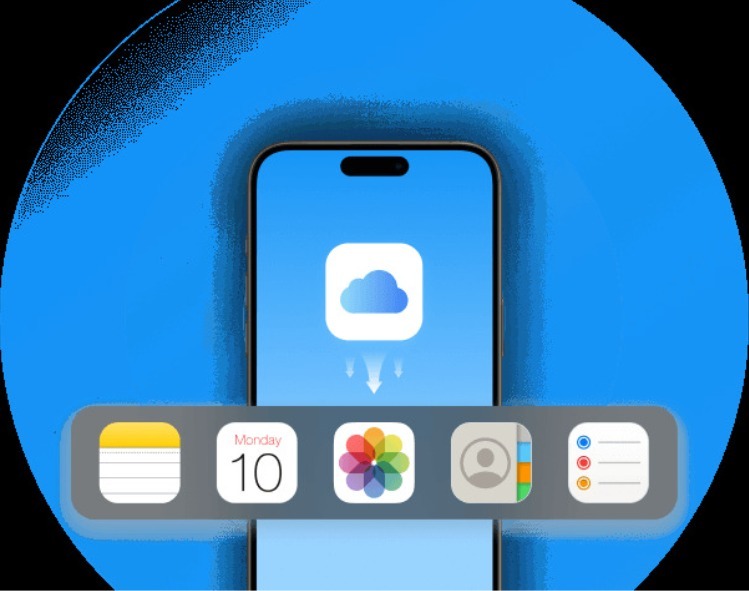
Losing iPhone data causes immense stress, but the standard recovery process often makes the situation worse by requiring a complete device wipe. Many individuals look for alternative methods to retrieve their lost photos, messages, and documents without erasing their current phone setup. Fortunately, modern data extraction software provides a safe way to recover these missing files. This article details the exact methods to retrieve valuable information without losing existing data.
Can You Restore iCloud Backup Without Resetting Your iPhone?
When disaster strikes and important files vanish, individuals frequently ask, “can you restore from icloud backup without resetting iphone?” Understanding the technical limitations of the iOS ecosystem is the first step toward successful data recovery and avoiding further file loss.
Short answer:
Apple does not provide a direct way to restore an iCloud backup without resetting the iPhone. The official restore process is designed to completely replace the current device data with the backup snapshot. To access or recover specific data from an iCloud backup without erasing the iPhone, individuals need to use a third-party tool that can extract and restore data selectively.
Why Apple requires reset?
The iOS operating system is built on strict security protocols and a closed file architecture. When Apple designed the iCloud restore functionality, it was primarily intended for setting up a brand-new device or recovering a severely corrupted phone. An iCloud backup acts as a complete, static snapshot of the device at a specific moment in time.
If Apple allowed this snapshot to merge with the existing, active data on a functioning iPhone, it could lead to severe system conflicts. For example, merging older application files with newly updated applications might cause software crashes. Additionally, restoring old message databases over new ones could result in duplicated files or corrupted text threads. To ensure that the operating system runs without errors and that the recovered data functions exactly as it did when it was backed up, Apple mandates a complete factory reset. This approach wipes the slate clean before applying the backup snapshot, ensuring system stability but causing immense inconvenience for users who only want to recover a single lost file.
Understand the Difference: iCloud Backup vs iCloud Sync
Before attempting any recovery operations, it is necessary to understand how Apple manages information in the cloud. Apple utilizes two distinct mechanisms to protect user data: iCloud Backup and iCloud Sync. Although both features use iCloud storage to protect information, they work in fundamentally different ways.
iCloud Sync keeps data consistent across multiple Apple devices in real-time. If a user adds a contact on their Mac, iCloud Sync ensures that the same contact appears on their iPhone almost immediately. Conversely, iCloud Backup creates a static copy of the device that is stored on Apple servers, which users can restore later if they lose their phone or need to perform a system reset.
| Feature | iCloud Sync | iCloud Backup |
| Overview | Keeps the latest version of data consistent across all Apple devices signed in with the same Apple Account. | Backs up iPhone or iPad data that isn’t already synced with iCloud, allowing you to restore it after a device reset, replacement, or data loss. |
| How it Works | Instantly uploads changes to the cloud and mirrors them on other connected devices automatically. | Runs in the background, typically overnight when the device is locked, connected to Wi-Fi, and plugged into a power source. |
| If data is deleted | Deleting a synced file on one device removes it from all connected devices immediately. | Deleted files remain trapped in the static backup file until a full restore is initiated. |
| Recovery Method | Files can often be recovered via the “Recently Deleted” folder on iCloud.com within 30 days. | Requires a full device reset or the use of specialized third-party extraction software. |
Data usually included in iCloud Backup:
- App data
- Device settings
- Messages (if Messages in iCloud is disabled)
- Some app documents
Data usually synced separately:
- iCloud Photos
- Contacts
- Notes
- Messages in iCloud
Important note: If iCloud Photos is enabled on the device, photos may not appear inside the iCloud Backup because they are already stored in iCloud Photos. This distinction is highly significant. If a user deletes a synced photo, it deletes across all devices immediately and cannot be recovered via a standard nightly backup. Users must instead check the “Recently Deleted” folder on iCloud.com, where the image remains available for 30 days before permanent removal.
Things to Check Before Restoring iCloud Backup
Brief explanation:
Before moving forward with a full system restoration or utilizing specialized software, device owners should verify the status and contents of their cloud storage. Rushing into a recovery operation without confirming the presence of the required files can lead to unnecessary frustration and potential data overwrite. The very first action a user should take is to stop using the device entirely. Avoiding saving new files, installing applications, or updating the system prevents new information from overwriting the deleted data, keeping it recoverable.
Step 1: Check Available iCloud Backup
The first step is to confirm whether a valid backup file actually exists. Users can navigate to the Settings application on their iPhone, tap on their Apple ID profile at the top of the screen, select “iCloud,” and then tap on “iCloud Backup.” In this menu, the interface displays the date, time, and file size of the most recent successful backup. If the backup was created after the data was lost, the missing files will not be in that snapshot.
Step 2: Check Whether Your Missing Data Is Actually in iCloud Backup
Not all iPhone data is stored in iCloud Backup. As previously outlined, Apple separates synced data from backed-up data to optimize storage space and reduce backup sizes. Some data may already exist in iCloud Sync services. For instance, if contacts, calendar events, or notes suddenly disappear, they might not be in the nightly backup but could be recoverable by logging directly into iCloud.com via a web browser.
Users should check the web portal’s respective applications to see if the missing information can be recovered natively without any complex backup extraction. The simplest way to restore deleted items is by checking the “Recently Deleted” folder on iCloud Drive or iCloud Photos online. However, anything missing from iCloud.com cannot be recovered this way.
If the missing data is not synced and is definitively stored within a past backup, users must decide how to extract it. Since a full device reset will overwrite any new data created after the backup date, utilizing external software is the logical next step. This naturally leads users to search for methods to bypass Apple’s restrictions safely.
How to Restore iCloud Backup Without Resetting iPhone
When native Apple solutions fall short, Tenorshare UltData – iCloud Data Recovery provides an effective method for extracting files safely. With over 20 years of recovery expertise and more than 50 million files processed, this software allows users to selectively recover iCloud data without performing a factory reset. UltData features a fast scanning engine and supports the extraction of over 35 different data types, including photos, videos, contacts, and mainstream communication applications like WhatsApp, LINE, and Instagram.
The application offers a free preview function before recovery, ensuring a high success rate and granting users absolute control over what gets restored to their computer or device. For those looking for the definitive method on how to restore from icloud backup without reset, Tenorshare UltData delivers a straightforward process that guarantees no existing data on the device is overwritten or lost during the extraction operation.
Step-by-Step Guide:
Using UltData to restore backup from iCloud without reset is a manageable process designed for users of all technical skill levels. By following these clear instructions, anyone can successfully restore from icloud backup without reset.
Step 1: Select to recover data from iCloud
First, individuals must download and install the Tenorshare UltData software on a Windows or Mac computer. Upon launching the application, the main dashboard will present several recovery options. Users should select the specific feature designated for recovering data from iCloud to initiate the secure extraction process.
Step 2: Select iCloud Backup Recovery Mode
Within the iCloud recovery interface, the software offers different modules depending on the nature of the lost data. To extract files from a previously saved device snapshot, users must choose the “iCloud Backup Recovery” mode. This specific mode is tailored to bypass the iOS device wipe requirement, allowing the software program to read and extract the backup files externally.
Step 3: Log in to iCloud
To grant the software access to the secure backup files, users must log in using their Apple ID credentials. Tenorshare UltData employs high-level security standards to ensure that the login process is safe, protecting user privacy and ensuring that all data remains strictly between the user and Apple’s servers.
Step 4: Select Backup File
Once authenticated, the software interfaces with Apple’s servers and displays a comprehensive list of all available iCloud backups associated with that specific Apple account. The list includes essential details such as the device name, the exact backup date, time, and file size. Users should carefully identify and select the specific backup file that contains their missing information and click the download button to save a local copy of the backup to the computer for scanning.
Step 5: Select Data Type
After the backup file is successfully downloaded to the computer, UltData will prompt the user to choose the specific types of data they wish to extract. Rather than forcing a massive, full data dump, the software allows for granular selection. Users can check the boxes next to categories such as Photos, Messages, Contacts, or third-party application data. Selecting only the necessary data categories significantly speeds up the scanning process.
Step 6: Preview and Recover
Once the scan is complete, the software displays all the extracted files in an organized, easy-to-navigate interface. One of the main advantages of UltData is the ability to preview these files before committing to the recovery. Users can read through text message threads, view full-resolution photos, and verify contact details to ensure they are recovering the correct items. Finally, users simply select the desired files and click the “Recover” button. The software then exports the selected data safely to the computer or directly back to the connected device, completing the recovery operation without ever triggering a system erase.
Conclusion
Losing critical files on an iOS device disrupts daily routines, and Apple’s native requirement to wipe a device entirely to retrieve older files presents a major obstacle for most individuals. Understanding the fundamental differences between live cloud synchronization and static overnight backups is necessary for managing device data effectively. While Apple’s strict security architecture prevents a native, non-destructive restoration process, technology provides superior alternatives.
By utilizing professional extraction tools like Tenorshare UltData, users can bypass these restrictive protocols entirely. The ability to selectively preview and extract over 35 different data types ensures that existing device data remains completely untouched and safe from deletion. Always remember to stop using the device immediately after data loss and check iCloud.com for synced files first. If those methods fail, relying on dedicated software ensures that a factory wipe is no longer a mandatory sacrifice for data retrieval, allowing individuals to reclaim their missing files with precision and complete confidence.
For more info, visit: https://www.tenorshare.com/icloud-data-recovery.html