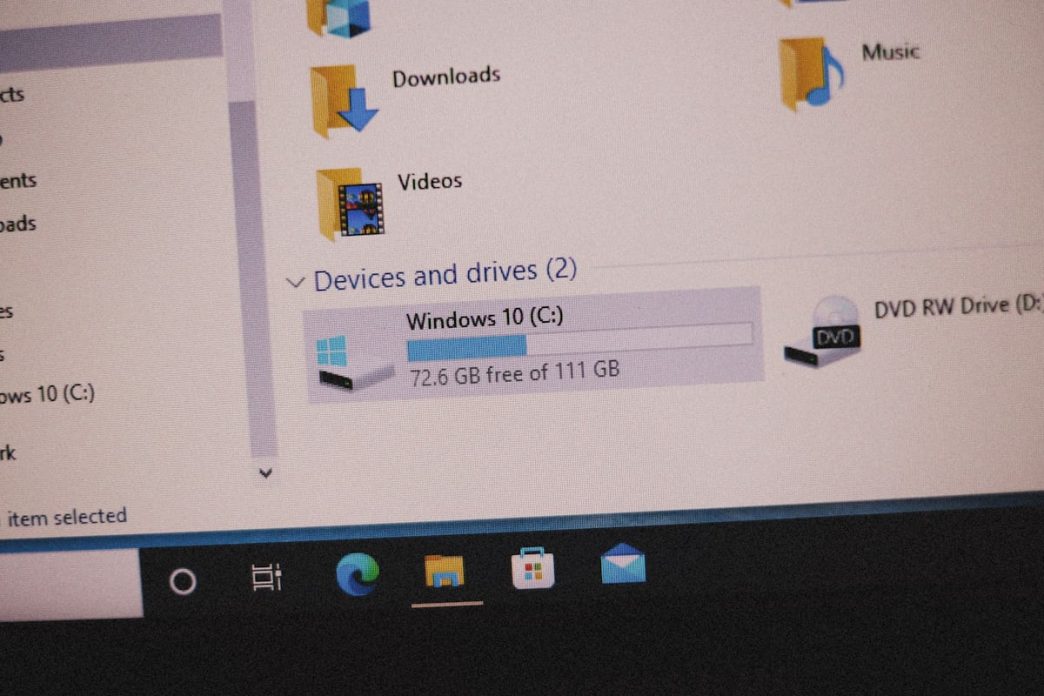
Have you ever plugged in your drive and found that it suddenly stopped working? If you’re looking for external hard drive recovery, you’re probably worried about losing important files like photos, videos, or work documents.
Don’t panic just yet. In many cases, your files can still be recovered, even if the drive is not detected, shows as RAW, or won’t open. The key is to avoid making the problem worse and use the right recovery method. This guide will explain why your external hard drive isn’t reading, show you how to recover your files step by step using Tenorshare 4DDiG, and share a few tips to help prevent this from happening again.
Let’s get started.
Part 1: What It Means When Your External Hard Drive Won’t Read
When your external hard drive won’t read, it simply means your computer can’t access the data stored on it. Sometimes the drive isn’t detected at all, while other times it appears in File Explorer but won’t open. In either case, your files may still be there.
Here are some common signs that your external hard drive has a problem:
- The drive doesn’t appear when you connect it.
- You see a message asking you to format the drive before using it.
- The drive shows as RAW instead of NTFS, exFAT, or another file system.
- The external hard drive is detected, but your files are missing.
- The drive opens very slowly or freezes when you try to access it.
In most cases, the problem is caused by logical issues such as file system corruption, damaged partitions, or accidental formatting. These problems can often be fixed with data recovery software.
However, if the drive makes clicking or grinding noises, doesn’t power on, or isn’t detected on multiple computers, it may have physical damage and require professional recovery. Until then, avoid formatting the drive or saving new files to it, as this can reduce the chances of recovering your data.
Part 2: Why External Hard Drives Stop Being Readable
External hard drives can become unreadable due to software errors or hardware problems. Knowing the cause can help you choose the right recovery method.
1. File System Corruption
A corrupted file system can prevent your computer from reading the drive, causing it to appear as RAW or ask for formatting.
2. Improper Ejection
Removing the drive without safely ejecting it can interrupt data transfers and eventually lead to file system corruption.
3. Accidental Formatting
Formatting the wrong drive removes its file system, but your files may still be recoverable before they are overwritten.
4. Virus or Malware
Viruses and malware can damage the file system, hide files, or make your external hard drive inaccessible.
5. Bad Sectors
As hard drives age, bad sectors can develop, making stored files difficult to access or completely unreadable.
6. Partition Damage
A damaged partition can make the drive appear empty, unallocated, or inaccessible, even though the files still exist.
7. Power or Connection Problems
A faulty USB cable, damaged port, or unstable power supply can stop your computer from detecting the external hard drive.
8. Physical Damage
Dropping the drive, exposing it to water, or internal hardware failure can cause serious damage that requires professional recovery.
Whatever the cause, avoid formatting the drive or saving new files until you’ve recovered your data. Acting quickly improves your chances of successful recovery.
Part 3: When You Should Act Immediately
If your external hard drive suddenly becomes unreadable, don’t wait. The sooner you act, the better your chances of recovering your files.
Take action immediately if:
- The drive isn’t detected.
- Your files suddenly disappear.
- The drive shows as RAW.
- Windows asks you to format the drive.
- You accidentally formatted the drive.
As soon as you notice these signs, stop using the drive. Don’t save new files, format the drive, or run repair tools like CHKDSK, as these actions can reduce the chances of a successful recovery.
Instead, disconnect the drive and start the recovery process with reliable data recovery software as soon as possible. Acting early can make a big difference in getting your files back.
Part 4: How to Recover an External Hard Drive That Won’t Read
If your external hard drive isn’t reading, don’t panic. In many cases, your files can still be recovered as long as the drive isn’t physically damaged. Follow these steps in order to give yourself the best chance of recovering files from an external hard drive that is not detected.
Fix 1: Rule Out Connection Issues
Before using recovery software, make sure the problem isn’t caused by a faulty connection.
Try these quick checks:
- Disconnect and reconnect the drive.
- Use a different USB cable.
- Plug the drive into another USB port.
- Connect it to another computer.
- Check Disk Management to see if Windows detects the drive.
- If it’s a desktop external drive, make sure the power adapter is working properly.
If the drive still isn’t accessible but is detected by Windows, it’s likely a logical issue, and you can move on to fix external hard drive not showing files.
Fix 2: Run a Deep Scan with 4DDiG
If the connection isn’t the problem, use 4DDiG Data Recovery to scan your external hard drive. This external hard drive data recovery software supports recovering files from drives that are not detected properly, show as RAW, have corrupted file systems, or were accidentally formatted. The software performs a read-only scan, so it won’t modify your original data during the recovery process.
Here’s how to recover your files:
Step 1: First of all, download and install 4DDiG Data Recovery on your computer.
Step 2: Now connect your external hard drive, open the software, select the drive, and click Scan.
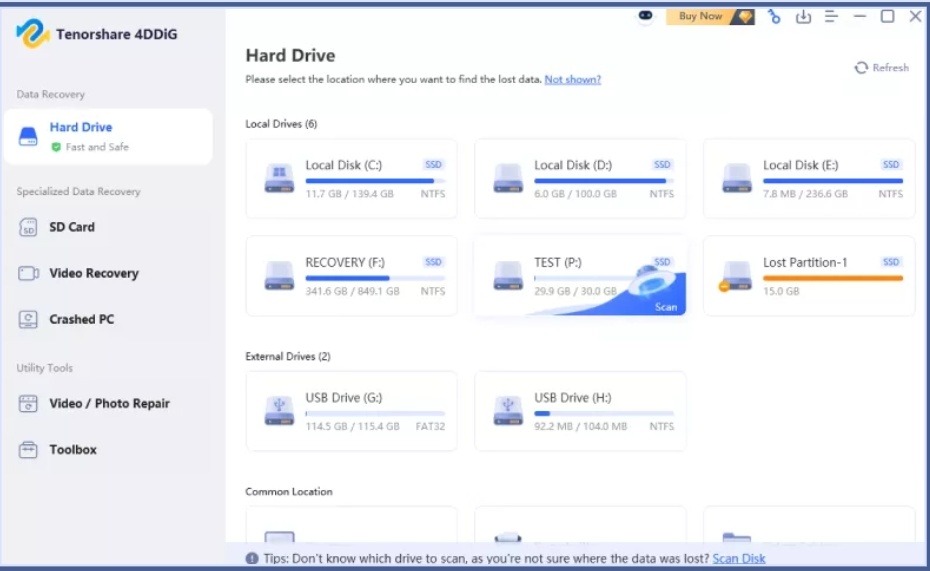
Step 3: The software will first run a Quick Scan for recently lost files. If you do not find what you need, allow the Deep Scan to continue searching the entire drive sector by sector. You can pause or filter the results while the scan is running.
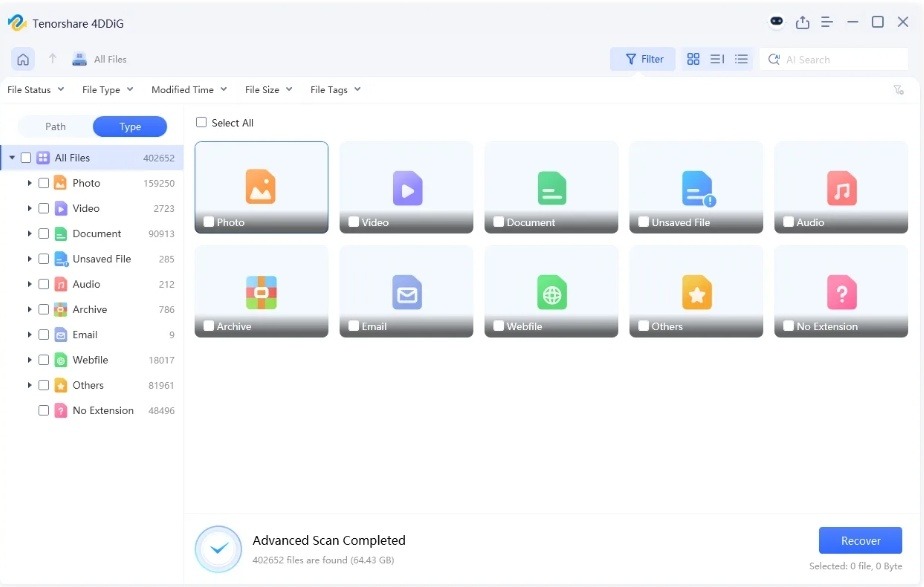
Fix 3: Preview and Recover to a Different Drive
After the scan is complete, preview the recoverable files to make sure they are the ones you need. Then select the files you want to restore and click Recover.
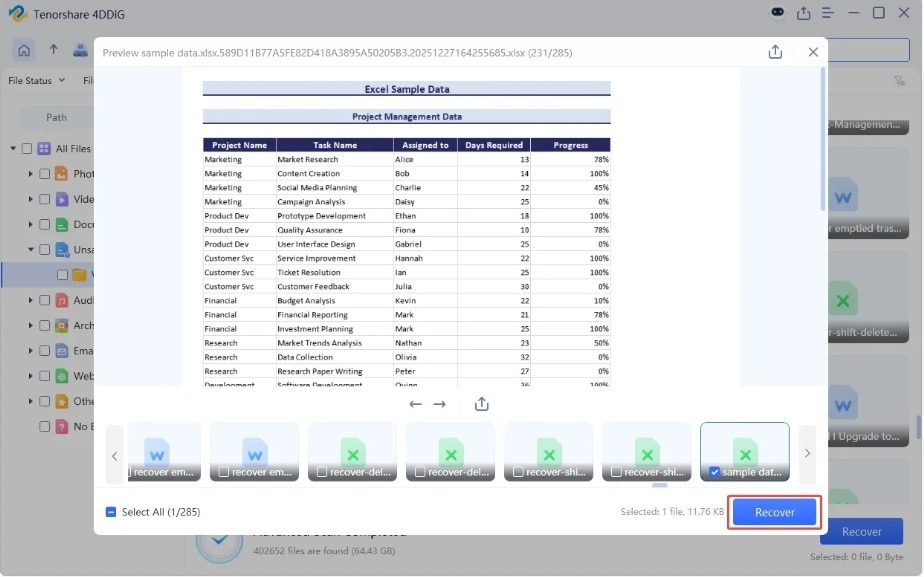
Important: Always save the recovered files to a different drive or storage device. Recovering files back to the same external hard drive can overwrite existing data and reduce the chances of recovering other files successfully.
Part 5: How to Prevent External Hard Drive Failure in the Future
While no hard drive lasts forever, a few good habits can help prevent data loss and extend its lifespan.
1. Safely Eject Before Removal
Always use the Safely Remove Hardware option before unplugging your external hard drive. This ensures all read and write operations are complete and helps prevent file system corruption.
2. Use Stable Connections
A loose USB cable or faulty port can interrupt data transfers. Use a good-quality cable and connect the drive directly to your computer whenever possible.
3. Avoid Unstable Environments
Keep your external hard drive away from water, extreme temperatures, dust, and strong impacts. Avoid moving or dropping the drive while it’s in use.
4. Keep Regular Backups
Don’t rely on a single copy of your important files. Back up your data regularly to another external drive or a trusted cloud storage service.
5. Monitor Drive Health
Pay attention to warning signs like slow performance, unusual noises, or frequent errors. Checking your drive’s health regularly can help you spot problems before they lead to data loss.
Following these simple tips can reduce the risk of drive failure and help keep your files safe in the long run.
Final Words
An external hard drive that won’t read doesn’t always mean your files are gone. In many cases, the problem is caused by logical errors that can be fixed with the right approach. The most important thing is to stop using the drive, avoid formatting it, and start the recovery process as soon as possible.
If your drive is still detected but inaccessible, a reliable external hard drive data recovery software like 4DDiG Data Recovery can help you scan the drive, recover your files, and get your important data back safely.
FAQ
1. How long does external hard drive recovery take?
It depends on the size of the drive and the scan mode you choose. A Quick Scan usually takes just a few minutes, while a Deep Scan can take several hours for large drives (1TB or more). Most recovery tools let you pause and resume the scan if needed.
2. What is the difference between Quick Scan and Deep Scan?
A Quick Scan searches for recently deleted files and finishes much faster. A Deep Scan checks the entire drive sector by sector, making it more effective for recovering data from RAW, corrupted, or formatted drives, although it takes longer to complete.
3. Can recovery software damage my external hard drive?
No. Trusted recovery software performs a read-only scan, meaning it doesn’t write or modify data on the drive. However, formatting the drive or running repair tools like CHKDSK before recovery may reduce the chances of getting your files back.
4. How can I increase my chances of successful recovery?
Stop using the external hard drive as soon as you notice the problem. Avoid saving new files, formatting the drive, or using repair utilities. Run data recovery software as early as possible and always save the recovered files to a different drive.
5. How do I know if my external hard drive is dead or just corrupted?
If the drive powers on but isn’t recognized or won’t open, it’s usually a logical problem, which recovery software may be able to fix. If the drive doesn’t power on, makes clicking or grinding noises, or isn’t detected on multiple computers, it’s more likely a physical failure and may require professional data recovery services.