H1: When Do You Need a Partition Manager for Windows and How to Choose One Safely?
There can always be problems with storage in many cases of Windows users. It is possible that the user can have insufficient capacity on C drive, newly purchased SSDs can show up in unallocated spaces, or partition formatting becomes necessary for use. Another case for the user would be when it is required to convert his disks into GPT partitioned to satisfy Windows installation and upgrade requirements. The program “Disk Management” can be used for these tasks; however, it may not offer enough opportunities for these purposes or could be too complicated for an inexperienced user. According to different cases, it would be impossible to manage one’s disk properly using this utility. The program Partition Manager helps users to do more with their disk partitions in the way of resizing, creating, deleting, formatting, merging, cloning, and organizing the drives.
What Does a Partition Manager Do?
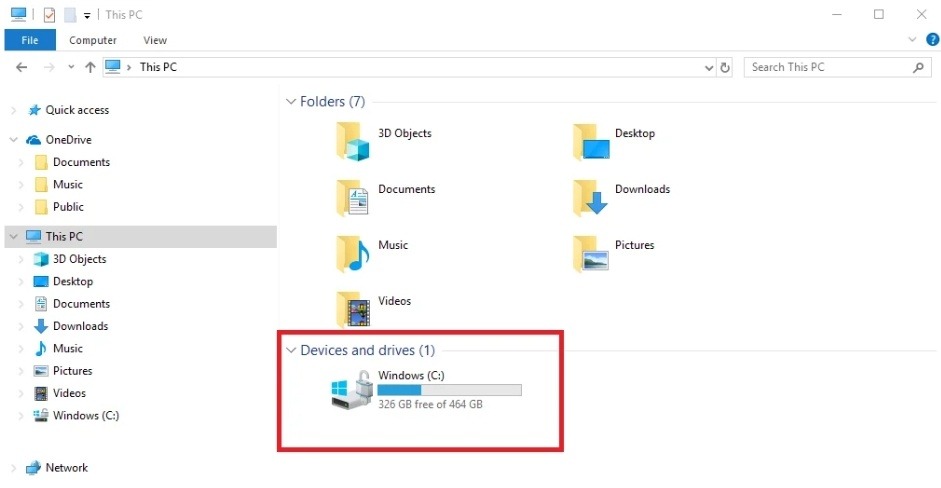
A partition is a part of a physical drive that Windows treats as a separate storage area. For example, your computer may have a C drive for Windows and another partition for personal files. Partition Manager helps users manage disk space splitting and usage. Instead of manipulating complex commands, users can manage storage through graphical interfaces. Partition Manager is a tool that allows users to organize and modify disk space without manually entering complex disk commands.
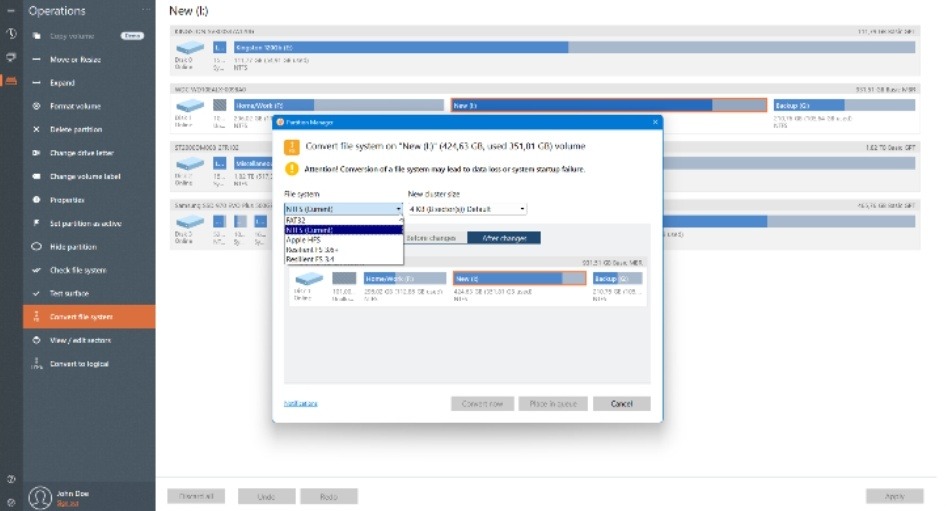
Common partition management tasks include:
- Creating new partitions
- Deleting partitions
- Formatting partitions
- Resizing partitions
- Splitting partitions
- Merging partitions
- Renaming or labeling partitions
Some advanced disk partition software also supports:
- Disk cloning
- OS migration
- Partition recovery
- MBR to GPT conversion
- GPT to MBR conversion
A good partition management tool should always show a preview before applying changes so users can review actions before making permanent modifications.
Common Situations Where You May Need One
Many users do not think about partitions until they face storage problems. Here are some common situations that help partition managers for Windows
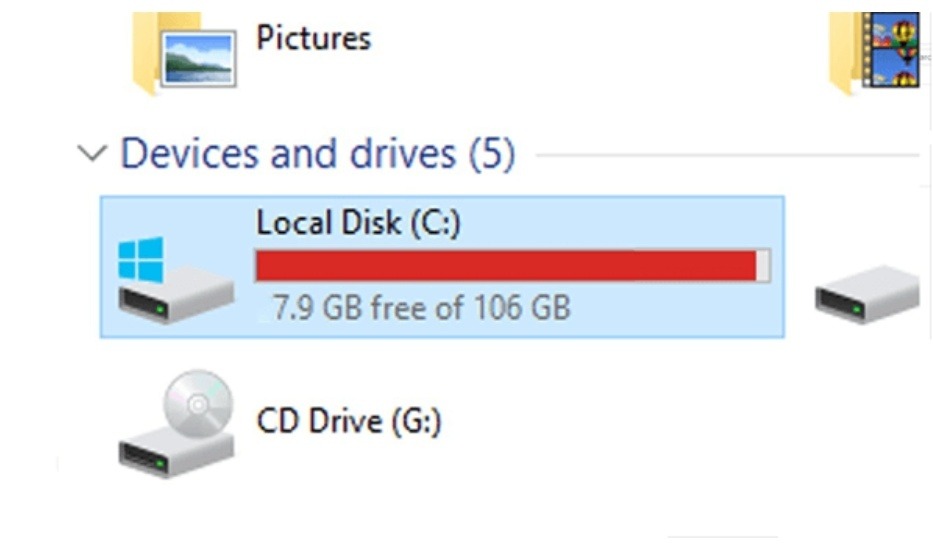
Your C Drive Is Almost Full
Less space on C drives can lead to poor Windows performance. The Partition Manager allows you to change the partition layout to expand the C drive capacity if there are other unused areas on the disk.
A New SSD Shows Unallocated Space
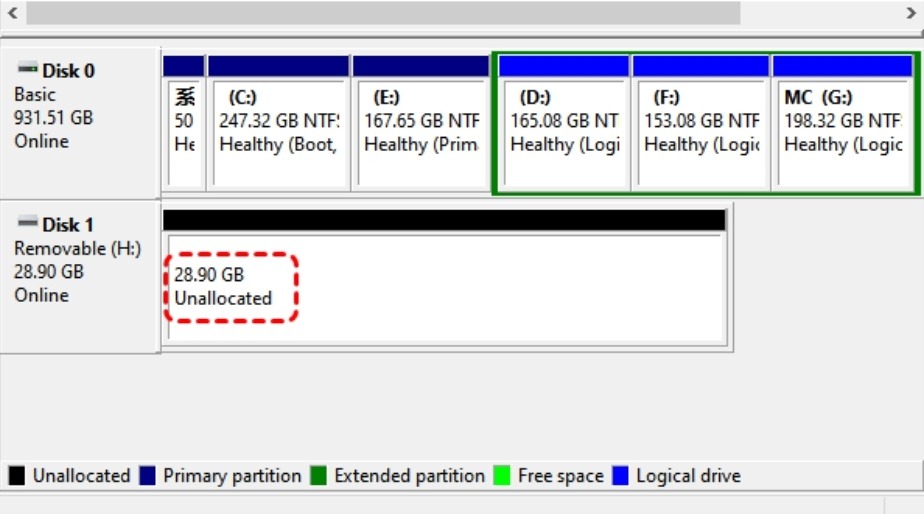
After installing a new SSD or hard drive, “Unallocated Area” may be displayed on Windows. To use the drive, you must first create and format the partition.
You Want Better Storage Organization
Some users want to divide games, work documents, photos, videos, backups, etc. into different partitions. Separating partitions makes it easier to organize files.
You Need to Merge Partitions
There may be two partitions that exist individually but no longer serve the purpose. With Partition Manager, you can integrate partitions to simplify storage management.
A Drive Needs Formatting
New or reused drives often require formatting before they can be used correctly in Windows.
You Need to Convert MBR to GPT
Windows 11 and certain installation scenarios may require a GPT partition style. In such a case, the user may need to convert MBR to GPT.
You Want to Clone a Disk
Before replacing the old drive, many users clone the contents of the disk to a new SSD. Cloning allows you to migrate Windows, applications, and files without having to reinstall everything.
You Are Preparing for Dual Boot
Users who want to run multiple operating systems often need to create or adjust partitions before installing them.
Built-in Windows Tools vs Third-Party Partition Managers
Windows provides Disk Management and Diskpart for storage tasks.
Disk Management works well for basic operations such as:
- Creating volumes
- Formatting drives
- Assigning drive letters
- Deleting partitions
Diskpart provides greater flexibility; however, Diskpart uses command prompt. Novices can make errors by entering the wrong command. The inbuilt software also has some limitations. For instance, Windows will fail to extend the partition in case the unallocated space does not lie adjacent to it.
Third-party partition managers often provide:
- Visual disk layouts
- Easier partition resizing
- Cloning features
- MBR/GPT conversion tools
- Step-by-step guidance
- Preview functions before applying changes
If you are comparing tools, this guide to the best free partition manager can help you evaluate options for resizing, merging, cloning, and managing partitions on Windows. Regardless of the tool you choose, always back up important files before changing disk partitions.
Features to Look for in a Safe Partition Manager
Not all partition tools offer the same features. Before choosing one, check whether it includes the functions you need.
Important features include:
- Clear disk map and visual partition layout
- Resize and move partition support
- Create, delete, format, and merge partition functions
- Preview before executing changes
- MBR/GPT conversion support
- Disk cloning and partition cloning
- OS migration support
- Compatibility with Windows 11, 10, 8, and 7
- Support for HDDs, SSDs, USB drives, and external drives
- Pending operation system before changes take effect
- Beginner-friendly interface
- Clear warnings before destructive actions
These features can help users manage disk partitions more safely and with greater confidence.
Soft Tool Mention: A Guided Option for Windows Users
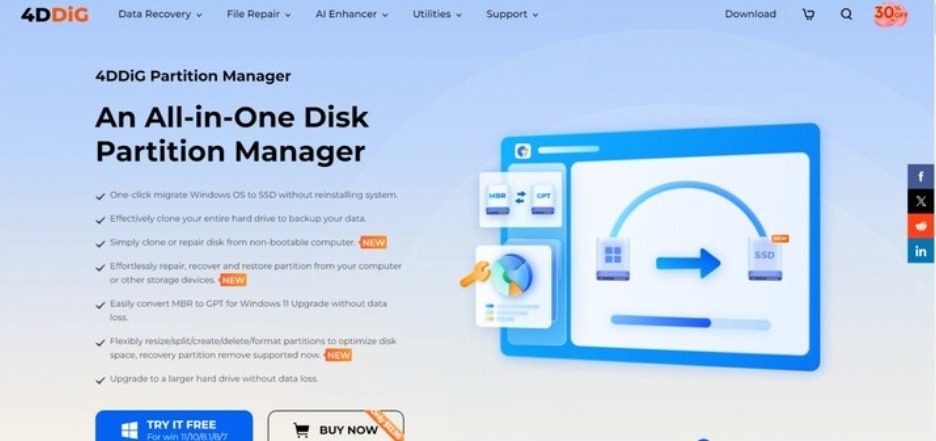
The 4DDiG Partition Manager is among the top choices available if you find it easier to do things visually and with guidance. This is a partition manager application designed for Windows, which enables you to manage your drives and partitions by resizing, creating, deleting, formatting, merging, cloning, and converting. This application will be very useful for you in managing storage areas for gaming, work, backup, and other personal purposes. As with other disk partition software, it is important to carefully review the planned changes and back up important files before making any changes. There is no partition tool that can eliminate all risks associated with disk operation.
Common Use Cases
- Extend a Full C Drive: When Windows starts running low on space, the tool can help reallocate available storage and extend the C drive without reinstalling the operating system.
- Set Up a New SSD or External Drive: Create, format, and organize partitions on newly installed SSDs or external storage devices so they are ready for everyday use.
- Convert Between MBR and GPT: If Windows installation or upgrade requirements demand a different partition style, the software may help convert disk layouts more easily.
- Clone a Disk Before an Upgrade: Users replacing an old hard drive with a larger SSD can clone data, applications, and Windows files to reduce migration time.
- Organize Storage More Efficiently: Separate work files, games, photos, videos, and backups into dedicated partitions to keep storage better organized and easier to manage.
Safety Tips Before Changing Disk Partitions
Partition changes are usually done without problems, but some precautions must be taken before starting the work.
Follow these safety tips:
- Backup important files before resizing or integrating partitions.
- Please keep your laptop connected to the power supply during operation.
- Make sure you have selected the correct disk and partition.
- Read all warnings carefully before applying changes.
- Please do not interrupt when processing starts.
- If you suspect hardware issues, check the status of the drive.
- Do not format the partition unless you can be sure it does not contain important files.
- Make sure you have enough free space before you shrink or move the partition.
- Create a recovery media before changing your system drive.
By following these simple steps, you can reduce the risk of trouble occurring during partition management.
What Can Go Wrong If You Use the Wrong Tool?
Using an unsuitable or outdated tool can create unnecessary issues.
Common problems include:
- Formatting the wrong partition
- Losing data during a failed resize operation
- Making Windows unable to boot after incorrect changes
- Converting disk styles without checking BIOS or UEFI requirements
- Failing to merge space because the partition layout does not support it
- Cloning to a smaller drive without enough available capacity
- Using software that does not support newer Windows versions
Most of these problems can be avoided through planning, backups, and careful review before applying changes.
Quick Checklist Before Choosing a Partition Manager
Use this checklist before selecting a partition management tool:
- Is it compatible with your Windows version?
- Do you see an easy-to-understand preview before applying changes?
- Can I resize, move, merge, create, delete or format partitions?
- Is it compatible with MBR/GPT conversion?
- Do you support disk cloning and OS migration?
- Is it compatible with HDD, SSD, USB drive or external drive?
- Is the interface easy to understand even for beginners?
- Will I receive a warning before deleting or formatting my data?
- Do you have a backup of important files before you start working?
Common Mistakes to Avoid
Many partition problems happen because users rush through the process.
Avoid these mistakes:
- Using Diskpart commands without understanding them
- Formatting the wrong partition
- Skipping backups before resizing the C drive
- Trying to extend C drive space when unallocated space is not adjacent
- Interrupting partition operations
- Converting MBR or GPT without checking BIOS or UEFI settings
- Choosing a tool only because it is free
- Editing a failing drive before copying important data
Conclusion
Partition Manager is useful when Windows standard tools cannot easily resize, merge, clone, or convert partitions. This allows users to organize storage, prepare new drives, expand C-drives, and manage disk layouts more efficiently. When choosing a partition manager for Windows, focus on safety, support, compatibility with Windows and ease of use. Features such as partition resizing, cloning, MBR/GPT conversion and clear preview display make disk management easier, from beginners to experienced users. Tools like 4DDiG Partition Manager can help users who want to manage partitions, clone disks, and prepare storage for upgrades according to their guides. However, be sure to backup important files before making any changes to disks or partitions.