
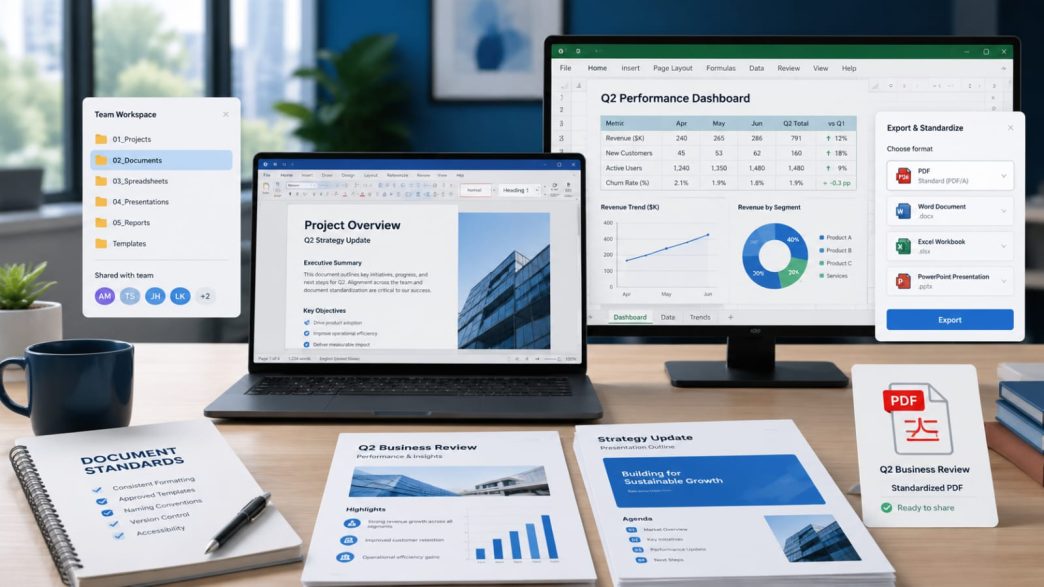
Small teams often work across several Windows laptops and desktops at the same time. One employee may prepare reports, another may update spreadsheets, and someone else may convert the final documents into PDF files for clients or internal review. Although these tasks appear simple, inconsistent software versions, file formats, naming habits, and storage locations can quickly create confusion.
A standardized document workflow helps teams reduce formatting problems, avoid duplicate files, and ensure that everyone works with the correct version. The goal is not merely to install the same office application on every computer. Teams also need consistent rules for creating, reviewing, sharing, and exporting documents.
Why Document Standardization Matters
When team members use different tools or follow different habits, the same file may look different on each device. A report may lose its fonts, a spreadsheet may display formulas incorrectly, or a presentation may shift images and text when opened elsewhere.
These problems become more common when teams regularly exchange:
- DOCX reports
- XLSX spreadsheets
- PPTX presentations
- PDF contracts
- Charts and screenshots
- Templates
- Files received from clients or partners
Standardization reduces these risks by creating a common process. Every user knows which software to use, where files should be stored, how versions should be named, and which format should be used for final delivery.
This is especially important for small teams because they may not have a dedicated IT department. A simple and documented workflow can prevent many common support problems.
Start With an Approved Windows Software Setup
The first step is deciding which office tools are approved for team use. Every Windows device should have access to compatible applications for documents, spreadsheets, presentations, and PDF files.
Teams should review:
- Supported Windows versions
- File-format compatibility
- PDF export capabilities
- Update methods
- Cloud-storage options
- Collaboration features
- Template support
- System requirements
Chinese-speaking users may search for installation resources using terms such as wps下载 when comparing office software versions, Windows compatibility, and download options. Regardless of the search term used, the installation source should be checked carefully before any setup file is opened.
Teams should avoid downloading software from pages filled with unrelated advertisements, multiple download buttons, or unclear installer information. A consistent installation source makes future updates and troubleshooting easier.
Use the Same Core File Formats
Small teams should agree on a limited set of file formats. Using too many formats increases the chance of compatibility problems.
A practical standard may include:
- DOCX for editable reports
- XLSX for spreadsheets
- PPTX for presentations
- PDF for finalized files
- PNG for charts and screenshots
- CSV for raw or exported data
Open formats may also be used in some workflows, but the entire team should understand when they are appropriate. The key is consistency.
For example, a financial report should not be shared as five different file types unless there is a specific reason. The team can keep one editable DOCX version and one final PDF version.
Create Standard Templates
Templates help teams produce consistent documents more quickly. Instead of designing every report from the beginning, employees can start with an approved structure.
A report template may include:
- Company name and logo
- Title page
- Document owner
- Version number
- Date
- Heading styles
- Table formatting
- Footer information
- Page numbering
- Approval section
A spreadsheet template may include:
- Standard column labels
- Date formatting
- Currency formatting
- Protected formula cells
- Input areas
- Summary charts
- Notes for users
Presentation templates can define font sizes, title placement, chart styles, and footer details. Consistent templates improve readability and make documents easier to review.
Establish a Clear Folder Structure
Files should be stored in predictable locations. Saving documents randomly across desktops, email attachments, and personal folders makes collaboration difficult.
A simple team structure might look like this:
| Team_Project/ │ ├── 01_Input_Files/ ├── 02_Working_Documents/ ├── 03_Spreadsheets/ ├── 04_Presentations/ ├── 05_PDF_Exports/ ├── 06_Approved_Files/ └── 07_Archive/ |
The numbered folders make the workflow easier to understand.
- Input files contain material received from clients or other departments.
- Working documents contain editable drafts.
- Spreadsheet folders contain calculations and supporting data.
- PDF folders contain exported versions.
- Approved files contain final documents.
- Archive folders contain older versions that should no longer be edited.
This structure can be used on a shared drive, local network, or cloud-storage platform.
Apply Consistent File-Naming Rules
File names should identify the project, document type, date, and version.
For example:
| client_report_2026-07-12_v03.docx sales_summary_2026-Q2_v02.xlsx project_proposal_approved_2026-07-12.pdf |
Avoid names such as:
| final.docx final_new.docx final_latest2.docx |
These names do not explain which version is actually current.
A team can use simple version labels:
- v01 for the first draft
- v02 for the second revision
- review for a file under review
- approved for the confirmed version
Only one file should carry the approved status.
Figure 2. A Windows project workspace using structured folders, clear file names, version labels, approval states, and an archive.
Keep Spreadsheet Data Consistent
Spreadsheets often create more problems than documents because they include formulas, formatting, filters, and linked data.
Teams should standardize:
- Date formats
- Currency symbols
- Decimal places
- Column names
- Formula locations
- Cell protection
- Color meanings
- Error-checking methods
For example, one employee may enter dates as 12/07/2026, while another uses 07/12/2026. Without a team rule, the same date can be interpreted differently.
Formula cells should be protected where possible, while input cells should be clearly marked. Employees should avoid changing formulas without documenting the reason.
Before a spreadsheet is used in a report, someone should validate:
- Totals
- Percentages
- Filters
- Hidden rows
- Duplicate records
- Broken references
- Chart ranges
This review reduces the risk of publishing incorrect data.
Make Reports and Spreadsheets Match
Reports often include numbers copied from spreadsheets. If the spreadsheet changes after the report is written, the figures may become inconsistent.
Teams should define one approved data source. When a report is updated, the author should check every table, chart, percentage, and conclusion against the latest spreadsheet.
A practical method is to add a review note such as:
| Data source: sales_summary_2026-Q2_v02.xlsx Checked on: 12 July 2026 Reviewed by: Project Manager |
This creates a basic audit trail.
The same rule applies to presentation slides. Charts shown in a presentation should match the figures in the final report and spreadsheet.
Use One Office Environment Where Possible
Switching between unrelated applications can introduce formatting differences and slow down the workflow. Small teams may prefer a unified environment such as WPS Office for Windows when they need to manage documents, spreadsheets, presentations, and PDF files in one workspace.
A unified setup does not remove the need for testing, but it can reduce unnecessary conversions between applications. It also makes training easier because employees work with similar menus and file-handling options.
Before adopting any office suite, the team should test:
- Complex tables
- Spreadsheet formulas
- Fonts
- Page breaks
- Image placement
- Header and footer formatting
- PDF output
- Printing
- Files received from external partners
Testing should be completed before the software becomes part of the standard workflow.
Review Documents Before PDF Export
PDF is often used for final delivery because it preserves layout more reliably than editable documents. However, PDF export should be treated as a final review stage, not an automatic step.
Before exporting, check:
- Page margins
- Page breaks
- Table width
- Image quality
- Font consistency
- Hyperlinks
- Headers and footers
- File metadata
- Comments and tracked changes
- Hidden spreadsheet sheets
- Confidential information
After export, open the PDF and review it separately. Do not assume that the exported file is correct because the editable document looked fine.
The PDF should also be tested on another Windows device when the document is important.
Figure 3. A spreadsheet-validation and reporting workflow that checks totals and charts, formats a structured report, and exports the approved result as PDF.
Control Editing Permissions
Not every team member needs permission to edit every file.
A simple permission structure may include:
- Editors who create and update documents
- Reviewers who comment and approve
- Viewers who can read but not modify
- Administrators who manage folders and permissions
Final files should be protected from accidental changes. Editable source files can remain in the working folder, while approved PDFs are stored in a separate location.
For sensitive documents, teams should also control:
- Download permissions
- External sharing
- Password protection
- Expiration dates
- Access logs
These controls are especially useful for contracts, financial files, and client reports.
Maintain Backups and Version History
A standardized workflow should include backups.
Small teams can keep:
- One active shared copy
- One cloud or network backup
- One archived copy of approved files
Important files should not exist only on one laptop.
Version history is also useful when mistakes occur. Instead of overwriting a report repeatedly, teams can keep clearly labeled versions and move outdated drafts into an archive folder.
The archive should not become a second working folder. Once a file is archived, employees should not continue editing it.
Create a Final Quality-Control Checklist
Before a document is approved, the team should complete a short checklist.
Document checks
- Correct template used
- File name follows the standard
- Headings are consistent
- Tables are aligned
- Spelling and grammar reviewed
- Comments removed
- Final version confirmed
Spreadsheet checks
- Formulas reviewed
- Totals verified
- Dates standardized
- Hidden rows checked
- Charts match the selected data
- Duplicate records reviewed
PDF checks
- Layout inspected
- Links tested
- Page numbers correct
- Images remain clear
- File opens on another device
- Confidential content removed
- Approved copy stored in the correct folder
A checklist makes the approval process repeatable and reduces reliance on memory.
Conclusion
Small teams do not need a complicated enterprise system to create a reliable Windows document workflow. They need a consistent software setup, clear file formats, approved templates, predictable folders, sensible naming rules, and a final review process.
When reports, spreadsheets, presentations, and PDF files are managed under the same standards, team members spend less time searching for documents or repairing formatting problems. They also reduce the risk of sharing outdated or inaccurate information.
The most effective approach is to document the workflow, train every employee, and review the rules periodically. Standardization should make work easier, not create unnecessary administration. A practical system that everyone follows is more valuable than a complex process that only a few people understand.