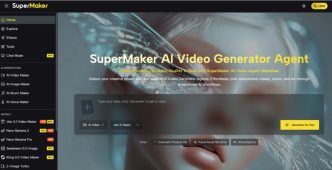
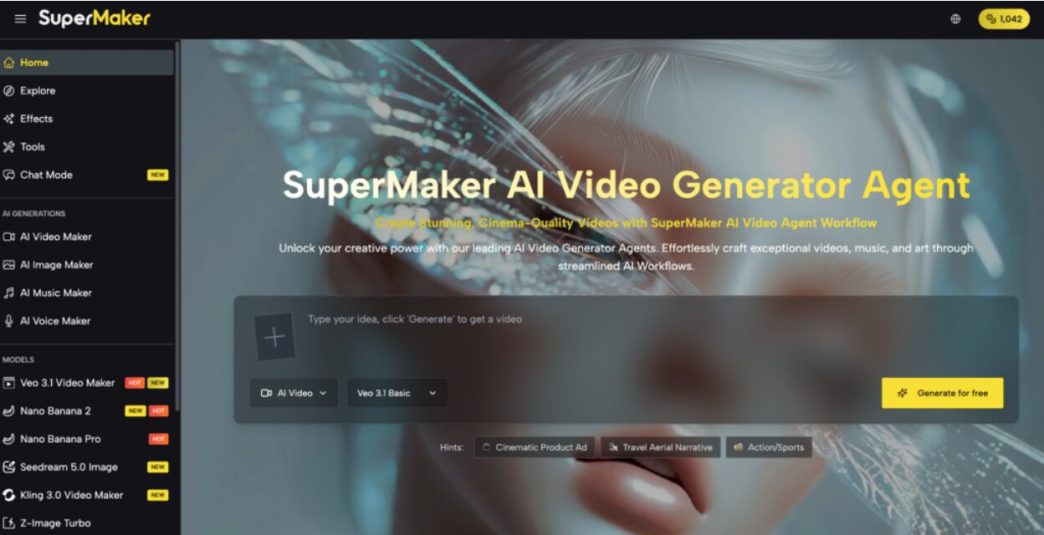
If you’re a video creator, marketer, or small production team, you’ve likely felt the drag of building a video project across separate tools: generating a reference image in one app, animating it in another, then losing track of which version led to which result. That back-and-forth slows down projects that should move quickly. SuperMaker AI’s AI Canvas Workflow Studio addresses this directly, giving an AI Video Maker workflow a single visual home. Instead of juggling apps, you build connected image-to-video pipelines on one canvas, keeping every step of a video project in the same workspace from first frame to final export.
What Is AI Canvas Workflow Studio?
AI Canvas Workflow Studio is a node-based, zoomable canvas where video generation sits alongside image and text nodes in one connected workflow. Rather than generating a video in isolation, you can build a pipeline where a generated image feeds directly into a video node as a starting frame, all visible and editable on the same canvas.
For video creators and marketing teams, this means a multi-step video concept — reference image, animation, variations — stays in one place instead of scattered across separate generation tools and downloads. For small production teams, it means a shared, organized view of how a project’s pieces connect.
Traditional Challenges of AI Video Production
Producing AI-generated video across disconnected tools creates recurring friction:
- Generating a reference image in one app, then exporting it to a separate video tool
- Manually tracking which image version was used to generate which video
- Losing earlier attempts when testing different creative directions
- No shared workspace for teams collaborating on the same video concept
- Rebuilding the same image-to-video sequence from scratch for each new variation
These issues compound on any project that needs more than a single generated clip. A simple idea — turn this image into a moving scene, then try three variations — becomes a manual, file-shuffling exercise without a connected workspace. That’s the specific gap a canvas-based approach addresses: keeping the image that feeds a video, and the video itself, linked together rather than treated as separate, disconnected files.
How SuperMaker AI Handles Video Workflows
AI Video with Veo 3 & 3.1
Within the canvas, video nodes generate high-quality video from text or images using Veo 3 and Veo 3.1. You can choose landscape or portrait orientation and use AI-generated artwork as a starting frame, giving more creative control over how a video begins than a text prompt alone typically allows.
Smart Creative Pipelines
Video nodes can be linked to image or text nodes so outputs from one step become inputs for the next — most commonly, using a generated image as the first frame for a video. The system automatically validates these connections, supporting a text-to-image-to-video sequence without requiring any coding.
Infinite Canvas & Visual Workflow
The canvas itself is a zoomable workspace where every image and video node is visible and organized spatially, rather than buried in a linear timeline or separate project files. This matters for video work specifically, since it lets you see how a reference image relates to the videos generated from it, all in one view.
Output & Usage – Ready for Real Content
Finished videos export in high resolution without watermarks, and every node and connection on the canvas is auto-saved with version history you can review or revert to. SuperMaker frames this output as ready for real use — marketing videos, social content, or client deliverables — with commercial usage included, giving video creators a practical way to use their exports without legal guesswork.
How to Use It
Step 1 – Prepare Input
Start a new project on the infinite canvas, then add the nodes your video needs — a text node for a prompt, an image node if you want a generated visual to serve as the starting frame, and a video node for the final output. Having a clear sense of your starting frame, whether text or image, helps the pipeline produce a more consistent result.
Step 2 – Configure Settings
Connect your nodes to build the pipeline, linking an image output into the video node as its starting frame if that’s your approach. Within the video node, choose your orientation — landscape or portrait — and select your preferred model. This is where the visual workflow canvas becomes useful for video work specifically, since you’re setting up a repeatable image-to-video sequence rather than a single isolated generation.
Step 3 – Generate & Export
Once your pipeline is connected, click generate to produce the video directly on the canvas and preview it in place. You can swap models, adjust the starting frame, or generate variations to compare options side by side, then export the finished video in high resolution for use in your own projects, with every version saved to your history for later reference.
Use Cases for Video Teams
- Video Creators — Build a text-to-image-to-video pipeline that keeps the reference image and final clip connected in one workspace.
- Marketing Teams — Generate multiple video variations from the same starting image and compare them side by side before choosing a final cut.
- Social Media Managers — Produce short, portrait-oriented videos for platforms like TikTok and Instagram without switching between separate image and video tools.
- Small Production Teams — manage several video concepts at once with auto-saved version history across a shared canvas.
FAQ
How does the video pipeline workflow actually work?
You add image and video nodes to the canvas, connect an image output into a video node as its starting frame, and click generate. The system produces the video in place on the canvas, where you can preview, adjust, and export it.
Can I use the generated videos commercially?
Yes, videos generated through the canvas are available for commercial use, including marketing, social media, and client work, with high-resolution, watermark-free exports. It’s worth checking the platform’s current terms for specific project requirements.
What video models are available on the canvas?
The canvas gives access to Veo 3 and Veo 3.1 for video generation, alongside 9+ image models for building the visual references that feed into your video nodes. You select your preferred model from the node’s settings.
Conclusion
AI Canvas Workflow Studio gives video creators a connected way to build image-to-video pipelines without the manual handoffs that come from working across separate tools. For anyone producing more than a single isolated clip, it keeps the reference image, the generated video, and every variation in one auto-saved workspace.
If you’ve got a video concept that starts with an image, it’s worth opening the AI Canvas Workflow Studio to see how the two connect on one canvas.