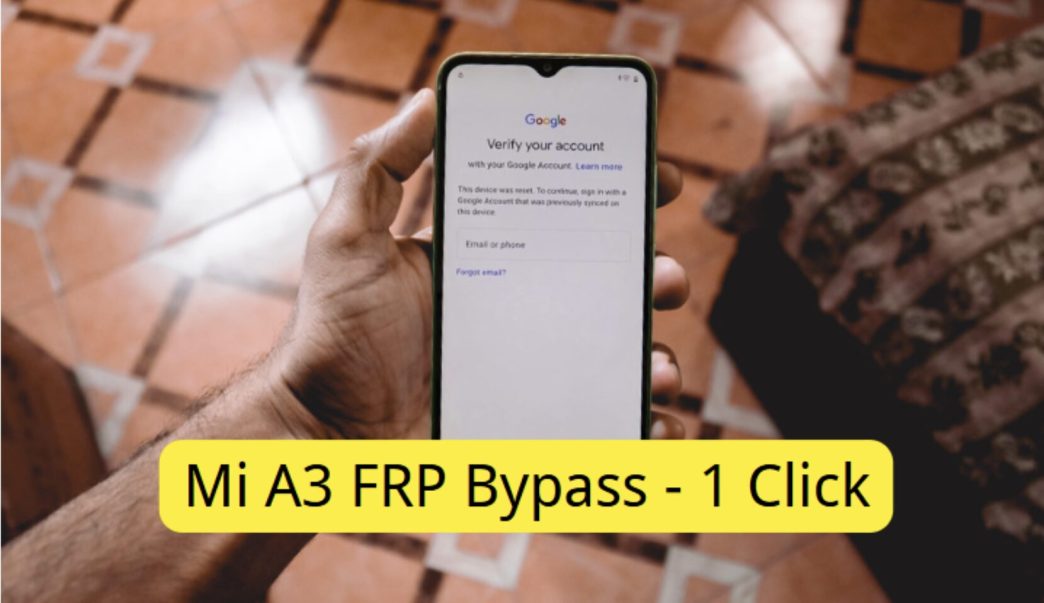
Are you locked out of your Mi A3 after a factory reset? Then you are not alone. Thousands of users hit the FRP (Factory Reset Protection) wall every day and that makes them feel like hitting a dead end. But the good news is that there are a few working methods available to get past it. Read on and let us explain the Mi A3 FRP bypass options available to you.
Part 1: What Is FRP Lock on Mi A3?
FRP stands for Factory Reset Protection. Google created FRP as part of Android 5.1+ devices to prevent people from using your phone if it gets lost or stolen.
Whenever you sign into a Google account on an Android device, FRP becomes enabled automatically. When that phone undergoes a factory reset (usually by someone who didn’t sign out of Google), it’ll ask for the Google Account info tied to the phone upon startup. As long as someone types in the right login credentials, your device will unlock.
FRP prevents users from accessing the phone once it’s been reset. On the Mi A3, this means the phone will boot to Google’s FRP verification screen. You won’t be able to access your home screen, make calls, or open any apps until you verify ownership of the device.
FRP is a fantastic feature to prevent theft. But it’s a nightmare if you forget your Google login info, or buy a used phone without removing the previous owner’s account. If you did, you would need to use a Mi A3 FRP unlock tool to gain access to the mobile device again.
Part 2: Things to Know Before You Start
Just a couple things you should know before getting started with either of these methods. Taking a few extra seconds to read this will save you time and headaches later on.
Mi A3 does not run Android 12, 13, or 14. Keep in mind that the original Mi A3 was released in 2019 and never updated to Android 12. It maxed out at Android 11. When looking for Mi A3 FRP bypass guides, only read instructions for Android 9/10/11.
Different Android versions use different steps. Depending on if your Mi A3 is running Android 9/10/11, you’ll need to use slightly different instructions. Be sure to check what version of Android you’re running in the next section.
Do not use these methods on stolen phones. Bypassing FRP on another person’s phone is illegal in most countries. We recommend only using this guide if you want to bypass FRP on a phone you originally own.
Part 3: How to Bypass Mi A3 FRP with PC – 1 Click
For the most reliable way to bypass the Mi A3 FRP lock, just grab your computer. There’s a tool called iToolab UnlockGo (Android) that will walk you through bypassing Mi A3 FRP lock in just a couple minutes. It’s quick, easy, and effective. You can use this tool even if you don’t consider yourself tech-savvy.
What Is iToolab UnlockGo (Android)?
iToolab UnlockGo (Android) is a program designed to remove FRP locks and screen locks from Android devices. When compared to other Android unlocking tools, iToolab UnlockGo Android has a higher trust rating from users and supports more phone brands. That’s why anyone who is looking for the best Mi A3 FRP unlock tool should think about using it.
Features of UnlockGo Android
- Bypass FRP lock for Samsung, Xiaomi, Redmi, Vivo, OPPO, Motorola, Realme, OnePlus, Huawei and more…
- Powered by the advanced technology, it guarantees a high success rate up to 99%.
- With a few clicks, you can remove Google lock and regain full control.
- Compatible with the latest Android 16.
- Works on Windows and Mac systems.
How to bypass Mi A3 FRP using UnlockGo Android
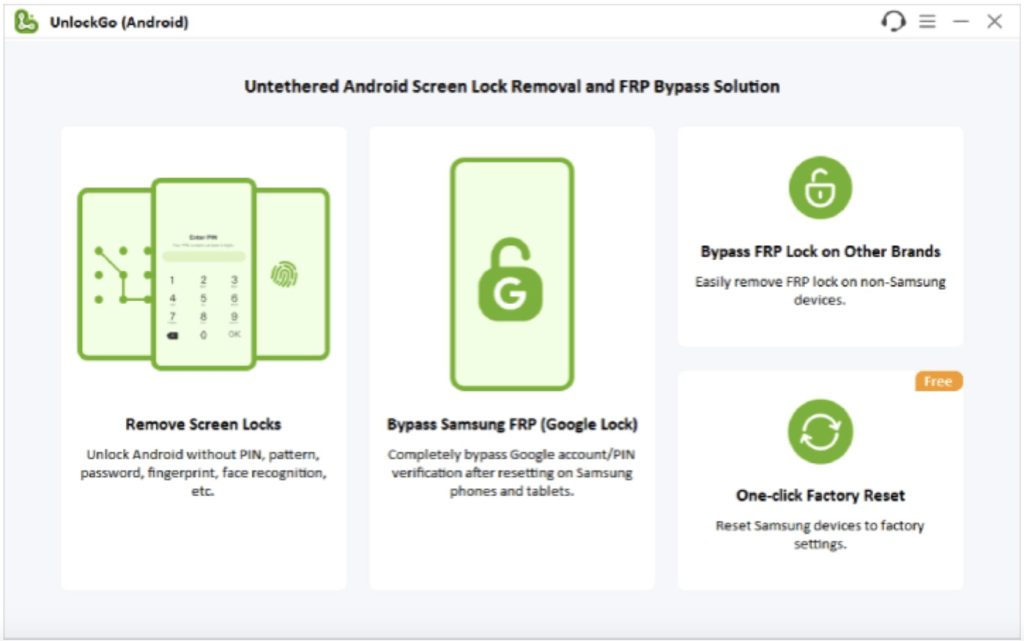
Step 1. Install iToolab UnlockGo (Android) on your computer. Open it up, then click “Bypass FRP Lock on Other Brands.”
Step 2. Connect your Mi A3 phone to the computer with a USB cable. Select Xiaomi as your device’s brand.
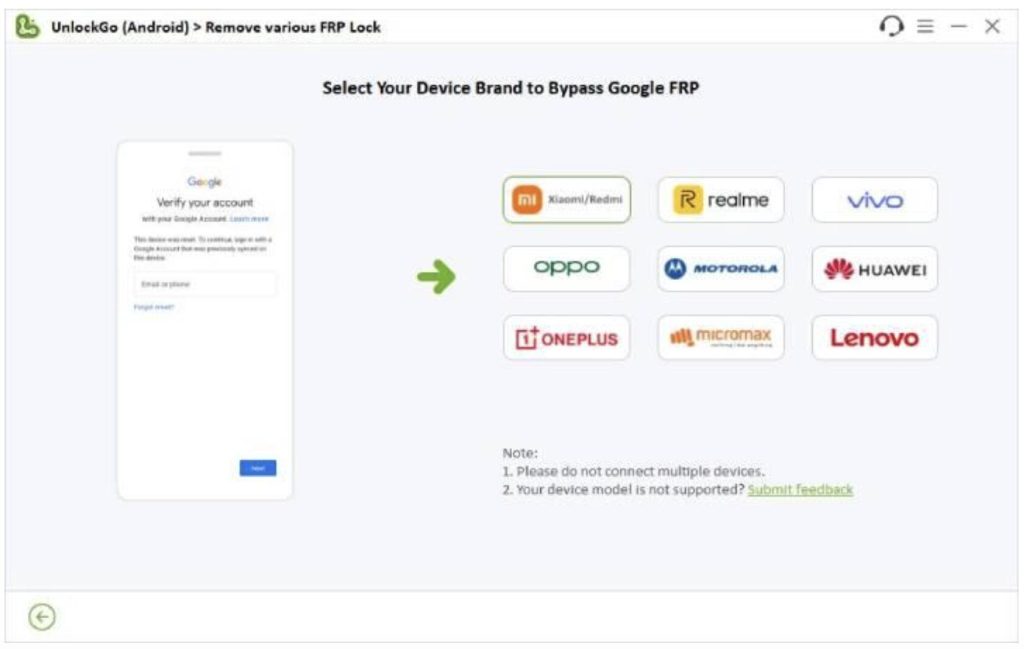
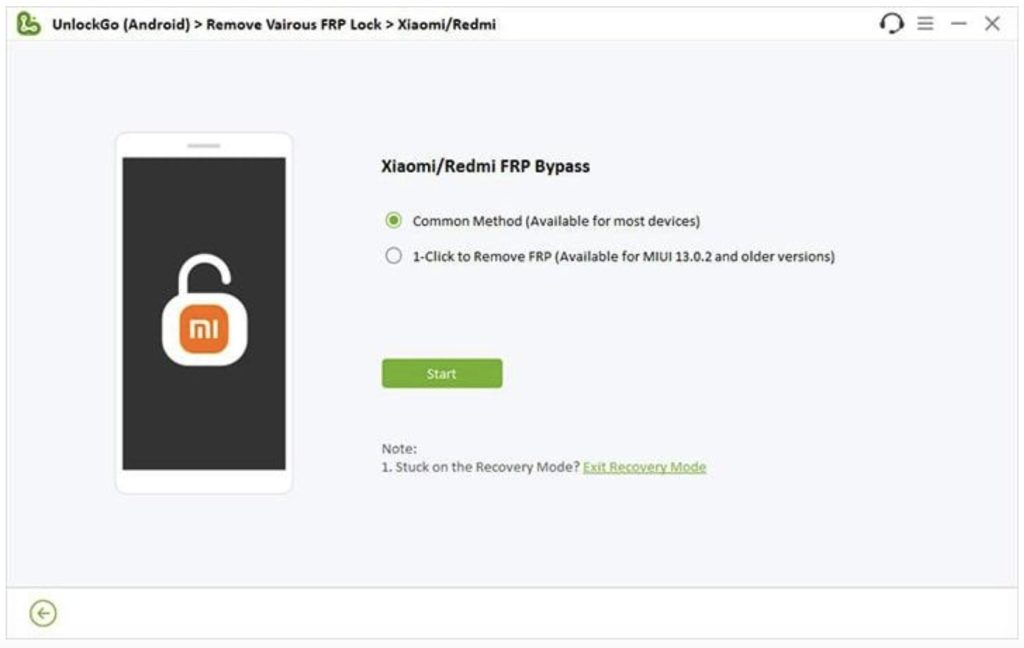
Step 3. You’ll see two options on screen. Select Option 2 – 1 Click to Bypass Xiaomi/Redmi FRP.
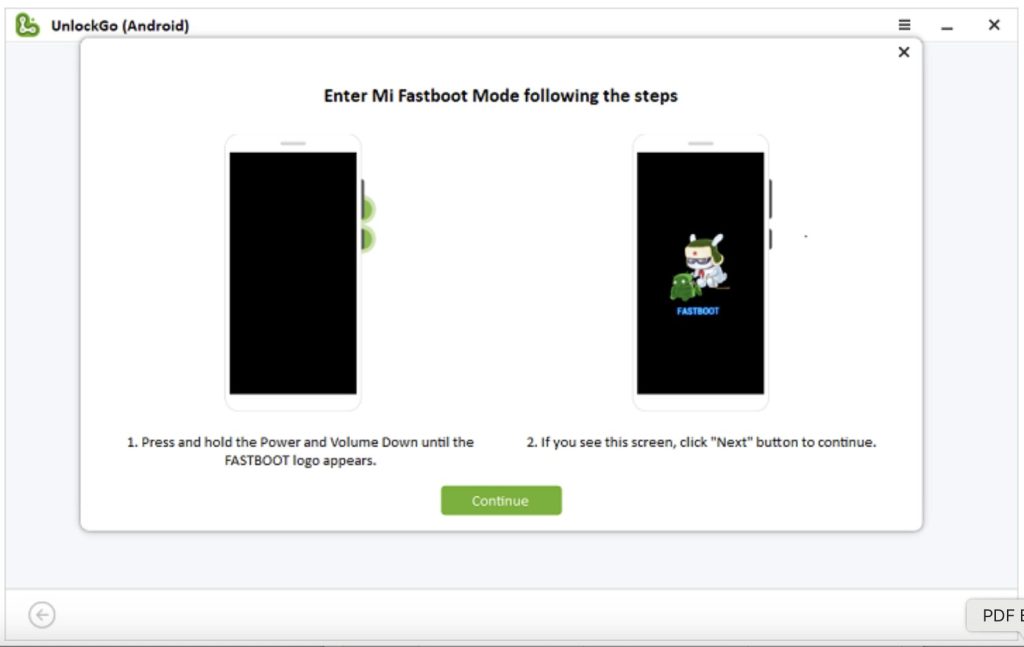
Step 4. Follow the on-screen prompts to enter Fastboot mode on your Mi A3. (Hold Volume Down + Power Button)
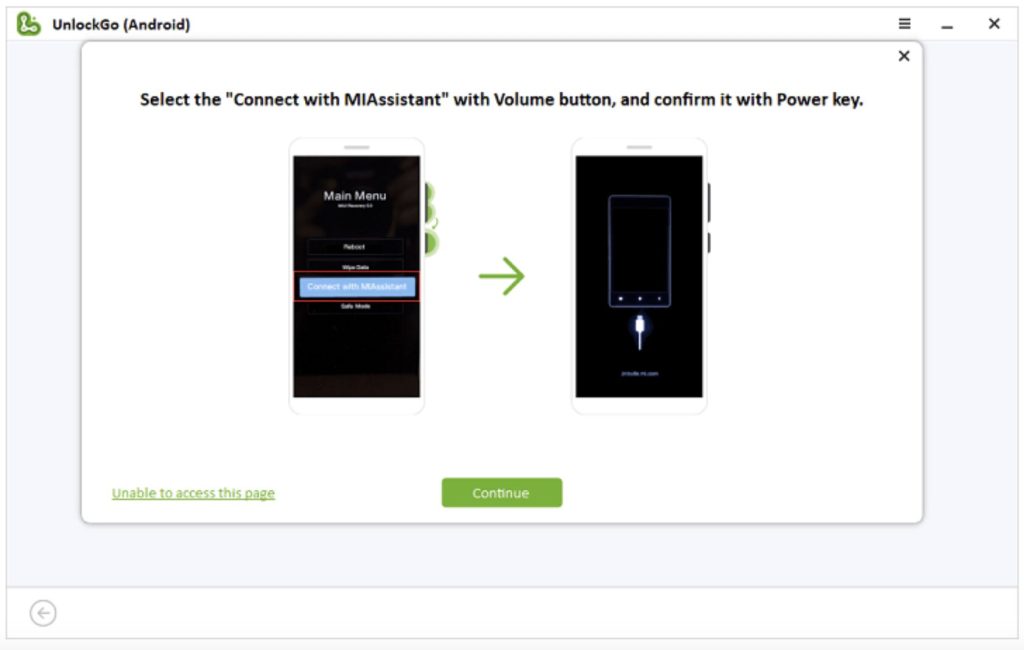
Step 5. Once there, tap on the Volume button until you highlight “Connect with MIAssistant”. Press the Power button to select. Click Continue in the program.
Step 6. Wait 5 seconds and let iToolab UnlockGo Android bypass FRP for you. Your Mi A3 will reboot by itself when done.
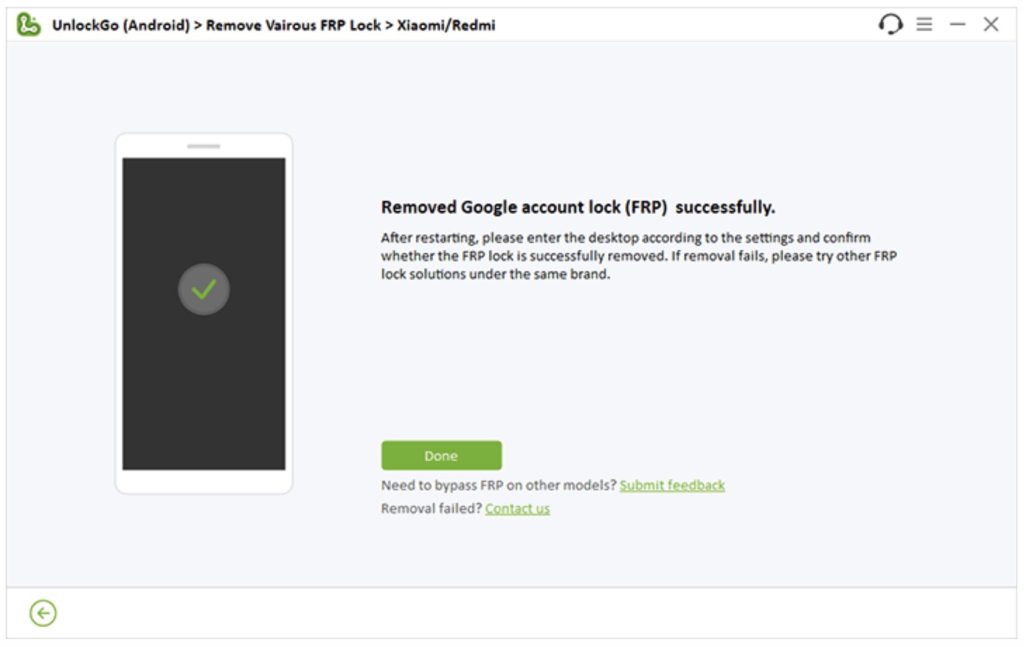
You’re all done! Once your phone turns back on, you’ll have full access and won’t have to enter the Google accounts details. Method 1 (with PC) is extremely reliable and should take less than 5 minutes to finish.
Part 4: No PC? How to Bypass FRP Lock on Mi A3 – Complicated
Got no computer? There’s another way. This method ONLY requires your Mi A3 device. Instructions are a little more complicated than method 1 and require you to follow directions exactly. Read each step twice. One wrong click can mean starting all over again.
Step 1. Turn on your Mi A3. Make sure it connects to a working Wi-Fi.
Step 2. Press and hold the Volume up and down buttons to turn on the Talkback feature.
Step 3: Draw a “▁▎” pattern when you reach the “Welcome to Talkback” screen.
Step 4: Double tap on the “WHILE USING THE APP” option when you see a pop up.
Step 5: Then double tap on the “Use voice commands”.
Step 6: Say “open Google assistant”.
Step 7: Now, press and hold the Volume up and down buttons again to disable the Talkback feature.
Step 8: Tap on the keyboard icon.
Step 9: Type “settings” to open the Settings menu.
Step 10: There, go to the Apps & notifications. Tap “SEE ALL APPS”.
Step 11: Locate Android Setup and force stop it.
Step 12: Similarly, you need to disable and force stop the Google Play Services.
Step 13: Go back to the Settings menu and locate Accessibility.
Step 14: Tap Accessibility Menu. Then turn on Accessibility Menu shortcut. You will see a person-shaped icon in the bottom right corner.
Step 15: Return to the initiate set up screen. And tap on the “Start” button.
Step 16: Choose the “Skip” option when it asks you to connect to mobile network.
Step 17: Tap the back button when you see the “Checking for updates” screen.
Step 18: Select “Set up offline” when you reach the “Connect to Wi-Fi” screen.
Step 19: Now, tap on the person-shaped icon. Then ASSISTANT – Settings. Keep doing it until you see the Google Play services screen. Enable it.
Step 20: Accept Google terms of services.
Step 21: Skip to set a screen lock. Then you can regain access to your Mi A3 phone.
Congratulations, you’ve successfully bypassed Mi A3 FRP without a computer. Like we said before, this method can be pretty confusing without photos to guide you. If you get stuck, try using method 1 with iToolab UnlockGo Android.
Conclusion
Getting locked out of your own phone can be annoying, but fortunately there are solutions that can help you regain access. If you’re looking for a quick and reliable way to bypass Mi A3 FRP lock, iToolab UnlockGo (Android) is the way to go. You can bypass FRP in just a few clicks without having any technical knowledge. The no-PC method is great if you have nothing else, but is much longer and requires several steps. You’ll also have a higher chance of messing something up.
To prevent getting locked out by FRP in the future, remember to sign out of your Google account before doing any factory resets. Go to Settings > Accounts > Google and remove your account. That should do the trick.