One of the most common issues Android users face is getting stuck on the “Verify PIN” screen after performing a factory reset. Instead of accessing the device normally, the phone asks for a previous PIN or verification, preventing access to the system. This situation can be frustrating because the device becomes unusable unless the correct verification method is completed.
Why Does Android Need to Verify PIN After Factory Reset?
FRP (Factory Reset Protection) is a built-in Android security mechanism designed to protect user data and prevent unauthorized access if a device is lost or stolen.
Its main purpose is to:
- Prevent stolen phones from being reused
- Protect personal data after a reset
- Require verification of previous ownership
FRP is typically linked to:
- Google account credentials
- Previously used screen lock PIN or password
This issue usually happens in the following situations:
- Buying a second-hand phone without proper reset removal
- Forgetting the screen PIN or password
- Resetting the device without signing out of the Google account
- System update errors or flashing / recovery reset issues
How to Bypass Verify PIN After Factory Reset on Samsung
Below are two common methods to bypass the verification screen.
Method 1: Use FRP Bypass Tool – iToolab UnlockGo Android
iToolab UnlockGo Android is a professional FRP bypass tool designed to help users remove Google verification and bypass the Verify PIN after factory reset.
Key Features
- Remove Google FRP lock without password
- Bypass Verify PIN / Google verification screen
- Supports multiple Android brands: Samsung, Xiaomi, Vivo, OPPO, etc.
- Compatible with Android 5–14 devices
- No technical skills required
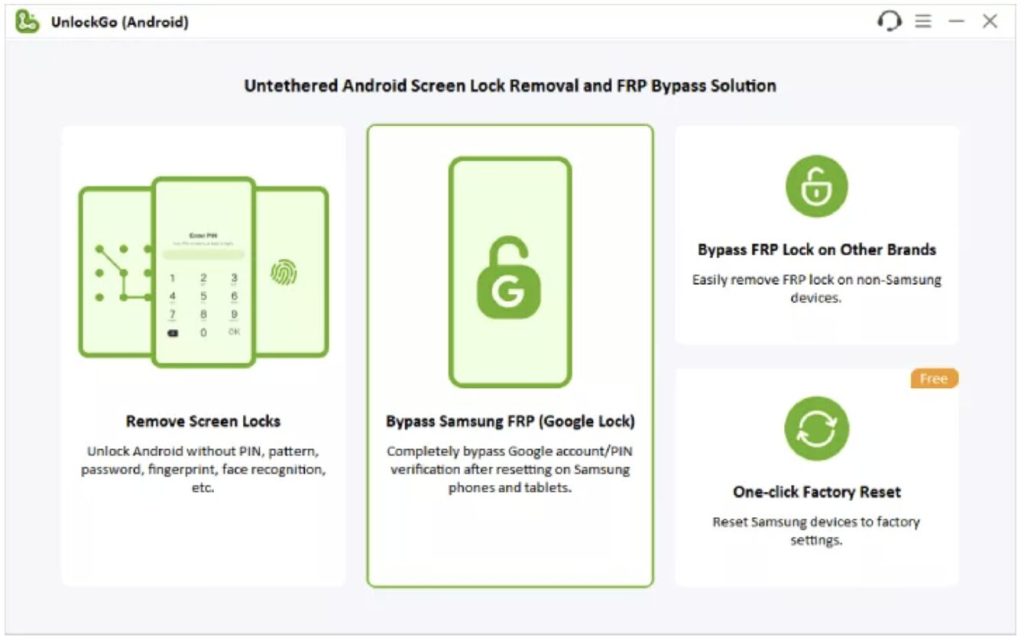
Step 1: Download and install iToolab UnlockGo Android on your computer, then select “Bypass Samsung FRP” mode.
Step 2: Connect your device to the computer via USB, click Start, and select the correct device model.
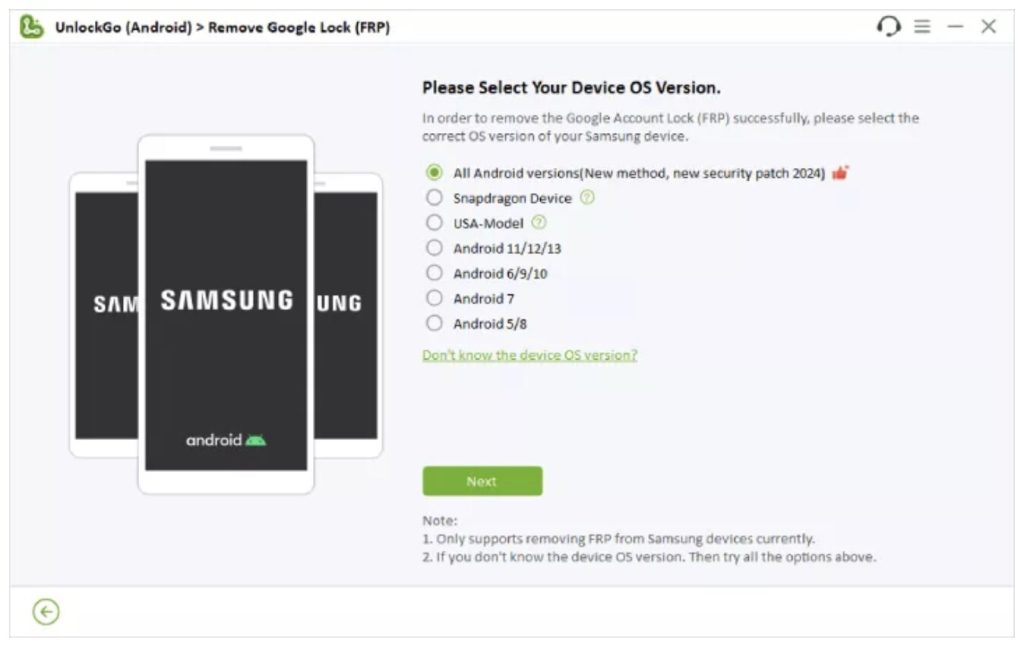
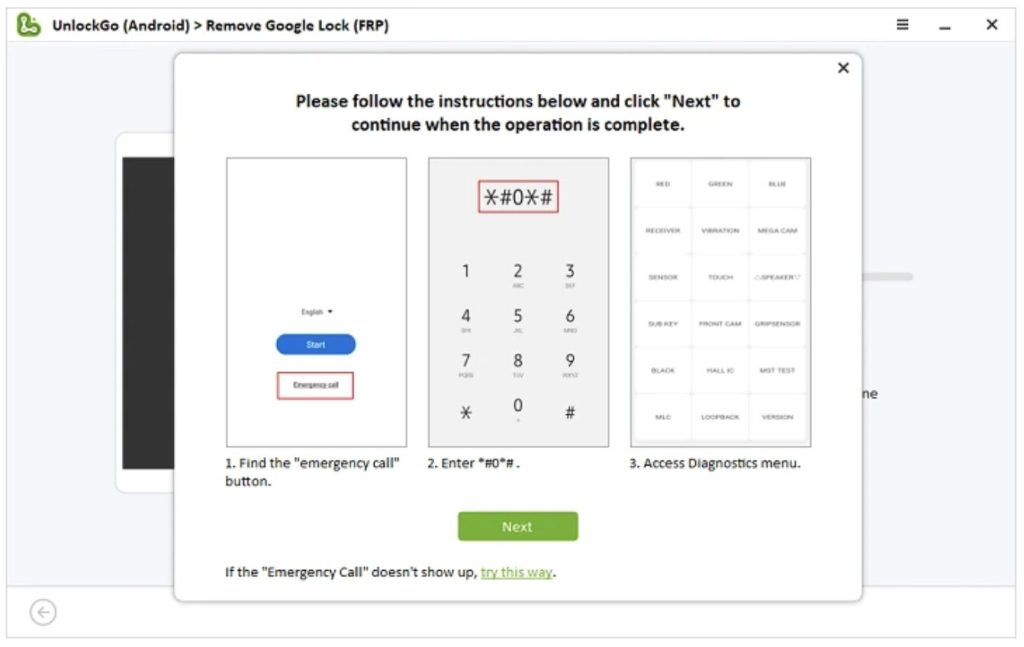
Step 3: Follow on-screen instructions. You may be required to enter hidden mode or enable USB debugging if prompted.
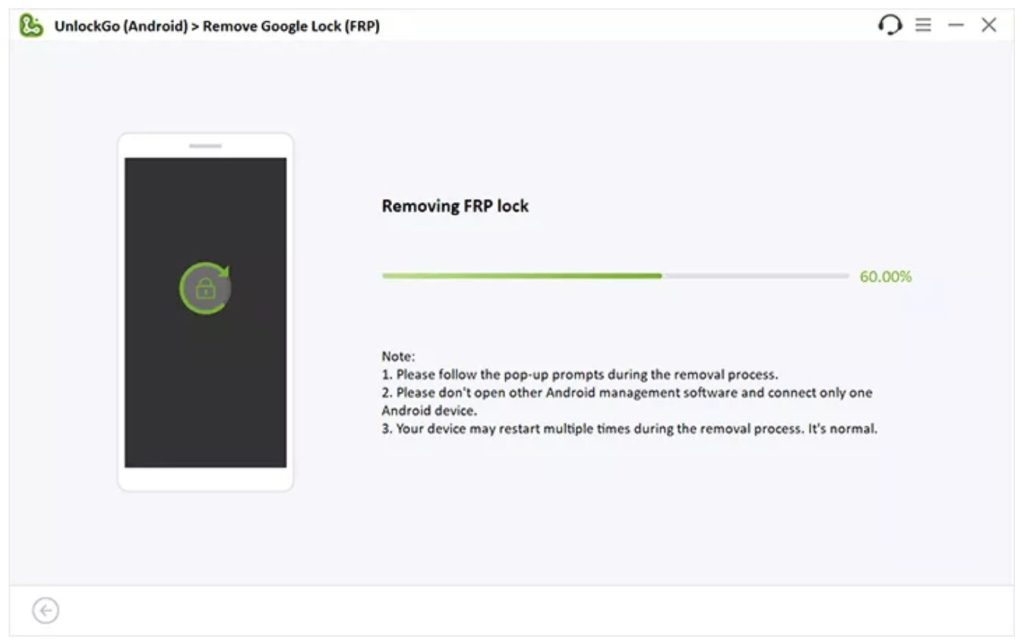
Step 4: The program will begin unlocking your device. UnlockGo will automatically remove the FRP lock, and the device may restart during the process.
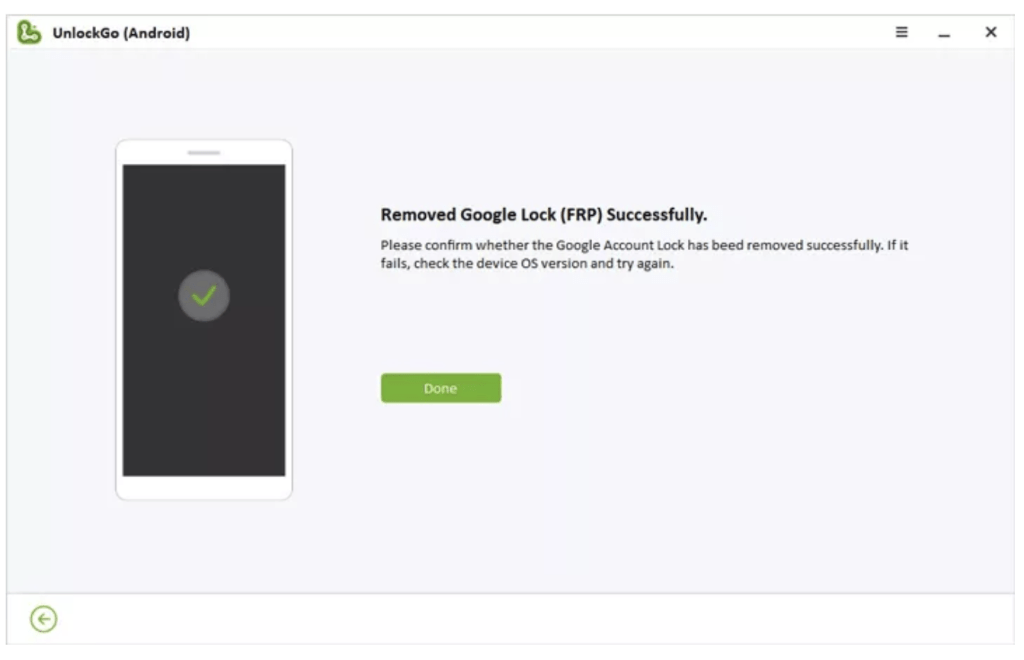
Step 5: Once the process is completed, you will be able to set up a new account and access your device normally.
Method 2: Bypass Verify PIN after Factory Reset without a PC
This method allows you to bypass Verify PIN after Factory Reset on Samsung phones without using a computer. It works by exploiting the Google keyboard to access the device’s “Settings” app and create a new PIN. This approach takes advantage of a vulnerability in older versions of Android that enables bypassing the Verify PIN after the Factory Reset screen. However, it does not work on Android 7 and later versions.
Step 1 At the Verify PIN screen, select: “Use My Google account instead”
Step 2 Open the keyboard and tap the Settings (gear icon).
Once inside Settings, you will see a Back button in the top-left corner — tap it to return to the previous screen.
Step 3 Select Google Voice Typing. Search for “Voice”, then tap the first result to enter Google Assistant voice mode.
Step 4 Go back again by tapping Back, then select General to continue the process.
Step 5 Find “Manage pending searches”, then search for Settings.
Step 6 Inside Settings: Select Biometrics & Security → Face Recognition, tap Continue, then choose a screen lock method and Restart the device.
Step 7 After reboot, set up your device again and complete the bypass process.
Conclusion
The Verify PIN issue after factory reset is mainly caused by Android’s FRP security system, which is designed to protect user data and prevent unauthorized access. For the most reliable and fastest solution, using iToolab UnlockGo Android is the most effective option to regain access to the device.