I’ll admit it—I used to think uninstalling a program from Windows was enough. I’d open Apps & Features or the Control Panel, click Uninstall, and assume the software was completely gone. It wasn’t until my PC started feeling slower after months of installing and testing different applications that I realized how much was left behind.
Old registry entries, empty folders, startup items, scheduled tasks, browser extensions, and leftover cache files were quietly accumulating in the background. They weren’t taking up a huge amount of space individually, but together they created unnecessary clutter.
That’s when I decided to try IObit Uninstaller. Instead of simply removing programs, it promised a much deeper cleanup. After using it for several weeks, I found that it changed the way I manage software on my Windows PC.
Why a Standard Uninstall Isn’t Always Enough
Most Windows applications come with their own uninstallers. While they remove the main program, many don’t bother cleaning everything they created during installation.
After uninstalling several programs manually, I often found:
- Empty installation folders left in Program Files
- Registry entries that no longer served any purpose
- Temporary files and cache data
- Scheduled tasks are still running
- Startup entries pointing to files that no longer existed
- Browser extensions that remained installed
None of these leftovers immediately break Windows, but after years of software installations, they add up.
As someone who regularly tests utilities, editing software, and productivity tools, I wanted a way to completely remove applications without hunting for leftover files myself.
My First Experience with IObit Uninstaller
Installing IObit Uninstaller took only a minute. The interface immediately felt organized instead of overwhelming.
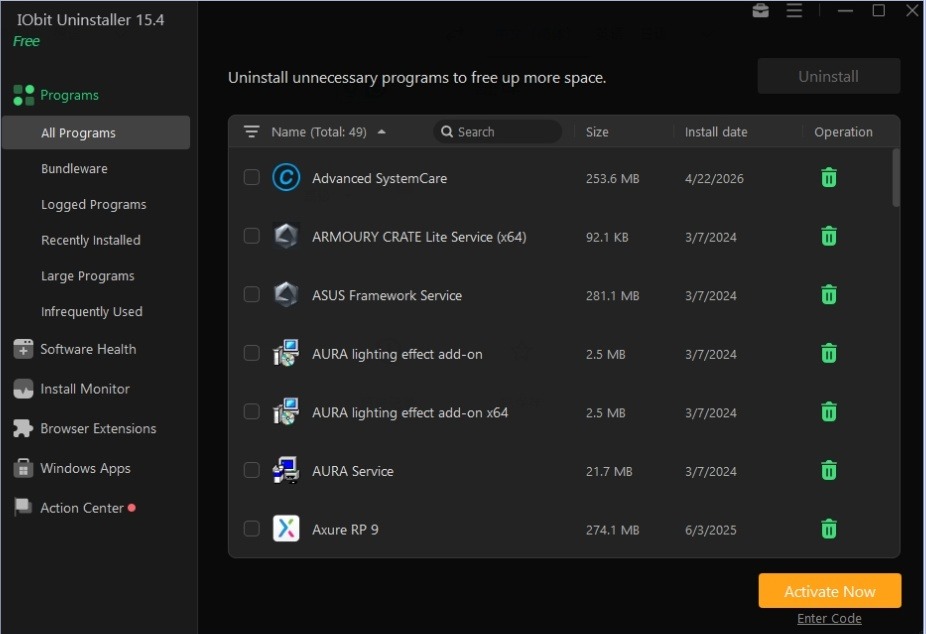
Instead of showing just a list of installed programs, it categorizes software into different sections, making it easy to find exactly what you’re looking for.
I particularly liked that it also displays:
- Recently installed software
- Large applications
- Rarely used programs
- Windows Apps
- Browser extensions
- Software Updater
It gave me a much clearer picture of what was actually installed on my computer.
The Feature That Won Me Over
The biggest difference compared to Windows’ built-in uninstaller is what happens after a program is removed.
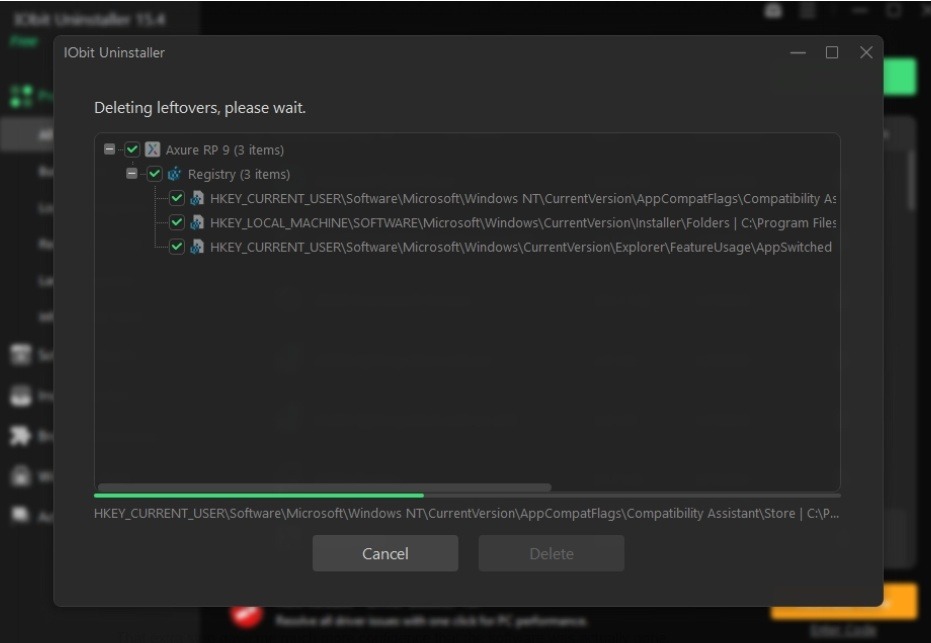
Once the normal uninstall process finishes, IObit Uninstaller automatically performs a scan to search for anything left behind.
During my first cleanup, I was surprised by what it found:
- Registry keys
- Configuration files
- Empty folders
- Cached data
- Temporary files
Instead of manually searching through Windows directories, I simply reviewed the scan results and removed everything with one click.
That extra step gave me much more confidence that the software was actually gone.
Batch Uninstall Saves a Lot of Time
Like many people, I occasionally install multiple programs just to test them.
Normally, that means repeating the uninstall process over and over. With Batch Uninstall, I simply selected several unwanted applications and removed them together.
This saved quite a bit of time, especially after reinstalling Windows or cleaning up an older PC. It’s a small feature, but one I now use regularly.
Removing Stubborn Programs
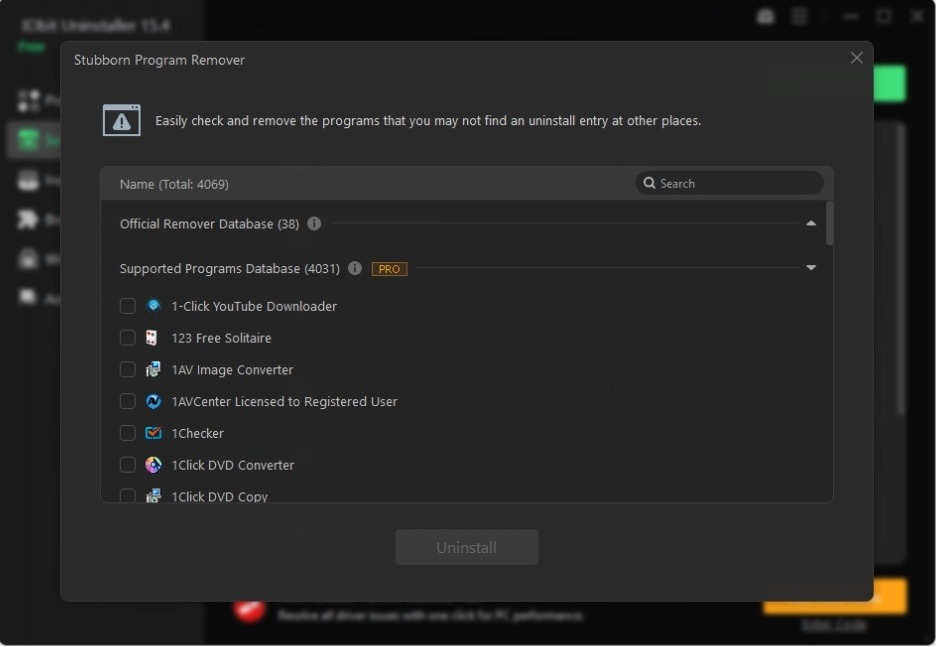
Not every application uninstalls properly.
I’ve had programs freeze halfway through removal or report that required files were missing.
IObit Uninstaller includes Stubborn Uninstall feature specifically for these situations.
I tested it on an old application that Windows refused to uninstall.
Instead of giving up, I simply pointed IObit Uninstaller to the remaining installation folder. It scanned the associated files and registry entries before removing everything that was still present.
That saved me from editing the registry manually, something I’d rather avoid.
Cleaning Browser Extensions
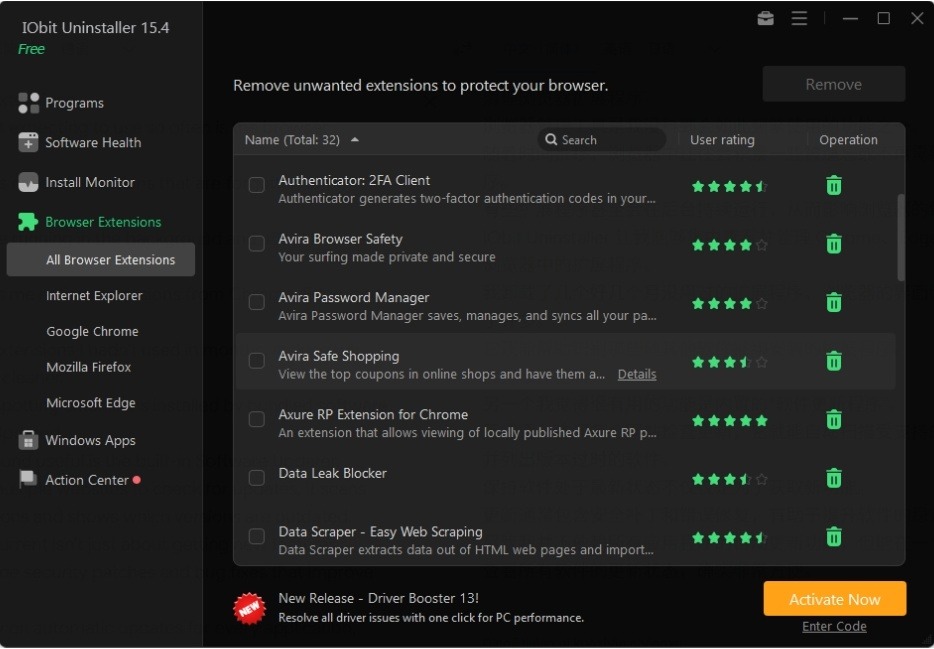
One feature I wasn’t expecting to use so often is the browser management tool.
Over time, browsers collect extensions that are forgotten or no longer needed.
Some even continue running in the background and affect browser performance.
IObit Uninstaller lets me review extensions from Chrome, Edge, and Firefox in one place.
I removed several extensions I hadn’t used in months, making my browser noticeably cleaner.
It’s also helpful for spotting extensions installed by bundled software.
Easy Removal of Windows Apps
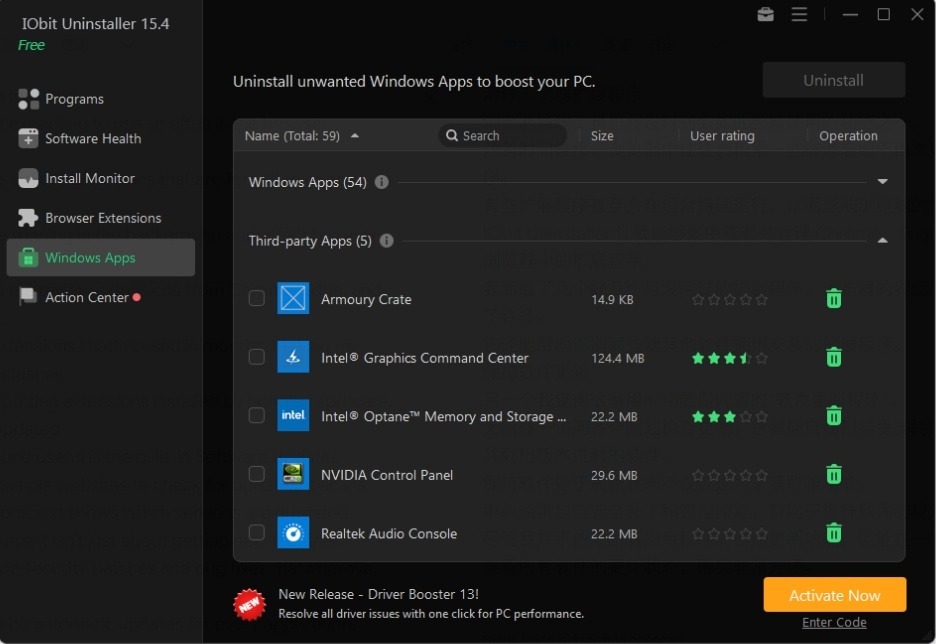
Windows includes plenty of built-in apps that I never use.
While some can be removed normally, others aren’t as easy to uninstall.
IObit Uninstaller includes a dedicated section for Windows Apps, allowing me to remove unnecessary apps much more quickly than searching through Windows settings.
It isn’t something I do often, but it’s nice to have the option.
Performance Isn’t About Speeding Up Windows
One thing I appreciate is that IObit Uninstaller doesn’t claim that removing programs will magically make every computer dramatically faster.
Instead, it focuses on keeping the system cleaner.
By removing unnecessary software, startup entries, leftover files, and browser extensions, my PC simply feels more organized and easier to maintain.
That’s a much more realistic expectation.
What I Like Most
After using IObit Uninstaller regularly, a few features stand out the most:
- Powerful Scan removes leftover files and registry entries after uninstalling.
- Force Uninstall handles stubborn or corrupted programs.
- Batch Uninstall saves time when cleaning multiple applications.
- Browser extension management keeps Chrome, Edge, and Firefox organized.
- Software Updater helps keep common applications current.
- Windows App management makes removing unwanted built-in apps much easier.
- The interface is clean and easy to navigate, even for beginners.
Final Thoughts
Before trying IObit Uninstaller, a helpful uninstaller for Windows, I assumed uninstalling software was a simple one-step process. Now I realize that removing the program itself is only half the job. Leftover files, registry entries, browser extensions, and startup items can stay behind long after an application is gone.
For me, IObit Uninstaller has become part of my regular PC maintenance routine. Whenever I remove software, I know the cleanup doesn’t stop when the uninstaller closes. The additional scan takes only a few moments, but it helps remove the traces that Windows often leaves behind.
If you frequently install new software, test different applications, or simply want to keep your Windows PC tidy over time, IObit Uninstaller offers a practical way to go beyond the standard uninstall process. It doesn’t try to reinvent Windows—it simply makes software removal more complete, and that’s exactly what I was looking for.