If you use Squarespace, you already know how easy it is to build a clean, professional website. But when it comes to SEO, many website owners stop after adding keywords and meta descriptions, missing one of the most valuable optimization opportunities: structured data.
Today, Squarespace schema plays a much bigger role in how search engines understand and display website content. Search engines use structured data to better understand page content, determine eligibility for rich results, and improve how information is interpreted across Google Search and AI-powered search experiences.
Adding schema markup helps search engines better understand your pages, improves your eligibility for rich results, and can increase your Squarespace website’s visibility in search. The good news? You do not need coding skills or technical experience to add JSON-LD schema to your Squarespace website.
What Is a JSON-LD Schema?
JSON-LD stands for JavaScript Object Notation for Linked Data. It is the format Google recommends for structured data because it is easier to implement and maintain.
In simple terms, JSON-LD gives search engines extra context about your content. Instead of guessing whether a page is about a product, service, article, FAQ, or local business, schema markup clearly explains it.
For example, a schema can help search engines understand:
- Your business name
- Product pricing
- Reviews and ratings
- FAQs
- Blog articles
- Breadcrumbs
- Events
- Services
This information can help your website appear in enhanced search results called rich results.
Does Squarespace Already Include Schema?
Yes, Squarespace automatically generates some structured data by default. The platform includes schemas for Blog posts, Products, Events, Local businesses, Organizations, and Websites.
However, the built-in schema is limited and not customizable. Many website owners eventually need more control over their structured data strategy. For example, Squarespace does not automatically generate or fully customize schema types such as:
- FAQ schema
- HowTo schema
- Advanced local business schema
- Service schema
- Review schema
That is why adding your own JSON-LD markup becomes valuable.
Why Custom Squarespace Schema Matters
Adding a custom schema can improve how search engines interpret your website content. Instead of relying only on default markup, you can create highly targeted structured data that matches your actual content.
Benefits include:
- Better search visibility
- Improved click-through rates
- Enhanced rich result eligibility
- Clearer content understanding for AI search systems
- Better organization of website data
As AI-powered search grows, structured data is becoming even more important because search engines increasingly rely on machine-readable information.
The Easy Way to Add Schema Without Coding
Many Squarespace users avoid schema because they think it requires development skills. In reality, modern schema generators make the process much easier.
Using a json ld schema tool, you can generate structured data by filling out simple fields instead of writing code manually.
That means you can create a schema without learning technical syntax for:
- FAQs
- Products
- Articles
- Local businesses
- Services
- Organizations
- Breadcrumbs
Automated apps like JSON Schema App help users generate, deploy, and manage JSON-LD schema markup in a beginner-friendly way. This helps keep structured data accurate and consistent as your website grows.
How to Add JSON-LD Schema to Squarespace Step by Step
Here is a beginner-friendly process you can follow to implement schema markup to your Squarespace, the simplest way:
Step 1: Choose the Right Schema Type
First, decide what type of content you want to mark up.
Examples:
- Blog posts → Article schema
- Product pages → Product schema
- FAQ sections → FAQ schema
- Business homepage → LocalBusiness schema
- Service pages → Service schema
Choosing the correct schema type matters because it helps search engines better understand the purpose and context of your content.
Step 2: Generate Your Schema Markup
Use a schema generator tool to create your JSON-LD code. You simply enter details like:
- Business name
- URL
- Product information
- Questions and answers
- Service details
The tool then generates ready-to-use JSON-LD markup. This approach is much safer and easier than writing a schema manually, especially for beginners.
Step 3: Copy the JSON-LD Code
Once the schema is generated, copy the JSON-LD script. It usually looks like a block of structured code wrapped inside script tags. You do not need to edit the code if your information is already correct.
Example of JSON-LD Schema Markup
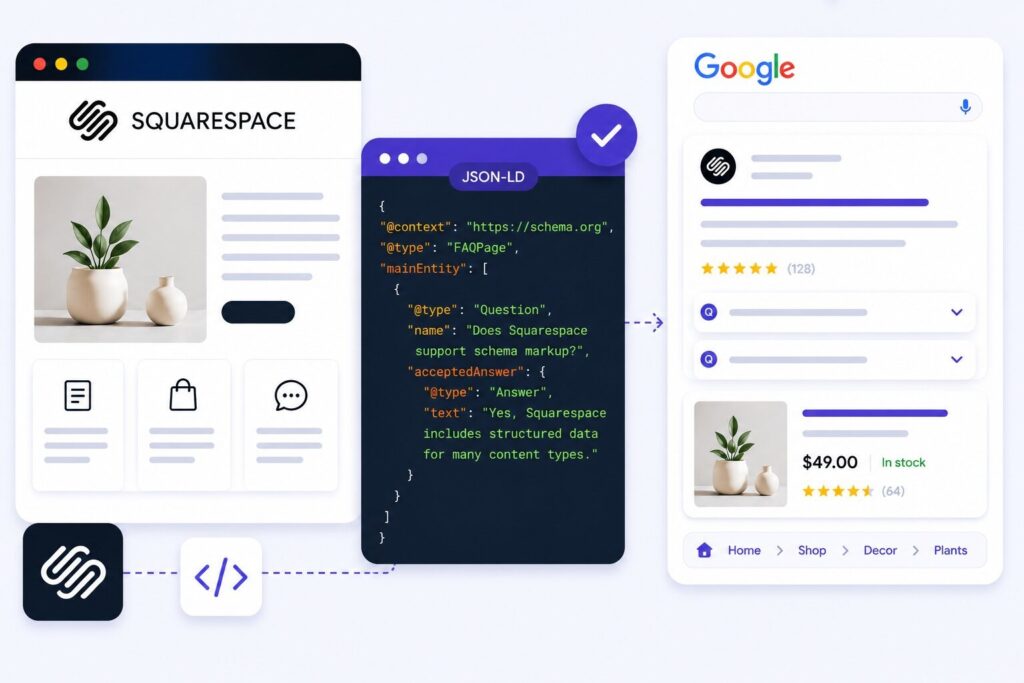
Here is a simple example of an FAQ schema written in JSON-LD format:
<script type=”application/ld+json”>
{
“@context”: “https://schema.org”,
“@type”: “FAQPage”,
“mainEntity”: [
{
“@type”: “Question”,
“name”: “Does Squarespace support schema markup?”,
“acceptedAnswer”: {
“@type”: “Answer”,
“text”: “Yes, Squarespace includes some built-in structured data support for products, blogs, events, and local businesses.”
}
},
{
“@type”: “Question”,
“name”: “Can I add custom JSON-LD schema to Squarespace?”,
“acceptedAnswer”: {
“@type”: “Answer”,
“text”: “Yes, you can add custom JSON-LD schema using Squarespace code injection settings or code blocks.”
}
}
]
}
</script>
This code helps search engines better understand FAQ content on your website and can improve eligibility for rich results in Google Search.
Step 4: Add Schema to Squarespace
Squarespace allows you to add custom JSON-LD through Code Injection settings or Code Blocks, depending on your plan and implementation needs.
- Page Header Injection
- Code Injection settings
- Code Blocks
However, most Squarespace users add schema using page-level header injection because it keeps markup organized and page-specific. After pasting the code, save the page changes.
Step 5: Test Your Schema
After implementation, always validate your structured data. Testing helps you identify:
- Missing fields
- Formatting errors
- Invalid schema types
- Warnings that may affect rich results
This step is important because an invalid schema may not be processed correctly by search engines.
Common Schema Mistakes Squarespace Users Make
Even though schema is easier than ever, some common mistakes still happen.
Adding Duplicate Schema
Squarespace already includes some automatic schema. Adding identical custom markup on the same page may create conflicts. Always check what Squarespace already generates before adding additional schema.
Using the Wrong Schema Type
Some users add FAQ schema to pages without actual FAQ content or use Product schema for service pages. Your schema should accurately reflect visible page content.
Forgetting Required Fields
Certain schema types require important fields like Name, URL, Description, Image, and Price. Missing fields can reduce eligibility for rich results.
Ignoring Validation
Never publish a schema without testing it first. Even small formatting errors can break structured data.
Final Thoughts
Squarespace already gives websites a strong SEO foundation with built-in optimization features and automatic structured data. But if you want more control over your SEO visibility, adding custom Squarespace schema can make a meaningful difference.
The best part is that you no longer need to be a developer to implement JSON-LD markup. With modern schema generators and beginner-friendly tools, adding structured data has become much more accessible.
By using the right schema types, validating your markup, and matching schema to your page content, you can help search engines better understand your website while improving your chances of enhanced search visibility.
FAQs
What is Squarespace schema?
Squarespace schema refers to structured data markup added to a Squarespace website to help search engines understand page content more clearly.
Does Squarespace automatically add schema markup?
Yes, Squarespace automatically generates some schema types, including Product, Article, Event, Organization, and LocalBusiness schema.
Can I add a custom JSON-LD schema to Squarespace?
Yes, you can add a custom JSON-LD schema using code injection settings or code blocks inside Squarespace.
Do I need coding skills to add schema in Squarespace?
No. Many schema generator tools allow you to create JSON-LD markup without writing code manually.
What is the best format for structured data?
Google recommends JSON-LD as the preferred structured data format because it is easier to manage and implement.
Why is schema markup important for SEO?
Schema markup helps search engines understand your content better, which may improve rich result eligibility, visibility, and click-through rates.