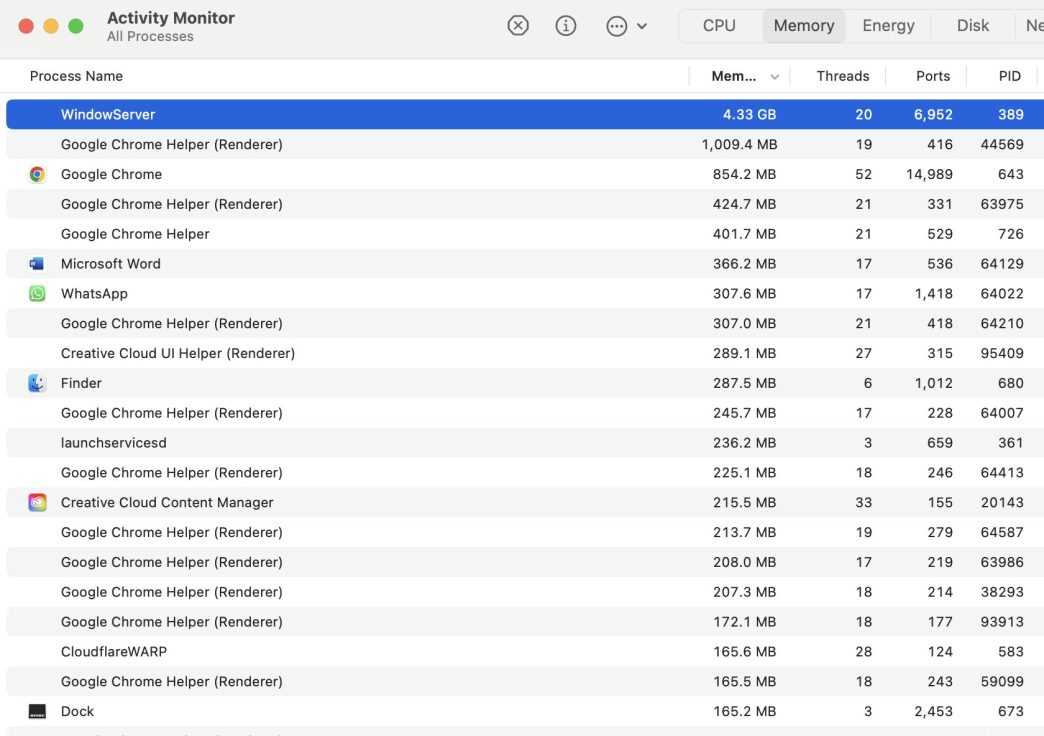
If you’ve opened Activity Monitor on your Mac to investigate a loud fan or a sluggish system, you’ve likely seen a process called WindowServer sitting near the top of the CPU or Memory tabs.
While its name sounds like something related to Microsoft Windows, it is actually a core component of the macOS operating system. Here is a breakdown of what it is, why it becomes a resource hog, and how you can tame it.
What is WindowServer?
WindowServer is the link between your applications and your display. Its primary job is to draw everything you see on the screen. Every time an app wants to display a window, an icon, or an animation, it sends that information to WindowServer, which then renders the pixels and puts them on your monitor.
Key Responsibilities:
-
Window Management: Tracking where windows are placed and which ones are on top.
-
Visual Effects: Rendering transparency, blur effects (like in the Dock or Control Center), and Mission Control animations.
-
External Displays: Managing the resolution and refresh rate of any monitors you plug in.
-
User Interaction: Reflecting real-time changes, such as moving your cursor or dragging a file.
Why is it using so much CPU and RAM?
It is normal for WindowServer to use some resources, but spikes usually occur because the process is being forced to “redraw” the screen too many times per second. Common culprits include:
-
Too Many Open Windows: Each open window requires WindowServer to track its position and content, even if it’s in the background.
-
High-Resolution External Monitors: Driving a 4K or 5K display requires significantly more processing power than a standard laptop screen.
-
Cluttered Desktop: macOS treats every icon on your desktop as a tiny window. If you have hundreds of files on your desktop, WindowServer has to constantly refresh them.
-
Visual Effects: The “Glass” transparency and motion effects in macOS are visually pleasing but computationally expensive.
-
Browser Tabs: Modern websites with auto-playing videos or heavy animations force WindowServer to update the screen constantly.
Solutions to Reduce Resource Usage
If WindowServer is consistently using more than 30% CPU or a massive chunk of RAM, try these steps to optimize your Mac:
1. Declutter Your Desktop
Move files into folders. Since macOS renders every desktop icon individually, reducing 100 icons to 1 folder can instantly drop WindowServer’s CPU usage. You can right-click your desktop and select “Use Stacks” to do this automatically.
2. Disable Transparency and Motion
Reducing the “eye candy” is one of the most effective ways to lower the load.
-
Go to System Settings > Accessibility > Display.
-
Toggle on Reduce transparency and Reduce motion.
3. Close Unused Windows and Tabs
Don’t just minimize apps; Quit them (Command + Q). Also, audit your browser: if you have 50 tabs open, WindowServer is likely working overtime to keep those previews ready in the background.
4. Manage Mission Control Desktops
If you use multiple “Spaces” (virtual desktops), WindowServer has to manage the graphical state of each one. Swipe up with three fingers to enter Mission Control and close any desktops you aren’t actively using.
5. Adjust External Display Settings
If you are using a high-resolution monitor and experiencing lag:
-
Go to System Settings > Displays.
-
Try changing the Resolution from “Scaled” to “Default.”
-
If your monitor supports a high refresh rate (e.g., 144Hz), try dropping it to 60Hz to see if the CPU usage stabilizes.
6. The “Magic” Restart
WindowServer can occasionally suffer from a “memory leak,” where it forgets to release RAM after an app is closed. A simple Restart clears the system cache and resets the process, usually fixing the issue temporarily.